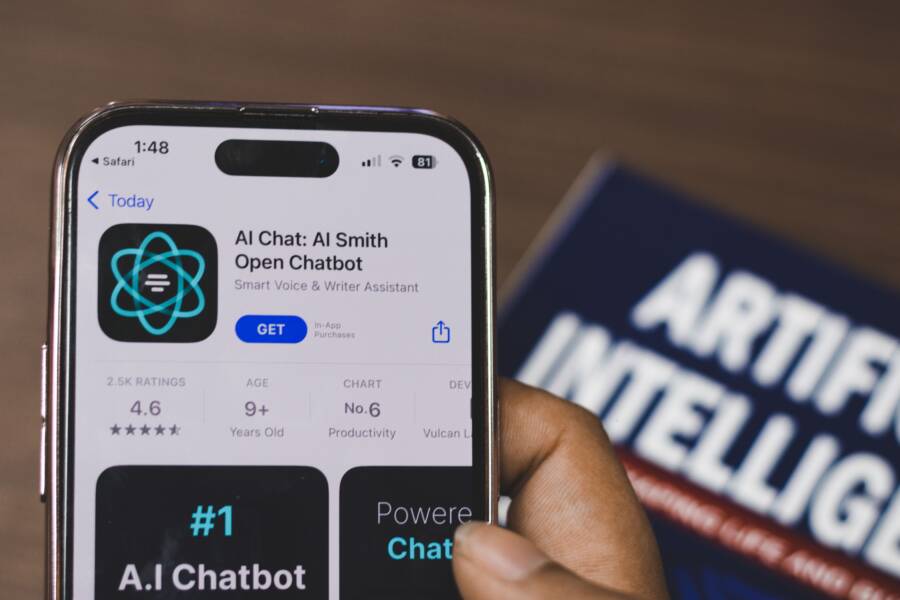
You cannot open your app store because of minor software glitches, network errors, or outdated system files. Most users fix this issue by checking their internet connection, restarting the device, or clearing the app cache.
These basic troubleshooting steps resolve most problems on a modern smartphone. Once you address these common points, your device should reconnect to the store quickly.
Follow the steps below to restore access to your app store and get your phone working again.
Check Your Internet Connection First
A common reason a smartphone fails to open the app store is a faulty network connection. Apps require a consistent data flow to authenticate with store servers. If your signal is weak, interrupted, or restricted, the store may simply hang on a blank screen or show a connection error. Before you change complex settings, test your basic internet access to see if the problem originates there.
Switching Between Wi-Fi and Cellular Data
Refreshing your connection often clears temporary communication errors between your phone and the network. If you rely on a local network, your smartphone might have a stable signal icon while the actual internet path is blocked. Toggling your connection helps the device establish a fresh handshake with the provider.
Follow these steps to cycle your network settings:
Open your device settings and locate the Airplane mode toggle.
Turn on Airplane mode to disconnect all wireless radios instantly.
Wait at least ten seconds to allow the system to clear current session data.
Disable Airplane mode so the phone scans for available networks again.
If the app store still fails to open, navigate to your network settings and turn off Wi-Fi.
Attempt to open the store using only cellular data.
If the app store loads while using mobile data, your home Wi-Fi network is the likely culprit. Conversely, if the store loads on Wi-Fi but not cellular, check your mobile data limits or carrier restrictions. These quick swaps identify where the bottleneck exists.
Troubleshooting Router Problems
Home routers often accumulate small errors that disrupt traffic for specific services. Even if other websites work on your laptop, the app store might struggle because it uses different communication ports or secure connection protocols. Restarting your router clears its temporary memory and forces it to re-establish a clean path to your internet service provider.
You should restart your router when you notice these signs:
Other devices in your home also struggle to load content from the same app store.
You recently experienced a power fluctuation or a sudden internet outage.
The connection remains sluggish after you have already toggled your phone settings.
To perform a proper power cycle, unplug the router from the wall outlet completely. Leave it disconnected for about thirty seconds. This duration allows the capacitors to drain and the internal hardware to reset its state. Plug the power cable back in and wait a few minutes for the status lights to stabilize. Once the network is fully active again, try opening the app store on your smartphone. Many connection issues vanish once the router starts with a fresh configuration.
Simple Software Fixes for Your Smartphone
When your app store refuses to load, software glitches are often the primary suspect. These errors occupy the temporary memory of your smartphone and interfere with basic background processes. Most of these problems require little more than a quick refresh to restore functionality. You can often resolve the situation by addressing the system state, the cache, or individual service permissions.
The Power of a Quick Restart
A restart is the most effective way to clear temporary files and background processes that cause the app store to hang. This process forces your smartphone to reload its operating system and network protocols. While a standard restart is usually enough, a force restart acts as a deeper intervention for unresponsive systems.
A standard restart involves shutting down the software normally. On an iOS device, hold the side button and one volume button until the slider appears, then turn the phone off. Android users typically hold the power button and select the restart option from the menu. This method lets the phone save open data before it powers down.
A force restart skips the shutdown routine entirely. Use this if your screen remains frozen or the app store refuses to respond to taps. For recent iPhones, press and quickly release the volume up button, then the volume down button, and finally hold the side button until the Apple logo appears. On Android, you usually hold the power button for ten to twenty seconds until the device blacks out and reboots. Both methods clear the volatile memory that stores the errors hindering your connection.
Clearing Cache for App Store Services
Your smartphone stores temporary data, known as cache, to help apps load faster. Sometimes, this data becomes corrupted or outdated, which prevents the app store from retrieving current information. Clearing this cache forces the device to download fresh data from the store servers, effectively resetting the connection.
This process is most common on Android devices, where you can manage app data individually. Follow these steps to clear the store cache:
Open your device Settings and tap on Apps or Application Manager.
Find the Google Play Store in your list of installed apps.
Select Storage or Storage and Cache from the app information page.
Tap Clear Cache to remove temporary files.
If the issue continues, tap Clear Storage or Clear Data to reset the app to its original state.
Clearing the cache is safe, but clearing the data acts as a factory reset for that specific app. You might need to sign in again or reconfigure your download preferences after clearing the data. Always try clearing the cache first, as this removes temporary files without touching your settings or account information. If the store remains stuck, clearing the full data provides a clean slate for the service to function again.
Ensuring Your Software Is Up to Date
Outdated software creates a barrier between your smartphone and the app store. Modern applications depend on specific system components to verify identity and communicate safely. When your operating system falls behind, it can no longer provide the support those apps require. Keeping your device current is the most effective way to maintain access to your favorite services.
Why System Updates Matter
System updates include critical security patches that protect your data from external threats. Developers release these updates to close vulnerabilities that attackers might use to gain unauthorized access to your device. If your software is old, the app store may block your connection to prevent potential security risks.
In addition to security, updates include essential API changes. An API, or application programming interface, acts as a bridge for your apps to talk to the store servers. When Apple or Google updates their platform, they often change the language used on these bridges. If your smartphone runs an older version of the operating system, it cannot speak the updated language of the app store. This mismatch forces the store to remain closed until you bridge the gap with a system update.
Correcting Date and Time Settings
Your smartphone relies on an accurate date and time to establish secure connections. Every time you open the app store, your device initiates a secure handshake using an SSL certificate. This certificate proves the store server is legitimate and that your data remains private during transmission.
The SSL certificate has a strict validity window. If your phone clock is set to a date in the past or future, the security certificate will appear expired or invalid to your system. Your smartphone refuses to open the store in this state because it perceives the connection as a security threat.
You can fix this error by adjusting your time settings:
Open your device Settings menu.
Navigate to General or System options.
Select Date and Time.
Enable the option that says Set Automatically or Use Network Provided Time.
Once you toggle this feature, your device syncs with the network to pull the correct global time. If the toggle was already on, switch it off and back on again to force a manual refresh. This small adjustment often clears the certificate error, allowing the app store to open on your smartphone immediately. Verify that your time zone is also correct, as regional differences can sometimes cause these authentication failures.
Advanced Troubleshooting When Nothing Else Works
When common fixes fail, the problem might reside deep within your account authentication or a temporary service blackout. These advanced steps target the digital handshake between your smartphone and the official store servers. If you reach this point, you likely need to refresh your identity or confirm that the service providers are actually operational.
Checking Server Status
Before you spend time resetting your phone, verify if the App Store or Google Play Store is experiencing a widespread outage. Sometimes the issue is not with your hardware but with the service provider. Large companies occasionally deal with server maintenance or unexpected traffic spikes that prevent users from logging in or downloading new content.
You can check the current status of these services using dedicated online tools:
Visit the Apple System Status page or the Google Workspace Status Dashboard on a computer or a second device.
Look for the service labeled as App Store or Google Play.
A green icon indicates that the service is operational.
If you see a yellow or red indicator, the company is already working on a fix for the outage.
If these pages report an active problem, the only solution is to wait. These service interruptions usually resolve within a few hours. Checking these dashboards prevents you from wasting time on unnecessary system resets while the provider fixes the connection on their end.
Signing Out and Back Into Your Account
If the servers are online but your smartphone still refuses to connect, your account credentials might have a synchronization error. Removing your account and logging back in clears the stored token that your phone uses to prove your identity. This process often forces the app store to initiate a fresh connection with your account profile.
Follow these steps to refresh your account connection:
Open the Settings menu on your device.
Select the option for your profile or account settings.
Locate the Sign Out or Remove Account button and confirm your choice.
Restart your smartphone to ensure all temporary authentication data is wiped from the memory.
Go back to the Settings menu and sign in again with your email and password.
Removing your account does not delete your purchased apps or personal files from the cloud. It simply removes the link between your device and the store service. Once you log in again, the phone reconstructs the secure tunnel needed to verify your account status. This action often resolves persistent errors that standard restarts cannot fix.
Conclusion
Most app store issues resolve through simple actions like checking your network, restarting the smartphone, or updating the system time. If the store remains inaccessible after these steps, verify that your account credentials are correct and that the service provider is not experiencing an outage.
Hardware problems or deep system errors are rare causes for this behavior. If your device still refuses to open the store, contact official customer support for your specific model. They can provide diagnostic tools to help restore full functionality to your phone.