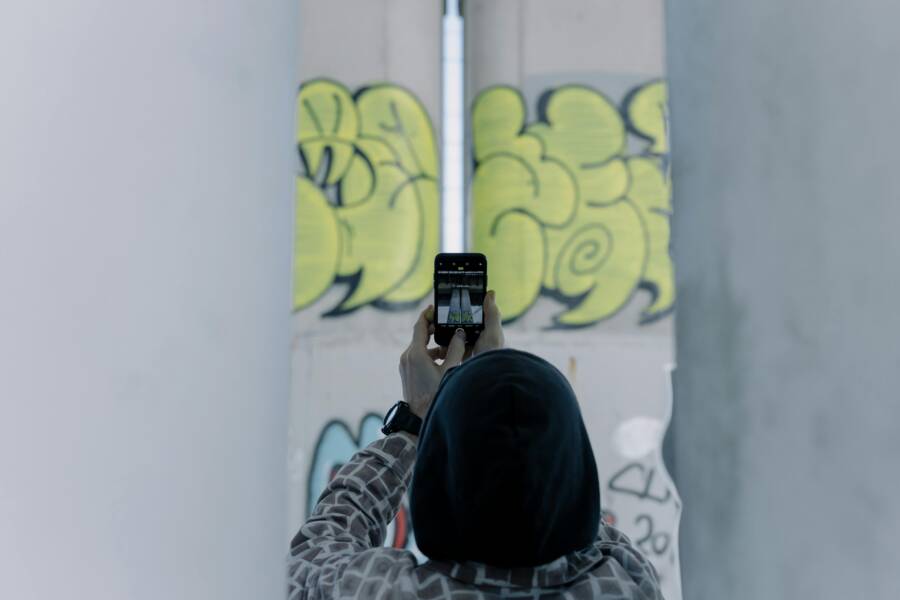
You can fix dark, underexposed photos by adjusting exposure, shadows, and brightness settings within your smartphone editing apps. Poor lighting conditions often cause these issues, but modern software offers enough control to rescue your images without needing a professional camera.
Editing your photos on a mobile device is a practical way to recover hidden details in minutes. The following sections provide simple steps to improve your shots and ensure every image looks its best.
Understanding Why Your Smartphone Photos Look Dark
Many photos appear dark because the automatic settings on your smartphone struggle to interpret complex lighting. While modern devices feature sophisticated software, they still rely on physical sensors to capture light. When these sensors receive insufficient information, the image results in an underexposed, murky appearance. Recognizing the common sources of these issues helps you correct them during or after the shot.
Common Causes of Underexposure
Several environmental factors often trick your camera system into miscalculating the light. Most underexposure issues occur when the scene has high contrast or limited available light.
- Shooting into a light source, such as the sun or a bright window, forces the camera to adjust for the brightest point in the frame. This action causes the rest of the scene to fall into deep shadow.
- Small sensors inside a smartphone face physical limits in dim rooms. These sensors lack the surface area to gather enough light compared to a large dedicated camera, leading to dark images with potential grain or noise.
- Accidental exposure settings occur when you tap a dark area on your screen to focus. The phone then calculates light levels based on that dark spot, often causing the bright areas of your image to wash out or the overall frame to become overly dark if the meter resets.
Environmental conditions dictate how the camera handles light. If your surroundings are dark, the software tries to balance the output to avoid noise, which often results in an underexposed photograph.
The Difference Between Brightness and Exposure
Adjusting your photo requires a clear understanding of the tools at your disposal. People often confuse brightness with exposure, but these settings perform different tasks within your editing app.
Exposure refers to the actual amount of light captured by the sensor. When you adjust the exposure slider, you modify the data recorded during the shot. Increasing exposure brings back lost details in shadows and mid-tones by telling the software to treat the image as if more light hit the sensor. This is usually the best first step for a truly dark image.
Brightness, in contrast, applies a flatter adjustment across the entire image. It often lifts the mid-tones without addressing the true dark or light points. If you only increase brightness, your photo may look washed out or gray because it fails to recover the depth found in true exposure adjustments.
Use exposure to fix the foundation of your image first. Once the light levels look natural, you can use brightness or contrast to refine the final aesthetic. This approach ensures your image maintains its intended mood while revealing the details you want to highlight.
Essential Editing Tools for Light Adjustment
Correcting dark images relies on understanding how your editing software processes light data. Every modern smartphone provides a set of sliders that interact with the original image file. You can restore visibility to hidden details by adjusting these settings in a logical sequence. Start with the overall exposure to set the foundation before you address specific dark or light regions.
Mastering the Exposure and Shadows Sliders
The exposure slider acts as your primary tool for overall light correction. Increasing this value lifts the entire image by brightening pixels across the spectrum. You should move this slider slowly to avoid blowing out the bright spots in your scene. If the overall frame looks better but dark areas remain hidden, it is time to use the shadows tool.
Follow these steps to recover detail properly:
- Adjust the exposure slider until the mid-tones in your photo look natural and clear.
- Observe the bright areas to ensure they do not become white or lose their texture.
- Switch to the shadows slider and increase its value to pull details out of the dark corners.
- Stop adjusting when the texture in those dark areas becomes visible without making the image look muddy.
This method keeps your highlights intact while revealing content that was previously lost to darkness. The shadows slider specifically targets the darker parts of your file, which makes it effective for rescuing silhouettes or indoor shots.
Using Highlights and Contrast for Balance
Raising the shadows often leaves a photo looking flat because it reduces the difference between light and dark tones. You can restore the depth of your image by managing highlights and contrast settings carefully. If your smartphone software lacks a dedicated contrast slider, you can achieve a similar effect by pulling the blacks down slightly.
Control your highlights to keep bright parts of the image natural. If the sky or a light source appears too intense after you increase the overall exposure, pull the highlights slider to the left. This action preserves detail in the bright areas and stops them from appearing as flat white patches.
Use contrast to finish the process. Adding a small amount of contrast helps pop the colors and defines edges that look soft after you lift the shadows. Do not overdo this step, as too much contrast quickly hides the details you just recovered. Your goal is to reach a balanced state where the subject stands out against the background and the light looks natural to the human eye.
Step-by-Step Workflow for Fixing Dark Images
Fixing an underexposed photo requires a systematic approach to protect the quality of your digital file. When you edit a smartphone photo, each adjustment changes how the software interprets the image data. Following a specific order prevents common issues like posterization, where colors lose their smooth transitions, and unnecessary grain. Start with structural changes before moving to fine-tuned artistic adjustments.
The Order of Operations for Natural Results
You should follow a logical sequence to maintain the integrity of your image pixels. Editing in a random order often forces you to undo previous work because one slider affects the visibility of another. This workflow keeps your editing process efficient and clean.
- Crop or straighten your photo first to set the final frame. This step removes unwanted edges that might distract your eyes from the light levels.
- Adjust global exposure to bring the entire image to the target brightness. This base level ensures you aren’t fighting against dark tones later in the process.
- Apply local shadow recovery to lift details in dark areas without affecting the highlights.
- Perform minor color corrections last. Once the light levels look correct, you can adjust white balance or saturation to match your vision.
This order is important because large exposure shifts change how the smartphone processor perceives noise. If you adjust color first, a later change in exposure might make your skin tones or background colors look artificial or harsh. By setting the light foundation early, your final color adjustments remain stable and accurate.
Dealing With Noise and Grain in Low Light
Digital noise appears as tiny, multicolored specks in the dark regions of your photo. This happens when you force a small sensor to record light that simply isn’t there. You will notice this graininess most often after lifting the shadows significantly. While you cannot completely remove the physical limitations of your camera, you can hide these artifacts effectively.
Most smartphone editing apps include a noise reduction slider. Use this tool gently to smooth out the grainy textures without turning your photo into a blurry painting. A little bit of texture is often better than a perfectly smooth, plastic-looking image. If your app lacks specific noise tools, lowering the sharpness or clarity sliders can mask the appearance of grit.
You might also consider applying a subtle black-and-white filter if the noise becomes too distracting. Removing the color information hides the multicolored speckles, which often makes grain look like classic film texture rather than a digital error. Only use this as a final resort when the original photo has too much noise to recover.
Advanced Techniques for Difficult Photos
Sometimes, global adjustments affect parts of your image that you want to leave alone. When you boost exposure to rescue a dark subject, the background often becomes washed out or noisy. Smartphone software provides specific tools that allow you to target individual areas without changing the entire frame. These methods provide better control over your final result.
Using Selective Editing for Specific Dark Areas
Selective editing is the most accurate way to balance lighting in high-contrast scenes. Instead of applying one change to every pixel, you isolate the dark parts of the photo. Most modern smartphone apps include brush tools or radial filters that perform this task with precision. You save the background from overexposure while keeping your main subject clear and visible.
Brush tools offer the most freedom because you paint the light exactly where you need it. You can zoom in on a face or a dark object to brighten only those specific pixels. This is helpful when the subject sits in shadow while the rest of the scene has adequate light. Adjusting the brush size and softness helps you blend the edges naturally so the edit remains invisible.
Radial filters provide a different approach by focusing on a circular region. You place the circle over the subject and adjust the settings inside that area. The software automatically applies a gradient, which makes the transition from the brightened subject to the natural background smooth. This tool works well for portraits or centered objects that need a subtle boost in exposure.
You should follow these tips to get the most out of selective tools:
- Zoom in close when using the brush tool to avoid spilling light onto the background.
- Keep the feather or softness setting high to ensure the edit blends into the surrounding area.
- Use the undo button frequently if you accidentally brighten the wrong part of the image.
- Check your work by toggling the original photo on and off to compare the results.
These selective techniques ensure your smartphone images maintain a natural look even when the original lighting conditions are poor. You gain the ability to fix mistakes without ruining the overall composition of your shot. Mastering these tools prevents that flat, artificial look that often happens with automated filters.
Frequently Asked Questions About Photo Editing
People often have similar concerns when they start editing photos on their mobile devices. These common questions address typical struggles and help clarify how to get the most out of your smartphone tools.
Can I fix a blurry photo using editing apps?
Editing apps improve light and color, but they cannot fix poor focus. If your subject appears soft or blurry because the camera missed the focus point, no amount of exposure adjustment will make it sharp again. You might sharpen an image slightly to give the illusion of detail, but this often introduces unwanted artifacts. The best approach is to check your focus before you snap the picture.
Why do my photos look grainy after I brighten them?
Grain, or digital noise, appears when you force a small sensor to record light in a dark environment. When you lift the exposure or shadows in an editing app, you amplify these existing noise patterns. You can reduce this look by using a noise reduction tool or lowering the clarity setting. If the grain remains heavy, try converting the image to black and white to make the texture look intentional.
Will editing a photo lower its original quality?
Every time you save a JPEG file, the software compresses the image data slightly. This process causes minor quality loss over time. You should avoid saving and re-saving the same photo repeatedly. Most modern editing apps on your smartphone keep the original file intact and create a new version of your edit. This method allows you to revert to the original if you are unhappy with your changes.
Is it better to shoot in bright light or edit later?
Good lighting at the moment of capture is always superior to fixing a dark photo later. A well-lit scene contains more data, which gives you much more freedom to edit without losing image quality. Use editing tools to refine the mood or fix minor exposure errors rather than relying on them to rescue a completely dark or unusable shot.
What should I do if my colors look strange after editing?
Colors often shift when you make aggressive changes to exposure or shadows. You can fix this by checking your white balance settings. Adjust the tint and temperature sliders to bring the colors back to a natural state. Sometimes, simply reducing the intensity of your initial edits will restore the balance and prevent the colors from looking artificial.
Conclusion
Fixing dark photos on your smartphone requires a balance between light adjustment and noise management. Start with global exposure to set your foundation, then move to shadow recovery to reveal hidden details.
Practice is the only way to find what works for your specific shots. Every scene is unique, so experiment with your app settings to see how different combinations affect your final image.
Good edits keep your photos looking natural rather than artificial. Keep shooting and adjusting until you find your signature style.