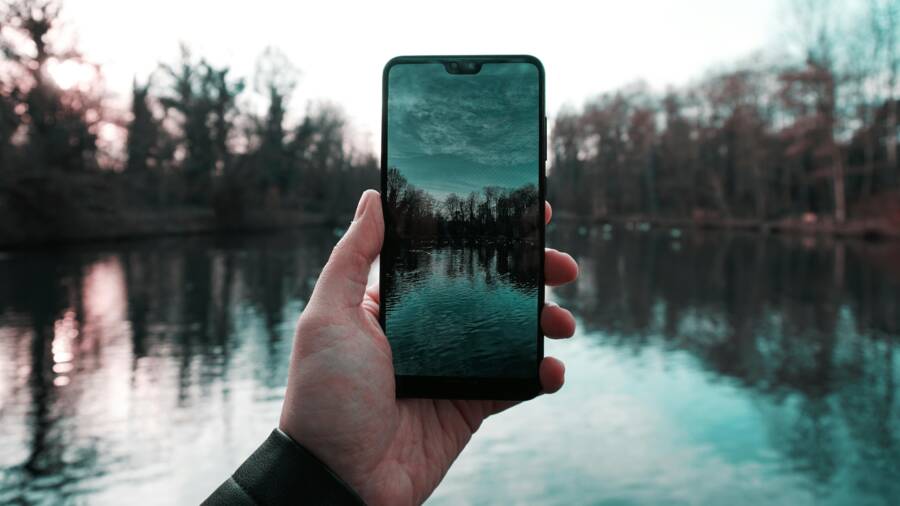
Perfect photos require good framing and precise horizon alignment. You don’t need expensive software to fix a tilted shot or an awkward composition because your smartphone already has all the tools you need for professional results.
These built-in features help you remove distractions and level your images in seconds. Master these settings to ensure your photos look sharp and balanced every time you press the shutter.
Let’s look at how you can adjust your images using only the tools on your device.
Why Proper Cropping and Straightening Makes a Difference
Editing photos on your smartphone goes beyond adding filters or adjusting brightness. The most professional changes often happen when you improve the basic geometry of an image. Cropping removes unnecessary distractions and draws attention to your main subject. Straightening fixes alignment errors that distract the viewer. Together, these edits transform a casual snapshot into a polished image.
The Importance of Visual Balance
Visual balance refers to how elements within a frame occupy space. Without proper balance, a photo feels cluttered or confusing. Cropping allows you to remove edges that do not contribute to your story. It brings your subject into focus by eliminating dead space around the perimeter.
Many photographers use the rule of thirds to achieve this balance. This concept divides your screen into a grid of nine equal rectangles using two horizontal and two vertical lines. Placing your subject along these lines or at their intersection points creates a more engaging composition than placing the subject dead center.
If your original photo has a messy background, you can use a tighter crop to isolate your subject. This technique makes the subject pop and guides the eyes exactly where they should look. Your smartphone interface typically provides a grid overlay while you crop, which makes applying the rule of thirds simple even when you are on the move.
Fixing the Horizon for a Natural Look
A crooked horizon line causes immediate visual tension. Humans naturally associate horizontal lines with stability and calmness. When you tilt an image of a landscape, that sense of security vanishes. The viewer feels a subconscious urge to tilt their head to level the scene, which creates a negative experience.
This problem is common when you hold your smartphone at an angle while shooting quickly. A slight slant can turn a beautiful beach or mountain range into a disorienting image. By using the straightening tool in your gallery app, you can rotate the photo until the horizon sits perfectly flat.
Straightening also helps you align vertical elements like buildings or trees. If these objects tilt, the entire structure of the photo looks unstable. Correcting these lines restores order to your shot. Most modern smartphones display a degree counter or a grid while you rotate, giving you the precision needed for professional alignment. Taking a few seconds to level your photos ensures that the final result feels grounded and intentional.
Mastering the Crop Tool on Your Smartphone
Effective editing starts with how you frame the final image. Most smartphone users overlook the power of the cropping tool, yet it remains the fastest way to improve a composition. You can remove unwanted elements, fix poor framing, and draw focus toward your main subject with just a few taps. Getting this right takes practice, but the following techniques simplify the process.
Removing Distracting Objects at the Edges
Peripheral clutter ruins otherwise great photos. Stray fingers, trash cans, or unintended people often linger near the borders of a frame. These objects draw the eye away from your subject and create unnecessary noise. You should inspect the edges of your image before saving any edit.
If you see an object that adds no value, use the crop handles to trim it out. Focus on the core story of the image. Ask yourself if the background element provides helpful context or if it simply acts as a distraction. When in doubt, crop it out.
Sometimes you cannot remove an object without losing important parts of your subject. In these cases, try a different crop ratio to change the overall composition. Adjusting the frame slightly can hide small items behind your subject or move them outside the view entirely. Remember that you want the viewer to find your subject immediately. If their gaze wanders to a bright sign or a blurry limb on the edge of the frame, you have left too much in the shot.
Choosing the Right Aspect Ratio for Social Media
Modern smartphone editing tools allow you to change the shape of your image instantly. Different social media platforms prefer specific dimensions, and selecting the right one makes your content look intentional. A mismatched ratio often leads to ugly cropping by the app itself, which can cut off heads or important details.
Consider these common formats when preparing your photos:
- Use a 4×5 ratio for standard Instagram posts because it occupies more vertical screen space than a landscape shot. This format is the gold standard for portrait photography and street scenes.
- Choose a 9×16 ratio for Instagram Stories or TikTok content. This fills the entire vertical screen of a mobile device and provides a full-screen experience for the viewer.
- Select a 1×1 square ratio if you want a clean, classic aesthetic that works across multiple platforms without layout changes.
Your smartphone gallery app usually lists these ratios under the crop or aspect icon. Selecting one forces you to think about how your subject fits into that specific space. You might find that a photo shot horizontally needs a tight vertical crop to function well on social media. Making these choices before you upload keeps your feed looking professional and consistent.
How to Straighten Your Photos Like a Pro
Precise alignment transforms a mediocre snapshot into a professional image. When the horizon line is crooked, the viewer feels disoriented, which ruins the impact of your subject. You can fix these errors using the built-in editing features on your smartphone. These tools provide the precision needed to level your shots without requiring third-party software.
Using the Built-in Gridlines as Your Guide
Gridlines act as your primary reference for alignment. Most camera applications include a setting to overlay a grid on your screen while you compose a shot. You can usually find this in your settings menu under labels like Grid or Composition. Enabling this feature helps you line up the horizon with a horizontal bar before you press the shutter button.
If you already captured the photo, your editing interface likely offers an additional grid. When you open your image and select the crop or rotate tool, a grid appears over the frame. Use the horizontal lines as a reference for flat surfaces like floors, shorelines, or building foundations.
Follow these steps to improve your alignment:
- Open your image in the gallery app and tap the Edit button.
- Select the Crop and Rotate tool to reveal the grid overlay.
- Align the horizon or vertical structures with the grid lines.
- Drag the rotation dial until the lines match perfectly with your subject.
The grid gives you a visual baseline that makes slight tilts obvious. If your subject includes buildings, align the vertical grid lines with the edges of the walls. This creates a stable appearance that feels balanced to the human eye.
Handling Extreme Angles and Perspective Correction
Sometimes you want to capture a tall building or a grand landscape from a low angle. Taking these photos often results in skewed vertical lines where the structure appears to lean backward. This effect occurs because your smartphone lens captures perspective distortion based on your physical distance and the angle of the device.
Many modern editing suites include a perspective tool designed to fix this geometric distortion. You can use this feature to pull the corners of your image independently. Adjusting these points allows you to straighten the sides of a building so they appear parallel to the frame edges.
You should use this tool cautiously to avoid making your subject look thin or stretched. Start by adjusting the vertical perspective, then use the horizontal slider if the image feels skewed from left to right. Once you achieve a natural look, review the composition to ensure you did not crop out essential parts of the structure during the adjustment. These manual corrections recover the scale and proportions of architecture, giving your mobile photography a clean, professional aesthetic.
Common Mistakes and How to Avoid Them
Even the best photographers occasionally make errors during the editing process. Small missteps can change the tone or quality of an image on your smartphone. By identifying these patterns early, you can keep your photos looking clean and intentional.
Avoiding the Over-Cropping Trap
Cropping is a useful tool, but zooming in too far often hurts the final result. When you crop a photo, you remove pixels from the original file. This process forces the smartphone to stretch the remaining pixels to fill the frame. As you push the zoom further, the image loses clarity and sharpness.
Small details such as hair, fabric textures, or distant foliage start to look muddy or pixelated. High-contrast edges might develop a jagged appearance that ruins the polish of the shot. If you find yourself cropping deep into the frame, try to step closer to your subject when you take the photo next time.
Digital zoom and aggressive cropping are not substitutes for proper framing. If you have to crop away more than half of the image area, the quality loss will likely be visible on modern smartphone screens. Keep as much original data as possible to maintain a crisp look. Save the heavy cropping for cases where you need to salvage a composition that is otherwise unusable.
When to Keep the Natural Tilt
Straightening every single line in a photo is not always the best choice for street photography or artistic portraits. A perfectly level image feels calm and static, but sometimes that stability works against the energy of your scene. A slight, deliberate tilt can add a sense of motion or urgency to a street photo.
This technique works well when you capture subjects in motion, such as people walking, cyclists, or busy urban life. The angle suggests that the photographer captured a quick, candid moment rather than a posed studio shot. You can also use a tilt to emphasize the steepness of a hill or the height of a towering structure.
Before you force a level horizon on every image, look at the subject. If the tilt feels awkward or unintentional, use your smartphone editing tools to fix it. However, if the slant adds a dynamic flow to the composition, keep it as an artistic choice. Your goal is to use geometry to support the mood, not to follow a rigid rule that strips the personality from your work.
Conclusion
The tools for cropping and straightening are standard on every smartphone. You possess the power to refine your images and improve their balance without needing external software.
Open your gallery app during your next photo session to practice these techniques. Applying these minor adjustments ensures your images feel intentional, sharp, and polished.