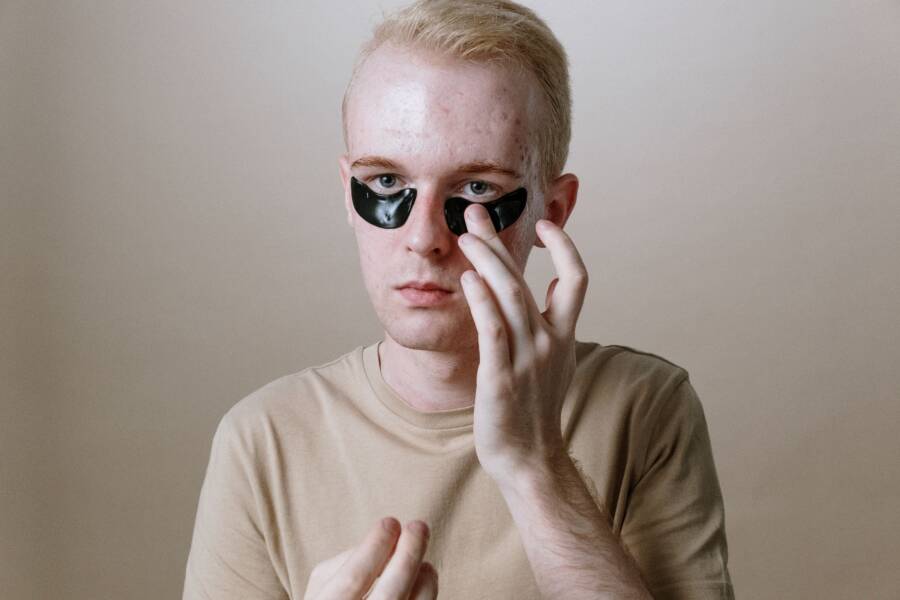
Most phones already have built-in tools for red eye removal and skin tone correction, so you can fix common portrait issues without extra apps. If the photo is well lit and not heavily blurred, the results are usually much better, especially on a modern smartphone.
A few quick edits can make a selfie or group shot look cleaner, more natural, and more polished. The key is knowing which built-in controls to use, and how far to push them so the photo still looks like a real person.
The steps below show how to handle both quick fixes and better portrait edits with tools you likely already have on your phone.
What built-in photo tools can actually fix in a portrait
Modern smartphone camera software handles much of the heavy lifting before you even open your editor. When your raw shot misses the mark, you have a solid set of native tools to pull a quality image out of a problematic file. These features perform best when you understand exactly what they adjust and how they influence the final image.
Red eye, color casts, and skin tone are not the same problem
Each of these issues stems from a different cause, so they require specific fixes. If you attempt to solve a lighting problem with a color tool, you will likely make the image worse.
- Red eye occurs when a camera flash reflects off the retina inside the eye. It is almost always a byproduct of the hardware flash firing in low-light conditions.
- Color casts appear when the white balance settings of your smartphone fail to account for the surrounding light source. You might notice your photos looking too blue in the shade or too yellow under old light bulbs.
- Skin tone issues often relate to contrast or overexposure. If the light source is too harsh or hits the subject at an awkward angle, the skin may look washed out or unnaturally dark.
Fixing these separately helps you maintain control over the photo. Always handle white balance first because correcting colors often brings skin tones back to a natural state on their own. Once the colors look correct, you can use exposure sliders to brighten shadows without blowing out the highlights. Identifying the root cause before you start moving sliders saves you from wasting time on ineffective adjustments.
Why your phone’s built-in editor is often enough
You rarely need third-party software for everyday touch-ups. Smartphone manufacturers integrate high-quality editing suites directly into the gallery app, providing everything necessary for social media, family albums, or professional profile pictures.
Using the built-in editor offers several practical advantages:
- Speed: You avoid the delay of importing images into another app or waiting for cloud uploads.
- Privacy: Your files remain on your device and are never sent to external servers for processing.
- No extra storage: You save space by avoiding redundant apps that often replicate features you already have.
- Reliability: These tools are optimized for the specific image format your camera produces, which results in fewer glitches during the save process.
Modern camera apps provide refined sliders for warmth, tint, highlights, and shadows. These controls are usually powerful enough to fix 90 percent of common portrait errors. By mastering the native tools, you can polish your photos in seconds while keeping the editing process simple and fast.
How to remove red eye using the tools already on your phone
Removing red eye is a simple task once you locate the correct setting on your smartphone. Most modern devices include dedicated repair features that fix these flashes instantly. You do not need professional software or technical skills to achieve a natural result.
Open the photo and look for the repair or portrait edit tool
To begin, open the photo containing the red eye effect in your default gallery app. Tap the Edit button, which usually appears as a pencil icon or a series of sliders. Look for a section labeled Tools, Adjust, or Retouch. Some manufacturers tuck these functions under a heading like Portrait Enhancements or Automatic Fixes.
If you cannot find a dedicated red eye icon, scan the menu for a tool shaped like an eye or a bandage. Some smartphones use artificial intelligence to detect red eye automatically when you open the edit screen. If a small icon appears over the eyes, tapping it often triggers a prompt to fix the color immediately.
Tap each red eye carefully and check the before and after
Once you activate the repair tool, use two fingers to zoom in closely on the subject’s face. Precision is important because you want the software to target only the pupils. Tap directly on each red eye to replace the bright flash color with a natural, dark shade.
Check your progress by holding down on the photo to see the original version. This allows you to compare the change against the unedited image. A quality fix should leave the eye looking dark and clear, not flat or artificially black. If the correction looks too heavy, check for an intensity slider that allows you to soften the effect for a more subtle finish.
What to do if the red eye tool is missing or does not work well
Not every phone includes a specific red eye filter. If your software lacks this feature, you can still improve the appearance of the photo using standard adjustments. Lowering the exposure slightly or decreasing the brightness can make the red flash less obvious.
You can also use the warmth or saturation sliders to neutralize the bright color. Shift the warmth setting toward the blue side if the red is particularly harsh. Sometimes, a tighter crop that removes excess dark space around the subject makes the eyes appear more natural and draws attention away from the flash.
If the photo still looks off, consider accepting a small flaw rather than over-editing the image. Heavy corrections often make skin textures look blurry or plastic, which usually ruins the portrait more than the red eye itself. A natural photo with a minor technical error is better than a highly processed image that looks fake.
Simple ways to make skin tone look better without overediting
Improving skin tone on your smartphone is mostly about balance rather than heavy processing. Overedited photos often look flat, rubbery, or oddly colored because software tries to guess what skin should look like. You can achieve professional results by using subtle adjustments that keep natural texture intact.
Fix the lighting first with brightness and white balance
Lighting issues are the primary cause of skin tone problems. Poor light sources can cast a gray, orange, or green tint over your face, making your complexion appear tired or unhealthy. Your smartphone camera software tries to compensate for this, but it often fails in mixed lighting.
Start your edit by adjusting exposure to ensure the subject is bright enough. If the skin looks washed out, lower the highlights slightly to recover missing detail. Next, check the white balance using the warmth and tint sliders.
- Warmth: Move this toward yellow if the skin looks too blue or pale. Shift it toward blue if the image has an orange, indoor glow.
- Tint: Use this to cancel out green or magenta casts. If your skin looks sickly or green, move the tint slider toward magenta.
Keep these adjustments small. Moving a slider more than five or ten percent usually pushes the image into unnatural territory. You want to correct the light, not change the person’s natural color.
Use portrait or retouch tools with a light touch
Most smartphones include built-in smoothing or beauty tools designed to hide imperfections. While these features seem helpful, they often remove skin texture and make the face look like plastic. A high-quality photo retains pores, freckles, and natural lines.
If you choose to use these tools, start at zero and increase the intensity slowly. Stop as soon as you notice the skin texture starting to disappear.
- Apply the minimum amount of smoothing necessary to reduce visible harshness.
- Zoom in to check the eyes and mouth. If these areas look blurred, your smoothing intensity is too high.
- Remember that a good edit highlights features rather than erasing them.
Your goal is a clean look that remains authentic. If the edit makes you look like a different person, back off the settings. A light touch provides a polished appearance while ensuring the subject still looks real in the final result.
Match skin tone across the face, neck, and hands
Uneven lighting often results in different skin tones within the same frame. For example, a bright light source might hit your forehead while leaving your neck in shadow. This inconsistency distracts the eye and makes the final portrait look messy.
Look at the entire image instead of focusing only on the face. Check if the hands or neck look significantly darker or a different color than the cheeks. If they do, use your phone’s selective adjustment brush, if available, to brighten those specific areas.
If your smartphone lacks a selective brush, prioritize a balanced look across the whole image rather than perfecting just one part. Compare your current progress with the original photo frequently. Toggle the comparison view on and off to confirm that your changes are improving the photo. Save your work only when the skin tone appears consistent from the top of the frame to the bottom.
Use built-in tools in the right order for the cleanest result
Achieving professional results on your smartphone requires a structured approach to the editing process. Many users jump directly into color correction, but starting with structural adjustments yields better clarity and keeps your images looking authentic. By following a logical sequence, you prevent errors and minimize the need for heavy, artificial-looking fixes later on.
Start with crop, straighten, and exposure before color fixes
Begin your edit by framing the shot correctly. A precise crop removes distractions from the background and centers the subject, which immediately draws attention to the face and eyes. Proper framing often improves the overall feel of a portrait more than color adjustments ever could.
After cropping, straighten the horizon or the subject if the camera was held at an angle. Then, adjust the basic exposure to ensure the lighting is even. When you fix brightness first, you gain a clear view of the skin tones and red eye effects. This logical order prevents you from correcting a color cast that might actually be a symptom of incorrect lighting or exposure levels.
Make small color changes instead of heavy filter changes
Avoid the temptation to apply heavy, pre-set filters to your images. These filters often shift skin colors into artificial hues, which can make red eye removal software struggle to identify the correct areas. Stick to manual adjustments if you need to refine the look of your smartphone photo.
Gentle tweaks to warmth and tint sliders keep the portrait looking natural. You can certainly use built-in filters for a specific artistic look, but apply them at a low intensity. A subtle touch maintains the texture and depth of the skin, whereas strong filters often flatten the image and create an unnatural, plastic appearance.
Zoom in, review the whole face, and save a copy
Before you finish your editing session, take a moment to perform a final inspection. Zoom in to check the clarity of the eyes, the consistency of the skin tone, and the sharpness of the teeth. Compare your edited version with the original image by toggling the view frequently, as this reveals if you have pushed any adjustments too far.
Always save your progress as a copy rather than overwriting the source file. This habit protects your original photo and allows you to revert to it if you notice an error later. By keeping a safe backup on your smartphone, you can experiment freely with different looks without the risk of losing the source material permanently.
Common mistakes that make portraits look fake or uneven
Editing a portrait on your smartphone often feels simple until the final result looks artificial. Many users accidentally cross the line between a polished photo and a distorted one. Small, technical errors are usually the culprits behind that plastic or off-balance look. By avoiding these common traps, you can keep your images looking professional and authentic.
Overusing skin smoothing and beauty filters
Most smartphone apps include aggressive beauty filters that aim to wipe away skin imperfections instantly. These tools often remove pores, fine lines, and natural skin texture. When you lose this detail, the skin appears flat, rubbery, or like smooth plastic. A person loses their natural character when their face becomes an featureless surface.
You should view texture as a positive feature rather than a flaw. It provides depth and realism to every portrait. A good rule of thumb is to apply changes in small increments. Start at zero and increase the intensity slowly until you see the texture begin to disappear. Stop immediately once the skin looks uniform but still retains its natural grain. Subtle adjustments almost always look better than heavy, automated corrections.
Fixing red eyes but forgetting the rest of the image
Repairing red eye is a quick win, yet it often creates a new problem if you stop there. A photo requires a consistent balance across every element to appear natural. If you fix the eyes but ignore an incorrect background color or an odd skin tint, the subject will stand out in an unappealing way. Your audience will likely notice that the eyes look perfect while the rest of the lighting remains messy.
Always check the entire frame after performing a local edit on the eyes. Ensure the background light matches the warmth of the skin tone. If the subject looks sharp but the environment looks cold or dim, the edit will appear disjointed. A balanced image relies on your ability to make the lighting and color look uniform from edge to edge.
Pushing warmth, saturation, or contrast too far
Extreme settings turn realistic photos into distorted caricatures very quickly. Pushing the warmth slider too far makes skin look orange or muddy. Similarly, excessive contrast often creates harsh, dark shadows that look unnatural on human faces. These settings should only change the image slightly to correct for poor camera lighting.
Think of your edits as a light dusting of powder rather than a coat of paint. You want to enhance the existing colors, not replace them with a generic filter. The most successful edits are often the ones that observers do not notice at all. If a person asks if you used a heavy filter, you have likely pushed your settings too far. Keep your adjustments minimal to ensure the final result reflects the reality of the moment.
When built-in tools are enough, and when you may need more help
Your smartphone software handles most common portrait issues without needing extra applications. Deciding when to stick with native editors and when to seek advanced software depends on your goals and the condition of the original image.
Good use cases for default phone editors
Default editors work perfectly for everyday tasks where you want a natural result quickly. If you need to share a quick selfie, family portrait, or social media post, native tools offer the speed and simplicity you need. These built-in options are designed for minor touch-ups rather than complete overhauls.
You should use your default gallery app when:
- You want to fix red eye in a casual family photo.
- You need to adjust the brightness of a profile picture.
- You seek to improve skin tones in a standard portrait.
- You want to avoid the time-consuming process of importing files into another app.
The primary goal of a smartphone editor is to provide an immediate, polished look. It is often the fastest option for images that are mostly correct but need a slight boost in quality. If you want a clean, recognizable photo without spending ten minutes on manual adjustments, stay within your phone camera settings.
Signs the photo needs a different image or a stronger editor
Sometimes, your built-in tools cannot save a photo because the underlying issues are too significant. If the image is extremely blurry, poorly focused, or heavily underexposed, software adjustments often create artifacts or digital noise. Applying heavy filters to a damaged file frequently ruins the skin texture and makes the subject look like a painting.
Look for these signs that your photo may be beyond basic repair:
- The subject’s face is completely out of focus or soft due to motion blur.
- The lighting is so dark that the sensor captures heavy grain or static instead of detail.
- The flash caused white glare on the skin that completely erases facial features.
- The composition is cut off, or key parts of the person are missing from the frame.
When you notice these flaws, the most effective solution is usually to retake the picture in better lighting. No amount of editing software can recreate details that the camera never captured. If you consistently find that basic sliders fail to fix your portraits, you might need to evaluate your shooting environment. While third-party professional applications offer more granular control, they cannot fix a photo that lacks the necessary light and focus to begin with.
Conclusion
Effective photo editing on your smartphone relies on a clear order of operations. Always address red eye removal first, as this fixes specific flash artifacts. Make skin tone adjustments second using minor tweaks to warmth and tint sliders. Keep your edits natural by stopping the moment texture begins to fade.
Built-in tools provide more than enough power for most portraits when you stay patient and observe changes closely. Subtle shifts yield professional results without the need for additional software.
Test this approach by opening your most recent portrait. Apply the red eye fix first, then lightly adjust the warmth to see how much more balanced your photo looks immediately.