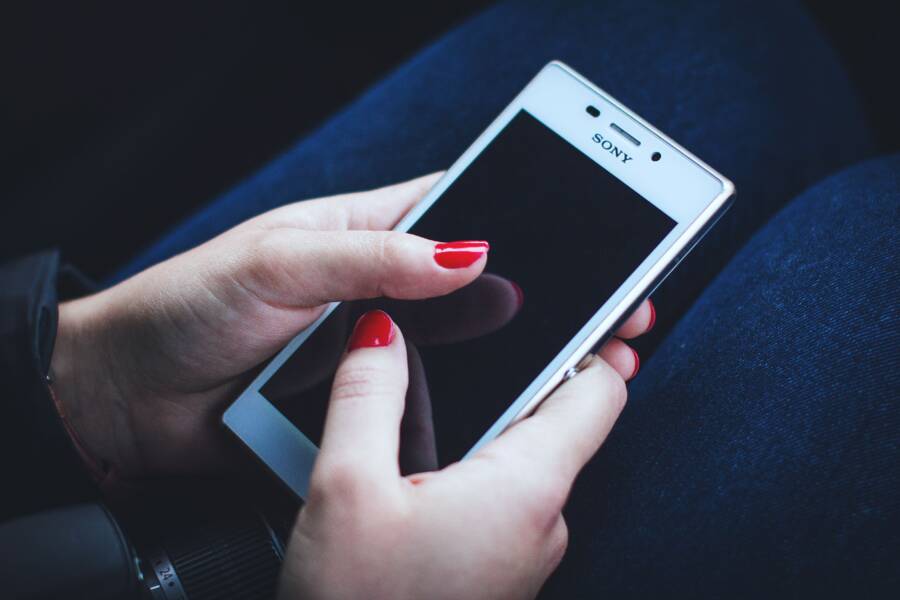
A dirty sensor, a software bug, or an improperly registered fingerprint is usually why your smartphone keeps rejecting your biometric scans. You don’t have to live with the frustration of repeated unlock failures or resort to your passcode every time you need to open your device.
Most of these issues are solvable through simple hardware maintenance or recalibration of your security settings. This guide provides the actionable steps you need to fix your biometric authentication permanently so your device recognizes you on the first try.
Follow these troubleshooting procedures to restore the convenience of your smartphone unlock feature.
Quick Fixes for Biometric Recognition Issues
Your smartphone relies on precision sensors to identify you, so even minor obstructions often cause the system to fail. When your device rejects your fingerprint or face scan, the cause is usually simple. You can often restore functionality by addressing physical cleanliness or reconfiguring your security data.
How to Properly Clean Your Sensor and Screen
Your biometric sensors work by capturing highly detailed images or electrical signals from your skin. When oil, dust, or moisture coats the surface of the scanner, the sensor cannot read your biometric signature accurately. Even tiny, deep scratches over the sensor area can distort the data, causing repeated recognition errors.
Use a clean, dry microfiber cloth to wipe the sensor and screen gently. Microfiber effectively lifts oils and small debris without leaving behind lint or residue. Avoid paper towels or rough fabrics, as these materials can leave microscopic scratches on the sensitive glass or protective coating of the sensor.
Never use harsh chemicals like glass cleaner, alcohol wipes, or ammonia on your screen. These substances can strip away the oleophobic coating that prevents excessive fingerprint buildup. Simply breathing on the screen to create a faint fog and wiping it with your cloth is usually enough to remove stubborn smudge spots. If the sensor is embedded under your display, ensure the area around it is also free of debris to prevent light refraction issues during the scan.
Removing and Re-registering Your Biometrics
If cleaning the sensor does not improve performance, the stored data might be corrupted or insufficient. Deleting your old profile and creating a fresh one forces the system to map your features again. This process often fixes errors that accumulated after initial setup or minor changes to your skin texture.
Navigate to your security settings and locate the list of stored fingerprints or facial profiles.
Select and delete the current profiles that are causing issues.
Restart your smartphone to clear any temporary software glitches in the background.
Begin the registration process again, following the on-screen prompts carefully.
During registration, ensure you are in a well-lit area so the sensor captures your skin clearly. Keep your fingers slightly moist, but avoid having them wet or excessively dry, as extreme conditions interfere with sensor sensitivity. When registering a fingerprint, rotate your finger to capture the edges and the tip, not just the center of your pad. By recording a wider variety of angles, you provide the system with more data points to reference during daily use, which significantly improves recognition speed and accuracy.
Software and Settings That Affect Recognition Performance
Even when your biometric sensors are physically clean, software-level configurations can prevent your smartphone from recognizing your identity. Manufacturers often include specific settings to balance security with usability, and these parameters occasionally need manual adjustment. If your device frequently rejects your touch or face, checking these internal options is a logical step before assuming a hardware failure.
Adjusting Sensitivity for Screen Protectors
Many modern smartphones include a specific toggle designed to compensate for the additional thickness of screen protectors. When you apply a layer of tempered glass or thick plastic to your display, it physically increases the distance between your finger and the underlying sensor. Ultrasonic or optical scanners beneath the screen struggle to penetrate this extra layer, leading to constant scan rejections.
Enabling this setting modifies how the sensor processes electrical signals or light levels. It essentially forces the hardware to boost its gain or sensitivity to account for the signal loss caused by the screen protector. If you recently applied a new cover and noticed an immediate decline in recognition performance, look for a toggle labeled “Increase touch sensitivity” or “Screen protector mode” within your display or security settings menu.
Toggling this feature on often fixes recognition errors without requiring a new fingerprint registration. However, if the issue persists, you should remove the screen protector to determine if the material is blocking the signal entirely. Certain thick privacy filters or low-quality plastic covers naturally obstruct the sensor more than standard glass, making software adjustments ineffective.
Updating Firmware to Resolve Glitches
The underlying software that processes biometric data is subject to regular refinements and bug fixes from the manufacturer. Biometric security algorithms are complex, and subtle code errors can sometimes cause the scanner to time out or misidentify a valid input. A pending OS update often includes patches that specifically address these recognition inconsistencies.
Check your smartphone settings to see if your operating system is fully up to date. Manufacturers frequently release firmware updates that improve the speed and reliability of security sensors by optimizing the image processing pipeline or refining the pattern recognition logic. If your device is running an outdated version of the software, you might be dealing with a known bug that developers have already resolved in a newer release.
Always back up your data before starting a major firmware update. Once the installation finishes, the device often recalibrates its internal sensors during the first boot sequence. If your biometric recognition remains inconsistent after the update, try deleting and re-registering your fingerprints or facial data. A fresh scan created on the updated software version often performs better than one captured under previous, potentially buggy system conditions.
Advanced Troubleshooting When Nothing Else Works
If your device continues to reject biometric inputs after you have cleaned the sensor, updated the software, and reconfigured your profiles, the issue likely resides in deeper system conflicts or mechanical failure. These situations require a more methodical approach to isolate the root cause. You must determine if a specific piece of software is interfering with the security framework or if the hardware has reached its limit.
Identifying Conflicting Third Party Apps
Sometimes a background application interferes with the biometric authentication process. This often happens with apps that request camera, overlay, or accessibility permissions, as these programs can create conflicts with the secure enclave that stores your biometric data. Safe mode is the most effective way to test if a third-party app is causing your lockout.
In safe mode, your smartphone runs only the core operating system and pre-installed factory software. Any app you downloaded will be disabled temporarily. To enter this mode on most Android devices, power off your phone, hold the power button until the manufacturer logo appears, and then immediately press and hold the volume down button until the device boots up. You should see a “Safe Mode” indicator in the corner of your screen.
While in safe mode, try using your biometric scanner. If the sensor works perfectly without errors, a third-party application is definitely the culprit. You should then reboot your phone into normal mode and begin uninstalling recently added apps one by one. Start with apps that require screen overlays, custom launchers, or security-related features, as these are the most common sources of conflict.
Considering Hardware Damage or Sensor Failure
If your biometric scanner fails to function even in safe mode, you are likely looking at a hardware problem. Physical damage often occurs in ways that are not visible to the naked eye. Internal cables can loosen after a drop, or moisture might have entered the chassis to corrode the delicate sensor contacts.
Water exposure is particularly damaging for biometric modules because they rely on precise electrical capacitance or light refraction. Even if your smartphone seems fully operational, the sensor might have suffered a short circuit. If you have recently dropped the device or noticed liquid exposure near the scanner, hardware failure is the most probable cause.
Diagnostic tests are available for many devices. You can often access these by entering a secret code in your phone dialer, such as #0# on many Samsung models, to run a hardware self-test. If the sensor returns a “Fail” status during these tests, the hardware is physically compromised. At this stage, software fixes will no longer apply. You should contact an authorized service center for a professional repair or explore your warranty options for a potential device replacement.
Conclusion
Fixing biometric rejection often requires nothing more than routine sensor maintenance and correct registration habits. Regularly wiping your smartphone scanner with a microfiber cloth and capturing your fingerprint from multiple angles usually resolves persistent scanning errors.
If software glitches remain, updating your firmware or checking settings for screen protector sensitivity often restores full access. These simple habits keep your security hardware responsive and your user experience consistent every day.