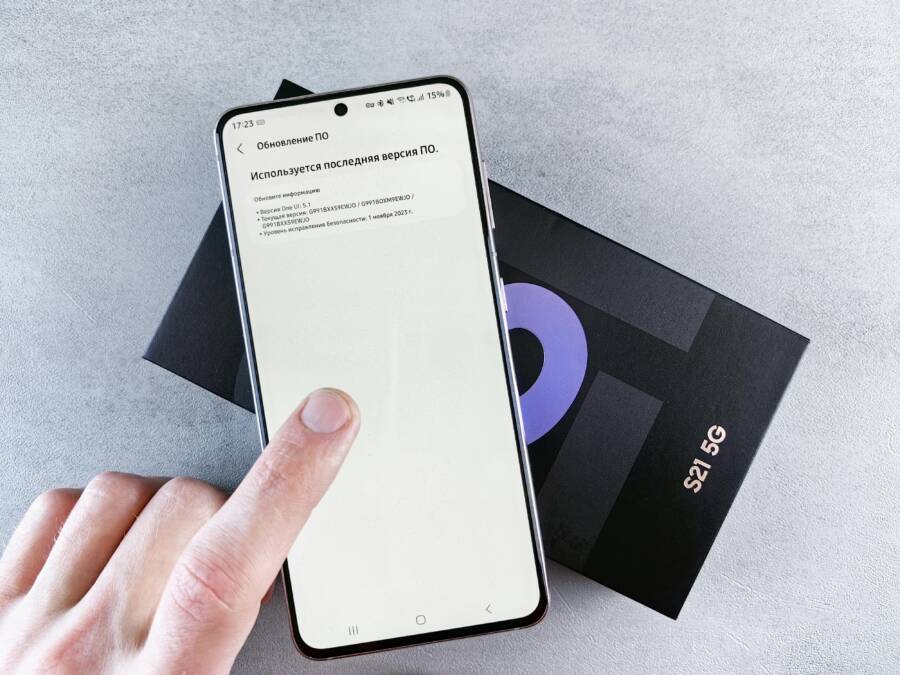
A factory reset wipes your smartphone clean, returning the device to its original out-of-the-box state. This process deletes every photo, app, and setting, which effectively makes the machine act as if it were brand new.
Choosing to erase your data is a significant decision. You must back up your files first because once the process begins, you cannot recover lost information. Understanding the correct steps protects your privacy and prevents accidental data loss.
Follow these instructions to reset your device safely and ensure the operation goes smoothly.
Vital Preparations Before You Begin
Resetting your device requires careful planning to prevent permanent loss of your personal information. You must treat this process as a one-way street because the factory reset deletes everything stored on your internal memory. Skipping these steps often leads to regret once your photos, contacts, and documents vanish forever. Preparing your smartphone properly keeps your data safe while making the transition to a clean slate simple.
Backing Up Your Important Files and Data
A backup acts as your safety net. You should never skip this step before wiping your smartphone. Most modern devices provide automated tools to sync your content to the cloud, but manual verification is always safer.
- Connect your smartphone to a stable Wi-Fi network to avoid cellular data charges.
- Open the settings menu and locate the section labeled Backup or Cloud Services.
- Select the option to sync your photos, videos, and documents to your account storage.
- Check that your contacts, calendar events, and notes are enabled for sync.
- Initiate a manual backup to ensure the most recent versions of your files are saved.
If you prefer physical backups, connect your device to a computer. Transfer your media files directly to a folder on your hard drive. This secondary copy provides peace of mind if your cloud storage reaches capacity or if a sync error occurs during the process.
Signing Out of Accounts and Disabling Security Features
Modern mobile security locks your device to your specific identity. If you plan to sell or gift your smartphone to someone else, you must remove these digital anchors first. Failure to sign out leaves the device locked for the next owner, which creates unnecessary frustration.
You should sign out of your primary accounts like Apple ID or Google to detach your personal data from the hardware. Removing these accounts disables features like Find My iPhone or Factory Reset Protection. These security protocols exist to stop unauthorized access, yet they prevent new users from setting up the phone after a reset.
Navigate to your account settings and locate the sign-out option. If your device prompts you to enter a password, provide it to finalize the removal. Once you sign out, verify that any activation locks are disabled. Doing this simple task now ensures your smartphone is ready for a smooth handoff to the next person.
How to Reset Your iPhone Safely
Resetting your smartphone requires the correct steps to protect your data. Apple built a specific path into the system to handle this request. You can perform this task without connecting to a computer or using external software.
Using the Settings Menu for an Easy Wipe
The settings menu provides a direct way to return your device to its original factory state. This process removes your user profile, installed apps, and personal settings from the hardware.
Follow these steps to initiate the wipe on your smartphone:
- Open the Settings app from your home screen.
- Select the General menu.
- Scroll to the bottom and tap Transfer or Reset iPhone.
- Choose Erase All Content and Settings.
- Follow the on-screen prompts and enter your device passcode when requested.
After you confirm the action, your smartphone will restart. You will see the Apple logo on a black screen while the system purges your data. This cleanup phase typically takes between five and ten minutes depending on the amount of data stored on your device.
The phone will eventually show the Hello screen in multiple languages. This screen signals that your smartphone is ready for a new setup. You can now turn off the device if you plan to sell it or pass it on to a new user. If you intend to keep the device, you may proceed with the configuration process immediately.
How to Reset Your Android Smartphone
Resetting your Android smartphone clears its memory and restores the original system settings. This process solves persistent software bugs, removes unwanted configuration errors, and prepares the hardware for a new user. You should only perform this action after securing your important files.
Finding the Factory Data Reset Option
The settings menu keeps the reset options inside the system or general management area. Manufacturers often organize these menus differently, but the path remains predictable on most modern devices. You should search for the term “reset” in the settings search bar if you cannot find the specific menu.
The standard procedure involves these steps on a typical smartphone:
- Open the Settings app on your device.
- Scroll down until you see System or General Management.
- Tap on Reset options or Reset.
- Select Erase all data (factory reset) to proceed.
You must distinguish between a simple settings reset and a factory data reset. A settings reset only reverts preferences like Wi-Fi networks and display settings without deleting your media or apps. A factory data reset, however, performs a total wipe of all internal storage. This action removes your user profile, installed applications, and every file saved on the internal memory. Think of this as a complete reboot that returns the smartphone to its initial day-one condition.
Performing a Hard Reset Using Buttons
Sometimes your smartphone becomes unresponsive or refuses to boot into the operating system. When the touch screen fails to register your input, you must use the physical buttons to trigger a hard reset. This method forces the hardware into a special recovery mode designed for maintenance and troubleshooting.
Follow these steps to access recovery mode:
- Power off the device completely.
- Press and hold the Volume Down and Power buttons at the same time.
- Release the buttons once the device logo or a menu appears on the screen.
- Use the volume buttons to scroll through the menu options.
- Highlight the option labeled Wipe data or Factory reset.
- Press the Power button to confirm your selection.
The smartphone will process the command and clear all partitions. This method is helpful if you are locked out of the device or if the interface is frozen. After the process finishes, select the reboot option to restart the phone. You will then see the initial setup screen, confirming that the device is wiped and ready for use.
What to Do After the Reset is Finished
Your smartphone is now a blank slate. The system has removed all personal data, apps, and preferences. You must decide whether to set up the device as a new machine or restore your previous information from a backup. This choice depends on your goals for the hardware.
Reconfiguring Your Device for Personal Use
If you plan to keep using the device, you should follow the on-screen prompts to complete the initial setup. Choose your preferred language, connect to a local Wi-Fi network, and sign in with your primary account. This step connects the hardware to your personal cloud services and restores core functions like your app store and email.
You can then choose to restore data from a previous backup if you have one available. This process pulls your saved photos, messages, and contact lists directly from the cloud or a connected computer. Be aware that downloading large files consumes significant data, so a stable Wi-Fi connection is necessary to avoid interruptions.
After the restore finishes, your apps will begin to download in the background. You should check your app store settings to ensure that automatic updates are enabled. This ensures your software stays current without requiring manual intervention later.
Preparing the Smartphone for a New Owner
If you intend to sell or gift the device, you should leave the phone at the initial Hello screen. The setup process is for the new owner to complete, as it requires their own personal accounts to function correctly. Powering down the device at this stage keeps the system in a clean, secure state.
You should verify that the device is truly free of your data by checking a few indicators. If the phone prompts you to select a region or language upon powering on, the wipe was successful. This indicates that no user profile currently exists on the internal storage.
Handle the device with care once it is ready for a new user. Clean the screen and body with a soft, dry cloth to remove fingerprints and dust. Including the original box or charging cable adds value if you are selling the item. A clean and well-maintained device provides the best experience for whoever uses it next.
Conclusion
Performing a factory reset might feel like a heavy task, but it is straightforward when you prepare the right way. Once you secure your backups and sign out of your accounts, the process moves quickly and safely.
Your smartphone will run much faster after a clean wipe. It often performs just like it did on the first day you pulled it out of the box. Following these steps restores your device to peak condition while protecting your personal data from loss.