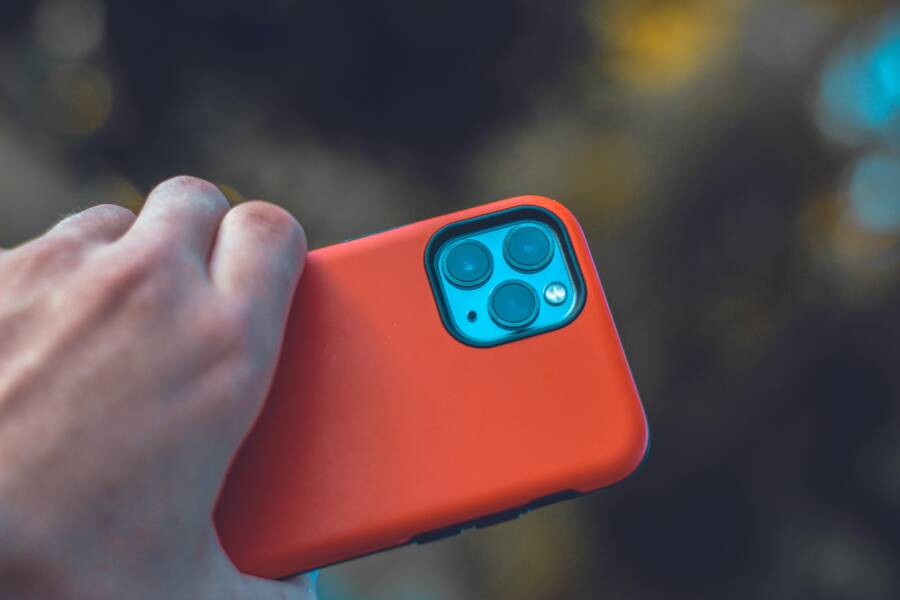
You can enable one-handed mode to lower the top of your screen, which makes it easier to reach icons and buttons with your thumb. Modern phones are large, and reaching the top corner while holding the device with one hand often feels awkward or risky.
By shrinking the active display area, this feature keeps your digital workspace within reach. This guide explains how to activate these settings on your specific smartphone, whether you use an iPhone or an Android device.
Following these steps makes daily navigation much more comfortable. Read on to learn how to adjust your display settings and regain control of your mobile device.
Why You Need One-Handed Mode on Your Smartphone
One-handed mode solves the problem of oversized screens that force you to stretch your thumb across the display. Modern smartphone designs favor larger screens for watching videos and browsing the web, but these dimensions often make reaching the top corners impossible while holding the device with one hand. Enabling this feature makes your device easier to control during your daily commute or while you carry groceries.
Physical comfort and ergonomics
Straining your thumb to tap icons at the top of a tall screen creates unnecessary tension in your hand and wrist. Over time, repetitive overreaching leads to discomfort or even minor aches in your thumb joints. By shifting the entire interface to the bottom half of your screen, you allow your hand to maintain a natural, relaxed grip. This simple adjustment preserves your comfort when you use your smartphone for extended periods.
Increased speed and efficiency
You gain speed when every button remains within the range of a single thumb movement. Without one-handed mode, you must constantly adjust your grip or use your second hand just to reach a back button or a menu bar. This constant repositioning breaks your flow and slows down your navigation. When the display is compressed, you tap your desired targets immediately, which makes managing messages or toggling settings feel much faster.
Improved safety in crowded spaces
Operating a large device with one hand often feels risky when you stand in a crowded subway or walk down a busy street. If you have to shuffle your fingers to reach the top of the glass, your grip on the phone becomes loose and unstable. A single bump from a passerby could easily send your expensive smartphone sliding toward the floor. Activating one-handed mode provides a secure, firm hold because your fingers stay planted on the sides of the device. This extra layer of stability prevents accidental drops in high-traffic areas where you need to keep one hand free.
Activating Reachability on Your iPhone
Apple includes a feature called Reachability to help you manage the tall screens on your smartphone. When you activate it, the entire screen content shifts downward by about half the display height. This movement brings the top icons and search bars directly into the path of your thumb. You can trigger this function on any modern iPhone model that lacks a physical home button.
Mastering the Downward Swipe Gesture
The primary method to engage Reachability involves a specific motion at the bottom edge of your display. You must place your finger on the home indicator bar, which is the horizontal line at the bottom of the screen. From there, perform a quick, downward dragging motion. Think of it as a flicking action toward the bottom edge of the device. The screen will slide down immediately once your phone detects the gesture.
If you struggle to activate this mode, check your finger placement. You must begin the swipe directly on the home indicator area. Swiping from the middle or top of the screen will only scroll your content or open the notification center. Ensure your touch is deliberate and fast, as a slow drag often registers as a simple scroll rather than a system command.
If the gesture still fails to work, you may need to check your system settings. Follow these steps to confirm the feature is active:
- Open the Settings app on your smartphone.
- Tap the Accessibility menu.
- Select the Touch option.
- Locate the Reachability toggle and ensure it is turned on.
Once enabled, the downward swipe works in almost any app or on the home screen. You can dismiss the view by tapping the empty space at the top of the display or by swiping upward from the bottom edge. Using this feature prevents you from having to adjust your grip on the phone every time you reach for an element at the top of your apps.
Configuring One-Handed Features on Android
Android offers a flexible approach to one-handed operation. Because many manufacturers customize their software, the exact location of these settings varies between brands like Samsung, Google, and Motorola. Most modern devices include a dedicated mode that shrinks the display area toward a corner. This adjustment allows you to use your smartphone with one hand without overextending your thumb. You can choose to trigger this shift using either physical navigation buttons or specific touch gestures.
Customizing Your Screen Preferences
You gain more control over your device by choosing the activation method that feels most natural to you. Many users prefer gestures because they stay out of the way until you need them. Other users prefer buttons because they offer a consistent, predictable way to toggle the screen size. Once you activate the mode, your smartphone allows you to shift the interface content to either the left or the right side.
If you are right-handed, you likely prefer the interface to sit on the bottom-right corner. Left-handed users benefit from shifting the content to the bottom-left. This alignment keeps your fingers from cramping during long periods of typing or web browsing.
Consider these common ways to adjust your screen:
- Gesture-based triggers often involve swiping down on the bottom edge of the screen or near the home gesture bar. This mimics the feel of pulling the content down into your workspace.
- Button-based triggers work by double-tapping the home button or using a shortcut icon in your quick settings menu. This provides a clear, physical confirmation that the mode is active.
- Once the screen shrinks, look for an arrow icon on the side of the display. Tapping this arrow switches the display area from the right to the left side instantly.
- If you want to return to the full screen, tap the empty black space outside the active window. The display will expand back to its original size immediately.
Some smartphone manufacturers also offer a way to lock the screen in this reduced mode. This is helpful if you plan to use the device for a longer session, such as reading an article or replying to several messages. You can check your display or accessibility settings to see if your specific model supports this persistent one-handed layout. Finding the right balance between these settings ensures that your smartphone remains a helpful tool rather than a source of hand strain.
Common Questions About Smartphone Accessibility
Many users encounter specific concerns when setting up display adjustments on their mobile devices. While one-handed mode is simple to activate, questions often arise regarding how these settings impact daily phone usage. Most users want to know if these features are permanent, whether they affect battery life, or if they work across every application installed on the device.
Does one-handed mode drain my battery?
One-handed mode does not consume extra power. The feature is a visual adjustment that changes how the interface renders on your screen. Your processor simply shifts the location of the display content rather than running a background task or high-power animation. Using this feature has no noticeable impact on your daily battery performance. You can keep it enabled all day without worrying about your charge dropping faster.
Will this feature work in every app?
Most applications support one-handed mode without issues. Because the feature is built into the system software, it creates a virtual container for your apps. You can use it while browsing the web, checking emails, or sending messages. However, some apps that force a landscape view, such as certain games or media players, may disable the feature automatically. When you exit those specific apps, the system restores the one-handed layout for your standard interface.
Is one-handed mode the same as a smaller display?
People often confuse this feature with changing the system resolution. One-handed mode is temporary and controlled by you, whereas screen resolution is a fixed setting that affects every aspect of your phone. Using this accessibility tool allows you to switch back and forth between full-screen and compact views. It gives you the flexibility to use the entire display for media consumption and the compact view for quick, one-handed tasks.
What should I do if the mode stops working?
Occasional software glitches can prevent the gesture from registering correctly. You should first try restarting your device to clear any temporary errors. If the problem persists, check your accessibility menu to confirm that the toggle remains in the on position. Sometimes, a system update resets these preferences, so verifying the settings after a software install is a quick way to restore full functionality to your smartphone.
Conclusion
One-handed mode transforms how you interact with your smartphone by bringing the top of the display within reach of your thumb. Whether you use an iPhone or an Android device, this feature minimizes wrist strain and improves your grip stability in crowded areas.
Test these settings for a few days to see if your navigation speed and comfort improve. You should prioritize your physical comfort because technology exists to adapt to your needs rather than forcing you to adjust your habits.