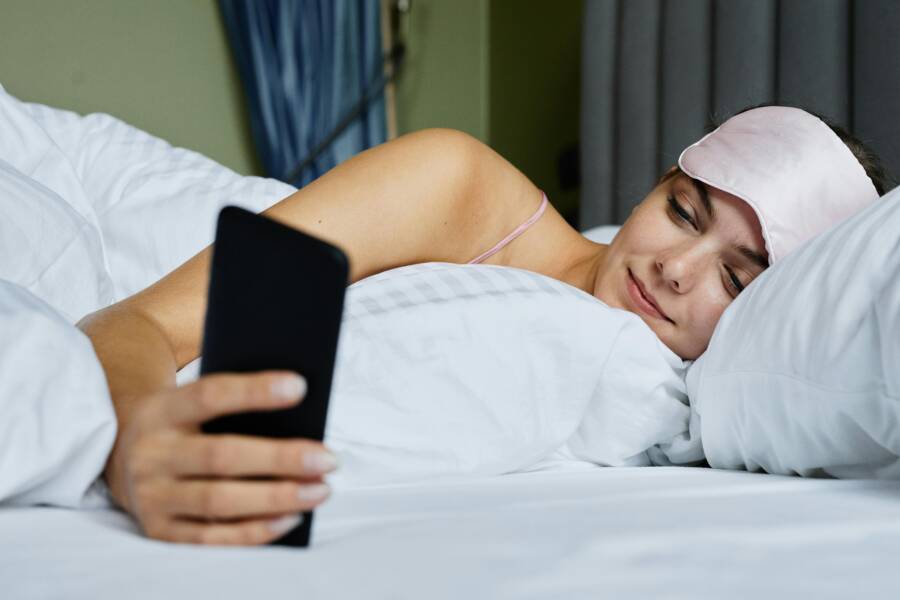
Using your smartphone in a dark room strains your eyes and suppresses melatonin, which makes it harder to fall asleep. You can fix this by lowering the screen brightness, enabling warm color filters, and activating focus modes to block disruptive alerts.
These small changes help your eyes relax and keep your sleep cycle steady. You don’t need to stop using your device at night, but you should adjust how it displays light. Here is how you can customize your settings for better nighttime comfort.
Mastering Screen Brightness for Evening Comfort
Managing your screen intensity is the fastest way to reduce eye strain during nighttime smartphone use. Excessive light output in dark environments forces your eyes to work harder to focus, which often leads to headaches or difficulty falling asleep. By automating your brightness settings and utilizing hidden display tools, you can maintain a comfortable visual experience throughout the evening.
Setting Up Auto Brightness for Seamless Transitions
Modern devices include ambient light sensors that monitor your surroundings. These sensors detect how much light hits the surface of your smartphone and adjust the display output to match. When you enter a dark bedroom, the sensors signal the operating system to lower the screen intensity automatically. This prevents the harsh, sudden glare that occurs when you open your device in the dark.
Allowing your phone to handle these adjustments is more efficient than manual control. Human eyes struggle to perceive consistent brightness levels as ambient lighting shifts throughout the night. If you rely on a manual slider, you often overcompensate by setting the level too high or too low for your immediate needs. Enabling automatic adjustments removes this guesswork and maintains a balanced level of light without requiring your attention.
To ensure this feature works correctly, you should check your display settings:
- Open your device settings menu and select the Display or Screen category.
- Locate the toggle for automatic brightness or adaptive brightness.
- Switch this setting to the active position.
Once enabled, you might notice your screen flickering slightly as it adapts to changes in your room. This is a normal part of the process. If the default brightness feels too intense even with automatic adjustments, you can still nudge the slider to your preference. Your device will then learn your habits and apply that offset to future automatic adjustments.
Lowering Minimum Brightness Levels Manually
Sometimes, the lowest default brightness level remains too bright for a pitch-black room. You can push your display further toward darkness by utilizing accessibility features. Most smartphones include a function specifically designed to override the standard brightness floor.
On iOS devices, the Reduce White Point feature limits the intensity of the brightest colors on the screen. You can find this within the Accessibility settings under Display and Text Size. Activating this option creates an effective dimmer layer that makes the display feel much darker than the hardware slider usually allows. You can adjust the percentage of this reduction to find a level that minimizes glare while keeping text readable.
Android users often have access to similar tools, frequently labeled as Extra Dim or Night Light intensity controls. These features act as a digital overlay that filters light emission directly at the software level. If your phone lacks a native button for this, you can look for third-party screen dimming applications in the app store.
These extra layers of control provide significant relief for your eyes during long reading sessions in the dark. Because the display produces less blue light, you minimize the interference with your natural sleep patterns. Adjusting these settings once allows your phone to support your nighttime routine rather than disrupting it.
Using Color Filters to Reduce Eye Strain
Digital displays emit concentrated blue light that impacts your vision and biological rhythms. By shifting your display toward warmer tones, you reduce high-energy visible light exposure. This adjustment helps your eyes relax during late-hour usage of your smartphone. Most modern devices include built-in filters to handle this transition without requiring extra hardware or external applications.
How Warm Color Temperatures Help You Sleep
Color temperature is measured in Kelvins. A high Kelvin rating produces a cool, blue-white light similar to midday sun. A lower Kelvin rating generates a warmer, amber-toned light that mimics sunset hues. Your brain associates cool light with alertness because it suppresses melatonin production. Conversely, warmer tones signal to your body that the day is ending, which makes it easier to fall asleep.
Adjusting your smartphone to warmer spectrums minimizes the impact of screen usage on your natural sleep cycle. While total avoidance of screens before bed is ideal, amber tones offer a practical compromise for late-night tasks. The shift toward warmer light reduces the intensity of the blue spectrum, which lessens visual fatigue and helps maintain your circadian rhythm.
Scheduling Color Changes Automatically
You don’t need to manually enable these filters every night. Your smartphone contains scheduling tools that activate warm tones at sunset and revert to normal settings at sunrise. Automating this process ensures you always have the correct display settings for the time of day.
Follow these steps to configure your automatic schedule:
- Open the Settings app and select Display or Screen.
- Find the entry for Night Light, Night Shift, or Eye Comfort Shield.
- Select the Schedule option within that menu.
- Choose Sunset to Sunrise as your preferred timing method.
Once you set this schedule, the color temperature transitions gradually rather than snapping instantly. This fade effect is easier on your eyes and less disruptive to your focus. If you prefer, you can also set specific hours, such as 9:00 PM to 7:00 AM, to align with your personal sleep habits. Enabling this simple automation provides consistent relief for your eyes whenever you pick up your smartphone in the dark.
Implementing Focus Modes to Limit Nighttime Distractions
Your smartphone is a portal for connection, but it often works against your natural need for rest. Constant pinging, bright alerts, and the temptation to check updates keep your mind active when it should be winding down. Focus modes act as a digital buffer. These settings mute unnecessary noise while ensuring you stay reachable for people who truly matter during the night.
Creating a Personalized Sleep Focus Routine
A sleep focus routine serves as a gatekeeper for your attention. By configuring this mode, you take control over which notifications reach you during your designated rest hours. Most modern operating systems allow you to designate specific contacts and apps that bypass your silent settings.
Start by accessing the Focus or Do Not Disturb settings on your smartphone. You can create a new profile specifically for sleep. Within this setup, follow these steps to refine your notifications:
- Select your Sleep focus profile in the settings menu.
- Tap on People to add family members or close friends who have permission to reach you during an emergency.
- Choose Apps to whitelist essential tools like a medical monitor or a calendar alert if you have early morning commitments.
- Set the activation schedule to match your bedtime, or trigger it manually when you place your smartphone on the nightstand.
This setup prevents casual social media updates or email pings from waking you up. If someone outside your allowed list tries to call, the phone remains silent. You stay protected from interruptions without losing access to critical communication. Once you define these boundaries, the routine functions automatically every night, keeping your bedroom environment quiet and conducive to sleep.
The Benefit of Greyscale Mode for Reducing Engagement
Color is a primary tool designers use to capture your attention. Bright red badges and vibrant app icons stimulate your brain and encourage you to interact with the device. Switching your smartphone screen to greyscale mode removes these visual lures. When the interface is black and white, the screen feels less rewarding, which helps you disengage faster.
Greyscale turns the high-contrast colors of your screen into muted shades of gray. This adjustment reduces the dopamine hit usually associated with opening bright, colorful apps. Your brain sees less information to process, making it much easier to put the device down and turn out the light. Many users find that the novelty of a colored screen vanishes in greyscale, turning the smartphone into a strictly functional tool rather than a source of entertainment.
You can often toggle this setting through your accessibility menu. On many devices, this is located under display adjustments or color filters. Creating a shortcut, such as triple-clicking the power button, makes it simple to enable this mode before bed. Once you experience the lack of visual urgency provided by a greyscale screen, you may find your late-night scrolling habits drop off significantly.
Common Questions About Nighttime Phone Use
Many people worry about the long-term effects of using a smartphone before bed. You likely wonder if these habits cause permanent damage or if simple settings actually make a difference. The following answers address the most frequent concerns regarding screen time and sleep health.
Does blue light actually damage my eyes?
Most research shows that blue light from a screen does not physically burn or harm your eyes like ultraviolet rays do. Instead, the primary issue is eye strain caused by prolonged focus and reduced blink rates. Your eyes feel tired because you stare at a glowing surface for long periods without resting them. While blue light affects your hormones, it does not cause physical injury to your retinas during normal use.
Will night mode settings ruin my sleep quality?
Night mode settings help your body maintain its natural rhythm by reducing harsh light exposure. These filters shift the display toward warmer colors, which minimizes the suppression of melatonin. While these settings help, they do not replace the benefit of putting your smartphone away entirely. Think of night mode as a filter that reduces the damage rather than a total solution for sleep disruption.
Is it better to turn off the phone or just mute alerts?
Muting alerts is effective for stopping external noise, but the screen itself still poses a challenge. Keeping your smartphone nearby creates a psychological temptation to check for updates or scroll through social feeds. Turning the device off or leaving it in another room is the best way to remove that urge. If you need your phone as an alarm, place it far enough away that you cannot reach it without getting out of bed.
How do I know if my settings are correct?
Your comfort is the best indicator of whether your settings work for your needs. If you still squint or feel your eyes working hard to read text at night, your brightness is likely too high. Adjust the manual sliders until the screen brightness matches the dimness of your room. You want the display to feel like a printed page under a soft lamp rather than a harsh spotlight.
Can I use my phone for reading before bed?
Reading on a smartphone is fine if you prioritize your display settings. Use a dedicated reading app that offers a dark mode with a black background and white text to reduce glare. Keep your screen brightness low and enable your system’s warm light filter. These steps allow you to read without forcing your brain to stay alert due to intense light exposure.
Conclusion
Your nightly routine benefits from minor technical adjustments. You can reduce eye strain and protect your sleep cycle by modifying how your smartphone handles light and alerts. These changes prevent your device from disrupting your rest.
Adjust your brightness, warm your color temperatures, and activate focus modes tonight. Small, intentional updates to your settings make a significant difference in your sleep hygiene.