
Parents face a big moment when they give their child a first phone. They worry about screen time taking over homework, social media exposing kids to risks, or high costs adding stress. These concerns hit home for many families right now.
You have three main choices: iPhone, Android, or a basic phone. Each offers different perks for safety, ease of use, and price. No single option wins for everyone.
The best phone for kids depends on your child’s age, your need for parental controls, and your budget. Younger kids often do well with basic phones that focus on calls and texts. Teens might need a smartphone with more features, but with strong limits.
In this post, we break it down step by step. First, key factors like age groups and safety tools. Then, pros and cons of iPhone, Android, and basic phones. We end with clear picks for different needs.
You’ll walk away with a plan that fits your family. Let’s find the right phone without the guesswork.
Key Factors to Consider for Your Kid’s First Phone
Choosing a first phone for your child is a balancing act between safety, independence, and cost. The right device should protect your child online, support responsible use, and be appropriate for their age. Below are two focused subsections that help you tailor the decision to your family.
Matching Phone to Your Child’s Age and Needs
Break down the plan by age to keep expectations clear and reasonable.
- Under 10: A basic phone that handles calls and texts only. The goal is easy communication with family and caregivers, not a mini computer. Keep features simple and block distractions to prevent early exposure to online risks.
- 10–13: A limited smartphone option can be appropriate. This is the window where you begin to introduce app management and safety boundaries. Focus on essential communication, controlled internet access, and supervised use to build healthy digital habits.
- 13 and older: A full-feature smartphone with strong parental controls makes sense. Teens often need messaging, navigation, and learning tools, but you’ll want robust controls on screen time, app installation, and location sharing. At this stage safety should outpace curiosity, and your plan should evolve with maturity.
Key safety considerations across ages:
- Set clear boundaries for screen time and device usage. Use built-in controls to enforce limits and create phone-free zones around homework and family time.
- Prioritize devices that offer straightforward, parent-friendly controls. If you’re choosing between platforms, consider which system you and your child can use consistently.
- Start small and scale up. A basic, safety-first approach for younger kids can transition to a more feature-rich device as trust and responsibility grow.
For parents evaluating options, keep in mind that reliable safety features exist across brands. If you want a quick comparative read, see resources that summarize parental controls for iPhone and Android, plus kid-focused devices. For example, you can explore how different platforms handle time limits and app controls to establish what will work best in your home. iOS Screen Time vs Android Digital Wellbeing
If you’re weighing specialized kid devices, several brands design phones with built-in safety features and simple interfaces. Look for devices described as kid-friendly with strong parental controls and without unneeded apps or features that entice heavy usage. A trusted overview of these options can help you compare price, safety, and ease of use. The Best Phones for Kids 2026
When you finalize the plan, map out a phased rollout that aligns with your child’s development. Start with essential communications, then gradually unlock features as you confirm responsible usage. If privacy is a concern, discuss what data is collected and how it’s used. A transparent approach builds trust and reduces friction.
Must-Have Parental Controls Explained
A solid set of controls gives you peace of mind without turning the phone into a closed box. Here are the essentials you should expect and what to look for in your next device.
- Screen limits and downtime: Set daily time caps and define quiet hours when usage should pause. This helps your child focus on school and family time without feeling punished.
- App blocks and approval workflows: Require your approval before new apps install and limit the ability to bypass restrictions. This keeps games and social apps from becoming a constant distraction.
- Location tracking and geofencing: Basic location sharing helps you stay informed about your child’s whereabouts. Geofencing adds a safety layer by alerting you if they leave a designated area.
- Content and age filters: Filter out inappropriate content and restrict access to mature apps or features. This reduces exposure to risky material.
- Communication controls: Limit who can contact your child and who they can contact. This helps prevent unfamiliar or unsafe interactions.
When comparing platforms, note the differences in how controls are organized:
- iPhone: Screen Time centralizes limits, app management, and content restrictions in one place, with straightforward setup and family sharing options.
- Android: Digital Wellbeing and Google Family Link provide a broad range of controls, including app management, app activity insights, and location settings.
- Basic phones: These usually offer simple contact limits and basic safety features, with fewer options for granular control but often easier for younger kids to manage.
If you want a quick, practical comparison of how these controls work, review expert summaries that contrast iOS Screen Time with Android Digital Wellbeing and other kid-safety tools. For a focused read on safety and parental controls, see: iOS vs Android Safety Features and Qustodio vs. Apple and Google Controls. These sources can help you decide which ecosystem aligns with your family’s needs and comfort level.
Remember, the goal is to keep your child safe while fostering healthy digital habits. Start with the essentials, adjust as your child grows, and maintain open conversations about why these controls exist. This approach makes safety feel like a collaborative effort rather than a set of restrictions.
iPhone for Kids: Secure but Pricey Option
If you’re weighing options for a child’s first phone, the iPhone sits at the intersection of strong safety tools, seamless family features, and a premium price. For families already invested in Apple gear, the ecosystem can simplify sharing, messaging, and device management. The trade-off is cost and occasional friction around real-time monitoring and control. This section highlights what makes the iPhone appealing to parents and where its parental controls can fall short.
Top iPhone Features Parents Love
When a family already uses Apple devices, the iPhone becomes more than a phone. It acts as a hub for safety, communication, and shared experiences that keep everyone connected without sacrificing privacy or control.
- Camera quality and performance that capture memories with ease. iPhones consistently deliver sharp photos and reliable video, useful for school projects, family moments, and quick documentation of safety concerns. Strong processing power means smooth multitasking for education apps, video calls, and location sharing without lag.
- A cohesive ecosystem that centers family life. Family Sharing makes it easier to manage devices, apps, and purchases across several family members. With a single Apple ID structure, you can set up devices faster and keep parental controls centralized. This is especially helpful for families who already own Macs, iPads, or Apple Watches, reducing friction in everyday use.
- Robust safety and privacy controls that are easy to configure. Screen Time, Content & Privacy Restrictions, and location sharing can be set up in one place and tied to a family group. With these tools, you control which apps are available, how long devices can be used, and what content kids can access. This helps parents establish healthy digital habits without micromanaging every moment.
- Reliability and long-term support from Apple. iPhones typically receive iOS updates for many years, which means security patches and new safety features arrive without requiring a new device purchase. That extended software support translates into better protection over time.
- Tamper resistance with guided controls that help you reduce accidental changes. While no system is foolproof, the built-in restrictions, passcode protections, and family setup reduce the chances a child can bypass limits. It’s not perfect, but it provides a solid baseline for responsible usage.
If you’re curious how Apple’s safety tools stack up against real-world needs, you’ll find a detailed look at Family Sharing and parental controls from Apple’s support resources. For quick context, see Family Sharing overview for kids and teens and the guide on using parental controls to manage a child’s iPhone or iPad. These resources walk you through setting up accounts, applying restrictions, and making the most of Screen Time within a family group. You can read more here: Family Sharing overview for kids and teens and Use parental controls to manage your child’s iPhone or iPad.
For families evaluating newer iPhone features and how they impact safety, consider third-party insights that summarize the evolving landscape of iOS controls and kid-focused devices. These perspectives help you compare what matters most to your family, such as app management, location features, and privacy settings. See overviews like Everything Parent’s Need to Know about iOS 26 for a broader safety context and how new updates may influence daily use.
Beyond core controls, Apple’s emphasis on intuitive setup helps parents extend boundaries without constant coaching. A simple, well-organized control center makes it easier to adjust limits as your child grows. In practice, that means you can start with basic protections and gradually unlock more features as the child demonstrates responsible use.
Key takeaways for parents who already rely on Apple gear:
- If you value a single, familiar interface for everyone, the iPhone minimizes cross-device friction.
- Strong parental controls are built in, not sold as add-ons, which helps with early adoption.
- Long software support means fewer upgrades and less replacement cost over time, even if the initial device price is higher.
Drawbacks of iPhone Parental Tools
The same strengths that make the iPhone appealing can also surface limits, especially when it comes to real-time monitoring and attempts to bypass controls. Understanding these gaps helps you set realistic expectations and create a plan that remains effective as your child grows.
- Real-time monitoring can feel imperfect. While Screen Time provides useful dashboards, there are occasions when you need immediate visibility. In some scenarios, data may be delayed or limited by the way permissions are configured. This is not unique to iPhone; other platforms face similar constraints, but it’s worth noting if you rely on real-time insights for safety. For a deeper dive into common questions, you can review discussions about how Screen Time limits are enforced and where delays can occur. For example, insights from user discussions highlight the ongoing challenge of instant enforcement and visibility. See discussions like “How is my child bypassing screentime limits?” for context on limitations and workarounds. How is my child bypassing screentime limits?
- Potential for bypass attempts. As with any digital control system, tech-savvy kids may discover ways to work around limits. Common tactics include changing time settings, adjusting device time zones, or seeking alternate methods to access restricted content. While Apple continuously improves protections, this is a known area where parental controls require active supervision and timely updates. For a broader look at bypass scenarios and what parents are saying, see community discussions and safety blogs that explore why kids push against limits. Example discussions include threads about teen attempts to bypass controls and the real-world impact it can have on family dynamics. Teen Bypassing Parental Controlls over 14hrs daily usage and How To Bypass Screen Time – Apple Parental Control Hacks
- Limited cross-platform flexibility. If you also own Android devices or non-Apple gear, the iPhone’s controls operate within a distinct system. This can complicate shared family management if not all members use Apple devices. Families with multiple ecosystems may find it easier to standardize on one platform to keep safety controls consistent. If you need a direct comparison, look at how iOS and Android tools stack up side by side and what each ecosystem offers for family tech. Practical discussions and comparisons can provide useful context. For example, see resources that compare iOS and Android safety features: iOS vs Android Safety Features
- Cost and device lifecycle. The upfront price of an iPhone plus ongoing accessory and protection costs can be high. For families on a tight budget, this means fewer devices per child and longer gaps between upgrades. The trade-off is a device with a longer support window, which can offset long-term costs if you stay within the Apple ecosystem.
Practical tips to maximize iPhone safety without turning it into a constant negotiation:
- Start with Screen Time and Content & Privacy Restrictions, then add location sharing and app controls as needed.
- Use Family Sharing to centrally manage settings and purchases, avoiding separate, redundant configurations on each device.
- Schedule regular check-ins with your child about technology use, making safety a collaborative effort rather than a list of limitations.
If you want to explore real-world experiences with iPhone parental controls and potential workarounds, you can review the discussions and safety-focused articles linked above. They offer a realistic sense of what works well and where families often adjust their approach. For a broader safety perspective, you can also check resources like iPhone Screen Time vs Android Digital Wellbeing and Qustodio vs. Apple and Google Controls. These references help you decide how to structure rules that stay effective as your child grows.
In the end, the iPhone remains a secure, polished option for families who value a tightly integrated experience and a robust support system. Its strengths lie in ease of use, reliable safety features, and a familiar ecosystem. The caveat is price and the ongoing need for proactive management to prevent bypass attempts. With thoughtful planning and open conversations, you can harness the iPhone’s strengths while keeping it balanced with your child’s age and responsibilities.
Android Phones: Flexible Control at Lower Cost
Android phones offer a practical path for families watching budgets while still wanting strong safety features. You get a broad range of devices, from rugged budget models to feature-rich midrange phones, all with a flexible control system. This section highlights the strongest parental features found on Android, with a closer look at Samsung specifics, plus a short guide to budget picks that fit family life without breaking the bank.
Strongest Parental Features on Android
Android’s parental controls come from a combination of Google’s built‑in tools and device-specific settings. For many families, the power comes from a mix of broad control options and flexible device choices that adapt as kids grow.
- Real-time location tracking and safe routing: Google Family Link lets you see where your child is and how they spend time on their device. This feature is especially helpful for younger kids who are learning independence but still need supervision. You can set daily limits, approve apps, and view app activity to understand where the device is being used. For a quick start, families often begin by enabling location sharing and then layering in screen time controls. Learn more about location features and how to manage them on Android devices through Google’s Family Link resources and support articles: https://support.google.com/families/answer/7103413?hl=en and https://families.google/familylink/.
- App administration and install approvals: Google Family Link provides a structured approval flow for new apps. This keeps kids from downloading distracting games or risky apps without parental consent. It also helps you monitor which apps are installed and how long they’re used, giving you a clear picture of smartphone activity. For a more detailed view of how app management works within Family Link, see the Google Play Store integration and support pages: https://play.google.com/store/apps/details?id=com.google.android.apps.kids.familylink&hl=en_US.
- Samsung-specific safety controls: Samsung devices often ship with robust parental controls baked into the device ecosystem. You can create a separate child account within Samsung’s Family Groups and tailor which apps and services your child can access. This approach is especially convenient for families already invested in Samsung hardware, since it centralizes management and minimizes cross-brand complexity. Samsung’s official guidance on setting up family groups and parental controls provides practical steps: https://www.samsung.com/us/support/answer/ANS10002400/.
- Content filtering and screen time across a family network: Android’s base controls, when combined with Family Link and device-specific settings, offer a comprehensive approach to filtering content, setting downtime, and controlling what apps can run. The combination of these tools makes it feasible to create a consistent safety policy across all Android devices in the home, even when some devices are not from the same manufacturer. Google Safety Center also outlines how parental controls span Android, ChromeOS, and iOS in a single framework: https://safety.google/settings/parental-controls/.
- Flexible privacy and safety customization: Android allows you to fine-tune what data is shared with apps and how location data is used. You can enable geofencing and time-aware permissions that align with school hours, sports practices, and family dinners. The flexibility helps you build practical boundaries without making every day feel restrictive. If you want a broad safety overview, check out the family safety resources that compare control approaches across platforms: https://www.safewise.com/blog/ios-vs-android-kids-safety/.
In practice, Android safety tools shine when you want to mix platform-proven controls with device-level customization. You can start with location sharing and app approvals, then expand to more granular settings as your child demonstrates responsible use. The key is to maintain a clear, consistent policy across devices and keep an ongoing conversation about why these controls exist.
A practical tip for immediate results: pair Google Family Link with a compatible Samsung device that supports strong parental controls. This pairing enables a straightforward setup path for new users and helps you standardize rules across your child’s smartphone experience. For a quick start, see Google’s Family Link overview and the Samsung support articles above.
Affordable Android Picks for Families
If you want to balance cost with capable parental controls, several Android phones offer durable builds, adequate performance, and a friendly price tag. Here are 2–3 budget-friendly picks that families frequently consider, along with rough price points and durability notes. Prices fluctuate, so use them as a guideline rather than a fixed quote.
- Samsung Galaxy A16 5G — often well under the $200 mark, with a sturdy build and a reliable battery life profile that suits heavy school-day use. It pairs well with Samsung’s parental controls, enabling a centralized management approach for households already using Samsung devices. This model is commonly cited as a strong value pick for families needing a reliable Android smartphone without a premium price. Durability note: typically designed with a plus-minus in everyday wear and tear; protective cases and screen protectors help extend life. For a deeper look at low-cost Android options, see PCMag’s 2025 picks including the Galaxy A16 5G: https://www.pcmag.com/picks/the-best-phones-for-kids.
- Moto G Power (2025) — designed with a larger display and long battery life, which reduces downtime and means fewer charges between school days. It’s praised for solid performance at a budget price, making it a practical choice for families that want a dependable device without premium features. Durability note: durable enough for everyday use, but consider a rugged case if you expect heavy handling by younger kids. You can review 2025 budget Android reviews that highlight the Moto G Power’s strengths: https://www.nytimes.com/wirecutter/reviews/best-budget-android-phone/.
- Google Pixel 9A — often a strong value within the lower midrange, offering clean Android software with timely updates and strong camera performance for school projects and family photos. While not the cheapest option, its ongoing software support makes it a durable long-term buy. Durability note: built well, but like all glass-front devices, protective cases help. A current assessment of best budget Android phones includes the Pixel 9A among solid all-around picks: https://www.cnet.com/tech/mobile/best-android-phone/.
- Alternate kid-friendly options include devices designed with safety in mind from brands like Gabb or Kurio, which often emphasize parental controls and straightforward interfaces. If your goal is a straightforward setup with fewer features that can distract, these brands offer purpose-built options for kids at lower price points. For comparisons on kid-focused Android devices, you can explore industry roundups such as ZDNET’s kid-friendly phone reviews: https://www.zdnet.com/article/best-kids-phone/.
When choosing an affordable Android phone for a child, prioritize:
- Strong parental controls that are easy to use and update.
- A durable build with a protective case and screen cover.
- A long-lasting battery for all-day use during school and activities.
- Regular software updates or a clear path to ongoing security patches.
If you want more context on price ranges and real-world performance, the linked reviews offer practical insights and current pricing you can use to set expectations for your family budget. They also highlight how each model stands up to daily chores, schoolwork, and digital safety needs.
In short, a budget Android phone can be a practical, flexible choice for families who want solid safety features without a high sticker price. With Google Family Link and compatible device settings, you can tailor the experience to your child’s age and responsibility level while keeping costs under control. For ongoing safety management, keep the line open between you and your child, and review settings regularly as new apps and features come to market.
External links used in this section are meant to provide practical context and back up the recommendations with current data. For an overview of Android safety controls and how they compare with iPhone options, see resources like Google’s Family Link guides and safety center, along with reputable reviews that focus on budget Android phones for families.
Basic Flip Phones: Simple and Distraction-Free
When you want a breath of calm in a noisy digital world, a basic flip phone can be a smart choice. It keeps conversations central, limits online temptations, and makes it easier for kids to stay focused on what matters. This section highlights why these phones work for families and which models fit best for different ages and safety needs.
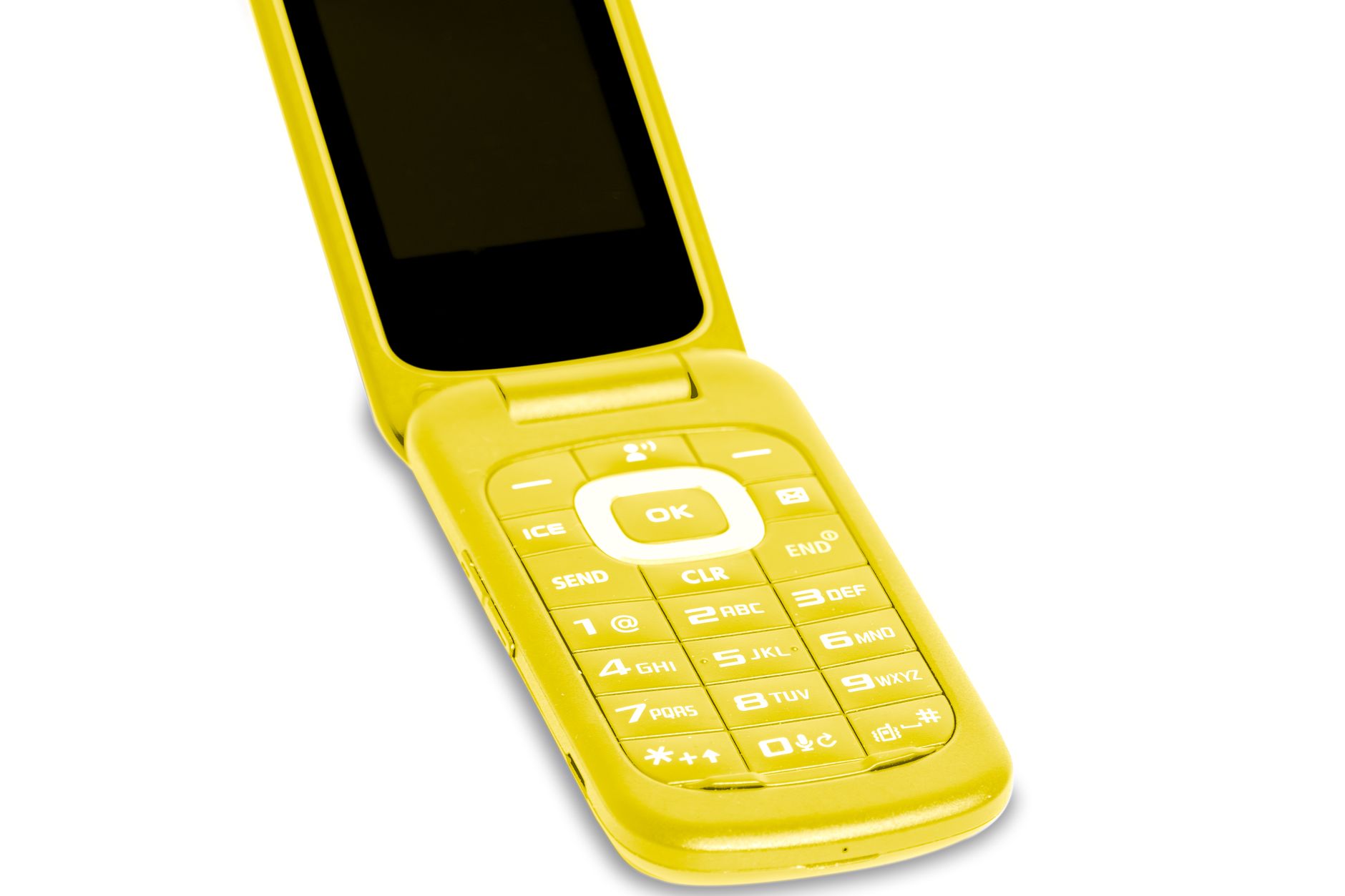
Photo by Frank Schrader
Why Basic Phones Cut Screen Time Worries
Basic flip phones are built around essential communication: calls and texts. That simplicity directly reduces the lure of endless apps, notifications, and social media feeds. With a parent-approved contact list, kids stay reachable without opening a door to temptations.
- Calls and texts only create natural boundaries. Kids learn to communicate clearly without hunting for games or entertainment.
- Parent-approved lists keep who can reach your child in check. It’s easier to supervise conversations and reduce risk from unknown contacts.
- Simple usage, fewer surprises means fewer things to monitor. You can focus on the basics like school hours, family time, and safety checks rather than micromanaging apps.
For families weighing the option, these devices still offer dependable reliability. They connect to major networks, provide essential calling and texting functions, and often include straightforward emergency features. If you want quick context on how basic phones compare to smartphones in safety features, you can explore general overviews of kid safety tools across platforms.
- External context on safety and controls: The Best Phones for Kids 2026
- Quick comparison of iPhone and Android safety features: iOS vs Android Safety Features
In practice, a basic flip phone offers a predictable experience kids can manage with limited guidance. It helps families keep a healthy rhythm between connection and concentration.
Best Basic Phone Models to Buy
If you’re aiming for a straightforward, distraction-free option, these basic flip phones are commonly recommended for families. Each model focuses on reliability, easy usability, and parental control compatibility, with quick notes on where you can buy them.
- Nokia 2780 Flip
- Key features: 4G connectivity, optional internet browser (can be disabled), simple camera, familiar flip design.
- Where to buy: major carriers, Amazon, Tracfone partners.
- Quick note: Internet features can be turned off to preserve the phone’s simplicity while keeping calls and texts as the core function.
- Gabb Z2 (Gabb Phone 4/4 Pro)
- Key features: touchscreen with no internet browser, no games, no social media; robust parental controls; GPS tracking.
- Price points: around $149.99 for the basic version, up to $199.99 for Pro; plans typically in the $20–$35 per month range.
- Where to buy: Gabb official site, Amazon.
- Alcatel Go Flip 4052R
- Key features: large buttons, simple menus, reliable 4G connectivity, budget-friendly.
- Where to buy: Amazon, Walmart, Tracfone.
- Jitterbug Flip 2
- Key features: big buttons and screen, GPS tracking, emergency assistance features, straightforward interface.
- Where to buy: Amazon, GreatCall, Walmart.
- Tracfone TCL Flip 2
- Key features: solid camera for a basic phone, prepaid options, simple calling and texting.
- Where to buy: Tracfone site, Amazon.
Practical note: pricing ranges can shift, so treat these as a starting point. The best choice depends on how strictly you want to limit online access, the level of parental controls you need, and how durable the device should be for a younger child.
A quick comparison helps when you’re deciding between models. For households already embracing a family plan, Gabb Z2 stands out for strongest safety controls, while Nokia 2780 Flip and Alcatel Go Flip 4052R offer low-cost simplicity. If you want the extra safety features with simple use, Jitterbug Flip 2 adds emergency and location features in a familiar flip-phone package. For a broader landscape on kid-friendly options, you can review roundups from major review sites.
- Real-world overviews: The best basic phones for kids and safe options are often summarized in kid-focused guides and budget phone roundups from outlets like SafeWise and PCMag.
- Example articles to read: The Best Phones for Kids and budget Android/flip phone roundups provide context on how these devices fit into family safety plans.
- In practice, think about your child’s age and your family rules. A younger child benefits from the simplest models with strict controls. As they grow, you can adjust to a model that allows more responsible use while still keeping safety front and center.
Where to buy and what to expect
- Most basic flip phones ship with prepaid or simple monthly plans. Look for options that let you control what services are active, and confirm you can disable nonessential features.
- Some families prefer buying directly from a manufacturer’s site to ensure you get the latest safety settings for your child. For example, Gabb’s focus on safety with no internet access is a strong fit for many households.
If you’d like more details on real-world pricing and availability, you can check credible reviews and shopping guides that compare these devices side by side.
- For a broader view on kid-friendly safety and device options, see SafeWise’s overview of the best phones for kids. It helps you compare features and pricing across models. The Best Phones for Kids 2026
- For a practical conversation about flip phones versus smartphones for kids, you can explore articles that discuss how these devices fit into family life and safety planning. The 4 Best First Phones for Kids 2025
Final Comparison: Pick the Winner for Your Family
Choosing the right phone for your kids is a family decision, not a one-size-fits-all choice. In this final section, we distill the core tradeoffs of the three main options and give clear guidance on when each option shines. Whether you value safety, cost, or ease of use, you’ll leave with actionable picks that fit your child’s age and your family rules.
 Photo by Ketut Subiyanto
iPhone: Best for tight safety controls and seamless family features
The iPhone remains a strong choice for families who want integrated safety tools, simple setup, and a shared ecosystem. If you already use Apple products, Family Sharing and Screen Time keep management centralized and predictable. The upside is reliable updates, strong privacy features, and consistent parental controls in one place.
- When it makes sense: you prioritize a polished experience, clear app management, and long software support. Great for families already using Apple devices.
- What to watch: the initial cost and the need for proactive management to prevent bypass attempts. Real-time monitoring may occasionally lag behind on certain events, so plan for periodic check-ins.
- Best-fit age guidance: younger kids can start with strong safety boundaries, then gradually unlock features as trust grows.
For deeper context on Apple’s safety tools, review their guides on Family Sharing and parental controls. These resources walk you through setup, restrictions, and ongoing management:
- Family Sharing overview for kids and teens
- Use parental controls to manage your child’s iPhone or iPad
If you want a broader safety comparison, see reviews that contrast iPhone with Android safety approaches to help you choose your family’s default ecosystem:
- iPhone vs Android safety features
Android: Flexible controls and lower total cost
Android shines when you need flexibility and budget-conscious options that still deliver solid safety tools. Google’s Family Link provides location tracking, app approvals, and time controls across compatible devices. Samsung users gain additional device-specific controls that streamline family management, especially for households with multiple Samsung devices.
- When it makes sense: you want broad device choices, strong parental controls that scale with age, and a lower upfront cost.
- What to watch: variations in ecosystem behavior across brands mean you’ll want to standardize where possible to keep controls consistent.
- Best-fit age guidance: great for families that want a rollout with a mix of device types and the ability to adjust easily as kids grow.
For practical context, explore resources on how Android safety controls compare with other platforms and budget-friendly picks that deliver solid protection without a premium price:
- The Best Phones for Kids guide and budget options
- An overview of budget Android phones for families
If you’re curious about specific models, remember to pair Google Family Link with devices that support strong parental features for a cohesive home strategy:
- Family Link overview and safety resources
Basic flip phones: Minimalism with maximum focus
A basic flip phone can be surprisingly powerful for younger kids or as a temporary transition device. Its simplicity keeps distractions low while maintaining reliable voice communication. These devices typically come with straightforward controls and easy emergency access.
- When it makes sense: you want a minimal, distraction-free device and a predictable daily routine for your child.
- What to watch: you lose robust monitoring and fine-grained app controls; plan for more HS (home safety) checks and direct communication with your child.
- Best-fit age guidance: ideal for early elementary ages or as a second line for older kids who still need tight limits.
If you want a quick reference, look at top picks that emphasize safety and simplicity, including models like Nokia 2780 Flip, Gabb Z2, and Jitterbug Flip 2. These options are frequently highlighted for their straightforward interfaces and parental-control-friendly approaches. For broader context, see curated roundups that compare basic phones with smart alternatives.
For buying guidance and safety context, you can consult The Best Phones for Kids and related budget-minded reviews to gauge value and reliability:
- The Best Phones for Kids 2026
Quick decision guide by age and family goals
To help you pick faster, use this straightforward framework:
- If your child is under 10: lean toward a basic or flip phone with strong emergency and contact features. This minimizes online risk and builds trust before introducing web access.
- If your child is 10–13: consider a limited smartphone with controlled internet access and guided app use. Emphasize time limits and app approvals to shape healthy habits.
- If your child is 13 and older: a full-feature smartphone with robust parental controls is appropriate. Expect ongoing conversations about privacy, screen time, and responsible use.
Across all ages, keep these practice tips in mind:
- Start with clear boundaries and revisit them as your child proves responsible.
- Schedule regular check-ins to discuss online experiences, not just restrictions.
- Prioritize devices that your family can manage consistently, whether you use one ecosystem or mix devices.
How to choose in practice: a simple decision framework
- Budget first: pick the device that fits your monthly plan without creating financial strain.
- Safety features: ensure location sharing, app approvals, and content filters meet your family’s needs.
- Ecosystem alignment: decide whether you prefer a single ecosystem or a mixed approach and set rules accordingly.
- Rollout plan: begin with essential communication, then expand features as your child demonstrates responsibility.
If you want quick, expert reads to support your choice, these resources provide practical safety comparisons and family-focused insights:
- The 4 Best First Phones for Kids
- Best Phones for Kids: The Ultimate Guide
By weighing safety controls, total cost, and your family’s day-to-day routines, you’ll find a winner that feels natural at home. The goal is steady progress, open dialogue, and devices that help your child stay connected without compromising safety. For many families, a well-chosen option blends reliable protection with an intuitive experience that fits real life. If you’d like to see how other parents balance these factors, reputable guides and user discussions offer useful perspectives and concrete examples.
Conclusion
Choosing the right phone for a child comes down to safety needs, budget, and daily routines. Each option has a clear strength: basic flip phones minimize distractions, Android and iPhone offer scalable parental controls, and kid focused devices give strong safety features out of the box. Your decision should reflect your child’s age, maturity, and how you want to manage screen time and content.
Action steps you can take now:
- Assess needs by age and daily schedule, then pick a category that fits your family rules.
- Test controls by setting time limits, content filters, and approved contact lists, and review them weekly as your child grows.
- Create a rollout plan that starts with essential features and gradually adds protections as responsibility increases.
A practical approach keeps safety practical. Pair your choice with regular, calm conversations about online habits and why these limits exist. That dialogue builds trust and makes rules feel like guidance, not punishment. Sharing experiences helps other families, so consider starting with one device, then adjust as lessons come in.
If you’ve found a setup that works well, share your tips in the comments. Your real world insights can help other families weigh their options and create safer, smoother transitions for the first phone moment.