He Was Drowning in Bills and Burnout Until a Simple Daily Ritual Rewired His Brain for Wealth in Less Than a Week
>>> Start Your Shift Today <<<

Ever grab your phone and try to remove old headphones or a car Bluetooth, only to see it stubbornly cling to the connection list? That frustration is common, and you’re not alone. A simple forgotten device can become an annoying bottleneck when you’re trying to pair something new or clean up your settings. This post shows how to fix a phone that cannot forget a Bluetooth device with practical steps that work on most smartphones.
You’ll learn what causes these stubborn ties, from cached data to tiny software glitches that live between apps and system settings. We’ll keep things concrete with quick checks you can do in minutes, not hours. Think of this guide as a clear, step by step path to reclaim control over your Bluetooth environment. By the end, you’ll know exactly how to reset tricky pairs and prevent repeat issues.
The guide covers two main routes: Android and iPhone specific steps, plus a few universal tips that apply across devices. For Android, you’ll see straightforward actions like clearing Bluetooth cache and resetting network settings. For iPhone, the focus is on re pairing and, if needed, resetting network settings as a last resort. Along the way you’ll pick up best practices to keep Bluetooth tidy, such as limiting active connections and updating system software. This approach helps you fix a stubborn device memory fast, with steps you can follow right away.
Why Your Phone Refuses to Forget a Bluetooth Device
Sometimes that stubborn Bluetooth device sticks around long after you’ve asked your phone to forget it. It can feel like a clingy gadget that refuses to let go. In this section, we’ll break down why this happens and what you can do to reclaim control. The focus here is practical, step by step guidance that works on both Android and iPhone, with quick signs to recognize before you dive into fixes.
She Pressed Play on a Strange Audio Track and Within Days Her Financial Reality Started Shifting in Ways She Could Not Explain
>>> See How It Works <<<

Corrupted Bluetooth Cache Blocks Removal
Cache files act like tiny filing cabinets that store how two devices connect. They speed up the pairing process by remembering past interactions. But when those cache files get corrupted, they can trap a device in memory even after you press the forget button. You might see the “forget” option, but the device still shows up in the list or reconnects automatically. The result is a Bluetooth ghost that won’t quit.
Signs you’re dealing with a corrupted cache include:
- The device appears in the list but won’t forget.
- It reconnects within minutes of a fresh start.
- Other devices pair normally while this one remains stubborn.
A simple fix to test later is clearing the Bluetooth cache. This clears out old connection data without touching your broader settings. On Android, the cache is tied to system components, while on iPhone, related cache data can show up in network settings. After you clear it, re-pair the device once to confirm the memory has reset. If you want a quick read on how cache impacts Bluetooth behavior, see how major outlets outline the cache clearing process. You can also review platform specific steps for Android here: Fix Bluetooth problems on Android, and for broader guidance on clearing cache across devices, see How to Clear the Bluetooth Cache on a Phone or Tablet. The goal is to reset the memory so the device doesn’t linger.
Tips to keep cache from becoming an issue again:
- Regularly reboot after major OS updates.
- Avoid piling many devices into a single phone memory bank.
- When you unpair, do a quick cache reset before reconnecting.
If you want to learn more about the underlying mechanics, a reputable overview on Android Bluetooth basics explains how these caches are used during pairing and re-pairing. For readers troubleshooting across devices, this practice mirrors common steps you’ll find in guidance from Android support resources.
Software Glitches or Old Updates Cause Sticks
Software quirks can create a stubborn memory that makes a Bluetooth device feel glued to your list. Operating systems sometimes fail to update their Bluetooth profiles smoothly, leaving behind a stubborn artifact when you try to forget a device. In practice, you may see random reconnects or odd behavior that doesn’t make sense at first glance.
Key signs this is a software issue include:
- Random reappearances of old devices after a forget attempt.
- Repeated prompts to reconnect even when you’ve moved on to a new headset or car system.
- Occasional, unexplained drops in Bluetooth performance after an OS update.
In 2025, budget phones often carry leaner memory and fewer background optimizations. While this helps price, it can exacerbate small glitches, including Bluetooth stickiness. The fix is often multi-step but straightforward. Start with a plain OS refresh: check for any pending updates and install them. If that doesn’t resolve it, reset network settings as a more comprehensive step. This action resets saved Wi‑Fi networks and Bluetooth connections, which can eliminate stubborn ties. On Android, you’ll find this under Settings > System > Reset options > Reset Wi‑Fi, mobile & Bluetooth. On iPhone, go to Settings > General > Transfer or Reset iPhone > Reset > Reset Network Settings.
If the problem persists after a clean reboot and a software refresh, a deeper step is re pairing the device from scratch. Forget the device, then unpair from the list again after a restart, and pair anew as if it were a fresh connection. This can nip lingering profile data in the bud.
To round out this topic, you can review experiences from users dealing with iPhone reconnect issues after iOS updates and compare how they resolved the problem through re pairing or network resets. For a practical Android perspective, the Android Bluetooth troubleshooting guide provides a clear set of steps to verify basic connections and update the Bluetooth stack when needed.
Network Settings Conflicts Keep Devices Listed
Bluetooth does not operate in isolation. It shares the same airspace and, at times, competes with Wi‑Fi and cellular data for bandwidth and resources. When a network change occurs, like switching from home Wi‑Fi to a mobile hotspot or a new router, Bluetooth profiles can get out of sync. This misalignment leaves devices appearing in your list without a clean forget, because the system still references old connection data tied to the previous network context.
What to watch for:
- Bluetooth devices show up after a network change, even if you’ve attempted to forget them.
- You notice intermittent behavior only when your phone connects to a specific network or router.
- Pairing with other devices works, but the problematic device remains stuck in memory after a network shift.
A practical approach is to refresh network settings to clear stale connections that might be shadowing your Bluetooth memory. On Android, resetting network settings resets all Wi‑Fi, cellular, and Bluetooth preferences, which is sometimes the fastest route to a clean slate. On iPhone, a network reset carries similar weight and should be considered when standard forgetting fails. After a reset, reconfigure essential networks and test the problematic device by pairing anew.
If your environment includes complex networks like a home mesh system or multiple 5 GHz networks, it can help to simplify temporarily. Disconnect other Bluetooth hubs and isolate the device you’re testing. This limits interference and makes it easier to determine whether the issue is network driven or device specific. For a broader view of how network settings interact with Bluetooth, you can consult Google’s guide to Bluetooth problems on Android. For iPhone users, discussions on Apple Support threads highlight the impact of network changes on Bluetooth memory and offer practical re pairing tips.
External resources to support these steps:
- How to Clear the Bluetooth Cache on a Phone or Tablet
- Fix Bluetooth problems on Android
- Bluetooth fails to reconnect on my iPhone 14 Pro Max
- How To Fix Bluetooth Not Working After Phone Update
By following these sections in order, you can identify whether the device memory issue is rooted in a corrupted cache, a software glitch, or a network conflict. Each path has practical, clear steps that you can complete in minutes, not hours. If you’re ready to move forward, the next sections cover targeted fixes for common Android and iPhone scenarios, plus practical habits to prevent Bluetooth from getting clogged again.
Quick Fixes to Force Forget on Any Phone
When a Bluetooth device sticks in memory, you don’t have to reset your whole phone. These quick, practical fixes walk you through the most reliable paths to clear stubborn pairs. They work for both Android and iPhone, and they fit into a busy day. Think of them as a clean sweep for your phone’s Bluetooth memory. You’ll feel the difference after a couple of minutes.
Toggle Bluetooth Off and On
A simple toggle can clear minor glitches that sneak in after a long day of use. This tiny reset forces the system to recheck all saved connections without altering other settings.
- Step 1: Go to your Bluetooth settings and switch Bluetooth off. Give it about 10 seconds to reset any background hours or processes.
- Step 2: Turn Bluetooth back on and reopen the list of paired devices.
- Step 3: Attempt to forget the stubborn device once more. If the device still shows up, try one more quick restart of the toggle.
Why this works: Bluetooth stacks sometimes hold onto stale memory even when you press forget. A brief off and on cycle gives the system a fresh start and helps clear out minor hiccups that prevent a complete forget. If you’re curious about the cache angle, you can read up on how clearing Bluetooth cache can help avoid deja vu device entries. Helpful guides cover Android cache clearing and general Bluetooth cache effects across devices, which lines up with what many users see in real life.
Tips to stay clean:
- Reboot after major OS updates to prevent lingering glitches.
- Don’t cram a long list of devices into one phone’s memory bank.
- After you unpair, a quick cache reset before reconnecting can stop repeat issues.
If you want more background on why this step matters, see user experiences and guides that walk through similar off-on resets to resolve stubborn Bluetooth pairs.
External references you may find useful:
- How to Clear the Bluetooth Cache on a Phone or Tablet
- Fix Bluetooth problems on Android
Restart Phone and Bluetooth Device
Sometimes a full restart is the fastest route to a clean slate. Restart both the phone and the device you’re trying to forget to ensure no lingering processes keep the memory alive.
- Step 1: Power off the phone completely. Wait a moment, then power it back on.
- Step 2: Put the Bluetooth device back into pairing or pairing-like mode. This makes sure the device is ready to be re-identified by your phone.
- Step 3: After reboot, return to the Bluetooth settings. Try to forget the device again. If you’re dealing with a car system or headset, follow the device’s manual to place it back into pairing mode.
Why this helps: Restarts clear temporary locks that can occur when multiple apps try to access the Bluetooth stack at once. A fresh boot gives both the phone and the device a clean slate, reducing the chance of automatic re-pairing. You’ll often see this fix referenced in general troubleshooting guides for Android and iPhone Bluetooth issues, especially for stubborn devices.
Extra tips for success:
- If you’re dealing with a car stereo, ensure it exits any previous pairing mode properly before reattempting.
- After a restart, test with a different device to confirm the phone can forget others without issue.
For broader context and step-by-step comparisons, you can check common Android and iPhone troubleshooting resources that describe restarting devices to clear stubborn Bluetooth connections.
External references you may find useful:
- How to Remove Paired Bluetooth Devices on Android
- How to Unforget a Bluetooth Device on iPhone
Forget Manually and Re-Pair Fresh
When the system enables a device to stay visible in the memory even after a forget, manually removing and then re pairing is often the final, reliable route.
- Step 1: In saved devices, locate the stubborn entry. Tap the gear icon or the information button next to it.
- Step 2: Choose Forget or Unpair and confirm. Give the phone a moment to process the removal.
- Step 3: After the device disappears from the list, turn Bluetooth off and back on. Then scan for devices and pair as if it’s the first connection.
- Step 4: If the device prompts for a code or a pairing request, accept it and complete the pairing steps exactly as the device requires.
Why this works: This path clears any residual profile data that might be tied to the device. It ensures the phone treats the device like a new connection rather than a remembered one. It’s especially effective when the device reappears after you’ve tried to forget it, or when a stubborn device still shows up despite attempts to remove it.
Practical tips to maximize success:
- Make sure the device is in pairing mode when you start the scan.
- Keep Bluetooth visibility on long enough for the device to appear, but avoid leaving it on indefinitely when you’re not actively using it.
- If you still have trouble, reset network settings as a last resort, then reconfigure your essential networks and test again.
Helpful reference points for this approach include practical guides that walk through the manual forget and re pairing process on both Android and iPhone. They provide visuals and device-specific notes so you can follow along with your exact model.
External references you may find useful:
- How to Remove Paired Bluetooth Devices on Android
- How Do You Unforget a Bluetooth Device on iPhone: A Step-by-Step Guide
By applying these quick fixes in sequence, you’ll identify whether the root cause is a minor cache hiccup, a software glitch, or a network interaction. Each step is designed to be completed in minutes, not hours, so you can get back to a clean, reliable Bluetooth experience. If you’re ready to move forward, the next sections will dive into more device-specific tweaks and habits to prevent repeated issues.
Fix Stuck Bluetooth on Android Phones
If your Android device won’t forget a Bluetooth device, you’re not alone. The problem often hides in small software quirks rather than a failed hardware piece. The good news is that you can resolve most cases with a few straightforward steps. This section covers three practical fixes that address common culprits: a corrupted Bluetooth cache, network setting conflicts, and outdated software. Each step is designed to be completed quickly, so you can get back to a clean, reliable Bluetooth experience on your smartphone.
Clear the Bluetooth Cache
Corrupted cache files are a frequent culprit when a device refuses to forget or reconnects unexpectedly. Clearing the cache resets the memory that stores past connections without altering your main settings. After clearing, re-pair the device to confirm the memory reset.
How to do it:
- Go to Settings, then Apps.
- Tap the option to show system apps and locate Bluetooth.
- Open Storage and select Clear Cache.
- Restart your phone, then attempt to forget the stubborn device again.
Why this works: The Bluetooth stack uses cached data to speed up pairing, but a corrupted cache can trap a device in memory. Clearing it forces the system to start from a clean slate. After the restart, test by forgetting and re-pairing a different device to confirm the cache is clear.
Helpful context and further reading:
- See how to clear Bluetooth cache on Android for a step-by-step guide that’s tailored to Android 12 and older versions. This resource clarifies why the cache matters and how it affects forget operations.
- For a broader view, explore additional Android cache clearing guides that cover Bluetooth and other system caches to prevent repeat issues.
Practical takeaway:
- Regularly reboot after major OS updates and avoid loading too many devices into one memory bank. A quick cache reset after unpairing helps prevent the same device from sticking again.
External references you may find useful:
- https://support.golittlebird.com/support/solutions/articles/61000306177-how-to-clear-your-android-phone-s-bluetooth-cache-android-12-or-older
- https://support.google.com/android/thread/213135073/reset-delete-data-and-clear-cache-for-bluetooth-or-for-settings?hl=en
- https://support.google.com/pixelphone/answer/7334382?hl=en
- https://help.elitehrv.com/article/135-clear-bluetooth-cache-android
Reset Network Settings on Android
Sometimes Bluetooth memory ties into broader network settings. When network configurations and Bluetooth profiles clash, the system can keep stale connection data even after you try to forget a device. Resetting network settings offers a clean slate by refreshing Wi-Fi, cellular, and Bluetooth preferences. After the reset, reconfigure your essential networks and test the troublesome device again.
What to do:
- Open Settings, go to System, then Reset options.
- Choose Reset Wi‑Fi, mobile & Bluetooth.
- Reconnect to your preferred networks and re-pair the device as needed.
When to use this: If you notice the stuck device reappearing only after a network change, or if other Bluetooth devices forget and reconnect oddly after updates, this step often resolves the issue. It’s a broader reset than clearing the cache and tends to clear more stubborn leftovers.
Additional context and guidance:
- Android users can reference the Pixel Help guide for general Bluetooth problems, which emphasizes basic checks and when to perform a network reset as part of troubleshooting.
- Apple and Android community discussions sometimes highlight network resets as a last resort when persistent Bluetooth memory issues persist across devices.
Tips to keep it from returning:
- After resetting, reconfigure essential networks and limit the number of devices connected at once.
- If you frequently switch between networks, consider testing Bluetooth behavior after each major network change to spot interference early.
External references you may find useful:
- https://support.google.com/pixelphone/answer/7334382?hl=en
- https://support.google.com/android/thread/213135073/reset-delete-data-and-clear-cache-for-bluetooth-or-for-settings?hl=en
- https://eu.community.samsung.com/t5/galaxy-a-series/wifi-and-bluetooth-not-turning-on/td-p/7160696
Update Your Android Software
Software glitches are a common cause of stubborn Bluetooth behavior. An outdated Bluetooth stack or system bug can leave memory fragments behind, making a device feel glued to the list. A quick software check and update can fix these quirks.
Thousands of People Were Struggling With Money Until They Discovered This One Ancient Secret Hidden in Sound
>>> Unlock It Now <<<

What to do:
- Go to Settings, then System, and select System update. Install any available updates.
- While you’re at it, check for app updates as well, since some incidents are tied to companion apps or firmware-level changes.
Why this helps: Updates often include bug fixes for Bluetooth handling, stability improvements, and better error recovery. A fresh software state reduces the chance of lingering memory or miscommunication between Bluetooth profiles.
When you should perform this:
- After a sluggish update cycle, if you notice odd Bluetooth behavior that coincides with a recent OS patch.
- If other fixes haven’t resolved the issue after testing, a software refresh is a sensible next step.
Pro tips:
- Schedule updates during a period of light usage to minimize interruptions.
- After updating, reboot and test whether the device can be forgotten or re-paired without reappearing in the list.
Supporting resources:
- Pixel Help and other Android support pages outline how to verify your Android version and ensure Bluetooth components are current.
- General Android troubleshooting guides emphasize keeping the Bluetooth stack up to date as part of regular maintenance.
External references you may find useful:
- https://support.google.com/pixelphone/answer/7334382?hl=en
- https://support.google.com/android/thread/213135073/reset-delete-data-and-clear-cache-for-bluetooth-or-for-settings?hl=en
- https://eu.community.samsung.com/t5/galaxy-a-series/wifi-and-bluetooth-not-turning-on/td-p/7160696
Connecting the dots: how these steps fit together
- Clear the cache to remove stale memory fragments that block forget actions.
- Reset network settings to resolve cross‑influence from Wi‑Fi and cellular profiles.
- Update software to fix known Bluetooth glitches and align the Bluetooth stack with the latest system changes.
If you’re ready to move forward, you can apply these steps in sequence. In many cases, one quick cache reset combined with a short reboot is enough. If the stubborn device still sticks, a full network reset or a clean re-pair might do the trick.
Further reading and related topics:
- How to Remove Paired Bluetooth Devices on Android for manual forget and management steps
- How Do You Unforget a Bluetooth Device on iPhone for cross‑platform context
By following these targeted fixes, you’ll pinpoint whether the memory issue is a cache hiccup, a software flaw, or a network conflict. Each path has practical, quick steps you can complete in minutes, not hours. If you’re ready to move forward, the next sections will dive into more device specific tweaks and habits to prevent repeat issues.
Fix Stuck Bluetooth on iPhone
Bluetooth memory that won’t quit can ruin your day. When a device won’t forget, you lose the ability to pair something new without extra taps, glitches, or repeated prompts. This section walks you through practical, quick steps tailored for iPhone users. You’ll learn how to reset specific settings without wiping your phone, and when a deeper refresh is needed. Follow along to regain clean control over your Bluetooth environment.
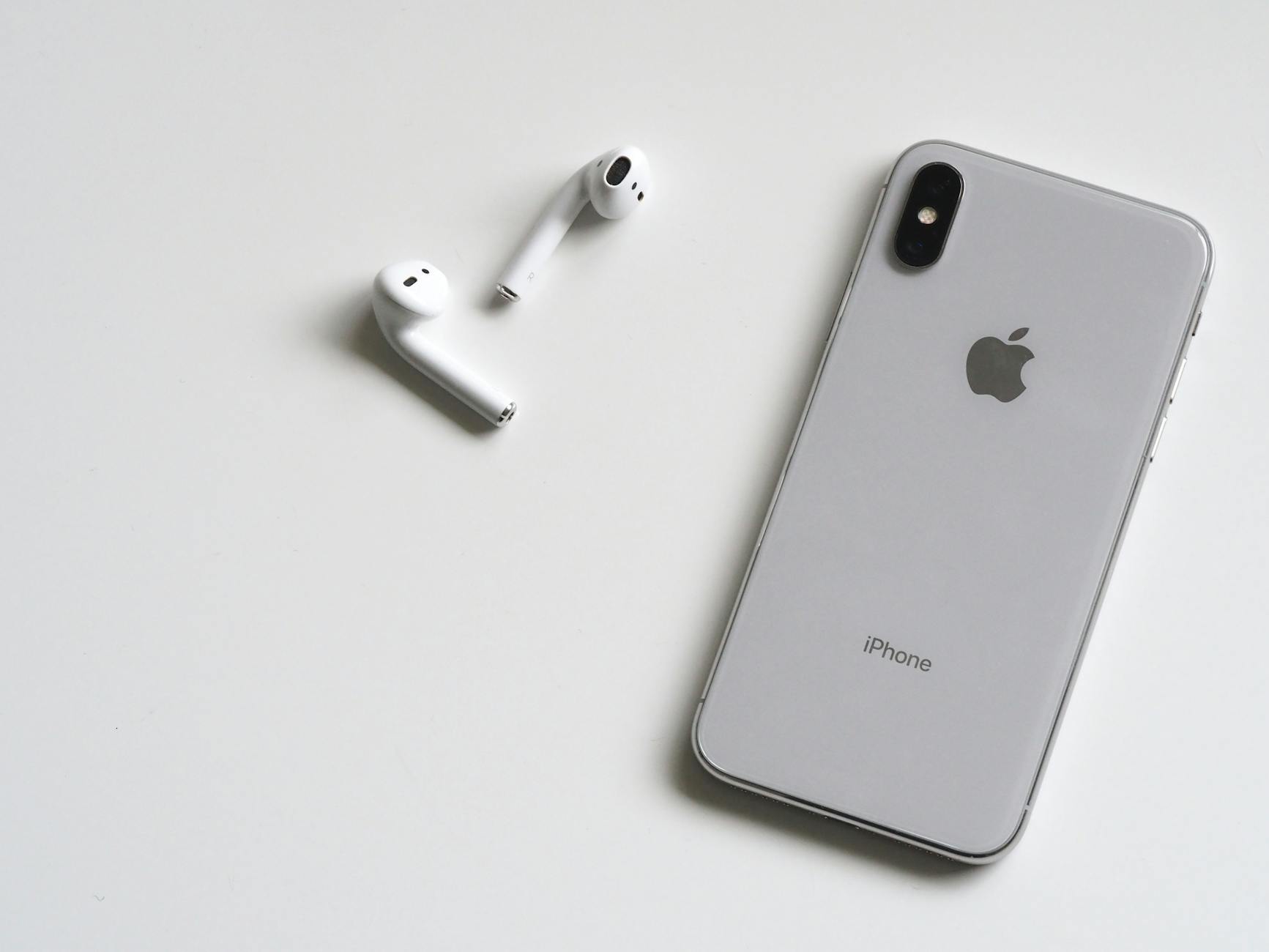 Photo by Jess Bailey Designs
Reset Network Settings on iPhone
If Bluetooth gets stuck after a network change or a software update, a network reset is a strong next step. This action clears saved Wi‑Fi networks and Bluetooth pairings, giving you a fresh start without erasing your data.
- General path: Settings > General > Transfer or Reset iPhone > Reset > Reset Network Settings.
- What you’ll lose: saved Wi‑Fi passwords, VPN settings, and Bluetooth pairings. You’ll reconnect to networks and re-pair devices afterward.
- Quick test: after the reset, rejoin your essential networks and try to pair the stubborn device again.
Why this helps: Bluetooth often shares memory with network data. A reset wipes stale profiles and can stop a device from reappearing in your list after you forget it. If you want a deeper read, you can explore more detailed guides on resetting network settings for iPhone and other Apple devices, which discuss how this step resolves Wi‑Fi and Bluetooth glitches. For instance, see the iPhone reset network settings guides from reputable sources, and Apple’s own guidance on network resets.
External references to broaden understanding:
- How to reset network settings on your iPhone, Mac and other Apple devices to quickly fix Wi‑Fi and Bluetooth glitches
- Reset Network Settings will not Reset Bluetooth
- How to Reset Network Settings on iPhone in 5 Easy Steps
Reset All Settings if Needed
Sometimes a light touch is not enough. A broader reset can clear stubborn Bluetooth memory without touching your data. This action resets system preferences, layout, and non‑essential settings, while keeping your content intact.
- How it works: returns system preferences to their defaults, which can resolve lingering Bluetooth profile conflicts.
- When to use: if multiple fixes fail and you still see the device in your list after a forget attempt.
- Aftercare: you’ll need to reconfigure preferences such as wallpaper, accessibility tweaks, and app permissions.
What you should know: this is a more expansive reset than the network-only option. It addresses underlying misconfigurations that can influence how iOS handles Bluetooth. If you want extra context, Apple Support offers guidance on resetting all settings and what to expect after doing so.
External references for deeper reading:
- Reset iPhone settings to their defaults
- iPhone Bluetooth connection issue discussions
- How to reset the network settings on your iPhone, and what happens when you do
Update iOS and Accessory Firmware
Software keeps Bluetooth in step with the rest of the system. An out‑of‑date iOS or accessory firmware can cause odd behavior, including stubborn forget issues. Keeping both up to date minimizes the chance of a phantom memory.
- Steps to take:
- Check for iOS updates via Settings > General > Software Update.
- Open the maker’s app for your Bluetooth accessory and verify there’s a firmware update available.
- If updates are available, install them and then reboot your iPhone.
Why this matters: updates fix known Bluetooth bugs, improve reliability, and align the accessory’s behavior with the latest iOS changes. If you’re unsure where to start, consult Apple’s support articles on updating iOS and ensure your device and accessory are on compatible versions. External links below provide practical guidance on common update workflows and firmware checks.
Helpful resources and context:
- Apple Support: Reset iPhone settings to defaults
- How to update iOS and check for accessory firmware
- Bluetooth issues after iOS updates and how to fix them
External references you can check:
- How to reset network settings on iPhone
- How to remove paired Bluetooth devices on Android (for cross‑platform context)
- How to fix Bluetooth problems on iPhone after updates
If you try these steps and still see the stubborn device, re‑pair from scratch. Forget the device, reboot, and re‑pair as a brand new connection. This often clears lingering profile data that normal forget actions miss.
Additional tips to prevent future issues:
- Regularly reboot after major iOS updates and keep the number of paired devices reasonable.
- Use the latest firmware for your accessories, and re‑check compatibility after each iOS patch.
- When you unpair, perform a quick check to ensure the device isn’t accidentally reappearing due to residual profile data.
External resources to support these steps:
She Pressed Play on a Strange Audio Track and Within Days Her Financial Reality Started Shifting in Ways She Could Not Explain
>>> See How It Works <<<
- iPhone Bluetooth connection issue threads on Apple Support
- How to Reset Network Settings on iPhone and what it does for Bluetooth
By following these targeted steps, you’ll pinpoint whether the memory problem is a simple cache, a software glitch, or a device compatibility hiccup. Each fix is designed to be completed quickly, so you can return to a reliable Bluetooth experience with confidence. If you’re ready to move forward, the next sections will cover practical habits to prevent Bluetooth from getting tangled again and how to handle stubborn devices across Android and iPhone.
Prevent Bluetooth Problems in the Future
Once you’ve fixed the stubborn Bluetooth memory, the next goal is to keep it that way. This section outlines practical habits and reliable maintenance steps to prevent future Bluetooth headaches on both Android and iPhone. Think of it as a small but steady routine that saves you time and keeps your devices communicating smoothly.
Build a simple pairing discipline
A little planning goes a long way. Limit how many devices you keep remembered on your phone and set a routine to clean up connections every so often. When you add a new headset, car system, or speaker, pair it in a fresh session and remove old ones you no longer use. This reduces how much the Bluetooth stack has to juggle and lowers the chance of cross‑talk between devices.
Practical tips:
- Maintain a concise memory bank. If you don’t use a device for weeks, forget it.
- Label devices by purpose (work headset, car audio, home speaker) to avoid re pairing the wrong gear.
- After a long software update, run a quick memory audit and prune unused entries.
If you want a hands on guide, Android and iPhone communities offer clear steps for managing paired devices and cleaning up the list. For Android users, a reliability guide explains how regular cleanups help the Bluetooth stack stay tidy. For iPhone users, Apple discussions often highlight careful re pairing after updates as a preventive measure.
External links:
- Fix Bluetooth problems on Android
- iPhone Bluetooth not working? Here’s how to fix it
Schedule regular software maintenance
Bluetooth reliability often rides on the broader health of the phone’s software. Regular updates fix bugs, improve stability, and align the Bluetooth stack with the latest features. A simple maintenance habit pays off in steadier connections and fewer surprise re appearances in the device list.
What to do:
- Enable automatic updates when possible, and check for Bluetooth accessory firmware updates as well.
- After OS updates, restart your phone and test a couple of devices to confirm nothing regresses.
- Stay aware of accessory firmware. Update the gadget when the maker releases new code.
This approach mirrors standard guidance from major Android and iPhone support resources. Keeping both the phone and the accessory on current software reduces the odds of stubborn memory issues.
External links:
- Fix Bluetooth problems on Android
- iPhone Bluetooth not working? Here’s how to fix it
Optimize your home and travel environments
Interference from other wireless devices can quietly sabotage Bluetooth stability. A calm radio environment helps the memory stay clean. When you’re at home or on the move, try these practices:
- Place devices within a reasonable distance and avoid stacking multiple Bluetooth hubs in one room.
- If you have a mesh Wi Fi system or several 2.4 GHz networks, test Bluetooth performance with other networks temporarily deactivated.
- When you travel, re pair critical devices in a new setting to verify they don’t carry over old profiles.
Guidance from network and Bluetooth troubleshooting resources emphasizes how network congestion and interference can manifest as Bluetooth hiccups. A simple periodic check on your environment can prevent cross talk between Bluetooth and Wi‑Fi or cellular connections.
External links:
- Fix Bluetooth problems on Android
- How to reset network settings on iPhone and why it helps Bluetooth
Keep firmware and accessories up to date
Standards evolve and so do accessories. Keeping the firmware of your Bluetooth devices current ensures better compatibility with new phone software. This reduces the chance that a device will reappear in the memory after you forget it.
Checklist:
- Check the accessory manufacturer’s app or support page for firmware updates.
- Apply updates promptly and reboot the device if required.
- Reconnect after updating to confirm the memory is clean.
This practice is echoed across both Android and iPhone communities, where users report smoother experiences after firmware updates and careful re pairing.
External links:
- iOS and accessory firmware updates guidance
- How to update iOS and check for accessory firmware
When to reset as a preventive measure
If you’re in a busy environment with many Bluetooth devices, a periodic reset can serve as a health check. A selective reset clears enough background data to prevent stubborn memory without wiping your content.
When to consider:
- After a major network change or if you notice odd Bluetooth behavior after updates.
- If you’ve added and removed many devices in a short period.
- If you regularly switch between work and personal devices.
How to approach it:
- On Android, reset network settings or perform a clean re pairing for key devices after the reset.
- On iPhone, reset network settings and then reconfigure essential networks before testing a new pairing.
External links:
- Fix Bluetooth problems on Android
- iPhone Bluetooth not working? Here’s how to fix it
Quick recap: the three pillars of prevention
- Keep your device list lean and tidy. Remove old entries and re store only what you actively use.
- Stay current. Apply OS and accessory firmware updates promptly and reboot after updates.
- Minimize interference. Simplify networks and keep a clear space for Bluetooth devices to pair without cross talk.
Key takeaway: a small routine of cleanups, updates, and mindful pairing reduces the chances of Bluetooth issues resurfacing. When a problem does arise, you’ll be ready to handle it quickly with the proven steps above, no guesswork required.
Conclusion
Fixing a phone that cannot forget a Bluetooth device usually follows a simple path. Start with the Android steps in order: clear the Bluetooth cache, reset network settings, then update software. If the problem persists, re pair from scratch to erase any stale profile data. On iPhone, begin with a network reset if needed, then try a full reset all settings only if necessary, and finally re pair the device. This sequence keeps your smartphone running smoothly without blowing away your data.
Key takeaway: tackle the easiest fix first, then move to broader resets and fresh pairing. Regular maintenance, like software updates and trimming your paired list, prevents repeats of the Bluetooth forget issue. The process is designed to be fast, so you can get back to a clean, reliable connection in minutes.
FAQ
- What if nothing works? Contact your device maker’s support or visit an official help page for device specific guidance.
- Is there a quick test after fixes? Yes, re pair a known good device to confirm the memory is cleared.
If you found value in these tips, share your experience in the comments and consider subscribing for more practical guides. You’ll notice a smoother smartphone experience when Bluetooth stays tidy and predictable.
There Is a Frequency That the Wealthiest Families Have Used for Generations and Most People Will Never Know It Exists
>>> Open the Door <<<
