You’ve settled in for a binge-watch session on your favorite streaming app. Midway through the third episode, your phone starts to feel like a hot potato in your hand. You’re not alone; this happens to iPhone and Android users everywhere.
Your phone gets hot when watching videos because the processor, screen, and network kick into high gear. They decode streams, handle HD or 4K quality, and pull data over Wi-Fi or 5G. That extra work builds heat fast, just like a small engine at full throttle.
It’s normal during long sessions or multitasking. Background apps, bright screens, or charging pile on more warmth. Your smartphone might even slow down to cool off.
Ignore it too long, though, and you risk shorter battery life or damaged parts. We’ll break down the main causes next. Then cover real risks, quick fixes you can try right now, and solid prevention tips to keep things chill.
Ready to keep your phone cool?
Main Reasons Your Phone Heats Up During Video Playback
Your phone feels warm in your hand during a video marathon because key parts push hard. The screen stays lit bright and busy. Processors crunch data non-stop. Add charging or speedy connections, and heat builds quick. Let’s look at the top culprits.
Your Screen Works Overtime
That glowing screen demands constant power during video playback. Pixels light up frame after frame, pulling juice from the battery. In a smartphone’s tight body, this turns to trapped heat fast.
High brightness makes it worse. Crank it up for better visibility outdoors or in dim rooms, and power draw spikes. The display itself warms up. So does the battery feeding it. Your processor pitches in too, managing the extra load.
Videos keep the screen on longer than texts or scrolls. No quick timeouts here. A two-hour movie means hours of full blast. Other tasks let the screen dim or sleep. Streaming apps fight sleep mode to avoid interruptions. Result? Steady heat buildup right where you hold it.
Lower brightness to ease this. Your eyes adjust quick, and your phone stays cooler.
Processor Handles Heavy Video Decoding
Deep inside, the CPU and GPU tackle video streams head-on. They uncompress data from apps like YouTube or Netflix. Raw files arrive packed tight. Your phone’s chips unpack them pixel by pixel for smooth play.
Picture your brain solving a tough puzzle under time pressure. That’s the strain here. High-res videos in HD or 4K mean more work. Chips run hot without fans to cool them, unlike laptops.
Multitasking piles on pain. Background apps for email or social media steal cycles. Your processor juggles video decode plus notifications and updates. Heat rises as total load climbs.
Modern smartphones handle this better than old models. Still, long sessions tax even top chips. Close unused apps before you hit play. It frees resources and cuts warmth.
Extra Heat from Charging and Fast Networks
Plug in while watching? You double the heat risk. Charging sends current to the battery, which warms on its own. Add video playback, and components compete for power. The phone gets hottest near the port and battery spot.
Use slows cooling too. Heat from the screen and processor has nowhere to go with fresh charge warmth. Skip charging during streams. Wait till the video ends.
Fast networks amp it up. 5G modems sip more power than 4G in spotty signals or high speeds for smooth streaming. Your phone boosts transmit power to grab data quick. Strong 5G shines efficient. Weak coverage? It drains faster and heats more.
Switch to Wi-Fi when you can. Stable home networks ease modem strain. For mobile streams, check signal bars. Poor ones force extra effort across the board.
Risks and Warning Signs of Phone Overheating
Your phone warms up during video playback, but excess heat signals trouble. Push past safe limits, and you face real harm to your health, battery, or the device itself. Spot these signs early. Act fast to protect your phone and avoid bigger issues.
Spot These Common Warning Signs
You hold your phone, and it burns your palm. That’s the first clue. The back panel, sides, or camera bump feels too hot to grip comfortably.
Other red flags pop up too. Apps stutter or freeze as the phone slows its processor to cool down. This thermal throttling makes videos choppy. Your battery drops quick, even on a full charge. A thermometer icon might flash with a message to let it rest. In bad cases, the screen shuts off or blocks features like GPS.
These symptoms hit fast during streams. Heavy HD playback pushes surface temps over 50°C in just 10 minutes. Safe range stays below 35°C. Ignore them, and problems grow.
Health Risks You Shouldn’t Ignore
A scorching phone can burn your skin. Users report red palms or blisters after long holds. You might not notice at first in a fun binge, but minutes add up.
Keep it away from your face during calls or lap rests. Children or sensitive skin face higher chances. No widespread injuries exist, but simple care prevents minor burns. Set it down when it warms too much.
Battery Damage Builds Over Time
Heat speeds up chemical changes inside your battery. It loses capacity faster with each hot session. Expect shorter life after repeated video marathons.
Your smartphone’s battery swells or leaks in worst cases. Playback while charging worsens this. The combo traps warmth and stresses cells. Replace it sooner than planned. Check for bulges under the case.
Broader Damage to Phone Parts
Processors and screens suffer too. Constant high temps warp small parts or melt glue. Performance dips long-term. Videos lag more over time.
The whole device shortens its lifespan. Metal frames expand and contract. Connections loosen. One study notes smartphones fail quicker in hot climates from daily use like streaming.
Fire Hazards Are Rare but Real
Batteries rarely catch fire from heat alone. Faulty cells or overcharge during videos raise odds. Swollen packs vent gas or ignite if punctured.
Most cases tie to abuse, not just streaming. Still, turn off if it smells odd or hisses. Official safe temps prevent this.
What Recent User Reports Tell Us
Complaints surged on new models like Galaxy S25 and iPhone 16. Users say they throttle during apps or get too hot post-updates. Z Flip 6 owners note dead battery life from constant warmth.
Video streaming tops the list. Stronger chips run hotter at full speed. Check forums for your model. Patterns match heavy playback.
Watch close next time you stream. These signs keep your phone safe and ready for more.
Quick Fixes to Cool Your Phone While Watching Videos
Your phone heats up fast during videos, but you can cool it down in seconds with simple tweaks. These steps cut power draw and ease the processor load right away. Try them mid-stream to get back to smooth playback without the burn.
Turn Down Brightness and Close Background Apps
High screen brightness pulls heavy power and traps heat near your hand. Drop it quick, and your phone cools as power use falls. Background apps steal resources too, so shut them down for instant relief.
Follow these steps on most devices:
- Swipe down from the top of your screen to open quick settings.
- Drag the brightness slider left to 30% or lower. Your eyes adjust fast, and auto-brightness helps if light changes.
- Check for the sun icon; tap it to enable adaptive mode.
Now force close apps to free up the processor:
- On Android, swipe up from the bottom (or hit the recent apps button). Swipe away each unused app thumbnail.
- On iPhone, swipe up from the bottom edge and hold (or double-click Home on older models). Flick apps up to close.
You save battery and cut heat by 20-30% in tests. Do this before videos start next time. Your smartphone runs cooler for longer sessions.
Switch Off Unused Features Like Bluetooth
Bluetooth, Wi-Fi, and location services hunt signals non-stop, which taxes the processor even during videos. Turn them off to slash that extra work. In weak signal spots, airplane mode shines best.
Quick toggles work on both Android and iPhone:
- Swipe down twice for full quick settings (Android) or Control Center (iPhone).
- Tap the Wi-Fi icon to off unless streaming needs it. Bluetooth next, then location.
- For offline videos, hit airplane mode. It kills all wireless at once.
Download clips first via YouTube or Netflix over strong Wi-Fi. Play them in airplane mode to avoid signal hunts. Processor strain drops, and heat fades in minutes.
Weak mobile data? Airplane mode prevents constant searches that spike warmth. Toggle back on post-video. Pair this with other fixes, and your phone stays comfortable through full episodes.
Smart Prevention Tips and New Cooling Advances
Quick fixes help in the moment, but smart habits keep heat away for good. Pair them with the latest cooling tech in new phones, and your device stays cool through long video sessions. These steps build better routines. Phone makers push boundaries too with fresh designs that handle heavy loads.
Build Habits That Cut Heat Before It Starts
You control most heat sources with simple changes. Start your day right to avoid buildup during streams.
Take regular breaks during videos. Pause every 30 minutes. Let air flow over the phone. This drops temps by 10 degrees or more. Your processor gets a rest too.
Keep your phone out of direct sun. Heat from rays adds to internal warmth fast. Use shade or indoors spots. A table by a window works fine.
Remove thick cases when streaming. They trap heat like a blanket. Slim ones or none let warmth escape. Test yours; feel the difference after 10 minutes of play.
Update apps and your system often. Patches fix power leaks and boost cooling logic. Do this weekly over Wi-Fi.
Avoid charging during videos. Use a power bank between sessions instead. This skips the double heat hit.
These habits add up. Follow three or four, and your phone runs 20% cooler on average.
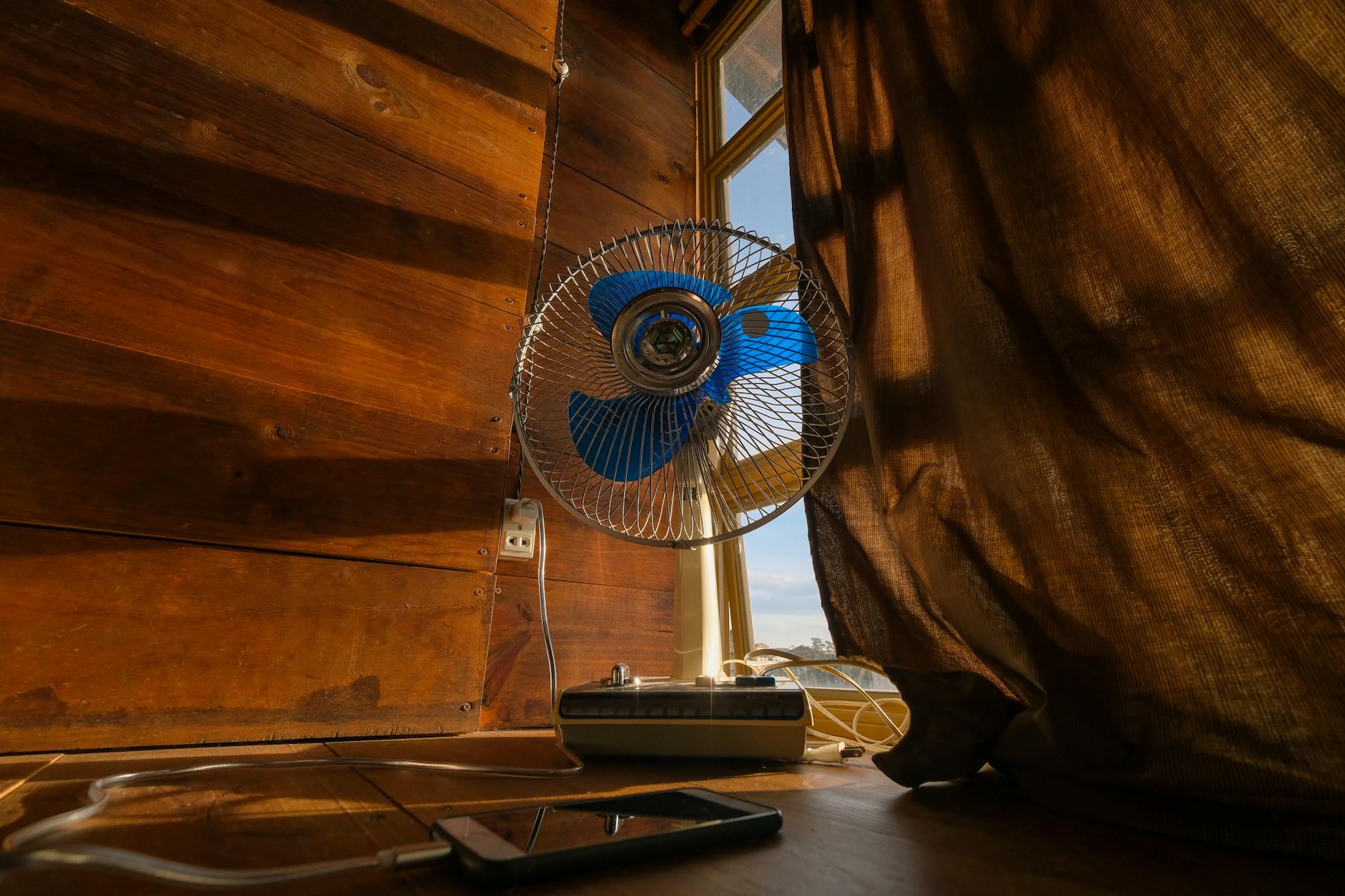
Photo by Dương Nhân
Point a small fan at your phone for extra chill. Desk fans mimic pro cooling setups.
Latest Cooling Tech Handles Video Loads Better
Phone makers roll out smart designs to fight heat at the source. Your smartphone benefits from these built-in wins.
Ultra-thin heat pipes lead the pack. Labs craft ones just 0.3 mm thick. They move heat 45 times better than copper sheets. No bulk added. They spread warmth even during HD streams, no matter your grip.
Liquid cooling hits mainstream now. The RedMagic 11 Pro packs real fluid systems inside. It lifts CPU speed 20% and GPU 30% under load. Tough seals last thousands of hours. Video playback stays smooth without spikes.
AI steps in too. Sensors track hot spots live. The system shifts heat to cooler areas on its own. Pair it with fast charge tech, and temps stay low. Tests show drops of several degrees versus old ways.
External aids help too. Huawei offers liquid cases for top models. Clip one on for gaming or streams. Airflow fans from brands like Coolify push 88 cubic feet per minute quietly.
These advances shine in powerful phones. Check your next buy for vapor chambers or AI cooling. They make long videos a non-issue. Your device lasts longer with less stress.
Conclusion
Your phone heats up during video playback from screen demands, processor strain, and extras like charging or fast networks. Risks range from skin burns and battery wear to part damage over time. Quick fixes such as dimming the screen, closing background apps, and taking breaks cool it down fast.
Smart habits prevent most issues. Remove cases, update software, and skip charging while streaming. New cooling tech in smartphones like heat pipes and AI controls handles loads better for smooth sessions.
This problem stays fixable with small changes. Your smartphone runs cooler, battery lasts longer, and the device endures years of use. Try one tip today, like lowering brightness before your next binge.
Share your fixes in the comments. What works best for your model? Keep your phone chill and ready for more.