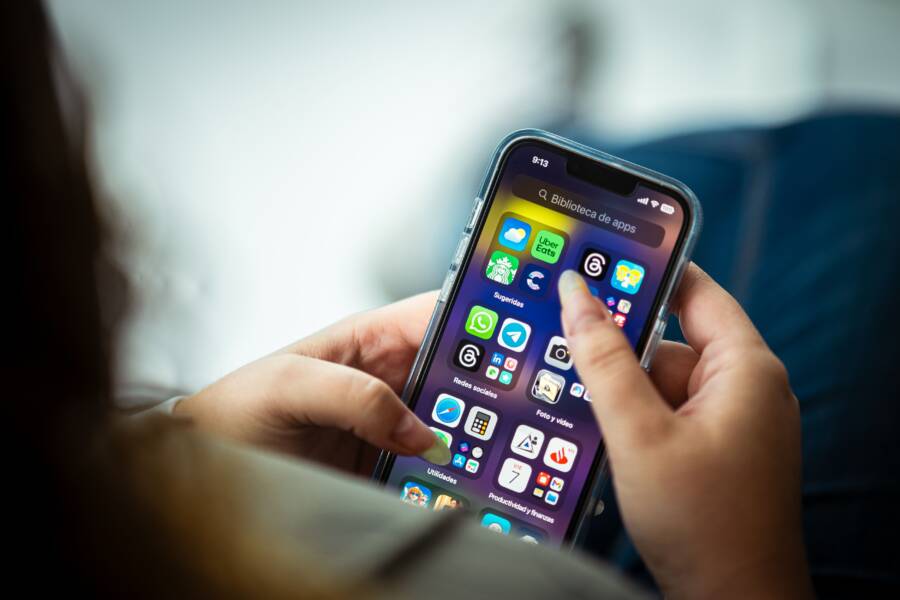
Your smartphone weather app fails to refresh because background app refresh restrictions, aggressive battery savers, or unstable network connections block incoming data. When a smartphone is set to conserve power or restrict background activity, weather widgets and apps stop pulling live updates until you open them manually. Check your system settings first, because tweaking power management controls usually restores normal weather synchronization.
Why Your Weather App Stops Updating Automatically
Your smartphone weather app often fails to update because system constraints intercept background tasks to save resources. When your device prioritizes battery life and memory management, weather synchronization takes a backseat. Fixing these silent interruptions requires looking under the hood of your operating system settings.
How Background Data Restrictions Block Live Updates
Modern operating systems aggressively throttle background processes to extend battery life. When a smartphone enters a power saving mode, it restricts apps from fetching new data while closed. Your weather app sits quietly in the memory pool, waiting for permission to ping meteorological servers. Because the system blocks network access for idle software, the temperature on your screen remains frozen at the reading from hours ago.
Power optimization features treat weather widgets as nonessential drains on your battery. When you disable unrestricted data access for a specific app, background refreshes stop immediately.
To restore automatic updates, check your device settings by following these steps:
Open your system settings and locate the battery or application manager menu.
Find your specific weather app in the list of installed software.
Select battery optimization settings and switch the profile from optimized to unrestricted.
Enable background data usage toggles so the software can communicate while closed.
The Role of Location Services and GPS Permissions
Weather apps rely heavily on precise geographical coordinates to pull accurate forecasts for your current spot. If your smartphone restricts location access, the app loses track of where you are. A weather app without location data cannot request a forecast update for your neighborhood.
Many users grant location permissions only while using the app, which stops background refreshes entirely. When the app runs silently in the background, it lacks the active GPS hook required to check your coordinates. Without a confirmed location, the server returns an error or simply skips the update cycle.
Change your location permissions from approximate to precise and set access to allow all the time. This adjustment gives the app constant permission to check your coordinates before requesting a fresh forecast. Once the software knows your exact position at all times, automated refreshes start working again without manual intervention.
Step by Step Guide on How to Fix a Smartphone Weather App That Keeps the Weather App from Refreshing Correctly
Fixing a stubborn weather app requires going beyond basic troubleshooting and adjusting the core system permissions of your smartphone. When background data restrictions and aggressive power management features block your software, weather updates stop entirely. You can restore normal synchronization by working through specific configuration steps on your device.
Enabling Background App Refresh in Your Settings
Your smartphone relies on system-level permissions to decide which apps can download new information while they are closed. If background updates are turned off for your weather software, the app sits idle until you open it manually.
To turn on background data permissions for your weather app, follow these steps:
Open your device settings and tap on apps or application manager.
Scroll through your installed software list and select your specific weather app.
Tap on mobile data or background data settings.
Turn on the toggle that allows background data usage and unrestricted network access.
Adjusting Battery Saver and Low Power Modes
Battery optimization tools frequently kill background processes to conserve power, which stops your weather app from fetching live forecasts. When your smartphone enters a low power state, it suspends network requests for nonessential programs. You must whitelist your weather tool so battery managers ignore its background activity.
Open your device settings and locate the battery optimization or power saving menu. Find your weather app in the list of monitored applications and select the option to exclude it from power saving restrictions. Change its profile from optimized to unrestricted so the operating system allows it to run continuously in the background.
Clearing App Cache and Checking Storage Space
Corrupted cache files and full storage drives prevent apps from writing new data or executing normal functions. When temporary files become damaged, your weather software freezes during update cycles and fails to pull fresh meteorological data.
Go to your application settings, select your weather app, and tap on storage. Choose clear cache to delete temporary data files without losing your saved locations or personal preferences. Check your total available device storage while you are there, because smartphones need free memory space to run background updates properly.
Updating Your Operating System and Weather Software
Running outdated software creates compatibility gaps between your smartphone operating system and your weather app. Developers frequently release patches to fix bugs that interrupt background refresh functions.
Open your device app store and check for pending updates for your weather software. Install any available updates immediately. Next, open your system settings menu, go to software update, and download the latest operating system package for your smartphone.
Comparing Built-in Weather Tools Versus Third-Party Apps
Choosing between preinstalled weather tools and downloaded apps shapes how reliably your smartphone updates meteorological data throughout the day. Built-in widgets often win on raw system integration, while independent apps offer deeper meteorological data and customized radar layers. Understanding how each approach handles background network requests helps you pick the right tool for automatic refreshes.
Reliability of Native Smartphone Weather Tools
Built-in weather apps on iOS and Android operate with distinct architectural advantages because the operating system maker designs both the software and the power management rules. Because Apple and Google build these utilities directly into the core firmware, native tools receive special exemptions from aggressive battery throttling.
The smartphone operating system grants native tools continuous access to background execution pools without forcing the user to manually whitelist the software. Apple Weather and Google Weather communicate through native system APIs that consume fewer system resources than third-party alternatives. As a result, native widgets rarely suffer from the sudden refresh freezes that plague independent downloads.
Performance of Independent Weather Apps
Independent weather applications rely heavily on continuous internet polling and active location tracking to fetch hyper-local forecasts from external servers. Unlike native tools, third-party apps sit outside the primary firmware trust circle.
Battery optimization managers frequently flag independent weather software as resource-heavy background processes. When your smartphone enters a low power state, it severs the continuous background network socket that the third-party app needs to check for forecast updates.
Independent apps demand constant GPS pings to match your current coordinates, which increases data overhead. If you restrict location access to save battery life, the independent weather app fails to fetch updates while closed. Whitelisting the app in your system settings restores normal background polling so independent apps can match the reliability of native tools.
Frequently Asked Questions About Weather App Gl glitches
Weather app glitches frustrate many smartphone owners who rely on accurate forecasts. Resolving these common display and sync errors keeps your daily routine on track.
Why Does My Weather App Only Update When I Open It
A weather app fails to pull live updates automatically because your smartphone operating system pauses background processes to preserve battery life and memory. When you open the application manually, it forces an immediate connection to the meteorological server, which brings in fresh data on demand.
Background restrictions target idle software to stop excessive power consumption throughout the day. If your device blocks network access for closed programs, widgets remain frozen on the last recorded temperature until you launch the full interface.
To fix this behavior and allow continuous synchronization, review these steps on your smartphone:
Open system settings and tap on applications or battery management.
Select your weather app from the installed software list.
Locate background data permissions and switch them to unrestricted mode.
Disable aggressive power saving profiles for that specific weather utility.
Does Allowing Background Refresh Drain the Battery Too Fast
Enabling continuous background updates for your weather app causes a minor increase in daily battery consumption, but the impact on your smartphone is usually negligible. Background refresh tasks use small data bursts and intermittent GPS pings to check for forecast changes every few hours.
The convenience of glancing at your home screen to see current conditions outweighs the fractional power cost for most users. If your battery drains quickly, the culprit is rarely a single weather app running in the background. Screen brightness, cellular signal strength, and social media software consume far more power than meteorological updates.
Balance battery health and live weather data by choosing which apps get background permissions. Restrict background access for games and shopping apps while leaving it active for essential tools like your weather software.
Conclusion
Restoring normal automatic updates on a smartphone weather app requires managing system permissions and battery profiles correctly. When users enable unrestricted background data and grant precise location access, meteorological tools sync live data consistently throughout the day.
Apply these troubleshooting steps to your device today so your local forecast remains accurate whenever you check it.