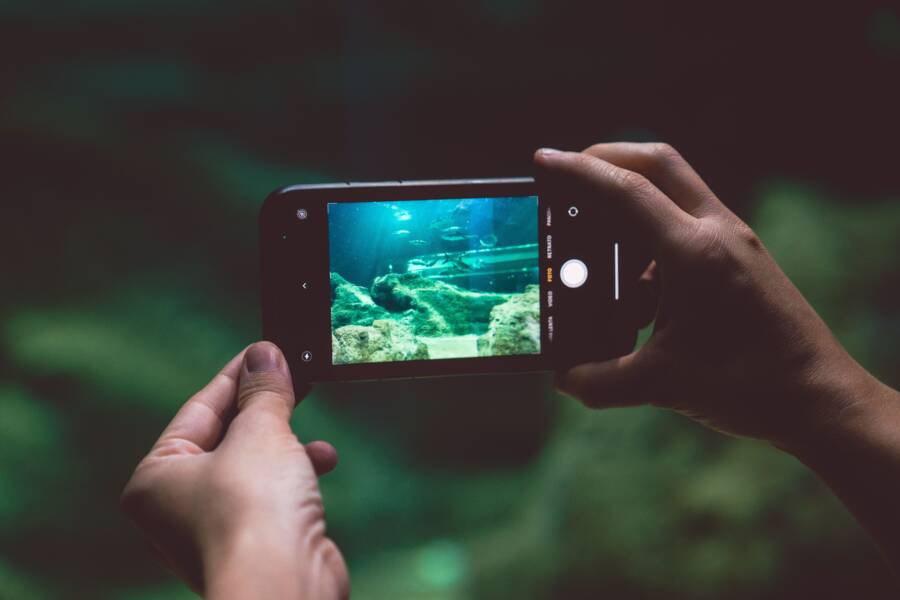
Live Photos and Motion Photos capture a short video loop every time you trigger the shutter on your smartphone. This feature records the moments immediately before and after your still image to give you a buffer of usable frames.
You can use these clips to select the exact moment where everyone looks their best or keeps their eyes open. This simple tool turns a blurry or poorly timed shot into a crisp, professional photo.
Mastering this function allows you to get more from your camera without needing extra gear. You will learn how to find the right frame and save it as a high-quality still image.
Understanding How Motion Photos Work on Your Phone
Motion photos change how you capture memories by shifting from a single instant to a brief sequence of time. When you press the shutter on your smartphone, the camera records a short video clip along with your still image. This process gives you the flexibility to choose a frame that captures the perfect expression or action. Understanding the mechanics of this feature helps you turn average shots into professional-quality images.
The Difference Between a Standard Photo and a Live Photo
A standard photo captures one moment in time. The camera sensor opens and closes once, recording only what exists in that split second. If you press the button at the wrong moment, you get a blurry subject or closed eyes. You have no way to go back and adjust the outcome after the shutter closes.
A motion photo functions like a short video recording. It captures a few seconds of motion surrounding your primary shot. This extra data acts as a safety net. If your subject blinked or someone walked through the frame during the main exposure, you can slide through the sequence to find a frame where everyone looks clear. You basically gain multiple chances to save a shot that would otherwise end up in the trash.
Why Your Smartphone Settings Matter for High Quality Results
You must ensure the motion feature is active in your camera settings before you start shooting. Most devices hide this option under a small icon in the camera interface. If you leave it off, your phone records a standard image, and you lose the ability to pick alternative frames later. Always check that the icon is glowing or highlighted to confirm the mode is ready.
Lighting conditions also impact the quality of every frame within your motion sequence. Since the camera records a video feed, it needs enough light to keep the shutter speed fast across every included frame. If you shoot in a dark room, individual frames may look grainy or blurry. Bright, natural light allows the camera to maintain higher detail in every image, which makes it much easier to extract a sharp still photo when you edit the results.
Good lighting is essential for getting the most out of your smartphone camera. You will see clearer results if you aim for steady hands and stable environments while the feature captures the motion.
Steps to Select the Perfect Still Frame
Picking the best moment from a motion photo is straightforward once you know where to look. Your smartphone captures a sequence of frames, and your goal is to find the one where the subject is sharpest and the composition is most pleasing. Most native camera applications offer tools to scrub through these sequences, allowing you to isolate a single high-quality image from the motion clip. Follow these steps to refine your results and pull out the best shots from your device.
Editing on iPhone with Live Photos
Apple simplifies the process of finding the right frame through the native Photos app. When you open a Live Photo, you have access to every frame captured during that three-second window.
- Open the Photos app and tap on the Live Photo you want to edit.
- Tap the Edit button located in the top-right corner of the screen.
- Select the Live Photo icon at the bottom of your display.
- Drag the slider across the frames to see each individual image.
- Watch for the badge labeled Key Photo that appears when you stop on a specific frame.
- Tap Make Key Photo to set that frame as the primary still image.
- Tap Done to save your changes to the original file.
The software creates a high-quality still from the data captured at that exact moment. You can always revert to the original shot by tapping the Revert button in the edit menu if you change your mind later. This feature is useful because it lets you keep the Live Photo effect while ensuring the main preview shows your chosen frame.
Extracting Frames from Android Motion Photos
Android devices, specifically Google Pixel and Samsung Galaxy phones, handle motion data through their own camera interfaces. These tools provide ways to save specific frames or even add motion blur to parts of the image.
On Google Pixel devices, open the photo in the Google Photos app. Tap the motion toggle or the edit icon to see the options. You can scrub through the frames to find the sharpest one. Once you find the right moment, look for an Export frame or Save copy option. This creates a new still image while leaving your original motion photo untouched.
Samsung devices offer a slightly different workflow within the Gallery app. When viewing a Motion Photo, tap the Edit button and select the video icon. You can play through the clip and pause on the frame you prefer. Many Samsung models include an extract icon, which looks like a square with a downward arrow, that saves the current frame to your device storage as a standalone photo.
Some Android devices also allow you to add artistic effects to the motion portion. You might see options to apply long exposure or motion blur if the photo involves moving objects like water or traffic. These settings transform the motion data into a stylized image, giving you creative options beyond a simple static frame. Using these tools turns your smartphone into a more capable camera for everyday use.
Pro Tips for Getting the Best Shots Every Time
Motion photos on your smartphone work best when you plan your composition and anticipate the action. While the technology provides a safety net for timing, you still need to follow a few core habits to achieve clear, high-resolution results. Good habits produce better frames every time you tap the shutter.
Avoiding Blur in High Motion Scenarios
Fast-moving subjects like pets or children often cause blur in single photos. Your smartphone manages this by combining data from a small video buffer, but you must still provide the camera with favorable conditions. High shutter speeds are necessary to freeze motion effectively.
Bright light is your most important tool when you capture active scenes. Sunlight allows your sensor to use a faster shutter speed, which reduces blur on limbs or faces in motion. If you shoot indoors, move your subject closer to a window or a bright light source.
Timing also makes a difference in your final output. Try to anticipate the movement rather than chasing it. Start your capture a split second before the peak of the action, such as right before a dog jumps or a child swings a bat. By recording the moment before and after, you increase your odds of pulling a frame where the subject is sharp and well-composed. Keep your own hands as steady as possible, as unnecessary shaking compounds the blur caused by your moving subject.
Using Motion Photos for Creative Effects
You can treat your motion data as a source for creative edits that go beyond just picking the perfect frame. Many modern smartphone apps include built-in filters that use the video data to generate artistic effects. These tools transform a standard snapshot into a professional image with a unique aesthetic.
The long exposure effect is particularly useful for subjects involving light or water. If you photograph a waterfall or car headlights at night, this setting stacks the frames to create a silky, motion-blurred look. It turns a messy, cluttered image into a clean, intentional artistic choice without needing a tripod.
Another useful feature is the bounce effect. This setting turns your short clip into a video loop that plays forward and then backward. It works well for playful moments like someone blowing out birthday candles or tossing a ball. Use these built-in software tools to turn your accidental, blurry photos into content worth sharing. You gain more value from every tap of the shutter when you think about the artistic potential hidden inside your captured motion data.
Frequently Asked Questions About Live Photos
Most users have questions about how these short clips impact storage space or device battery life. Understanding the finer details helps you manage your library and capture better images without performance issues. The following answers address common concerns regarding motion photos on your smartphone.
Does keeping the motion feature on consume more storage?
Yes, each motion photo requires more storage than a standard still image. Your smartphone saves the high-resolution JPEG alongside a brief video file to create the effect. This data adds up quickly if you take photos frequently.
If storage space is a concern, you should check your device settings regularly. Many phones offer options to offload high-resolution media to cloud services. You can also disable the motion feature when you have limited remaining capacity. Keep in mind that deleting the extra video data permanently removes your ability to select different frames from that specific shot.
Can I share motion photos with people who use different devices?
Compatibility varies depending on the platform and the messaging app you use. When you share a file, your smartphone often converts it into a standard video format or a static image to ensure the recipient can open it.
If you want to share the motion effect, sending it as a video or through a shared cloud album is usually the most reliable method. Most social media apps automatically detect the file type and play the animation for your followers.
Will this feature drain my smartphone battery?
The impact on battery life is minimal during daily use. Your camera sensor is already active while you frame a shot, so recording a few seconds of buffer data doesn’t require significantly more power than standard photography.
You might notice a slight increase in power consumption only if you shoot continuously for long periods. If you notice your phone heating up or losing charge rapidly, check for background apps that sync your photos to the cloud. Most modern devices are optimized to handle this feature efficiently during normal photography sessions.
Is it possible to turn a motion photo back into a regular photo?
You can easily convert a motion photo into a static image if you decide you no longer want the video data. Most native gallery apps provide a simple way to perform this action.
- Open the photo in your gallery app.
- Select the menu icon or the option to edit the capture.
- Look for a setting labeled “Turn off Motion” or “Save as Still.”
- Save your changes to remove the extra video buffer.
This action permanently discards the motion data to save space. Always make sure you have the exact frame you want before you strip away the motion capability, as you cannot recover the extra frames once you save the file as a static image.
Conclusion
Motion photos act as a buffer against bad timing. They turn every shutter press on your smartphone into a sequence of frames, allowing you to select the exact moment your subjects look their best. You no longer have to worry about closed eyes or awkward expressions ruining a shot.
Spend time reviewing your library to find these hidden moments. Experiment with the motion settings on your device during your next outing to see how much more control you gain over your photography. Turning on this feature is a simple way to preserve better memories every time you pick up your phone.