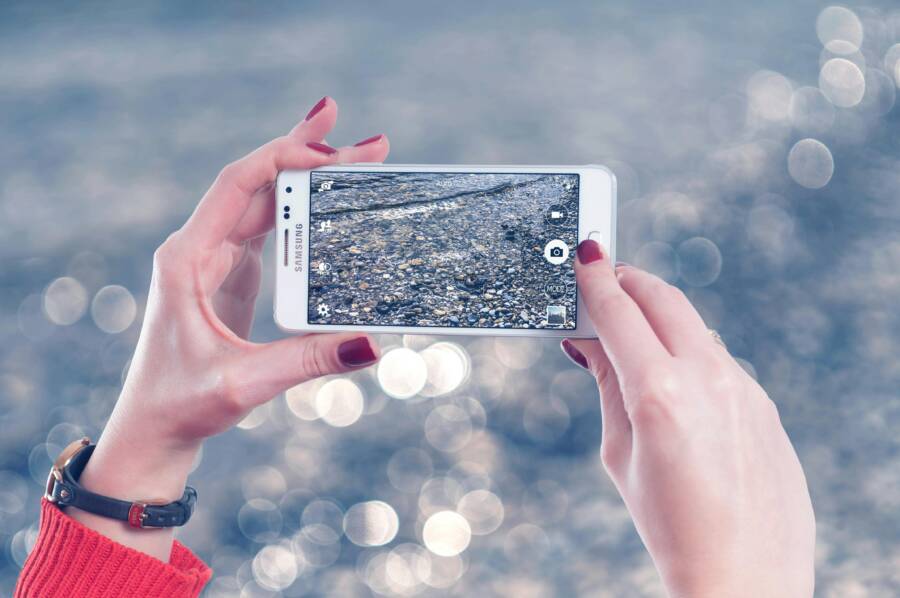
The camera timer is a simple feature that instantly improves photo quality on any smartphone. By creating a short delay before the shutter clicks, this tool eliminates blurry images caused by hand movement.
It also gives you time to step into the frame and join the scene yourself. Learning how to use this function ensures your shots stay sharp and well composed every time.
Why You Should Always Use the Camera Timer
Using the built-in timer on your smartphone is a simple habit that changes how your photos look. Many people ignore this feature because they think it only exists for large group shots. However, the timer provides technical benefits that improve the clarity of every image you capture. It allows your device to stay still while the shutter fires, which results in sharper, more professional images without extra equipment.
Eliminating Motion Blur for Crisper Images
Shutter shake is the primary enemy of clear smartphone photography. When you press the physical volume button or the on-screen shutter icon, your hand exerts pressure on the device. This physical force causes the phone to vibrate slightly at the exact moment the camera records the image. Even though this movement is often invisible to the naked eye, it creates a subtle blur in your photo. This issue becomes especially noticeable when you take photos in low-light environments or use high-resolution settings.
A 3-second or 10-second delay effectively solves this problem. When you select a timer, the phone waits for the physical impact of your finger to dissipate before it triggers the shutter. This short pause allows the camera lens to stabilize completely. Because the phone remains perfectly still during the exposure, the resulting image has much higher detail. You will notice that textures look sharper and edges appear more defined compared to shots taken by pressing the button manually.
Getting Yourself Into the Frame
The camera timer removes the need for bulky external remotes or complicated Bluetooth accessories. It remains the most efficient tool for solo travelers who want to document their experiences without relying on strangers. You can simply place your smartphone on a flat surface, a wall, or a portable tripod, then step into the composition. This process gives you total control over the framing, lighting, and background of your shot.
Group outings benefit from this feature as well. Often, the person behind the camera gets excluded from group memories because they have to hold the device. By using the 10-second delay, the photographer has enough time to walk into the group and strike a pose. Everyone stays included, and no one needs to hold the phone at arm’s length to fit the whole party into the frame. Using the timer makes your photos look natural, balanced, and complete.
How to Activate the Timer on Your iPhone
Setting the camera timer on your iPhone is a straightforward process once you know where to find the hidden menu. You do not need third-party apps or complex settings to gain better control over your shots. By using the built-in interface, you can manage your shutter delay in seconds.
Steps for Perfect Apple Photos
To access the timer, you first open the stock Camera app on your iPhone. Locate the small arrow icon at the top of the screen, or swipe up from the bottom of the viewfinder if you hold the phone vertically. This action reveals a hidden toolbar with several additional camera settings.
Look for the timer icon, which resembles a small clock, within this newly visible row. Tapping this icon displays your available options, usually including a 3-second or 10-second delay. Select your preferred time, and the icon will turn yellow to confirm the mode is active. You can now press the shutter button as usual. A countdown appears on your screen, giving you enough time to move into position before the smartphone captures the image.
Using Burst Mode with the Timer
When you enable the timer on an iPhone, the camera performs an automatic burst of photos once the countdown reaches zero. This feature is useful because it captures a quick series of images rather than just one. If you blink or someone moves during the capture, you have a high chance of finding a frame where everyone looks perfect.
After the timer finishes, your device saves these shots as a single stack in your photo library. You can open the image, tap the Select button at the bottom of the screen, and swipe through the series to choose the best version. This approach lets you save only the clearest, most flattering photo while deleting the remaining frames to free up storage space. Using this burst function helps you avoid the frustration of redoing a shot when the timing is slightly off.
Setting Up the Timer on Android Devices
Finding the timer function on an Android smartphone is simple once you recognize the standard interface patterns. While manufacturers like Samsung, Google, and Motorola customize their camera software, the core functionality remains consistent across the platform. You will find that most camera apps organize their controls in a predictable way to help you adjust your shots quickly.
Locating the Timer Icon in Different Camera Apps
Most Android camera apps feature a clock icon on the main viewfinder screen. You can typically find this icon at the top of the interface or tucked within a secondary menu accessible by tapping an arrow. The clock icon represents the countdown function, and tapping it usually cycles through the available delay intervals like three, five, or ten seconds.
If you do not see a clock icon on your main screen, look for a settings gear icon. Manufacturers often place advanced camera controls inside this menu to keep the main viewfinder clean. Once you open the settings menu, look for a tab labeled Timer, Shutter Delay, or Shooting Options.
Sometimes, the icon is hidden inside a specific shooting mode. For example, some devices require you to switch to a Pro mode or a specific Portrait mode before the timer settings appear in the toolbar. If you still struggle to locate it, try these common paths:
- Tap the chevron or arrow icon at the top of the screen to expand hidden menus.
- Check the main settings menu by tapping the gear icon in the corner of your camera app.
- Review the quick settings swipe menu, which often holds the timer controls on many modern devices.
Once you select your desired delay, the camera app will show a small number or a countdown timer on the screen when you press the shutter. This visual feedback tells you exactly how much time you have before the capture starts. Familiarizing yourself with these icon locations helps you transition between shooting modes on your smartphone without missing the perfect moment.
Advanced Techniques for Better Video and Stills
High-quality content requires more than just a steady hand. You can achieve professional production values by manipulating your smartphone settings and physical environment. These methods help you move beyond basic snapshots and into controlled, intentional visual storytelling.
Capturing Professional Looking Video Solo
Recording video content alone often leads to jittery starts and awkward movements while you hurry to get into position. The timer function eliminates the need for messy editing later by allowing you to prepare the shot before the camera starts rolling.
Follow this simple workflow to maintain a polished look:
- Mount your smartphone on a stable tripod or a flat surface at eye level.
- Frame your shot, lock the focus, and adjust the exposure to prevent flickering light levels.
- Set your camera to video mode and activate the timer if your app supports it.
- Press record and move calmly into your frame while the timer counts down.
- Pause for a second before you begin speaking to give yourself a clean edit point.
If your native camera app lacks a video timer, use a third-party application like Open Camera or Filmic Pro. These tools allow you to customize the start delay so you have plenty of time to sit down, adjust your clothing, and breathe.
This approach creates a clean opening for every clip. You avoid the “reaching for the button” moment that ruins the professionalism of your videos. Your audience sees you already in your element, which builds immediate trust and keeps their focus on your message.
Always check your audio levels before the countdown finishes. Since you are working solo, perform a quick 10-second test recording first. Watch this clip to confirm your framing is perfect and your voice is clear. Once you confirm the technical setup, you can record multiple takes with confidence. Your workflow becomes a simple rhythm of resetting your position and letting the timer handle the start of the recording.
Conclusion
The camera timer is a highly effective, yet underused tool that separates casual snapshots from professional quality work. By removing the physical movement of your hand during a shot, this feature produces significantly sharper images on any smartphone.
You should make the timer a part of your daily shooting routine to improve both photography and video results. It adds stability to your frames and grants you the freedom to include yourself in any memory.
Start using these settings on your device today to see the difference in your final image quality. Do you have a favorite delay setting for group photos or solo video projects?