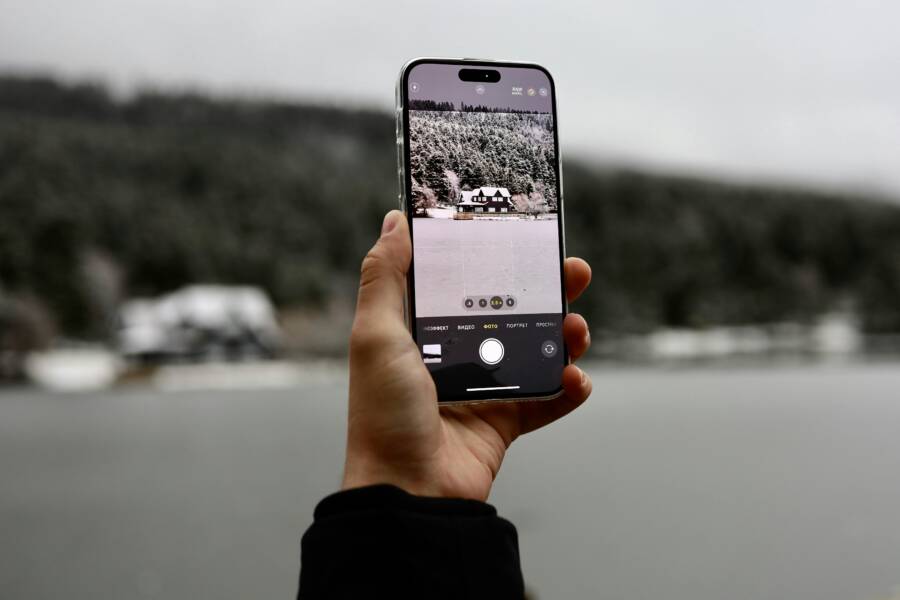
Picture-in-picture mode allows you to watch videos in a small, floating window while you use other apps. This feature is useful when you want to follow a tutorial, track a live event, or enjoy media without pausing your work on a smartphone.
You can use this tool on both iPhone and Android devices to increase your efficiency. It works by shrinking the video player into a corner of the screen so you can browse the web or send messages simultaneously.
Learning how to enable and manage these settings helps you get more value from your mobile device. You can start by checking your system preferences to ensure the feature is ready to use.
Understanding How Picture-in-Picture Works on Your Devices
Picture-in-picture mode functions by creating a dedicated software layer on top of your operating system. When you activate this feature on your smartphone, the device shifts the video player from the main application view to a small, floating overlay. This overlay stays active even when you return to the home screen or open a different app.
How the Operating System Manages Windows
Your smartphone manages this process through system-level permissions. Developers must build their apps with specific APIs that support this detached window state. When you trigger the mode, the app tells the operating system to keep its video stream active while suspending the main interface.
The operating system handles the overlay window with priority. It ensures that the video stays visible regardless of which app sits in the background. Because the system controls this layer, you can move the video window around your screen or resize it on some models.
Hardware Requirements for Performance
Displaying a video in a secondary window requires extra processing power from your smartphone. Your device must decode the video stream for the primary app and render the floating window simultaneously. Most modern smartphones manage this load with dedicated hardware decoders.
If you notice stuttering while using this mode, your device might struggle with the memory load. Older handsets often limit how many tasks run in the background to keep the system stable. You can check your device performance in these areas:
- Available RAM capacity for background processes.
- Battery optimization settings that restrict video playback.
- Screen resolution settings that impact processing requirements.
Limitations and App Compatibility
Not every app supports picture-in-picture functionality. Some streaming services block this feature because of content protection agreements or user interface design choices. When an app does not provide this capability, the video simply closes when you exit the app.
You should verify if the app settings allow for floating windows. Some developers require a paid subscription to unlock this convenience. If the feature seems unavailable, check the specific app documentation to confirm it supports your device. Always keep your apps updated to ensure the latest compatibility patches are installed.
Enabling and Using Picture-in-Picture on Your iPhone
Getting the most out of your smartphone display requires knowing how to configure system features. You can watch videos while checking your email or browsing the web by utilizing the built-in floating window mode. This feature is often ready to go immediately, but you should verify your settings to keep the experience smooth.
How to Turn on PiP Settings in iOS
Apple includes picture-in-picture functionality as a core part of the operating system. It usually stays active by default, so you rarely need to perform manual adjustments. If the mode fails to start when you close a video, follow these steps to check the configuration on your smartphone:
- Open the Settings app from your home screen.
- Scroll down and tap the General menu.
- Select the Picture in Picture option.
- Verify that the Start PiP Automatically toggle is set to the on position.
If you find this switch already turned on, the issue likely resides within the specific app you are using. Some applications provide their own internal settings for floating windows. Check the menu inside your preferred video player to see if an additional toggle exists for this mode. Keeping your apps current through the App Store also helps ensure the software recognizes these system-level permissions.
Launching a Video Window While You Browse
You can trigger the floating window without stopping your playback. Start playing a video inside a compatible app on your smartphone, then swipe up from the bottom edge of the screen or press the home button if your device has one. The video will shrink into a small window that stays pinned above your other apps.
This floating frame remains active as you open different applications or navigate your home screen. You can tap the window once to see playback controls or double-tap it to resize the view. If you need more space to see your other apps, drag the window to any corner of your display to snap it out of the way.
To return the video to full-screen mode, tap the icon located in the top right corner of the floating window. You can also drag the window off the side of the screen if you want to listen to the audio while keeping the video hidden. The audio continues to play in the background until you bring the window back or close the app entirely. This simple gesture makes multitasking on your mobile device much easier.
Getting the Most Out of Picture-in-Picture on Android
Android gives you deep control over how your media displays while you work. Because each app requires specific authorization to keep a video active in the background, you often need to check your settings to prevent interruptions. Properly configuring these permissions ensures your smartphone manages floating windows exactly how you want.
Checking Your Android System Settings
Modern versions of the operating system handle permissions on a per-app basis. If you find that a video disappears when you exit an application, the app likely lacks the necessary permission to draw over other screens. You can fix this by locating the PiP settings in your main system menu.
- Open your device Settings and tap on Apps or Apps and Notifications.
- Select See all apps to view the list of installed software.
- Tap the specific app you want to use, such as YouTube or Netflix.
- Scroll down to find the Advanced section and select Picture-in-picture.
- Toggle the Allow picture-in-picture switch to the on position.
Most devices allow you to manage these permissions in one central location as well. Look for Special app access under the main App settings menu to see a list of every app authorized to use this feature. Reviewing this list occasionally keeps your smartphone running efficiently while preventing unwanted background activity from unauthorized apps.
Controlling Floating Windows on Android Devices
Interacting with the floating window feels natural once you learn the basic gestures. You can manipulate the player to clear space on your screen or hide it when you need full focus. While the basic mechanics remain consistent, the manufacturer of your smartphone might add slight variations to the user experience.
You can adjust the window by using these methods:
- Move the window: Drag the floating frame to any corner of your screen to pin it where it stays out of your way.
- Resize the view: Pinch outward or inward on the window to change its size on most modern Android handsets.
- Close the window: Drag the player to the bottom center of the display to dismiss it instantly.
- Return to full screen: Tap the icon in the center of the window to snap the video back into the main application.
Samsung devices sometimes include extra controls for transparency or multi-window splits that you won’t find on stock Android handsets. If you use a Google Pixel, you might notice the window snaps to the edges of the screen more aggressively to maximize your view. Take a moment to experiment with the borders of the window. You will discover that tapping the player once reveals the pause, play, and close buttons, which gives you quick control over your media without returning to the main app screen.
Troubleshooting Common Issues with Video Playback
You might occasionally hit a snag while trying to watch videos in a floating window. Most technical glitches on a smartphone relate to simple software conflicts or outdated app versions. If your video won’t stay open or fails to shrink, work through these common fixes to restore your multitasking flow.
Fixing Playback Stutters and Freezes
Occasional stutters often happen when your smartphone runs too many processes at once. Background tasks compete for the processor and memory, which impacts smooth video rendering. If the video frame jitters or the audio skips, try closing unused applications to free up system resources.
Overheating also slows down your device during intensive media tasks. If your phone feels warm, it might throttle performance to protect the battery and internal components. Take these steps when performance suffers:
- Restart your device to clear temporary software memory.
- Check for system updates that improve hardware compatibility.
- Lower the video quality in the app to reduce the processing load.
- Disable battery saver modes that restrict background data and performance.
Resolving Missing Picture-in-Picture Options
If the option for floating windows seems absent, confirm that your smartphone is running a recent software version. Older operating systems often lack the necessary framework to support this feature across multiple apps. Go to your device settings menu and look for a section labeled “Software Update” to install any pending patches.
Some apps also disable this feature during specific types of content, such as live streams or restricted broadcasts. If you only experience issues with one app, check the internal settings menu of that specific application. Look for a toggle labeled “Picture-in-Picture” or “Floating Window” inside the video player preferences. If the feature remains grayed out, the app developer may have blocked it for that particular content type.
Addressing Unexpected Window Closures
Sometimes the floating window closes as soon as you switch apps. This often results from strict battery optimization settings on your smartphone. Android systems, in particular, aggressively terminate background processes to save power. You can prevent this by adjusting the battery settings for your video app.
Follow these steps to grant your apps more freedom:
- Open the Settings menu and navigate to Battery or Power management.
- Select “App Battery Usage” or “Battery Optimization.”
- Find your preferred video app in the list.
- Change the setting from “Optimized” to “Unrestricted.”
Changing this setting allows the app to maintain a steady connection and keep the floating window active even when you open other programs. If you still encounter issues, try clearing the app cache. This action removes temporary files that sometimes cause glitches in the playback interface. You can usually clear the cache by visiting the App info page in your main settings menu.
Best Apps for Maximizing Your Multitasking Experience
You can boost your productivity by choosing the right applications that support floating windows on your smartphone. Many developers design their interfaces to work well with system-level overlays, allowing you to manage multiple workflows without switching between screens. Finding the best tools for your needs helps you maintain focus while you watch videos or monitor information.
Productivity Tools That Support Floating Windows
Many utility apps allow you to keep a video feed active while you organize your daily tasks. Some of the most effective options for your smartphone include:
- Google Chrome: This browser lets you open a video in a tab and then trigger picture-in-picture mode when you switch to another app. It remains the most reliable option for web-based media consumption.
- VLC for Mobile: This media player handles local video files with ease. It includes a dedicated setting to keep the video window active when you move to the home screen or open your mail.
- Microsoft Office Suite: You can view a tutorial or a demonstration in a small corner window while you edit documents or spreadsheets. This creates a helpful side-by-side workspace on smaller screens.
- Telegram and WhatsApp: These messaging apps often allow video calls to shrink into a floating window. This allows you to check your calendar or notes while you talk to friends or colleagues.
Streaming Services with Built-in Compatibility
Most major streaming platforms support floating windows on your smartphone to ensure you don’t miss any action. However, the experience depends on your subscription type and local service agreements. You will find that these services generally offer the best performance:
- YouTube: Premium subscribers usually have the easiest time with floating windows, but many free users can also access this feature in supported regions.
- Netflix: The app automatically triggers a floating window when you exit the playback screen. It works well for binge-watching shows while you check social media or web feeds.
- Twitch: Watching live streams becomes much simpler when the chat and video window remain active during other tasks. It provides a consistent experience across most modern device models.
Always check the settings menu inside these apps if the floating window does not appear. Some services require you to manually toggle the feature in their profile or video playback preferences. Using these apps correctly helps you get more work done on your smartphone without sacrificing your entertainment.
Conclusion
Picture-in-picture mode transforms how you manage media on your smartphone. By keeping videos visible while you navigate other apps, you save time and improve your focus. This feature prevents you from having to pause your work just to keep track of a video feed.
You should experiment with these settings on your own device today. Check your app permissions and system toggles to see which programs support this floating window view. You might find that small, built-in features like this make your daily smartphone usage more efficient and enjoyable.