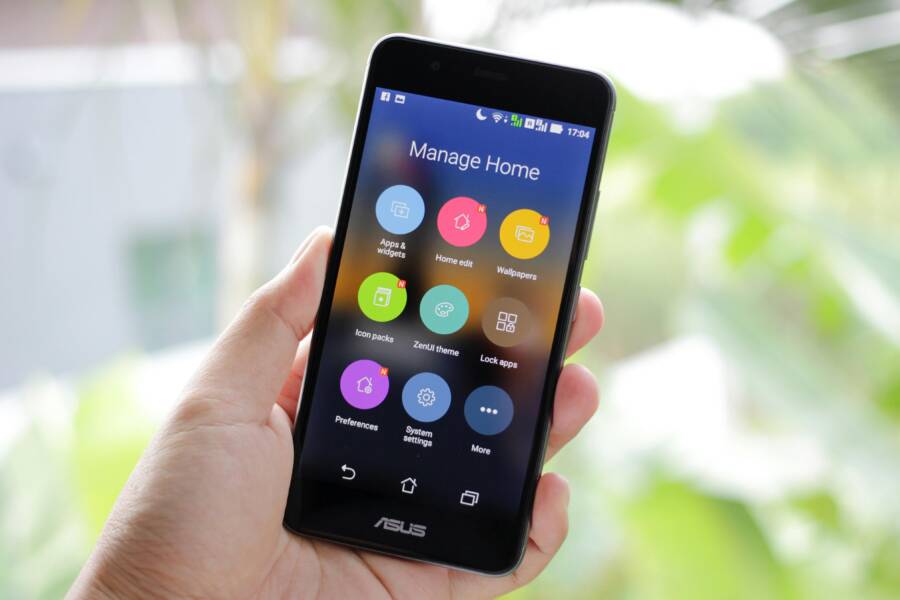
Managing two tasks at once is often a struggle on a small screen. You can save time by viewing two apps side by side, which stops you from constantly switching tabs on your smartphone.
Most Android devices include a built-in split screen feature to handle this. iPhone users have different multitasking alternatives since Apple limits native split screen modes.
This guide helps you master your device settings to improve your daily workflow. You will learn how to set up your display to keep your essential apps visible at all times.
Mastering Split Screen Mode on Android Devices
Most modern versions of Android make multitasking simple. Once you understand how to trigger the split screen view, you can easily manage a calendar while emailing or watch a video while checking messages. This feature transforms your smartphone into a more productive tool by allowing two apps to occupy your display at once.
Steps to Open Two Apps at Once
You must first open the apps you intend to use to ensure they appear in your background processes. After opening them, follow these steps to activate the split screen view on your smartphone:
- Tap the square icon or swipe up from the bottom of your screen to open the recent apps menu.
- Find the first app you want to use in the list of recently opened windows.
- Tap the icon located at the top of that app card.
- Select the option labeled Split screen from the small menu that appears.
- Choose the second app you want to display from the remaining recent apps or your home screen.
Your screen will divide into two sections once you select the second app. One app will sit on the top half while the second app occupies the bottom half. Not every application supports this mode. If an app does not provide the split screen option in the menu, the developer likely disabled the feature to prevent stability issues.
Adjusting the Window Size for Better Viewing
The system automatically assigns an equal amount of space to both open apps by default. However, you can change this layout if you need more room for a specific task. A thin black or grey bar sits between your two active windows. You can press and hold this divider to move it up or down.
Dragging the divider toward the top of the screen gives more space to your bottom application. Moving it toward the bottom prioritizes the top window. You should adjust this bar based on which app requires more of your attention. For instance, keep your document editor large while making your reference window smaller to maximize your workspace.
Exiting this mode is straightforward when you finish your task. Simply drag the divider bar all the way to the top or bottom of your smartphone screen. The app you pushed off the screen will close, and the remaining app will expand to fill the entire display. This action returns your device to a standard single-window view.
Why Your iPhone Handles Multi-Tasking Differently
Apple designs the operating system for your smartphone with a focus on single-app immersion. Instead of splitting the screen, iOS prioritizes smooth transitions and background processing to keep your primary task in focus. The system assumes you prefer to give your full attention to one window at a time rather than dividing your limited display space. This approach preserves battery life and reduces visual clutter on your screen.
The App Switcher and Picture in Picture Mode
While you cannot force two apps to sit side by side, you have efficient tools to manage your workflow. The app switcher serves as your primary navigation hub for moving between active tasks. You access this by swiping up from the bottom edge and pausing in the center. This view displays cards for every open application. You can swipe left or right to find the app you need and tap it to resume your work instantly. This method is faster than returning to the home screen because your app remains in its exact previous state.
Picture in Picture mode offers another way to stay productive on your smartphone. When you watch a video in a supported app, you can tap the home button or swipe up to go home. The video window shrinks and moves to a corner of your screen. This floating player stays visible while you browse your calendar, check emails, or compose notes. You can drag the video to any corner or pinch it to change its size. If the window hides part of your work, you can even slide it off the edge of the display to keep the audio running without the visual distraction.
Using Third-Party Apps to Bridge the Gap
Some developers offer clever ways to add functionality that iOS does not provide natively. You can find note-taking apps that include a built-in browser or a secondary window for research. These applications simulate a split-screen effect by giving you two internal panes within a single app. This is helpful for reading articles while you type summary points. You remain inside one app, but the interface mimics a dual-window environment.
You might also consider specialized launchers or productivity suites that offer floating widgets. These tools allow you to keep a calculator, a small clock, or a notepad pinned above your current app. While these are not true system-level split-screen features, they help you avoid switching apps for minor tasks. Each of these options relies on the specific developer implementing the layout, so the performance depends on the individual app design. These workarounds improve your efficiency on a smartphone by reducing how often you need to leave your primary application.
Tips for Improving Your Workflow on Any Smartphone
Effective multitasking on your smartphone requires more than just knowing how to activate split screen. You need to organize your digital space to avoid visual fatigue and keep your focus on the task. A crowded display often leads to errors or slower navigation. By maintaining a clean layout and selecting the right apps, you turn your device into a productive hub.
Optimizing App Layouts for Dual Display
When you use two apps at once, screen real estate becomes limited. You should prioritize the app that requires your active input. Place your primary work, such as a document editor or a messaging thread, in the top window. This location is easier for your eyes to scan while you hold your smartphone. Keep reference materials like web browsers or calculation tools in the bottom window.
Avoid cluttering your screen with unnecessary tools. If you use a video app, keep it smaller to leave room for your notes. You should also hide any toolbars or secondary menus within your apps before activating the split view. This provides extra pixels for your content. When your layout feels balanced, you spend less time scrolling and more time finishing your work.
Use these practices to maintain a clean workspace:
- Keep your active typing or input area in the larger window.
- Collapse menus or sidebars in apps to maximize available space.
- Place apps that display static information in the smaller window.
- Limit background widgets that might draw attention away from your work.
Common Limitations to Keep in Mind
Not every app plays nice with the split screen feature. Some developers restrict this mode because their apps rely on fixed dimensions or specific aspect ratios. You may notice that certain apps crash or refuse to open when another window is already active. This is a common hurdle on many devices. If you experience these issues, the app developer likely disabled the function to maintain performance.
Performance lag is another reality on older hardware. Your smartphone processor manages two active environments simultaneously, which demands more power and memory. If your device feels sluggish, try closing any apps running in the background that you aren’t currently using. This frees up RAM and allows your active windows to run smoothly.
If you notice stuttering or slow touch responses, take these actions:
- Close all unused applications from the recent apps menu to clear system resources.
- Restart your phone if you notice frequent performance drops during multitasking.
- Check if your smartphone has a system update, as newer software versions often improve multitasking stability.
- Avoid using two demanding media-heavy apps at once to prevent overheating.
Remember that multitasking is about convenience, not perfect desktop performance. If an app performs poorly in split screen, consider using the system app switcher instead. Sometimes the fastest way to work is to switch between two full-screen apps rather than forcing them to share a cramped display.
Conclusion
Android devices offer a native split-screen function that allows you to run two programs simultaneously with ease. This tool gives you direct control over your workspace and maximizes your efficiency during busy work periods. On the other hand, the iPhone relies on an app switcher and floating windows to handle multiple tasks. While Apple limits traditional side-by-side views, these methods keep your primary focus sharp and your interface clean.
Each smartphone platform provides a unique approach to managing your daily digital tasks. Test both styles on your own device to determine which process fits your needs best. You might find that the Android split view suits your research habits, or you could prefer the focused navigation of your iPhone. Choose the method that helps you get more done without unnecessary distraction.