
You pull out your phone at the checkout, ready to earn rewards, and the screen shows a stubborn barcode or a blank QR code. The scan fails, and the line grows longer. It’s frustrating, but most issues are easy to solve with a few quick checks. This guide walks you through practical steps to get loyalty codes scanned from your phone again, without the technical jargon.
A quick reality check: loyalty codes on phones are usually digital barcodes or QR codes. They rely on clear generation, good display quality, proper lighting, and a scanner that reads accurately. When one of these elements breaks down, a scan fails. The good news is that most problems have simple fixes you can try in a minute or two.
Understanding the most common culprits helps you move faster. Look for glare on the screen, misalignment with the scanner, or anything that blocks the code from being read. Sometimes a quick change to the setup is all you need.
A clear screen and a steady hand make a big difference. If you’ve got a few minutes, you can fix the issue and keep your shopping momentum intact.
Why loyalty card scans fail on a phone screen
Several factors can interfere with scanning, and they often overlap. Here are the most frequent causes you’ll encounter in a store or cafe.
- Lighting and glare: Overhead or sunlight reflections can wash out the code. The scanner needs a clean contrast between the code and the background.
- Distance and angle: Hold the screen too close or too far, or tilt it away from the scanner. A slight tilt can make the code unreadable.
- Screen quality and refresh: A dim or flickering display can blur the code. Screen brightness should be enough to show a crisp pattern.
- Screen protector or case: A thick protector or bulky case can distort the image or cover edges of the code.
- Code format issues: Some apps display a digital barcode that is small or partially cropped. QR codes can be more forgiving but still need full visibility.
- Scanner limitations: Not all scanners work equally well with every display type. Some scanners have trouble with certain color combinations or glossy screens.
- App permissions and settings: If the loyalty app can’t access the camera or print a usable code, the scan may fail even if the on-screen code looks fine.
When you know these triggers, you can tackle the problem at once rather than guessing.
Quick checks you can do in seconds
Before diving into deeper troubleshooting, run these fast checks. They’re often enough to restore a smooth scan.
- Clean the screen and your lens: Wipe the screen with a microfiber cloth. A fingerprint or smudge can soften the edges of the code.
- Remove glare: If the code is hard to read due to reflections, rotate the phone slightly or move to a spot with softer lighting.
- Center the code: Align the code near the middle of the scanner’s view. A crooked display is more likely to fail.
- Check the display brightness: Increase brightness to ensure the code is crisp. A dim image can blur details the scanner needs.
- Try a different code format: If your loyalty app supports both a barcode and a QR code, switch to the other format to see if one reads better.
- Hold steady and pause: Keep the phone steady for a moment after aligning. A quick shake or movement can throw off the read.
If these steps don’t help, move to device or app specific checks. They’re simple but can resolve issues hidden behind a minor setting.
Smartphone specific troubleshooting tips
Whether you use iPhone or an Android device, a few platform specifics can influence how well a loyalty code is read.
For iPhone users
- Check camera permissions: Go to Settings > Privacy > Camera and ensure the loyalty app has access. Without permission the app may not generate a readable code for the scanner.
- Update the app and iOS: An outdated app or system can cause the display to render oddly. Install the latest version of the loyalty app and the latest iOS update.
- Disable night mode or color filters briefly: Some display adjustments can affect the contrast of the code. Return to standard display modes before scanning.
For Android users
- Confirm camera permissions: Open Settings > Apps > [Your Loyalty App] > Permissions and switch on Camera if needed.
- Clear app cache: A cluttered cache can affect how the code is generated. Go to Settings > Apps > [Your Loyalty App] > Storage > Clear Cache.
- Check for OS and app updates: Android can drift between devices; keeping both OS and apps current reduces compatibility issues.
If after these checks the code still won’t scan, try a practical workaround that gets you rewarded without delay.
Practical workarounds to keep the rewards flowing
When a scan stubbornly refuses, you still have options. These workarounds help you complete your purchase while you diagnose the root cause.
- Use the digital card within the app: Some loyalty programs offer a separate screen or a wallet-friendly code the cashier can scan directly. Open the app and present the alternative code if available.
- Save the code as an image: Take a screenshot or save the on-screen code in your photo gallery. Show that image to the cashier so they can scan from your phone’s screen or from the image itself.
- Email or text the code: If the store accepts email or SMS proofs, send the code to your own device or print it at home for later use.
- Add to your mobile wallet: A growing number of programs support Apple Wallet or Google Wallet. If your loyalty card is compatible, add it to Wallet for a quicker scan.
- Ask for help at the counter: If a code won’t scan after several tries, staff can manually look up your loyalty account using your phone number or member ID.
These options keep your shopping experience smooth while you troubleshoot. They’re practical, and they don’t require removing the app or resetting your device.
Troubleshooting by store environment
Sometimes the problem isn’t your phone but the store’s equipment or environment. Address these angles when you’re stuck.
- Check the scanner type: Some stores use older scanners that struggle with certain display types. If you suspect this, ask staff if they’ve had similar reports and if they can try a different scanner.
- Look for scanner distance cues: Cashiers often use a fixed distance. If you’re unsure, ask for guidance about how close you should hold your phone.
- Consider timing: Some scanners read codes only within a short window of time after you show them. If you’ve paused, briefly re-display the code.
By understanding the setup at the point of sale, you can adapt quickly and reduce friction for yourself and others in line.
When to contact support
If the problem persists after trying the steps above, it’s time to seek help. Reach out to the loyalty program’s support team and provide these details to speed up resolution:
- Your device model and OS version (for example, iPhone 14 with iOS 18 or a specific Android version).
- The app version you’re using and any recent updates.
- A brief description of what happened when you attempted to scan and what you tried to fix it.
- Whether the code works when displayed on a different device, or if the issue only happens on one screen.
- Any steps you suspect might have caused the issue, such as a recent screen protector installation or a new case.
In many cases, the vendor can refresh your account’s scanning protocol or offer a temporary manual workaround until a permanent fix is released.
Best practices to prevent future scanning issues
A few habits keep loyalty codes scanning smoothly, season after season.
- Keep the device in good health: Regular software updates and clean screens make a big difference.
- Use a high-contrast code view: If your loyalty app allows adjusting display settings, choose a high-contrast mode when you know you’ll be shopping in a busy store.
- Maintain camera and screen hygiene: Clean the camera lens and the screen before you head out. A quick wipe can save you a lot of trouble.
- Avoid bulky accessories during scans: If possible, remove a thick phone case or screen protector during checkouts to improve readability.
- Check for app readiness before you go shopping: Open the loyalty app and confirm the code is visible and ready to scan when you reach the register.
A few small habits pay off with fewer delays at the counter and more time saved during busy days.
Images that help illustrate the process
Visuals can speed up understanding, especially for a troubleshooting guide. A suitable image shows a smartphone with a visible QR or barcode on the screen. This helps readers quickly relate to the scenario and follow the steps with confidence.
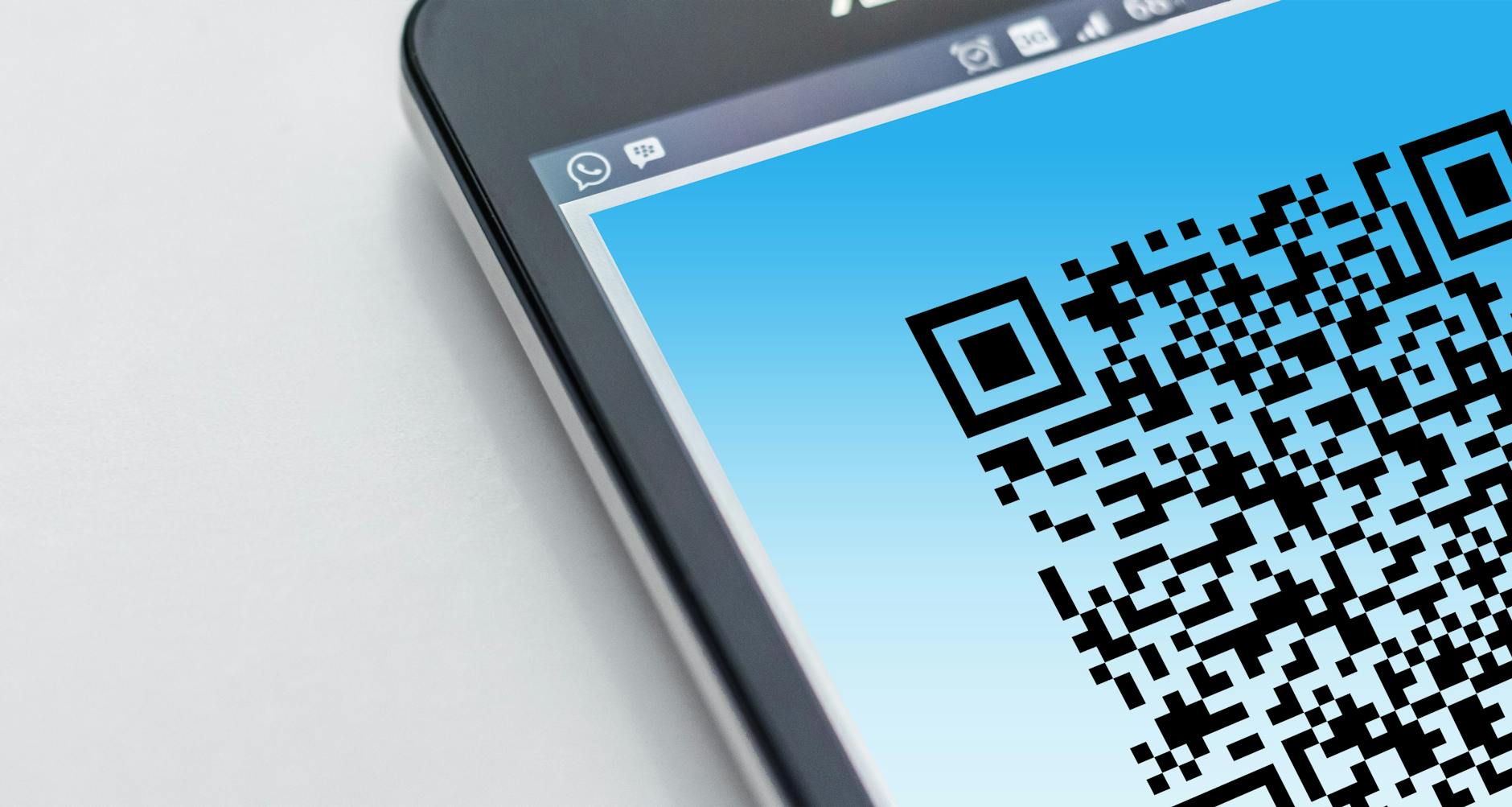
Photo by Pixabay: https://www.pexels.com/@pixabay
Putting it all together
A stubborn scan doesn’t have to wreck your shopping experience. Start with simple checks, then move to device specific steps. If needed, use practical workarounds to keep earning rewards while you troubleshoot. Most issues are resolved quickly, and the few that aren’t usually point to a minor setting or environmental factor.
When you prepare for a trip to the store, a quick routine helps. Before you head out, make sure your loyalty app is up to date, your screen is clean, and you know where to show the code. A little foresight goes a long way toward fewer delays and more rewards.
Conclusion
The chance of success rises when you approach loyalty card scans with a clear plan. First, eliminate the obvious barriers like glare or distance. Then verify app permissions and updates on your smartphone. If the scan still won’t cooperate, switch to an alternate code or use a wallet option if available. For most shoppers, these steps convert a stalled moment into a smooth finish at the register. If problems linger, support is there to help, and the solution is often a quick settings tweak or a routine device refresh.
Next time you’re at the checkout, you’ll know exactly how to handle a stubborn scan. Remember, your smartphone is a tool, not a problem. With the right steps, loyalty rewards are always within reach.