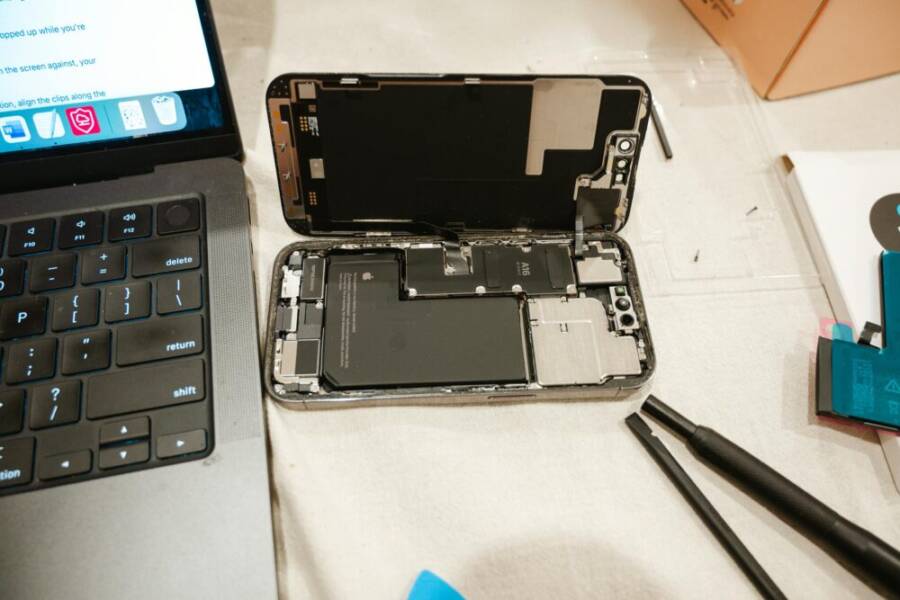
Are you frustrated by a phone that seems to sip power all day long? You’re not alone. This guide breaks down why batteries drain fast and shows practical fixes that work for most devices, whether you use an iPhone or an Android.
First, you’ll learn quick checks you can do today. We’ll cover obvious culprits like screen brightness, background apps, and poor network habits. This is about simple, practical steps you can trust, not mysterious hardware issues that require a visit to the repair shop.
Next, we’ll dive into longer term habits that slow down the drain over time. Learn how to optimize wake windows, manage push notifications, and refresh battery health with app and OS updates. These tweaks help you get more life from every charge.
Some fixes are fast wins you can try now, while others build healthier device use over weeks. By the end, you’ll have a clear, actionable plan that applies to both iPhone and Android, so you can stay unplugged longer without sacrificing performance.
Why your smartphone battery drains fast
Batteries wear out over time, but the way you use your phone matters just as much as age. This section helps you quickly identify the biggest culprits and take practical steps to extend each charge. You’ll learn how to see which apps drain energy, how background activity steals power, and how to assess and calibrate your battery for more accurate readings. Think of your phone as a smart assistant that needs a few careful habits, not a constant sprint to the charger.
Check battery usage to spot power hogs
Your first move is to see which apps eat the most energy. Most smartphones provide a Battery or Power section that lists apps by energy usage over a 24 hour and 7 day period. Look for apps that exceed a normal pattern or those you don’t actively use but run in the background. A few common power hogs include:
- Heavy games or streaming apps that stay active in the foreground
- Social media apps with frequent refreshes
- Navigation apps that constantly check your location
If an app surprises you with high energy use, take action. Start with simple tweaks:
- Limit background activity for the app in Settings
- Turn off auto-playing videos or high refresh content
- Replace push notifications with a manual check when feasible
- Update the app to the latest version, which often fixes battery-sucking bugs
If you want a deeper dive, see how others diagnose battery drain in real-world scenarios, including practical tips on identifying rogue apps and processes. For a broader how-to, this guide explains how to find out what apps are draining your Android battery and provides step-by-step paths you can adapt for iPhone as well. How to find out what apps are draining your Android battery
If you’d like a different perspective, The Verge has a straightforward breakdown of apps that drain power and how to manage them on various devices. How to figure out which apps are draining your device’s battery
Look for background activity on your smartphone
Background activity is a quiet thief. It includes automatic refreshes, location services, and ongoing push notifications. The impact varies by app and platform, but the result is the same: wakeups that keep your screen, radios, and processor busy.
- Background refresh: Apps wake up to fetch new data even when you’re not using them. Disable or restrict this for apps that don’t need real-time updates.
- Location services: GPS and network-based location tracking can drain power fast. Limiting location access to “While Using” or “Only This App” reduces drain.
- Push notifications: Constant alerts keep networks active and can wake the device. Decide which apps truly need immediate alerts.
Clear steps to tighten these controls without turning off essential services:
- Background refresh
- On iPhone: Go to Settings > General > Background App Refresh. Turn off for nonessential apps or set to Wi-Fi only.
- On Android: Settings > Apps & notifications > See all apps > [App] > Restrictions > Background restriction. Alternatively, disable background data at the app level.
- Location services
- On iPhone: Settings > Privacy > Location Services. Set nonessential apps to “While Using the App” or “Never.”
- On Android: Settings > Location > App permissions. Change to “While using the app” or “If needed.”
- Push notifications
- On iPhone: Settings > Notifications > [App]. Turn off Allow Notifications or customize alert style.
- On Android: Settings > Apps & notifications > [App] > Notifications. Disable or limit interruptions.
By targeting these areas, you can keep essential functions running while reducing wakeups that waste power. For an in-depth look at how these settings affect Android devices, this article explains how to manage battery details and optimize energy use. How to find out what apps are draining your Android battery
Assess battery health and calibration
Battery health indicators show how much life you have left and whether aging is starting to show. Signs of aging include a shorter daily run, sudden battery drops, or the device shutting down at higher percentages than expected. A battery that’s visibly swollen or heats up excessively should be checked by a professional immediately.
To gauge health at home, run a quick self-check:
- Observe charge cycles: If the battery loses capacity noticeably within a year or two, aging is likely advancing faster than expected.
- Check screen-on time vs. battery level: If the phone drains quickly even with modest use, calibration or battery health may be off.
- Look for charging anomalies: If the device takes unusually long to reach full charge or only charges in a special position, it could be a charger or port issue.
Calibration helps your battery meter track actual charge more accurately. Here’s a simple calibration routine you can perform:
- Use the phone until it powers off due to drained battery.
- Charge uninterrupted to 100% using the original charger.
- Leave it plugged in for an extra 1–2 hours after hitting 100%.
- Unplug and use as normal, repeating the cycle every few months if readings feel off.
When to worry: If health is poor or the device shuts off early even after full charging, consider battery replacement. Replacing a battery is usually a wise long-term move if you notice rapid, unexplained power loss. For a practical guide on evaluating battery health and when to replace, see The Verge’s overview of battery health and app impact. How to figure out which apps are draining your device’s battery
Simple checks you can perform yourself include looking for age-related signs, such as hasty shutdowns, reduced peak performance during tasks, and noticeable swelling. If you’re unsure, visit an authorized service center for a proper diagnosis. A well-timed battery replacement can restore peak performance and extend the device’s usable life.
End of this section.
Simple fixes to extend battery life on a smartphone
Smartphones are the heart of our daily routines, but their power needs can catch us off guard. This section provides practical, easy-to-implement tweaks that cut unnecessary wakeups and squeeze more life from each charge. The goal is simple: fewer screen-on moments, smarter background behavior, and up-to-date software that runs leaner. You’ll learn quick wins you can apply today and how small changes add up over a day, a week, and beyond.
Adjust display settings and notifications
Your display is usually the first drain on a smartphone battery. By dialing in brightness, timeout, and visuals, you can dramatically extend screen time without sacrificing readability. Start with these adjustments and test how they feel in real life.
- Brightness and auto brightness: Set brightness to a comfortable level and enable adaptive brightness if your device supports it. This lets the screen dim in dim environments and brighten in bright ones without manual tweaks.
- Screen timeout: A shorter screen timeout reduces wakeups. If you tend to leave your phone idle, set the timeout to 30 seconds or 1 minute to conserve energy.
- Dark mode and wallpaper: Dark mode on OLED or AMOLED screens uses less power, especially with bright app icons on dark backgrounds. Consider a simple, non-dynamic wallpaper to avoid extra GPU activity.
- Notifications and wakeups: Limit nonessential alerts that wake the display. Group notifications when possible and turn off visual or sound alerts for apps that don’t need immediate attention.
- Quick wins you can try now:
- Enable dark mode where supported.
- Set a low, comfortable brightness and turn on adaptive brightness if available.
- Shorten screen timeout to 30 seconds or 1 minute.
- Tidy up app notifications so only the essentials can wake the screen.
A deeper look at display settings for battery life is covered in practical guides like Android and iPhone battery optimization tutorials. For a broad discussion of how display choices affect energy use, see resources that outline how to reduce screen drain without sacrificing usability. How to Save Battery Life and Stop It From Draining – Android
Limit background activity and app refresh
Background activity is the sneaky source of power drain. Apps that frequently refresh or track location can keep radios and processors busy even when you’re not actively using them. Here’s how to tame this behavior on both iOS and Android, plus a note on built‑in power saving modes.
- Restrict background data by app: Only allow essential apps to refresh in the background. This stops nonessential apps from waking the system.
- Auto-sync and background activity per app: Turn off auto-sync for non-critical services and restrict background activity for apps that don’t need real time data.
- Built‑in power saving modes: Most devices offer a setting that reduces performance and background activity to stretch a single charge.
- Per‑app adjustments you can make today:
- iPhone: Settings > General > Background App Refresh. Disable for nonessential apps or set to Wi‑Fi only.
- Android: Settings > Apps & notifications > See all apps > [App] > Restrictions > Background restriction. Or disable background data at the app level.
- Location services: Limit to “While Using” or “Only This App” where relevant.
- Notifications: Turn off nonessential alerts to reduce wake moments.
If you want a broader take on how these settings influence Android specifically, you’ll find clear guidance in battery optimization write‑ups. Own an Android phone? 12 settings I changed to greatly extend its battery life
Keep software up to date for efficiency
Software updates often bring battery life improvements, better app management, and fixes for bugs that quietly drain power. Keeping both the OS and apps current ensures smoother performance and longer runtime between charges.
- Why updates help: Updates can optimize background tasks, tighten security, and reduce energy waste caused by poorly behaving apps.
- Checking for updates on common devices:
- iPhone: Settings > General > Software Update. If an update is available, install it.
- Android: Settings > System > Software Update. If an update is available, download and install it.
- App updates: Open the app store on your device and update all installed apps to the latest version.
- Quick habits to form:
- Enable automatic updates if you trust your network and data plan.
- Schedule a weekly check to install pending updates, especially for security patches.
- After major updates, monitor battery behavior to ensure there are no new drain patterns.
For a broader discussion on how OS and app updates influence energy use across devices, see resources that outline practical steps to verify and install updates efficiently. How to Save Battery Life and Stop It From Draining – Android
If you want a friendly, real‑world read on battery health and how updates interact with app performance, you can review related guides from reputable outlets. How to figure out which apps are draining your device’s battery
What this means for you: keeping software fresh is one of the best multi‑tool fixes for a phone that drains fast. It’s often a simple one‑tap or a few taps away, but its impact compounds over time as apps and systems become more efficient.
End of this section.
Long term maintenance and charging habits for your smartphone
Long-term battery health comes from steady, mindful habits. This section guides you through reliable charging routines, heat management, and a realistic plan for battery replacement. The goal is a device that stays reliable for years, not just days. Below are practical practices you can adopt now and revisit over time.
 Photo by Harry Tucker
Use proper charging practices
Smartphone batteries age with each full cycle, but you can slow that aging by charging smartly. Avoid extreme discharges and try to keep the battery between about 20% and 80% most days. This reduces stress on the cells and can extend overall life.
- Prefer partial charges: Regular top-ups are gentler than waiting for 0% before charging.
- Use quality chargers: Stick to the charger and cable that came with the phone or certified accessories from reputable brands.
- Watch the temperature during charging: If the device gets hot, unplug and let it cool before charging again.
- Avoid overnight full charges when possible: If you often charge to 100%, consider setting a daily target around 80–90% if your device supports it.
For deeper guidance on charging habits, see practical discussions from trusted sources:
- Explore how to maximize battery life without sacrificing user experience on Android and iPhone. How to save battery life and stop it from draining – Android
- A broad look at battery health and app impact can help you understand long-term behavior. How to figure out which apps are draining your device’s battery
Keep your phone cool and avoid heat
Heat is a quiet enemy of lithium ion chemistry. High temperatures accelerate chemical reactions inside the battery, which shortens its life and can make performance fluctuate.
Simple, effective steps:
- Keep devices out of direct sun and hot cars. Even a sunny windshield can push temps into the danger zone.
- If you’re charging on a case, consider removing bulky or heat-trapping cases. A cooler chassis helps charging stability.
- Don’t leave the phone in hot environments like a car dashboard in summer.
If you notice consistent warmth during use or charging, pause heavy tasks, close unnecessary apps, and move to a cooler environment. Cooling is often a bigger win than forcing a faster charge.
For readers who want a broader view on heat and battery health, see related coverage that explains how temperature affects battery behavior and ways to minimize exposure. How to figure out which apps are draining your device’s battery
Monitor battery health over time and plan for replacement
Knowing when to replace a battery is the clearest way to preserve device reliability. Most smartphones show a battery health metric, and you’ll start noticing changes well before a shutdown becomes unpredictable.
When to consider replacement:
- Battery health drops noticeably with age or shows a lower maximum capacity.
- The device shuts down unexpectedly or drains quickly even after a full charge.
- You see swelling or overheating that isn’t tied to a specific app or game.
Lifespan expectations vary, but a typical modern battery easily lasts 2–4 years with normal use. If you’re approaching that window and performance feels off, it’s worth a check.
How to evaluate and act:
- Check warranty options: Some devices include battery service within a warranty period or through AppleCare, Google, or device manufacturers.
- Compare service quality: Look for authorized service centers with clear pricing and genuine parts.
- Test after replacement: Verify that health metrics improve and that the device holds a charge longer than before.
If you want trusted perspectives on battery health and replacement timing, you’ll find practical guidance from reputable outlets that explain how to assess battery condition and what to expect from replacements. The Verge’s guide to battery health and app impact
Transitioning to long-term habits, remember that a well-maintained battery pairs with smart usage. Frequent software updates, sensible charging, and heat awareness all contribute to a smartphone that serves you well for years.
When to replace battery or seek help for your smartphone
A failing battery isn’t just a nuisance, it affects reliability and safety. This section helps you read the warning signs, decide between DIY fixes and professional service, and know when to seek help without guessing. You’ll gain a practical framework for acting quickly so your device stays dependable throughout the day.
Signs you need a new battery
Batteries wear out with time, but some symptoms tell you it’s time to replace. If you notice any of the following, it’s a strong signal your battery is past its prime.
- Rapid, unexpected shutdowns
- Quick drops in charge even with light use
- Swelling or a noticeably bloated screen area
- Battery health reports showing poor capacity or a drop in maximum charge
Other hints include longer charging times, the device getting unusually hot during charging, or the battery not reaching a full 100% as reliably as before. If these signs pile up, plan for a replacement rather than endlessly chasing a fix. For a broader view on when to replace, see reputable guides that discuss how to tell if your phone battery needs replacement and what to expect from service. Examples include practical checks and clear thresholds for action. How to know when you need to replace your Android battery 4 Signs it’s Time to Replace Your Cell Phone Battery
If swelling is present, treat it as urgent. A swollen battery can pose safety risks, so stop using the device and seek professional help right away. Early intervention is the best protection for both your data and your device.
How to replace or get professional service
Choosing between a DIY replacement and professional service depends on your comfort, the phone model, and the cost of parts. Here’s a practical way to decide and act.
- DIY replacement: Good for handy users who have the right tools, spare parts from reputable brands, and follow device-specific guides. Make sure you’re using a genuine or certified battery and a restoration-friendly workspace. Expect some risk to delicate components and seals.
- Professional service: Safer for most users, especially with newer models or sealed designs. Authorized service centers and reputable repair shops use genuine parts and provide warranty on parts and labor.
- How to find trusted technicians: Look for official repair programs from the manufacturer, independent shops with strong reviews, and clear pricing. Ask about battery tests after replacement to confirm you’ve recovered full capacity.
- Warranty considerations: A battery replacement may be covered if your device is under warranty or if there are dedicated battery service programs. Check the terms before committing to a repair location.
- What to expect from pricing: DIY parts can be inexpensive, but labor costs vary. A professional replacement often includes a diagnostic and a warranty on the new battery.
When you’re evaluating options, keep these questions handy:
- Is the technician authorized by the device maker?
- Do they use genuine parts with a warranty?
- Will they test the battery health after replacement and confirm peak performance?
If you want a straightforward reference on timing and process, several outlets offer clear breakdowns of signs, eligibility, and service pathways. For example, see reliable guidance that explains when to replace and what to expect in terms of outcomes. How to Tell If Your Phone’s Battery Needs Replacement Maintenance, Signs of a Bad Battery, and When to Replace
If your device still has meaningful value and you’d rather avoid risk, professional service is often the smarter choice. You’ll save time, preserve safeguards like water seals and screen integrity, and gain a warranty on the work.
Backup and protect data before service
Battery work can involve resets, software reconfigurations, or temporary downtime. Protecting your data is essential so you don’t lose photos, messages, or app data during the process. Here’s a reliable plan to back up and keep your information safe.
- Back up essential data now: Use cloud backups for photos and contacts, and local backups for apps and documents. For iPhone, iCloud or iTunes (Finder on macOS) works well; for Android, Google Drive or a local computer backup is solid.
- Plan for downtime: Schedule the service window so you’re not surprised by a prolonged outage. If you rely on constant connectivity, prepare a temporary alternative like a spare device or access to a computer.
- Verify data integrity after service: Do a quick check that photos, messages, and app data are intact. Confirm app login states and two-factor methods still work as expected.
- Prepare a simple data map: List the most important items to restore if needed, such as messages, photo albums, and app data. This helps you triage quickly after the repair.
Steps to back up effectively:
- Photos and video: Enable automatic backups and pick a backup destination you trust.
- Contacts and calendar: Ensure contact sync is on and check calendar entries are preserved.
- App data: Sign in to essential apps and verify backup status; for paid apps, note license keys if needed.
- System settings: Take screenshots of key settings so you can reconfigure quickly after the service.
If you’re seeking more detailed instructions, reputable outlets offer step-by-step guides for backing up on iPhone and Android before any service. How to back up an Android phone before repair How to back up an iPhone before a repair
A practical note: keep your phone in a safe place during the service window, and avoid installing large app updates or new content that could complicate the repair process. Having your data prepared minimizes downtime and speeds up the whole experience.
End of this section.
Conclusion
You now have a clear, practical path to stop a phone from draining fast by watching battery use, trimming background activity, and keeping software fresh. Implement at least one new habit, such as enabling adaptive brightness or reviewing app refresh settings, and monitor how it changes daily usage on your smartphone. Regular checks of battery health and charging practices will compound the gains over weeks and months. If you have questions or want to share what worked for you, leave a comment below with your findings.