Tired of your phone dying fast even when it’s charged? Understanding your battery health helps you prevent surprises and extend your phone’s life. This quick guide walks you through checking battery health on iPhone and Android, plus simple app options that work for most smartphones.
Signs Your Phone Battery Needs a Check
In this section, you’ll learn what battery health looks like in real life. A battery that’s still performing well should feel reliable, not surprisingly weak. Here’s how to gauge when it’s time to check further or consider a replacement.
What Counts as Good Battery Health
100% is new. When a battery is brand new, it should deliver peak capacity and performance. That means it holds a full charge and lasts as long as you expect based on the device you own. In practice, most people will be happy with 80%+ maximum capacity for everyday use. Why 80%? It’s a practical threshold. At or above 80%, you’ll typically get most of your usual screen-on time and faster performance compared to a battery that’s degraded further.
Maximum capacity vs performance. Maximum capacity is a metric the phone reports that tells you how much of the original battery’s capacity remains. If your device shows 85% maximum capacity, it can store 85% of the energy it did when new. That often translates to shorter charging intervals and fewer hours of screen time than when the battery was fresh.
Performance is another key angle. A healthy battery should support peak performance without forcing the phone to throttle to save power. If you notice sudden slowdowns, apps closing unexpectedly, or the phone shutting down at higher battery levels, those are strong signals to check the battery further.
Daily-use examples.
- If you were getting all-day use with a full charge a year ago, but now you’re down to half a day, that’s a red flag even if the capacity shows 85%.
- When your phone shuts off at 40% or 50% battery despite appearing reasonably charged, it’s time to inspect battery health.
- If charging takes longer than usual, or the device gets unusually warm during charging, you should test the battery health and charging system.
Guidance from official sources helps set expectations. For example, Apple outlines how battery health affects performance and when replacement is recommended. If your iPhone’s battery health reaches around 80% or lower, you’ll commonly see noticeable changes in endurance and may want to plan a replacement. For more specifics, see Apple’s guidance on battery health and performance. iPhone battery and performance.
Readers also share experiences about when to replace batteries, which often aligns with the 80% guideline. For real-world perspectives, you can explore discussions on battery health thresholds. iPhone Battery Health at 83% – When do I replace it?.
Visual check gives context. Your phone’s battery indicator can be a quick hint, but it’s not precise. A battery that drops quickly from 100% to 80% in a short period is often showing signs of wear. In contrast, a phone that maintains charge gradually throughout the day is likely in better shape. If you’re unsure, run a health check in your device’s settings and compare the results to the guidelines above.
When to act. If you consistently see:
- Maximum capacity below 80%
- Sudden shutdowns, even with a moderate charge
- Significantly longer charging times or devices that become hot during charging
consider scheduling a battery health check or scheduling a replacement if needed. A battery check can help you plan ahead and avoid unexpected downtime.
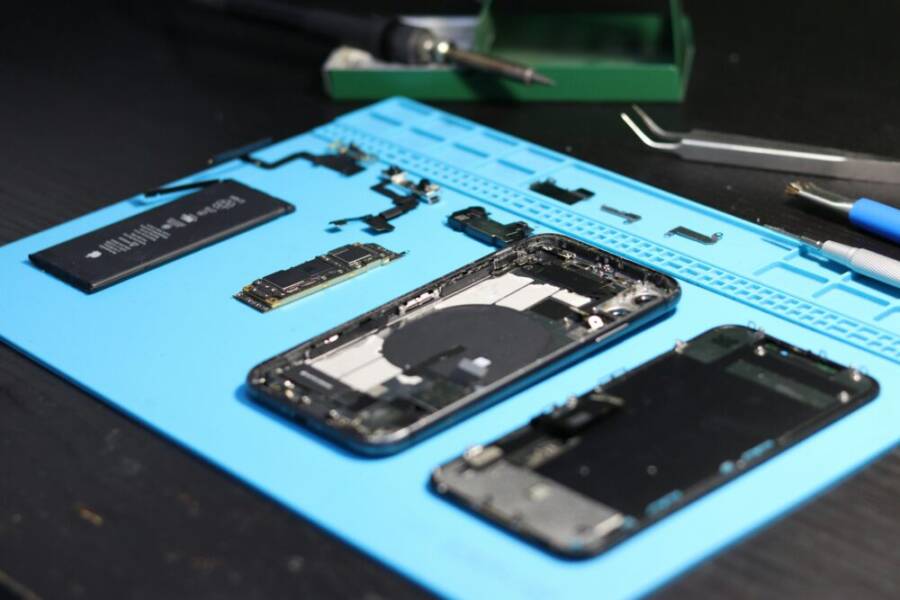
Photo by Vlad on Pexels
[Apple support links source]
- iPhone battery and performance: https://support.apple.com/en-us/101575
- iPhone Battery Health at 83% discussion: https://discussions.apple.com/thread/254842899
Image: 
Photo by Vlad: https://www.pexels.com/@vlad-1445510816
Step-by-Step Guide to Check iPhone Battery Health
Knowing your iPhone’s battery health helps you plan for better endurance and fewer surprises. This section breaks down what to look for in the Battery Health screen, why you might see green or yellow indicators, and what to do if the health numbers dip below 80 percent. It also covers the role of optimized charging and practical next steps to keep your device running smoothly.
Tips to Understand Your iPhone Results
- Green vs yellow status explained: Apple uses color indicators to show overall health trends. A green status typically means the battery is performing well within its designed capacity, while a yellow or amber indicator often signals that the battery is aging and may not hold charge as long as it did when new. If the health percentage is high but you notice rapid drops in screen time, inspect usage and charging habits rather than assuming the color alone.
- What “Maximum Capacity” means: This percentage shows how much of the original battery capacity remains. For example, 85% maximum capacity suggests the battery can store 85% of the energy it could when new. That usually translates to shorter daily use compared to a fresh battery.
- Performance vs capacity: A healthy iPhone should deliver peak performance without needing to throttle, which Apple addresses through performance management features. If you see unexpected slowdowns, frequent app closures, or the device shuts down even when charged, it’s a signal to investigate battery health and charging behavior. Apple details how battery health affects performance and when a replacement is advisable. See the official guidance on battery health and performance for specifics.
- Official reference: iPhone battery and performance
- Practical read: Understand your iPhone battery usage and health
- Additional context: Recalibration notes may appear in older iOS versions, explaining how maximum capacity reporting can adjust over time.
- When to take action: Use these indicators as a practical rule of thumb. If you consistently see:
- Maximum capacity below 80%
- Sudden shutdowns at moderate charge
- Significantly longer charging times or devices that heat up while charging
then plan a battery health check or replacement. This helps avoid unexpected downtime.
- Optimized charging and your daily routine: Optimized Battery Charging is designed to slow the rate of battery aging by reducing the time your iPhone spends fully charged. It learns your daily charging patterns and delays charging past 80% until you need to use it. This feature helps preserve battery health over the long term and is especially useful if you don’t need a full 100% charge first thing in the morning. For more details on how this works, see Apple’s guidance on battery health and charging.
- Visual cues and quick checks: The Battery Health screen provides a snapshot, but it’s not the whole story. If your battery indicator drops quickly or you notice a sudden change in daily endurance, run a health check in Settings and compare the results with the guidelines above. The combination of a healthy maximum capacity and stable performance usually means you’re in a good place.
- How to access the information quickly: Go to Settings > Battery > Battery Health. On iOS versions where Battery Health is split into sections, check the “Maximum Capacity” percentage and any messages about performance management or recommended replacements. The screen may also show whether the device needs a service check. For reference, Apple’s own support pages cover how to read these numbers and what they imply.
- Practical next steps if the health is underwhelming:
- Consider enabling or adjusting Optimized Battery Charging to minimize aging.
- If maximum capacity is consistently under 80% and you notice reduced runtime, plan a battery replacement.
- Review charging habits—avoid leaving the phone plugged in at 100% for extended periods when not needed.
- If the device frequently heats up during charging, seek service or professional assistance.
- Helpful references to deepen your understanding:
- iPhone battery and performance: https://support.apple.com/en-us/101575
- Understand your iPhone battery usage and health: https://support.apple.com/guide/iphone/understand-iphone-battery-usage-health–iphd453d043a/ios
- Recalibration notes for battery health reporting: https://support.apple.com/en-us/119954
- Real-world perspective: Users often report that an 80% threshold is a practical point to start planning a replacement or a service check. If you want to compare experiences, you can explore discussions about battery health thresholds online.
- Visual context: A quick glance at the Battery Health screen is useful, but expect to pair it with your everyday usage patterns to get a full picture. If you’re unsure, a formal battery health check can provide clearer guidance on next steps.
External references for deeper reading:
- Apple support pages on battery health and charging practices: https://www.apple.com/batteries/maximizing-performance/
- General guidance on battery health impact and replacement planning: https://support.apple.com/en-us/101575
- For those curious about quick usage patterns, Apple’s Battery Usage documentation offers practical insight into how your daily activities affect battery life.
How to Check Battery Health on Android Phones
Understanding battery health helps you plan how long your phone will last between charges and when it might be time for a replacement. This section packs brand specific steps and universal Android shortcuts so you can quickly verify how your battery is performing, no matter which phone you own.
Samsung and Other Brand-Specific Steps
Samsung users have a straightforward path inside the phone’s built-in tools. The Samsung Members app is designed to help you test and monitor battery health with diagnostics that are specific to Galaxy devices. Here’s how to use it and what to expect:
- Samsung Members app path: Open the app, tap Support, then select Phone Diagnostics and run a full test with Test all. This will reveal battery health indicators and any detected issues. If you see warnings, you’ll get guidance on potential next steps or service needs. For even more depth, Samsung’s official guidance explains how diagnostics fit into overall device care. You can read more here: Galaxy Battery – About Battery.
- Quick checks in Settings: Go to Settings > Battery and device care > Battery > Battery usage to spot abnormal drains. Some Galaxy models also show a dedicated Battery health section, where maximum capacity is displayed alongside any performance recommendations.
- Pixel, OnePlus and beyond: For Pixel devices, Android provides a built-in battery usage and health overview under Settings > Battery. Other brands such as OnePlus typically place battery diagnostics under Settings > Battery, sometimes labeled Battery health or Diagnostics. These brand variations are common, so a quick skim through the Battery section usually reveals the right diagnostics page.
- Practical tip: If you see a significant drop in maximum capacity or frequent unexpected shutdowns, consider a battery health check with official service or a trusted repair partner. A typical guideline is that a sustained health metric near or below 80% indicates it may be time to plan a replacement.
If you want more brand-specific steps from the Samsung side, Samsung makes it easy to access diagnostics through the app and the device’s Settings. For a deeper dive into how diagnostics are used on Samsung devices, see these resources:
- How to use Diagnostics in the Samsung Members app on your Galaxy device: https://www.samsung.com/levant/support/mobile-devices/how-to-use-diagnostics-in-the-samsung-members-app-on-your-galaxy-device/
- Battery health checks and official guidance on Samsung’s support pages: https://www.samsung.com/us/support/galaxy-battery/about-battery/
For a broader look at battery health across brands, it’s helpful to compare how different device makers surface the same data. If you’re curious about how a specific model handles battery diagnostics, search for the official support page for that brand’s device family. The goal is to find a clear Battery or Diagnostics section and verify the reported health metrics against your usage pattern.
Image:  Photo by Andrey Matveev
Use Dialer Codes for Any Android
If you want a quick, universal peek at your device’s health and hardware status, Android supports dialer codes that reveal hidden details. These shortcuts work on many Android phones, though exact labels and availability can vary by manufacturer and Android version. Start with the simplest code and only proceed if you’re comfortable with the information shown.
- Code 1: ##4636## — The classic Android testing menu. This opens a page with information about your phone’s data, battery, and usage statistics. On some devices, you’ll see a dedicated Battery or Battery Information tab that reports current status, health, level, voltage, and temperature.
- Code 2: ##34971539## — A more device specific take focused on camera hardware in some builds, but on certain devices it can surface battery and sensor details as part of the debugging suite. If your handset recognizes the code, you’ll be taken to a hidden diagnostic screen that may include battery health info or related metrics.
- How to enter safely: Dial the code exactly as shown, then press the call button. If the code isn’t recognized, don’t worry. Most newer Android versions emphasize built-in battery diagnostics in Settings instead.
- Safety notes: These menus are intended for advanced users and troubleshooting. Avoid changing settings you don’t understand. If you see warnings or unstable behavior after entering a code, exit the screen and revert any changes.
What you’ll typically find in these menus includes current battery level, voltage, temperature, and a basic health readout. It’s not a replacement for official battery health indicators, but it can help you spot obvious anomalies quickly. If you see abnormal temperatures or voltages, it’s a sign to stop use and check the charging system or battery health with the device’s official tools.
A practical approach is to use the built-in health indicators first, then, if you want a deeper dive, use brand specific diagnostics or seek a professional battery health check. For example, Google’s Pixel line emphasizes battery usage insights in Settings, while OnePlus and other brands publish their own diagnostic paths in Settings > Battery or via the help sections.
External resources you can consult for more context:
- Samsung diagnostics and battery guidance: https://www.samsung.com/us/support/galaxy-battery/about-battery/
- Samsung Members app diagnostics overview: https://www.samsung.com/levant/support/mobile-devices/how-to-use-diagnostics-in-the-samsung-members-app-on-your-galaxy-device/
- Official iPhone battery health context (for cross-platform comparison): https://support.apple.com/en-us/101575
The dialer code approach is a handy quick-check for power users, but remember that long-term health and performance are best assessed with the device’s official health indicators and, if needed, a replacement plan.
Images help visualize the steps in practice. If you’d like a visual cue, consider a photo showing a phone’s Battery or Diagnostics screen to accompany this section. Photo by Andrey Matveev continues to be a good fit for illustrating in-device diagnostics.
Top Apps to Track Phone Battery Health
Understanding battery health is easier when you have reliable tools at hand. The right apps help you see how your battery is aging, which apps drain power, and when a replacement might be due. Below you’ll find practical options for both iPhone and Android, plus quick tips to get the most from these tools.
iPhone friendly options for battery health monitoring
iPhone users have built-in insights, but third‑party apps can offer deeper breakdowns and historical trends. These tools are especially helpful if you want to track usage patterns over weeks or months.
- Apple’s Battery Health in Settings: The core source of truth for most users. It shows Maximum Capacity and Peak Performance capability. Use it to decide when a replacement might be needed.
- Battery Health and Usage Apps: Apps like Battery Testing provide benchmarks and long‑term trends to compare your iPhone’s endurance over time. These tools complement Apple’s data and can highlight subtle shifts you might miss from the system gauge.
Why these apps matter: they turn raw numbers into actionable insights. A steady decline in Maximum Capacity, combined with slower performance, can indicate aging hardware rather than a mysterious software issue. For readers who want extra context beyond Apple’s numbers, consider cross-checking with reputable battery benchmarking apps to confirm trends.
External reading to deepen understanding:
- iPhone battery and performance overview: Apple support page
- Battery usage guidance for iPhone: Apple support guide
Images that fit this section:
- A clean shot of an iPhone displaying the Battery Health screen in Settings.
Photo by Lum3n on Pexels
Android oriented options for battery health monitoring
Android phones vary by brand, but several universal concepts apply. Look for apps that measure actual battery capacity, track charging cycles, and alert you to unusual drains. A good app suite will show you which apps consume the most power and how the device behaves under load.
- AccuBattery: A well known choice that estimates real battery capacity, tracks discharge curves, and analyzes per‑app usage. It’s helpful for spotting apps or activities that shorten everyday endurance.
- Battery Monitor and Analyzer apps: Tools in this category provide a health rating, voltage and temperature readings, and historical graphs. They’re particularly useful if your device heats up or shuts down unexpectedly.
- Brand specific diagnostics within Settings: Many Android skins offer built‑in health or diagnostic sections. For example, Samsung’s diagnostics inside the Samsung Members app provide targeted battery health insights alongside general device care.
Tips for using Android battery apps effectively: start with a baseline by running the health check during normal usage. Then monitor changes over a couple of weeks to distinguish temporary spikes from genuine aging. If maximum capacity or health indicators drift toward 80% or lower, plan a replacement or service.
External reading to deepen understanding:
- Galaxy battery health guidance and diagnostics: Samsung support pages
- Battery health overview on Pixel and other brands: brand support articles
Images that fit this section:
- A smartphone showing a battery diagnostics screen on Android.
Photo by Andrey Matveev on Pexels
Quick-start guide to choosing the right app
If you want a practical, fast path to better battery insight, follow this simple rule of thumb:
- For iPhone: rely on Battery Health in Settings first, then add a benchmarking app if you crave historical data.
- For Android: use a trusted battery monitor like AccuBattery for real‑world capacity estimates, then consult your device’s built‑in diagnostics for official guidance.
How to implement in 15 minutes:
- Install one or two recommended apps from your platform.
- Run the built‑in health check and note the Maximum Capacity value.
- Start a 7–14 day monitoring period to capture usage patterns.
- Compare the results to your typical daily routine and charging habits.
- If you see a downward trend toward 80% capacity or recurring unexpected shutdowns, plan your next steps.
External references for quick setup inspiration:
- AccuBattery on Google Play
- Battery Testing app on the App Store
Images that fit this section (optional):
- None required if you’ve used the previous visuals; otherwise, a simple chart image showing battery health trends can be helpful.
Photo credit for optional image: Photo by Lum3n
Note: For readers who want to dive deeper, cross‑check the apps’ pages and official support articles to verify the features that matter most to your device and usage style. The right combination of built‑in diagnostics and third‑party insights delivers a clearer picture of when to replace or service your battery.
Fix Low Battery Health and Extend Life
If your phone’s battery health has dipped, you don’t have to live with poor endurance. This section covers practical, data-driven steps to slow further aging, extend daily use, and decide when it’s time for a replacement. You’ll learn how to interpret health numbers, adopt charging habits that minimize wear, and use built‑in tools plus trusted tips to get the most life out of your device.
What low battery health means for everyday use
Low battery health means the battery can store less energy than when it was new. That translates to shorter screen time and more frequent charging. The key indicators to watch are maximum capacity and performance status.
- Maximum capacity shows how much energy the battery can hold compared with when it was brand new. A drop from 100% to, say, 80% means the phone will need more frequent charges and may feel less energetic throughout the day.
- Performance management may kick in as batteries wear, causing slower performance or unexpected shutdowns to protect the device. If you notice your phone throttling apps or shutting down at higher charge levels, health issues are likely involved.
Official guidance from Apple explains how battery health affects performance and when a replacement is advisable. For more specifics, see Apple’s guidance on battery health and performance. iPhone battery and performance.
Another helpful reference notes that Apple considers battery health around 80% as a common threshold for planning replacement. You can read discussions on this topic here: iPhone Battery Health at 83% – When do I replace it?.
A quick check can confirm if a battery is aging without diving into deep analytics. If the health reading sits near or below 80% for an extended period, it’s a strong signal to prepare for a replacement. Apple’s official page on optimizing performance provides practical steps you can take today to reduce aging while you decide on the next move. See the resource on maximizing performance and managing battery health. Batteries – Maximizing Performance.
Practical steps to fix and slow down battery aging
Making small changes now can yield meaningful results over weeks. Focus on habits that reduce stress on the battery and keep the charging cycle healthy.
- Enable optimized charging where available. This feature slows charging after 80% to minimize wear, especially if you don’t need a full 100% first thing in the morning.
- Avoid keeping the phone at 100% for long periods. If you don’t need maximum capacity all day, unplug once you hit a comfortable level.
- Keep software up to date. OS updates often include battery management improvements that help extend life.
- Watch charging temperature. A hot phone during charging is a red flag for battery stress. If it gets unusually warm, remove the case or charge in a cooler environment.
- Use official chargers and cables. Third‑party accessories can introduce charging irregularities that shorten battery life over time.
If you’re unsure about the health status, Apple’s guidance provides concrete steps to read the numbers and understand what they mean for day‑to‑day use. For a direct overview, check the official iPhone guidance on battery health and performance. iPhone battery and performance.
How to extend life with smarter charging practices
Charging habits matter just as much as the battery’s technical health. The right pattern reduces aging and keeps your device usable longer between charges.
- Schedule charging sessions around your daily routine. If you can, plug in during lower energy demand times and avoid overnight charging when possible.
- Use Low Power Mode or similar features to reduce stress on the battery when you don�t need peak performance.
- Calibrate only if needed. Recalibration is typically unnecessary for modern devices, but in some cases it helps align the reported capacity with actual performance.
- Keep power management features enabled. Battery health benefits come from features that limit peak loads or throttle performance when appropriate.
For a broader view on fast battery management, Apple’s resources describe how to maximize performance and manage battery life. Batteries – Maximizing Performance.
When to replace the battery and how to plan it
Replacement decisions come down to reliability and cost. If your maximum capacity consistently sits under 80% and you notice shorter days between charges or unexpected shutdowns, plan a replacement. Some users prefer to replace proactively to restore full performance, especially on devices that still meet their daily needs.
- Budget and timing: Schedule a replacement before travel or an important event if your device will be far from a charger for long periods.
- Official service vs third‑party: Consider authorized service channels for a warranty‑protected replacement. If you go with a trusted repair shop, verify they use quality parts and provide a clear warranty.
- Backup first: Before any service, back up your data to avoid loss during the replacement process.
Apple’s guidance and discussions around the 80% threshold offer a practical reference point. For context, see the discussion on battery health thresholds and official guidance on when to replace. iPhone Battery Health at 83% – When do I replace it? and the core battery health page iPhone battery and performance.
How to verify improvements after action
After applying charging changes or replacing the battery, recheck health metrics to ensure you’re on the right track.
- Revisit the Battery Health in Settings to confirm the maximum capacity has stabilized or improved.
- Monitor daily endurance over 1–2 weeks to see if the number of charging cycles and runtime aligns with your expectations.
- If performance still stalls or the device heats up during charging, seek professional diagnosis to rule out other issues.
Apple’s guidance provides a reliable baseline for what to expect post‑replacement or after optimization. If you want a direct comparison and extra context, explore the official resources on battery health and performance. iPhone battery and performance.
Quick references you can trust
- Apple support: iPhone battery and performance. https://support.apple.com/en-us/101575
- Apple official guide to maximizing battery performance. https://www.apple.com/batteries/maximizing-performance/
- Real-world discussions on when to replace. https://discussions.apple.com/thread/254842899
In the end, fixing low battery health is less about dramatic fixes and more about consistent, smart habits combined with timely replacement when the signals indicate aging. By staying proactive, you keep your smartphone reliable and ready for daily use, whether you’re at home or traveling. It’s all about preserving the life you expect from your device.
Conclusion
Regular checks of your phone battery health save you time and money. Start with the built in health indicators on your device and note the maximum capacity and performance notes. On iPhone this means watching the Battery Health screen and any messages about performance management. On Android use the built in diagnostics and look for a battery health section or a quick test in the device care tools.
If you want extra context, pair the official readings with a trusted third party app that tracks capacity over time. Apps can reveal patterns that a single reading might miss, especially when you compare several weeks of data. For many users a sustained capacity around 80 percent is a practical threshold to plan a replacement.
Smartphone health checks can be done in minutes. Do a quick baseline now and set a reminder to repeat every few months. Share your results and what steps you took next so others can compare notes. With consistent monitoring you’ll keep your device reliable and extend its useful life, leading to noticeably longer battery life over time.