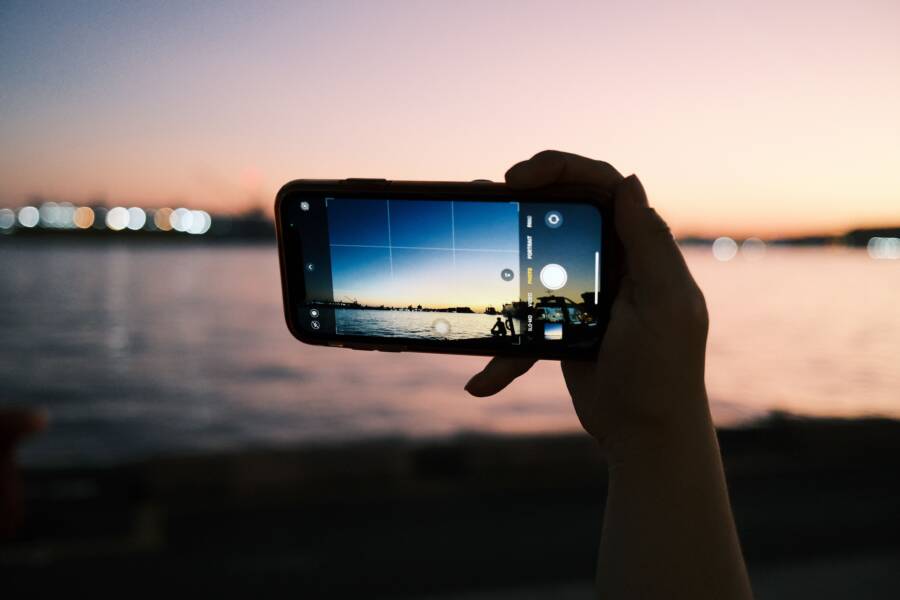
Accidental camera launches often happen because your smartphone triggers a hardware shortcut or a gesture you didn’t intend to activate. Most of the time, this issue is caused by sensitive lock screen settings or a physical button press in your pocket.
You can resolve this quickly by adjusting your shortcut preferences or modifying how your device handles button input. Addressing these triggers prevents the camera from popping up when you just want to put your phone away.
Follow these steps to regain control of your device settings and stop the unwanted app launches.
Quick Fixes for Accidental Camera Launching
If your smartphone camera opens while it is in your pocket or bag, you are likely dealing with a hardware conflict or an oversensitive gesture setting. Physical pressure or specific button patterns often trick the device into thinking you want to take a photo. You can usually resolve this by investigating your protective gear and updating your system shortcuts.
Checking Your Phone Case for Pressure Points
A tight-fitting case is a common culprit for accidental camera launches. If the cutouts for the power button or volume rockers do not align perfectly, the case material may constantly apply slight pressure to the buttons. Even a small amount of tension can trigger the camera shortcut, especially if the case is rigid or slightly warped from heat.
To determine if your case is the problem, remove it from the smartphone entirely for a day or two. If the camera stops launching on its own while the device is naked, you have found the cause.
You have a few options if the case is the issue:
Gently shave the inside edge of the case cutout using a small utility knife to provide more clearance for the button.
Check if the case is loose or improperly seated, which might allow it to shift and catch the buttons during movement.
Replace the case with a model that features larger or more precise button covers if the original remains problematic.
Disabling Shortcut Gestures and Button Combinations
Most modern devices include built-in shortcuts to access the camera instantly. While these are convenient, they are also prone to accidental activation. You can turn off these features in your settings menu to prevent the camera from appearing when you are not using the phone.
On Android devices, the path often varies by manufacturer, but the settings usually live in the gestures or buttons menu. Look for options labeled “Press power button twice” or “Quick launch camera.” Turning these toggles off effectively kills the hardware shortcut.
On an iPhone, the camera icon sits prominently on the lock screen. While you cannot remove this icon, you can disable the “Raise to Wake” or “Tap to Wake” features if you find the screen triggers too easily. Navigate to Settings, then Display & Brightness, and turn off “Raise to Wake.” This prevents the phone from waking up and activating the camera interface whenever you move it.
If your smartphone allows for custom button mapping, check those settings as well. You might find that a combination you never intended to use is currently active. Reducing the number of ways your device can trigger the camera is a reliable way to regain control over your lock screen.
Advanced Software Troubleshooting for Your Smartphone
When physical hardware adjustments fail to stop your camera from opening, the cause often hides within the operating system. Over time, temporary files and background activity can create glitches that cause applications to behave in unexpected ways. Addressing these software-side triggers is a standard step in stabilizing your smartphone and preventing unauthorized app launches.
Clearing Cache and Managing Background Processes
Application cache consists of temporary data stored by your smartphone to speed up app loading times. While this data is helpful, it becomes corrupted or bloated over time, leading to erratic behavior. If the camera app maintains a large, unstable cache, it may trigger improperly when the system tries to interact with it.
You can resolve this by clearing the cache for the camera and any associated background services. On Android, go to your settings menu, select the apps section, and locate the camera app. Tap on storage, then choose the clear cache option. Avoid selecting clear data unless you are ready to reset your camera settings to their original factory defaults.
Background processes also influence how your smartphone manages hardware access. Some third-party apps may request permission to use your camera, occasionally causing conflicts that force the app to open. Reviewing these permissions helps keep your system stable:
Open your settings and navigate to the privacy or security section.
Select the permission manager to see which apps have access to your camera.
Deny camera permissions for apps that do not require them, especially those that run in the background.
By removing unnecessary access, you lower the chances of another application waking the camera sensor without your permission. This simple maintenance keeps your device running efficiently while removing common software interference.
Updating System Software to Patch Glitches
Manufacturers frequently release system updates to fix known bugs that affect hardware interaction. If your smartphone camera opens on its own, it is possible that a software flaw within the operating system is responsible for the misfire. Developers constantly identify these issues and provide patches in newer software versions to keep the experience stable.
Check for available updates by visiting your system settings menu and selecting the software update or about phone option. Keeping your device on the latest version is the most effective way to address compatibility problems between the OS and the camera hardware. If a specific bug was causing the camera to launch via a gesture or button press, an update often contains the fix needed to stop the behavior.
Security patches are also part of these system updates. They do more than just protect against malicious software, as they often include refined code for how your phone handles input from buttons and the lock screen. If you suspect your camera trigger issues are related to a recent system change, applying a pending update is the first logical step. You should prioritize these installations to maintain the integrity of your smartphone interface.
Identifying Hardware Issues and Screen Sensitivity
Hardware irregularities often mimic user input, creating the appearance of a phantom touch. When your smartphone reacts to nonexistent taps, the camera app frequently activates because its icon often sits in a corner or near a shortcut gesture zone. Pinpointing whether the issue is a physical component failure or an external accessory interference helps you stop these persistent interruptions.
Addressing Ghost Touch and Screen Protector Problems
A screen protector is meant to shield your glass, but a poor fit or trapped debris creates significant operational headaches. When a protector does not adhere fully to the display, it leaves microscopic air gaps between the adhesive layer and the digitizer. These gaps can compress when you carry the phone in a tight pocket, registering as a series of rapid taps that the system interprets as a user command.
Dust, hair, or moisture trapped underneath the film also cause localized pressure points. These particles act as a constant physical contact, confusing the touch sensor and causing it to trigger app icons without your permission.
You can troubleshoot this by inspecting the screen protector for the following indicators:
Look for visible air bubbles or sections where the edges have begun to lift away from the glass.
Observe if the screen registers touches near the edges while your fingers are hovering away from the surface.
Check if the protective film covers the proximity sensor, as this causes the display to remain active when it should be asleep.
Removing the protector is the most effective way to test if it is the primary cause. If the unwanted camera launches cease immediately after you peel off the film, you know the protector was creating false inputs. In some cases, a high-quality replacement with better adhesive or a wet-application film resolves the issue. If the phantom touches continue even after you remove the screen guard, the digitizer hardware itself might be suffering from internal damage or electrical interference. You should contact a service technician if the display behaves erratically while completely bare, as this often points to a failing touch panel component.
Preventing Future Accidental Camera Openings
You can keep your smartphone camera from launching unexpectedly by adopting a few preventative habits. While software and hardware adjustments solve the current problem, maintaining a controlled environment around your device stops the issue from recurring. Changing how you handle your phone or store it in your pockets often eliminates these frustrations entirely.
Adopting Smarter Storage Habits
How you carry your phone impacts whether the buttons or screen triggers activate. Tight pockets are the most common cause of accidental pressure, especially if your device sits against keys, coins, or other hard objects. These items push against the power or volume buttons while you move, which the system interprets as a command to open the camera.
Try placing your smartphone in a dedicated pocket or compartment where it does not face direct pressure from other contents. If you wear tight clothing, consider moving the device to a jacket pocket or a bag instead. Keeping the screen facing away from your thigh also prevents the skin contact that sometimes registers as an accidental swipe on the lock screen camera icon.
Refining Lock Screen Shortcuts
Most manufacturers prioritize quick access to the camera, but this convenience often backfires during daily use. You should periodically review your lock screen settings to see if the interface has changed after a software update. Some operating systems reset your preferences to default during major version upgrades, which might re-enable gestures you previously turned off.
Take a moment to check these configurations after any system update:
Navigate to the display settings to ensure double-tap to wake is either disabled or configured to your preference.
Inspect the lock screen customization menu to see if you can swap the camera shortcut for a less sensitive utility.
Verify that “Raise to Wake” is inactive if you often carry your phone while walking, as this feature keeps the sensor ready for input.
Identifying Patterns in Unwanted Launches
Tracking when the camera opens helps you isolate the specific trigger. If the app usually launches when you are at the gym, the cause might be moisture or specific movements triggering the screen. If it happens while the device is in your pocket, a bulky case or tight clothing is likely the culprit.
Keep a mental log of these situations to identify the root cause quickly. For example, if the camera opens only when you are driving, your phone mount might be exerting pressure on the buttons. Minor adjustments to the placement of your smartphone in the mount can prevent this, providing a permanent solution to a recurring annoyance. Once you identify the pattern, you can adjust your habits or your gear to keep the camera closed until you are ready to use it.
Conclusion
You can stop your camera from opening randomly by addressing the physical and software triggers covered in this guide. Start by inspecting your case for button pressure, then adjust your lock screen shortcuts to reduce sensitivity. If the issue persists, clear the camera cache and check for pending system updates to patch potential bugs.
Test your smartphone thoroughly after each change to confirm the behavior has stopped. Regular maintenance of your settings and physical gear keeps your device stable. Your camera should now stay closed until you intentionally launch it.