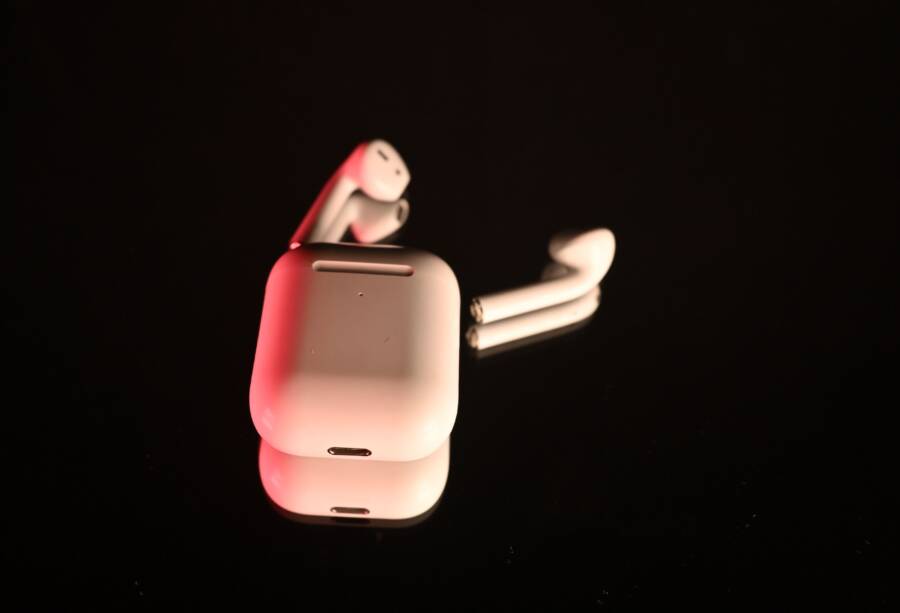
Stop the unwanted connection by disconnecting your Bluetooth earbuds from the wrong device, turning off Bluetooth on nearby devices, forgetting the earbuds from saved Bluetooth lists, and pairing them again with the intended phone. This usually fixes automatic reconnection when the earbuds connect to another phone, tablet, laptop, or shared device first.
Bluetooth earbuds often reconnect to the last available device or the device with the highest connection priority, rather than the smartphone you want to use. Multipoint models can also switch between two active devices, which makes the problem seem random when both are nearby.
The steps below cover Android phones and iPhones, including multipoint earbuds, shared devices, and cases where the earbuds keep switching back after pairing. Start by checking which nearby device currently has the connection, then remove that connection before resetting the earbuds’ saved pairing details.
Why Your Bluetooth Earbuds Keep Reconnecting to the Wrong Device
Bluetooth earbuds reconnect to the wrong phone because they remember multiple paired devices and often connect to the first compatible device they detect. The earbuds may also prioritize a recent connection, an active multipoint connection, or a device with Bluetooth enabled nearby.
The problem usually comes from connection priority, not a damaged smartphone or faulty earbuds. Once you identify which device is taking control, you can change its Bluetooth settings or clear the earbuds’ saved connections.
Your Earbuds Remember More Than One Paired Device
Pairing earbuds with a phone, tablet, laptop, or smart TV stores connection details on the earbuds. Many models can remember several devices, even though they may connect to only one or two at a time.
When you open the charging case, the earbuds search for a known device. If a family member’s phone or your nearby laptop responds first, the earbuds may connect there before your intended phone gets a chance.
This is especially common when another device has Bluetooth turned on and is already unlocked, active, or recently connected to the earbuds. The unwanted device can take the connection without any new pairing request.
Your earbuds don’t need to be paired again to reconnect to an old device. A previous pairing is often enough.
The Last Connected Device May Receive Priority
Most earbuds try to reconnect to the device they used most recently. Some models also use their own connection rules, such as prioritizing a phone over a tablet or choosing the device with the strongest available response.
These rules vary by manufacturer and model. Therefore, two pairs of earbuds can behave differently in the same room. One pair may connect to your laptop first, while another may return to your smartphone every time.
Turning Bluetooth off on the unwanted device often confirms the cause. If the earbuds connect correctly afterward, the problem is connection priority rather than a failed pairing.
Multipoint Bluetooth Can Switch Between Two Devices
Multipoint Bluetooth allows compatible earbuds to maintain connections with two devices, such as a phone and a laptop. That feature is convenient, but it can make the earbuds appear to reconnect randomly.
For example, your earbuds may connect to your laptop when you open the case. When a call arrives on your phone, they may switch to the phone. After the call ends, the laptop can regain the audio connection.
Some earbuds also switch when one device starts playing media or activates a call-related Bluetooth profile. Check the earbuds’ companion app for a setting named Multipoint, Dual Connection, or Connect to Two Devices. Disabling that feature can stop unexpected switching, especially when you mainly use one phone.
Reset the Bluetooth connection and control automatic switching
When earbuds keep reconnecting to the wrong phone, clear their saved Bluetooth relationships before pairing again. Then disable features that allow nearby devices to claim the earbuds without asking.
Forget the earbuds everywhere, then pair them with the correct phone
Start with the intended smartphone, but don’t stop there. Any nearby phone, tablet, laptop, or TV with a saved pairing can reconnect automatically when Bluetooth is active.
On an iPhone, open Settings > Bluetooth, tap the information button next to the earbuds, and select Forget This Device. Confirm the removal when prompted. On Android, open Settings > Connected devices > Bluetooth or Settings > Connections > Bluetooth, select the earbuds, and choose Unpair, Forget, or Remove, depending on the phone model.
Repeat this process on every nearby device that has used the earbuds. If someone else owns one of those devices, ask them to remove the earbuds or turn off Bluetooth temporarily. Also close the Bluetooth settings screen on computers and smart TVs after removing the pairing, since some devices may try to reconnect while you are setting up the earbuds.
Deleting a Bluetooth pairing only removes the connection record. It does not erase music apps, photos, files, contacts, messages, or other phone data.
After removing the earbuds from nearby devices, follow these steps:
Place both earbuds in their charging case and close the lid for a few seconds.
Open the case and activate pairing mode using the manufacturer’s instructions. This may require holding the case button or touching both earbuds.
Keep other nearby devices disconnected, or turn off their Bluetooth temporarily.
Open the Bluetooth menu on the correct phone and wait for the earbuds to appear under available devices.
Check the device name and model before tapping Pair or Connect.
If several similar names appear, check the label inside the charging case, the manufacturer’s app, or the product documentation. Pair only with the name that matches your earbuds. A successful connection should move the earbuds into the phone’s saved or connected devices list.
Turn off multipoint and automatic switching when available
Multipoint allows compatible earbuds to maintain Bluetooth connections with two devices at the same time. That can be useful for moving between a phone and a laptop, but it also lets another device interrupt audio or take control when it starts playing sound.
Open the earbuds’ companion app and look for a connection setting. Depending on the brand and model, it may be called Multipoint, Dual Connection, Auto Switch, Seamless Connection, or Connect to Two Devices. Common apps include Bose Music, Sony | Sound Connect, Jabra Sound+, Galaxy Wearable, and the Pixel Buds app.
Turn the feature off if you use the earbuds with only one phone. Menu names and locations vary, so check the app’s device settings or connection preferences if the option isn’t visible.
Apple users should also review automatic switching for AirPods. On the iPhone, open Settings > Bluetooth, tap the information button beside the AirPods, and check Connect to This iPhone. Setting it to When Last Connected to This iPhone reduces unwanted changes from automatic switching. The same preference may need review on an iPad or Mac signed in to the same Apple Account.
Android users may need to adjust Fast Pair, audio switching, or device-switching options. These controls differ between Android versions and manufacturers. After changing them, disconnect and reconnect the earbuds once so the new connection preference takes effect.
Reset Bluetooth settings when the connection still changes devices
If your earbuds still switch devices after forgetting old pairings and disabling multipoint, identify which component is responsible before resetting anything. A short comparison test can show whether the problem follows the earbuds or stays with your smartphone.
Check whether the phone or the earbuds are causing the problem
Start by pairing the earbuds with a different phone. Keep your usual phone’s Bluetooth turned off during the test, then open the case and use the earbuds normally. Next, pair another set of Bluetooth earbuds with the problem smartphone. Move nearby laptops, tablets, smartwatches, speakers, and other paired devices away, or turn off their Bluetooth temporarily.
Use the results to narrow down the cause:
The earbuds switch to the wrong device on every phone: The earbuds are the likely source. Check their companion app for multipoint, automatic switching, or connection-priority settings. A firmware update or factory reset may also be necessary.
Only the original smartphone causes the switching: Its Bluetooth settings, operating system, or saved device data may be corrupted. Resetting network or Bluetooth settings on that phone is the next practical step.
Another pair of earbuds works normally with the smartphone: The original earbuds have a configuration or firmware issue rather than a general phone problem.
Both pairs of earbuds switch incorrectly on the same phone: Focus on the smartphone’s Bluetooth settings and remove outdated paired-device records.
Crowded wireless areas can also affect Bluetooth performance, especially near many active phones, computers, and Wi-Fi devices. However, interference usually causes audio dropouts, delays, or temporary disconnections. It rarely makes earbuds deliberately connect to a different saved device. If the connection changes devices consistently, saved pairings or automatic switching are more likely causes.
Prevent unwanted earbud connections in the future
Once your earbuds connect to the correct device, prevent the same problem by controlling which nearby devices can respond. Keep Bluetooth off on laptops, tablets, and phones you aren’t using, especially when those devices already have the earbuds saved.
If you use multipoint earbuds, review the connection settings in the manufacturer’s app. Disable multipoint or automatic switching when you want the earbuds to stay with one smartphone. For shared devices, remove the earbuds from the Bluetooth list instead of relying on manual disconnection.
A quick example for iPhone, Android, laptop, and AirPods or other earbuds
Suppose your earbuds keep connecting to a Windows laptop instead of your Android phone. Turn off Bluetooth on the laptop, or open Settings > Bluetooth & devices, select the earbuds, and choose Remove device. Then put the earbuds into pairing mode and connect them through the Android phone’s Bluetooth settings. If the connection works, the laptop was taking priority because it still had a saved pairing.
For regular earbuds used with an iPhone, the same idea applies, but the menu names may differ by brand. Forget the earbuds on the unwanted device, then pair them again with the iPhone while nearby Bluetooth devices remain disconnected.
AirPods use Apple’s automatic switching controls. On the iPhone, open Settings > Bluetooth, tap the information button beside the AirPods, and set Connect to This iPhone to When Last Connected to This iPhone. Check the same setting on a nearby Mac or iPad. If the AirPods keep returning to that device, remove them from its Bluetooth settings or Apple Account device list, depending on the connection shown.
Connection priority changes only when the competing device loses access, so forgetting the earbuds is more reliable than disconnecting them once.
Common Questions About Earbuds That Reconnect to the Wrong Phone
Most unwanted reconnections happen because another device still has a saved pairing. The answers below explain why the problem continues and which fix makes the biggest difference.
Why do my earbuds keep connecting to another phone?
Your earbuds may still recognize the other phone, even if you disconnected them earlier. Disconnecting ends the current session, but it usually leaves the pairing record saved.
When both phones have Bluetooth enabled, the earbuds can reconnect to the device they used most recently or detected first. Some models also prioritize a phone with active media playback or a stronger Bluetooth response.
To stop this behavior, choose Forget This Device, Unpair, or Remove device on the unwanted phone. If someone else owns that phone, ask them to turn off Bluetooth while you pair the earbuds with your smartphone.
Why do my earbuds switch back after I connect them to the correct phone?
The earbuds may support multipoint, automatic device switching, or a manufacturer-specific connection priority. These features allow the earbuds to monitor more than one paired device.
For example, your earbuds can connect to your phone while a laptop remains connected in the background. When the laptop starts playing audio, the earbuds may switch back to it.
Open the earbuds’ companion app and disable settings named Multipoint, Dual Connection, Auto Switch, or Seamless Connection. AirPods users should also review Connect to This iPhone in the Bluetooth settings.
Does turning off Bluetooth stop the wrong phone from reconnecting?
Yes, turning off Bluetooth on the competing phone prevents it from responding to the earbuds. This is a useful temporary fix while you remove the saved pairing or connect the earbuds to another device.
However, turning Bluetooth off doesn’t delete the old connection record. When you turn it on again, the phone may reconnect unless you select Forget This Device or change its automatic connection settings.
Should I reset the earbuds or reset my phone’s network settings?
Start by forgetting the earbuds on every nearby device and pairing them again. This removes the most common cause without affecting other phone data.
Reset the earbuds if they still connect to unknown saved devices or ignore the manufacturer’s connection settings. A factory reset usually clears the earbuds’ pairing memory, but the exact button or touch procedure varies by model.
Reset the phone’s network settings only when other Bluetooth devices also behave incorrectly. This step can remove saved Wi-Fi networks, Bluetooth pairings, and some network preferences, so use it after simpler fixes fail.
Can someone else’s phone connect to my earbuds without permission?
A phone generally needs an existing pairing record to reconnect automatically. If the earbuds are in pairing mode, however, another nearby device may detect them and request a new connection.
Keep the earbuds out of pairing mode after setup, and remove old pairings from shared phones, tablets, laptops, and smart TVs. This limits automatic reconnections and prevents the earbuds from appearing as an available device during normal use.
Conclusion
A phone that keeps reconnecting earbuds to the wrong device usually has saved pairings or competing connection-priority settings. Turn off Bluetooth on nearby devices, disconnect or forget the earbuds, disable multipoint or automatic switching, then restart and re-pair them with the correct smartphone.
If the problem continues, reset the phone’s Bluetooth settings or factory-reset the earbuds only after the simpler steps fail. Contact the manufacturer if the earbuds connect to unknown devices, fail with multiple phones, or keep switching after a complete reset and firmware update.