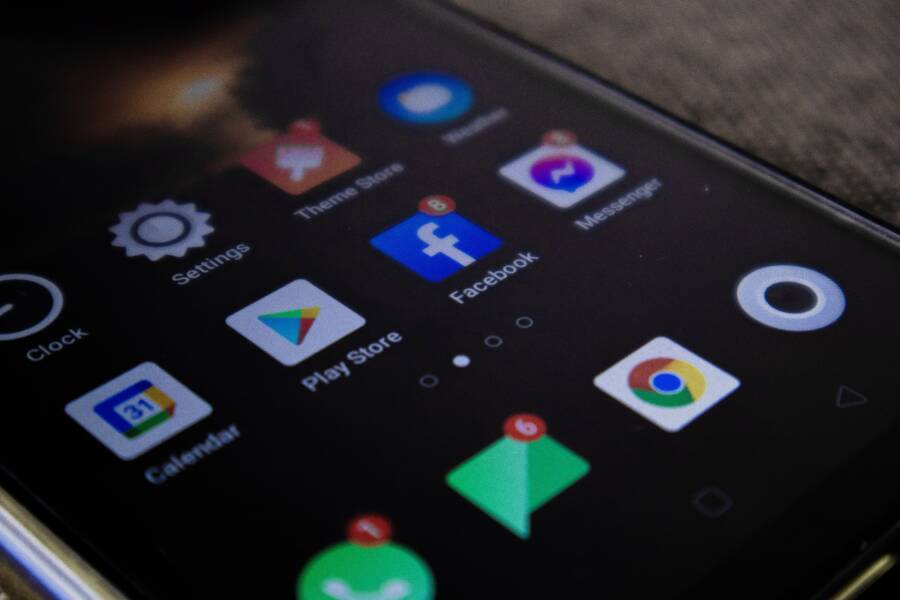
Your smartphone might show a strong Wi-Fi signal while your browser loads pages, yet your favorite apps remain completely offline. This frustrating issue typically happens because your device uses different pathways for web traffic and app data.
Your browser often bypasses restrictive network settings that stop other applications from reaching the internet. This split occurs due to conflicting DNS settings, strict firewall rules, or security software blocking background data on your smartphone.
You can restore your connection by adjusting these specific network configurations. Follow the troubleshooting steps below to identify the root cause and get your apps working again.
Quick Fixes to Try First on Your Smartphone
Before you change complex network settings, test a few simple adjustments on your smartphone. These basic steps often resolve conflicts where your browser functions while other applications remain disconnected. Most issues stem from minor glitches in how your phone talks to the router. Trying these quick remedies saves time and usually fixes the problem without additional effort.
Refresh Your Connection with Airplane Mode
Turning on Airplane Mode acts as a hard reset for your wireless radios. It forces the device to drop all current connections instantly. Once you toggle the setting off, your smartphone searches for the local wireless network and requests a fresh handshake from the router. This process clears out hung sessions that might prevent specific apps from communicating properly.
Follow these steps to perform a clean refresh:
- Open your device settings or swipe down to access the quick settings panel.
- Tap the Airplane Mode icon to enable it and wait for the Wi-Fi icon to disappear.
- Keep the mode active for at least ten seconds to ensure all background processes stop.
- Tap the icon again to disable Airplane Mode and allow the phone to re-associate with your network.
This method is more effective than just toggling Wi-Fi because it forces the cellular modem and local antenna to re-initialize simultaneously. It often resolves subtle authentication errors that occur during the initial connection process.
The Power of a Full Device Restart
A complete power cycle clears the temporary memory used by your operating system. When you use your smartphone for days without a restart, cache files related to network traffic can become corrupted or outdated. These temporary files sometimes interfere with the way specific applications authenticate traffic through your Wi-Fi connection.
While your web browser often ignores these cached network paths to ensure fast loading, other apps rely on them to maintain a stable link. By shutting down your phone entirely, you force every background service to quit. Restarting clears the RAM and kills stuck processes that might be blocking data flow to your apps.
Perform a restart by holding your power button until the menu appears, then select the option to power off. Wait for the screen to go black completely before you turn the device back on. This simple action often fixes persistent connection bugs that seem to defy logical explanation. If your applications still fail to load data after the phone reboots, you can rule out a temporary software hang and focus on more specific configuration issues.
Solving DNS Issues That Block App Access
Your internet connection relies on the Domain Name System, or DNS, to translate web addresses into numerical IP addresses. When this system fails or suffers from restrictions set by your internet service provider, your browser might still reach popular sites while your apps lose their path to the internet. This happens because web browsers often use separate, fallback lookup methods that bypass the standard network configuration. Updating your DNS settings on your smartphone frequently corrects this mismatch and restores full access to all your installed software.
Switching to Public DNS Servers
Most mobile networks assign a default DNS server automatically through your router. If that server is slow, outdated, or intentionally blocking specific data ports, your apps will fail to connect. Switching to a public, neutral provider like Google or Cloudflare forces your smartphone to use a reliable directory for its internet traffic. This change often removes restrictions that cause apps to hang indefinitely.
To update these settings on your Android device:
- Open your device settings and navigate to the Network or Wi-Fi section.
- Select your current network and look for Advanced options.
- Find the Private DNS field and tap it.
- Enter
dns.googleorone.one.one.oneto use Google or Cloudflare services. - Save your changes and restart the connection.
On an iPhone, the process requires installing a profile or using a specific app provided by services like Cloudflare, as iOS does not allow manual DNS entry for standard Wi-Fi connections. You can download the 1.1.1.1 app from the App Store, which creates a secure tunnel for your traffic. This app handles the configuration automatically, ensuring your smartphone uses a robust, unrestricted lookup path every time it joins a network.
Clearing Outdated Network Cache
Your phone stores temporary data to speed up connections, but these files can become corrupt. When a configuration file holds onto a bad address, your apps continue trying to reach a destination that no longer exists or has changed. Resetting your network settings wipes these stale files and forces your smartphone to build a fresh, accurate map of your local network environment.
To clear this cache on Android, navigate to Settings, choose System or General Management, and look for the Reset options. Selecting “Reset Wi-Fi, mobile, and Bluetooth” removes saved passwords and previous connection configurations. On an iPhone, go to Settings, tap General, select Transfer or Reset iPhone, and choose the Reset Network Settings option.
This action does not delete your personal files, but it does erase saved Wi-Fi passwords and paired Bluetooth devices. After your phone reboots, it connects to your router as if it were a brand-new device. This clean slate resolves conflicts where residual data from a previous network setup interferes with your current app traffic. Once the process completes, sign back into your Wi-Fi network and check if your apps communicate properly.
Check App-Specific Permissions and VPN Conflicts
Sometimes your internet connection functions for basic tasks but fails inside specific software. This happens because your smartphone handles traffic for browsers differently than it manages traffic for standalone apps. When background services or security tools restrict certain data pathways, your browser may succeed while other apps remain trapped in an offline state. You can resolve these conflicts by checking your security settings and data management preferences.
Disable VPNs and Security Proxies
Virtual Private Networks (VPNs) create a secure tunnel for your data to travel across the internet. These tools intercept every outgoing request from your device and route it through a remote server. While this protects your privacy, it often disrupts the way apps communicate with their home servers. Many applications detect the tunnel and drop the connection if they suspect your traffic is masked or originates from an unauthorized region.
Your browser usually handles these connection shifts well because it relies on standard protocols that adapt to varied network conditions. Apps, however, often require a direct connection to function correctly. If you keep a VPN active, your smartphone sends app data through a path that the application provider might block.
Follow these steps to test if your security software is the root cause:
- Open your VPN app or your smartphone system settings.
- Locate the toggle switch for the VPN or proxy connection.
- Turn off the service entirely to disconnect from the remote server.
- Open the apps that previously failed to load content.
- Check if the connection returns once the tunnel is removed.
If the apps work correctly after disabling the VPN, you should check your app settings within the VPN client. Most services offer split tunneling, a feature that allows you to choose which apps bypass the VPN. By adding your problematic apps to this list, you regain full access while still keeping your browser traffic protected.
Managing Background Data and Permission Restrictions
Smartphones include features designed to limit how much data your device uses, especially when you are away from home. Android devices feature a Data Saver mode, while iPhones include options for Background App Refresh. These settings exist to prevent apps from consuming battery or cellular data without your direct command. When you have these limits enabled, your smartphone may block an app from accessing the network the moment you switch to another window.
Restricting background data prevents apps from performing updates or fetching new content while they are minimized. If you notice your apps work only when they stay open on the screen, these settings are likely the culprit. You can modify these permissions to ensure your essential apps maintain a constant link to your network.
Review your settings with these common steps:
- For Android, navigate to Settings, tap Apps, and select the specific app that shows connection errors. Check the Mobile Data section to ensure “Allow background data usage” is turned on.
- For iPhone, open Settings and tap General, then select Background App Refresh. Ensure the setting is enabled for your device and verify the specific app toggle is set to the on position.
These adjustments tell your smartphone that it has permission to keep the connection alive even when you are not actively looking at the app. Enabling these features ensures that your software can fetch data in the background, which fixes many instances of apps failing to refresh content.
Identifying Router and Network Level Blocks
If your browser connects to the web while other applications stay offline, the issue often resides in your network infrastructure. Your home router might impose restrictions that favor standard web traffic over the specific protocols used by your apps. Identifying whether these blocks originate from your equipment is the most important step in isolating the problem.
Testing Your Device on a Different Network
Confirming the source of your connection trouble requires isolating your smartphone from your home network. When you shift to a different connection, you immediately discover if the limitation is local to your router or specific to your device settings.
Start by disabling your home Wi-Fi and activating a mobile hotspot on a different device or another network entirely. If your apps start functioning on this secondary connection, your home router is likely the primary source of the interference. This simple diagnostic step effectively eliminates internal smartphone configuration errors as the likely cause.
If the apps still fail to load on a different network, the problem is almost certainly inside your phone settings, such as a corrupt cache or a software-level restriction. You can then focus your efforts on internal device configurations rather than modifying your router settings. Testing on an alternative network saves hours of unnecessary troubleshooting on equipment that might be working perfectly.
Adjusting Router Firewall and Port Settings
A router firewall acts as a security guard for your home network, monitoring incoming and outgoing data packets. It follows a set of pre-defined rules that block unauthorized or suspicious traffic from reaching your connected devices. While this protection keeps your home network secure, it sometimes misinterprets legitimate traffic from specific mobile apps as a potential threat.
Many modern apps require access to specific communication ports to reach their servers and exchange data. If your router has a strict default firewall policy, it might automatically deny access to these ports. Your web browser often uses common ports that are permanently open, which explains why websites load while other software remains disconnected.
You can often resolve this by logging into your router admin panel and checking for firewall logs. Look for blocked traffic events that align with the time you attempted to use your apps. If you identify a pattern of blocked requests, you might need to adjust your port forwarding settings or lower the firewall sensitivity level. Always prioritize security, but remember that some apps function better when they have a clear, unrestricted path to the internet.
Conclusion
Most connectivity issues where a browser works while apps remain offline are software-related. These glitches usually stem from outdated DNS configurations, strict background data settings, or VPN conflicts on your smartphone. You can often restore full access by resetting your network settings or clearing temporary cache files.
Follow this checklist to determine if you need further help:
- Test your connection on a different Wi-Fi network first. If apps work elsewhere, your router settings are the likely cause.
- If apps still fail across multiple networks, contact your ISP to ask if they have specific firewall restrictions active on your line.
- Reach out to your phone manufacturer’s support if hardware-level network resets fail to resolve the issue after a factory-style refresh.
Solving this problem is a manageable process for most users. Start with simple restarts and progress to configuration changes to ensure your applications connect properly.