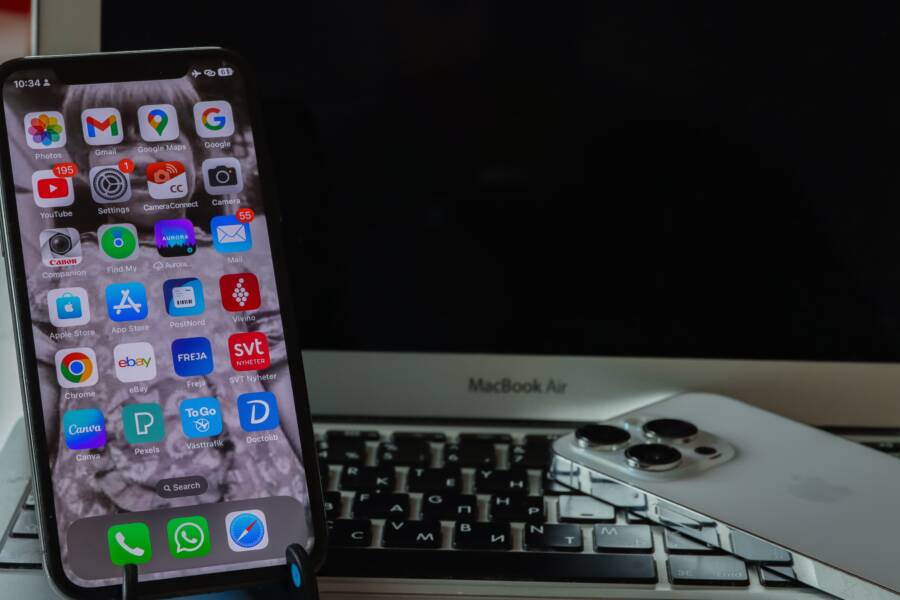
When your smartphone suddenly loses its Wi-Fi connection, toggling Airplane Mode usually restores the signal. This action works because it force-restarts the wireless radio on your device.
While this trick provides an instant fix, it does not address the underlying problem. The issue often stems from software bugs, outdated firmware, or persistent network conflicts on your device.
You can stop relying on temporary workarounds by addressing the root causes of these connectivity drops. This guide shows you how to identify the source of your connection troubles and apply permanent solutions for your mobile device.
The Reason Your Device Needs A Refresh
When your smartphone displays a Wi-Fi icon that refuses to load data, a full restart often solves the mystery. Modern devices function like miniature computers that run dozens of processes in the background simultaneously. Over time, these background tasks pile up and create system conflicts that interfere with basic networking functions.
Refreshing your hardware clears the temporary memory and forces the operating system to reload its network protocols from scratch. Think of it as a clean slate for your hardware. If your smartphone keeps dropping the signal, the internal components might be struggling to manage outdated background tasks.
Clearing Temporary System Errors
Computers and smartphones rely on temporary files to track active network states. Sometimes these files become corrupted during a standard update or a sudden shift in signal strength. When a file gets stuck, your device might think it is still connected to a network that no longer exists or lacks internet access.
Restarting the device wipes the temporary storage area where these glitches live. This simple action allows the system to establish a fresh handshake with your router. Without this reset, your phone may continue to waste energy trying to authenticate with a ghost connection.
Reinitializing the Wireless Antenna
Your device maintains a constant connection with nearby routers through specific hardware controllers. These controllers sometimes hang or become unresponsive when they encounter unusual data packets. When this occurs, the hardware stops communicating with your local network, even if your phone settings appear normal.
A power cycle forces the hardware controller to reinitialize itself. This process ensures the antenna is operating on the correct frequency channel and protocol. You should perform a restart whenever you experience these specific signs:
- The signal bars show full strength but websites fail to load.
- Your smartphone remains connected to the router but reports no internet access.
- The Wi-Fi toggle switch freezes or turns grey.
- Nearby devices connect without trouble while your phone struggles to authenticate.
Managing Background Software Conflicts
Software updates often introduce new features that change how your phone handles networking. If an update finishes in the background, certain services might fail to restart properly. These orphaned processes can consume system resources and prevent your Wi-Fi radio from waking up correctly.
Performing a restart verifies that all necessary background services launch in the correct order. This eliminates conflicts between your network settings and new system patches. If your smartphone continues to have trouble after a restart, you may need to look into deeper software configurations, such as clearing your network settings or checking for pending firmware patches.
Quick Fixes To Stop Toggling Airplane Mode
Constant connectivity drops force many users to rely on Airplane Mode as a band-aid. While this action resets the radio, it does not fix the underlying configuration errors stored on your smartphone. You can address the root cause of these connection loops by performing a few targeted resets.
Renew Your Network Settings
Old connection data often conflicts with modern security protocols or updated router settings. If your smartphone holds onto outdated credentials, it may attempt to authenticate using incorrect parameters. Forgetting the network forces your device to treat the connection as entirely new.
On an iPhone, go to Settings, select Wi-Fi, and tap the blue icon next to your network name to choose “Forget This Network.” Android users can find the same option by long-pressing the network name in the Wi-Fi menu and selecting “Forget.” Reconnecting requires you to enter your password again, which builds a clean handshake between your device and the router.
If the problem persists, you might need to wipe all stored network cache. This process clears every saved Wi-Fi password, Bluetooth pairing, and cellular configuration.
- On your iPhone, navigate to Settings, General, Transfer or Reset iPhone, and select Reset Network Settings.
- On Android, look for Reset Options within the System or General Management menu and choose Reset Wi-Fi, mobile, and Bluetooth.
This procedure removes corrupt temporary files that block stable communication. Your smartphone will reboot with a factory-default networking state, allowing you to establish fresh, conflict-free connections.
Update Your Software And Firmware
Outdated system software is a primary driver of mysterious connectivity bugs. Device manufacturers release frequent patches to fix driver issues that prevent your smartphone from talking to modern routers. When you ignore these updates, you leave known vulnerabilities and protocol errors active in your operating system.
These updates contain specific patches for the wireless network interface card, often called the Wi-Fi radio. A small firmware fix can resolve issues where a phone constantly drops the signal or refuses to acknowledge valid security handshakes. Manufacturers frequently address widespread hardware compatibility issues through these background OS updates.
Check for updates manually to ensure you have the latest software version:
- iPhone users can visit Settings, General, and Software Update to install pending patches.
- Android users typically find these in Settings, System, or About Phone under Software Update or System Update.
Installing these updates forces the system to replace old drivers with newer versions that support current network standards. If your device still struggles after a full update, the connection issue might stem from deep-seated hardware failures or external interference rather than software glitches. Keeping your OS current remains the fastest way to prevent recurring bugs from disrupting your daily tasks.
Advanced Troubleshooting For Persistent Wi-Fi Drops
If basic resets fail to stop your connection from cutting out, your device and router might be experiencing a communication conflict. Frequent drops often occur when the network assigns your smartphone an IP address that another device is already claiming, or when your power settings interfere with network stability. You can resolve these stubborn technical hurdles by manually adjusting how your hardware handles network traffic.
Switching From DHCP To Static IP
Routers use a system called DHCP to automatically assign an IP address to every device. This is convenient, but it occasionally leads to address conflicts where the router becomes confused about which device holds a specific identity. When your phone and router struggle to agree on an address, the Wi-Fi signal will drop repeatedly as the handshake fails.
Assigning a static IP address to your smartphone eliminates this guessing game. You provide the device with a permanent address that the router will reserve specifically for it.
- Open your Wi-Fi settings and select your network.
- Look for an option labeled IP Settings or Network Details.
- Change the setting from DHCP to Static.
- Input the router IP, your chosen static IP, and the gateway information.
Make sure the static IP address you choose is outside the range the router uses for automatic assignments to prevent future conflicts. Once you save these changes, your device will maintain a consistent path to the internet. This configuration forces the connection to stay active because the identity of your smartphone remains fixed and verifiable by the router at all times.
Disable Wi-Fi Power Saving Features
Smartphone manufacturers prioritize battery life to extend the time you can use your device away from a charger. These power-saving routines often aggressively throttle or disable the Wi-Fi radio when the screen is off or the battery percentage drops below a certain threshold. This behavior frequently causes the connection to sever unexpectedly during background tasks.
If your Wi-Fi drops only when you are not actively using the screen, look for battery optimization settings. You can often exclude specific network apps or system services from these power restrictions.
- On Android devices, navigate to your battery settings or search for Wi-Fi optimization. Disable any setting that limits Wi-Fi performance to save power.
- Certain Android skins hide this in the Developer Options under Networking. Look for a setting labeled Wi-Fi scan throttling and turn it off to keep the signal stable.
- iPhones manage this automatically, but keeping the device off Low Power Mode helps. Low Power Mode intentionally pauses background syncing and network activities to conserve energy.
Disabling these restrictive features allows the wireless antenna to maintain a constant, high-priority state. This change consumes slightly more battery, but it stops your smartphone from dropping connections to save power. When the antenna stays fully powered, the network connection remains steady even during periods of inactivity.
When To Contact Your ISP Or Repair Shop
Most Wi-Fi issues remain solvable with simple software tweaks on your smartphone. However, persistent connectivity failures sometimes indicate problems outside your control. You should reach out to your internet service provider or a professional technician when self-service troubleshooting fails to restore a stable signal.
Identifying ISP Network Outages
Your smartphone might work perfectly, but the external signal coming into your home could be the problem. If every device in your household loses internet access simultaneously, the issue is likely a service disruption. Most providers offer mobile apps or status pages where you can check for reported outages in your specific area.
Before you call, verify the status of your modem and router. Look for blinking red lights or signs that the device is failing to sync with the network. If the hardware displays signs of a total service failure, contact your provider immediately to confirm if a technician needs to inspect the outdoor lines.
Determining When Hardware Is The Culprit
Sometimes the internal wireless components of a smartphone reach the end of their life or sustain physical damage. You should consider a repair shop visit if your device exhibits these specific red flags:
- Multiple different Wi-Fi networks fail to show up in your settings menu.
- The Wi-Fi toggle switch remains permanently greyed out or unresponsive.
- Your phone suffered a recent drop or liquid exposure just before the signal issues began.
- Bluetooth connectivity also fails alongside Wi-Fi, which often indicates a shared internal radio chip malfunction.
A professional technician can perform a hardware diagnostic to confirm if the antenna or logic board is failing. If these components are damaged, software resets will provide no relief. Repair shops can replace faulty internal modules or determine if the device requires a full replacement.
Knowing The Limits Of Troubleshooting
You gain nothing by repeating the same steps if the underlying problem is systemic. If you have reset your network settings, updated your software, and confirmed that your router is working for other devices, you have likely reached the end of DIY fixes.
Do not waste hours cycling through the same steps when a professional can identify the failure point quickly. Whether the issue is a faulty router provided by your ISP or a damaged radio chip inside your smartphone, a technician can provide a definitive answer. Getting expert help saves you time and ensures that you do not accidentally harm your device by attempting unnecessary internal adjustments.
Conclusion
Toggling Airplane Mode acts as a quick way to restore your connection, but it is merely a temporary patch for deeper software or network conflicts. You gain more long-term stability by addressing the root causes, such as outdated firmware, corrupted network caches, or aggressive power-saving settings on your smartphone.
Updating your operating system remains the most effective step to resolve persistent connectivity drops. If these issues continue after you apply software patches and reset your network settings, a professional diagnosis can determine if your device has a failing hardware component. Consistent maintenance keeps your device running smoothly and ensures reliable access to your home or office network.