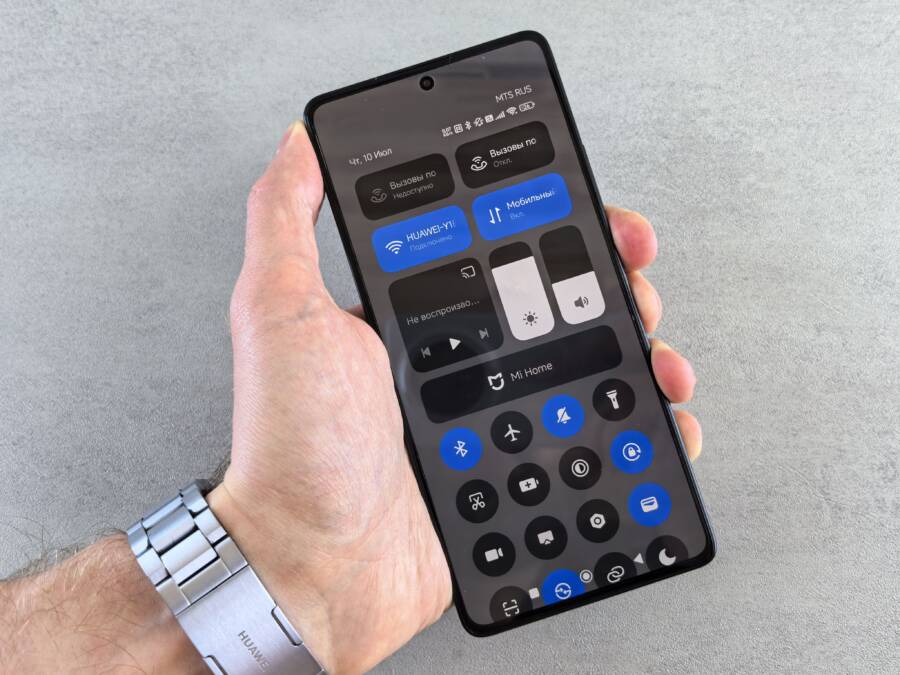
The “Wi-Fi has no internet access” warning means your smartphone is connected to your router, but that router cannot pass data from the web. This error occurs because of a temporary hang in your network settings, a glitch in the router, or a failed connection to your service provider.
You can fix this problem by refreshing your local connection settings or resetting your hardware. These steps work for almost any smartphone facing connectivity drops.
Check these simple solutions below to get your internet back online.
Quick Fixes for Connection Errors
When your smartphone shows a Wi-Fi connection but fails to load pages, the issue often stems from a minor communication hang between your device and the router. These simple steps force your hardware to re-establish a stable link. You can usually clear these errors in less than a minute by refreshing your network profile or resetting the antenna state.
Toggle Airplane Mode to Reset Radios
Every smartphone relies on internal wireless radios to communicate with cellular towers and Wi-Fi access points. Sometimes, these radios get stuck in a loop where they acknowledge a connection exists but cannot pass data packets correctly. By activating Airplane Mode, you effectively kill all wireless transmissions from your device.
When you turn this mode on, the system stops all signals immediately. Waiting for about ten seconds allows the internal hardware to discharge any residual power or errors stored in the antenna buffers. Once you switch Airplane Mode off, your device forces a fresh handshake with the router. This process is much faster than a full phone reboot and often clears persistent “no internet” errors without losing your current session data.
Forget and Rejoin the Network
Sometimes, the configuration files for a specific Wi-Fi network become corrupted or outdated. Your smartphone caches settings like IP addresses, security keys, and DNS preferences to speed up connections. If these cached values conflict with current router settings, your device will display a connection error despite showing a full signal strength icon.
Removing the network profile clears these bad settings entirely. You can force your phone to perform a clean discovery of the network by following these steps:
- Open the Settings app and navigate to the Wi-Fi or Network menu.
- Find the name of your current network in the list of saved connections.
- Tap the network name or the gear icon next to it to view its details.
- Select the option labeled Forget, Forget Network, or Remove.
- Turn your Wi-Fi off and back on using the toggle switch.
- Select your network from the list, enter the password again, and tap Connect.
Re-entering your credentials forces the device to request new information from the router. This handshake refreshes your temporary IP address and gateway settings, which frequently resolves conflicts preventing web access. Use this method if toggling your radio settings does not immediately restore your connection.
Check Your Router and Modem Status
If your smartphone shows a strong Wi-Fi signal but still fails to load websites, your local network hardware is likely the source of the trouble. Routers and modems often encounter internal software errors that prevent data from passing between your service provider and your devices. Checking your hardware status is a standard first step to determine if the fault lies with your equipment or the broader network.
Power Cycling Your Internet Hardware
Power cycling is a simple but effective way to clear temporary memory glitches in your networking gear. You should perform this process whenever your smartphone stays connected to a network that refuses to transmit data. Unplug the power cable from both your modem and your router, and then wait for at least 30 seconds before plugging them back in.
This waiting period is necessary because your hardware contains small capacitors that hold an electrical charge even after you disconnect the power. If you plug the unit back in too quickly, these components retain their previous state, and the internal software may not fully reset. Giving the hardware 30 seconds ensures all residual electricity dissipates, forcing the router to clear its cache and initiate a fresh boot sequence. Once the lights stabilize, try connecting your phone again.
Identifying ISP Outages
Sometimes, the issue originates outside your home at the service provider level. If your neighborhood is experiencing a general service outage, no amount of troubleshooting on your smartphone will restore your connection. Most internet service providers offer a digital status page or a mobile app where you can check for reported problems in your area.
You can verify your service status by visiting the official website of your provider using your cellular data connection. Many companies provide a map or a notification system that lists outages based on your home address or zip code. If you find a report confirming maintenance or an unexpected failure in your region, avoid wasting time on local repairs. Simply wait for the provider to resolve the outage, as the signal will return once the network infrastructure is back online.
Advanced Network Settings to Adjust
When basic resets fail to restore your connection, your smartphone might struggle with specific network protocols. Modern devices often manage connection details automatically, but these settings sometimes conflict with your router. Adjusting your IP and DNS configuration can bypass these persistent software roadblocks. These manual changes force your phone to use specific paths for data, which often resolves hidden lookup failures or address conflicts.
Fixing IP Address Conflicts
Your router assigns every smartphone a unique IP address to manage data flow. If your device settings force a static address that the router already assigned to another gadget, you will lose internet access. This error occurs because the router denies traffic to conflicting identities on the network. Switching your settings to DHCP (Dynamic Host Configuration Protocol) allows the router to automatically assign a valid, available address to your device.
To revert to the default dynamic settings, follow these steps:
- Open your smartphone Settings and select the Wi-Fi menu.
- Tap the gear icon or the network name to open details.
- Locate the IP Settings or IP Assignment option.
- Change the selection from Static to DHCP.
- Save your changes and wait for the signal icon to refresh.
This adjustment lets your router manage the network hierarchy without interference. Your device will request a fresh, non-conflicting IP address, which usually restores your ability to send and receive data. If your settings were already set to DHCP, try toggling them to Static and back to DHCP to force a new request cycle.
Switching DNS Servers for Better Stability
Domain Name System (DNS) servers act as the phonebook of the internet. They translate human-readable website names into the numerical addresses that computers understand. If your default ISP-provided DNS server experiences a slowdown or failure, your smartphone will report that it cannot reach the web. Switching to a public, high-performance service like Google or Cloudflare often bypasses these local failures.
You can update your DNS settings manually by following this path:
- Return to the advanced network details page for your Wi-Fi connection.
- Look for an option labeled Private DNS or DNS settings.
- Choose the manual configuration option if available.
- Input 8.8.8.8 and 8.8.4.4 for Google DNS, or use 1.1.1.1 for Cloudflare.
- Save your changes to apply the new lookup path.
Many modern smartphones also support a Private DNS field, where you can simply type the hostname of your chosen provider. Using this setting secures your DNS queries and prevents your local ISP from causing intermittent lookup errors. Once you save these changes, your browser should resolve domain names immediately, even if your local network hardware was previously struggling to keep up.
Resetting Network Settings as a Last Resort
When you exhaust all standard troubleshooting steps, your smartphone might still refuse to connect to the web. Software glitches often hide deep within the operating system, affecting how the device manages wireless adapters and communication protocols. A network settings reset acts as a complete refresh, wiping out all custom Wi-Fi, cellular, and Bluetooth configurations to return the device to its factory-default state.
What Happens During a Reset
Performing this action erases every saved Wi-Fi network and password stored on your device. It also removes custom cellular settings, VPN configurations, and paired Bluetooth devices. Because you essentially start from a clean slate, your smartphone will behave exactly as it did the day you took it out of the box. The process effectively clears out hidden corruption in the network stack that simple reboots or manual adjustments cannot fix.
This step does not delete your photos, messages, apps, or other personal files. It only impacts the communication settings that govern how your device talks to outside networks. Once the reset finishes, your device will reboot, and you will need to re-enter your Wi-Fi credentials to rejoin your home or office network.
Executing the Network Reset
You can perform this reset through the primary settings menu on most modern devices. If you use an iPhone or an Android phone, the steps follow a similar logic to help you restore connectivity.
- Open the Settings app on your smartphone.
- Search for the Reset or General Management menu.
- Select the option that says Reset Network Settings.
- Confirm your choice by entering your device passcode if prompted.
- Wait for the phone to restart automatically.
Once the reboot cycle concludes, turn on your Wi-Fi and attempt to connect to your router again. If a persistent software bug prevented your internet access, this deep reset should clear the barrier. Many users find that a fresh start allows the internal hardware to re-establish a stable connection without the interference of old, conflicting cache data.
Evaluating the Need for Further Action
Resetting these settings remains a final measure because of the convenience lost when you have to re-pair devices or re-enter saved passwords. If you perform this reset and the internet still does not work, the issue likely resides with your hardware or your service provider. In such cases, contact your internet service provider to verify if a deeper fault exists on their end. A hardware failure in your phone is rare, but if the issue persists across multiple different networks, you might consider visiting a repair center to check the internal wireless antenna.
Conclusion
Most connectivity errors on a smartphone stem from minor configuration conflicts or temporary glitches in your local hardware. You can resolve the vast majority of these issues by toggling Airplane Mode, forgetting the network, or power cycling your router.
If these steps fail to restore your internet access, verify that your local area is not experiencing a broader service outage. Contact your internet service provider or local IT support if the problem persists across multiple devices in your home. They can perform a remote diagnostic test on your line to rule out hardware failures or external network damage.