Your smartphone shows a strong Wi-Fi signal, yet your apps refuse to load data. This frustrating issue is almost always a minor software glitch rather than a broken device. You can usually fix the connection by toggling your settings, restarting your hardware, or refreshing your DNS configuration.
Most users resolve this by cycling their airplane mode or performing a quick power reset. If those simple steps fail, the root cause often hides in your network settings or IP assignment. These fixes restore your data flow without requiring professional help or complicated technical repairs.
Quick Fixes to Get Your Smartphone Online Again
When your smartphone indicates a stable Wi-Fi connection but fails to load web pages, your device and the router might have a communication error. These issues often arise from temporary software bugs or cached network configurations. Before you explore advanced settings, perform these basic troubleshooting steps to restore your internet access quickly.
Toggle Airplane Mode and Wi-Fi Settings
Airplane mode acts as a master kill switch for your radio antennas. Activating it forces your device to stop all communication with cellular towers and wireless access points. When you turn it back off, the smartphone must establish a fresh handshake with your router. This process effectively clears minor glitches that prevent data from moving through your active Wi-Fi connection.
Follow these steps to refresh your radio settings:
- Swipe down from the top of your screen to open the control panel.
- Tap the airplane icon to turn on Airplane Mode.
- Wait at least ten seconds to ensure all active connections disconnect.
- Tap the icon again to disable the mode.
- If the connection remains unresponsive, manually toggle your Wi-Fi setting off and back on.
This cycle clears the temporary handshake between your device and the network hardware. It resolves most issues where the phone holds onto an old, invalid IP address from the router.
Restart Your Device and Router
Persistent connectivity errors often require a full power cycle. A standard restart clears the temporary memory, or cache, of both your smartphone and the home modem. Over time, these devices accumulate small errors in their memory that can block incoming or outgoing data packets.
A hard reboot forces every component to reload its software from scratch. This process clears the current network session and forces the devices to renegotiate their connection parameters. To refresh your setup correctly, follow this order:
- Turn off your smartphone completely and wait thirty seconds before turning it back on.
- Unplug the power cable from your router and modem.
- Wait at least sixty seconds to allow the internal capacitors to drain.
- Plug the modem back in and wait for the indicator lights to show a stable internet connection.
- Check if your smartphone can browse the web once the router is fully active.
Restarting the router is just as important as restarting the phone. Even if other devices in your home appear to work, the router might have a specific cached issue affecting only your phone. A full power cycle addresses the link between your hardware and the internet service provider, ensuring a clean slate for all connected devices.
Deep Diving Into Network Settings for Lasting Results
Sometimes your smartphone holds onto corrupted data or outdated configurations that prevent a stable internet connection. When basic restarts fail, you must dig into the network software on your device. These settings act as the map between your phone and the internet. Refreshing them clears out old errors, allowing your device to negotiate a fresh, functional link with your router.
Forget and Rejoin Your Wi-Fi Network
Your phone keeps a digital “save file” for every Wi-Fi network you use. This file stores the password and specific protocol details needed to connect. If that data becomes corrupt, your smartphone will connect to the router but fail to pass any traffic. Removing the profile forces the phone to delete this cache and start the handshake process from scratch.
Follow these steps to clear your saved network data:
- Open the Settings app on your smartphone.
- Select the Wi-Fi menu to see your saved networks.
- Find your current network and tap the info icon or the network name.
- Select the option labeled Forget This Network or Remove.
- Return to the list of available networks and select your home Wi-Fi again.
- Re-enter your password to establish a new connection.
This simple action often resolves connectivity blocks because it wipes away old IP address conflicts or stale security tokens. Your phone treats the network like a brand-new discovery, which usually fixes silent failures where the device seems connected but remains offline.
Update or Reset Network Configurations
If you still face issues, the problem might exist within the deeper networking layer of your operating system. A full network settings reset returns all wireless configurations to their factory state. This process wipes out saved Wi-Fi passwords, Bluetooth pairings, and cellular settings. Your personal files, photos, and apps remain untouched, but the phone loses its memory of every network it previously knew.
Use these steps to perform a reset based on your device type:
- For iPhone: Go to Settings, tap General, select Transfer or Reset iPhone, tap Reset, and choose Reset Network Settings.
- For Android: Open Settings, look for System or General Management, select Reset options, and tap Reset Wi-Fi, mobile, and Bluetooth.
Your smartphone will restart once the process finishes. You must manually rejoin your Wi-Fi and pair your Bluetooth devices afterward. This reset clears hidden misconfigurations in the network stack that simple toggles cannot reach. It is the most effective way to restore default behavior when persistent software errors prevent your device from reaching the internet.
Identifying Potential Conflicts with Apps and Security
Third-party software often interrupts your smartphone connection even when the Wi-Fi signal appears full. Security tools and network modifiers act as gatekeepers for your traffic, and they can accidentally block legitimate data packets. If you suspect an app is interfering with your internet access, isolating the culprit is a logical next step.
The Impact of VPNs and Proxy Services
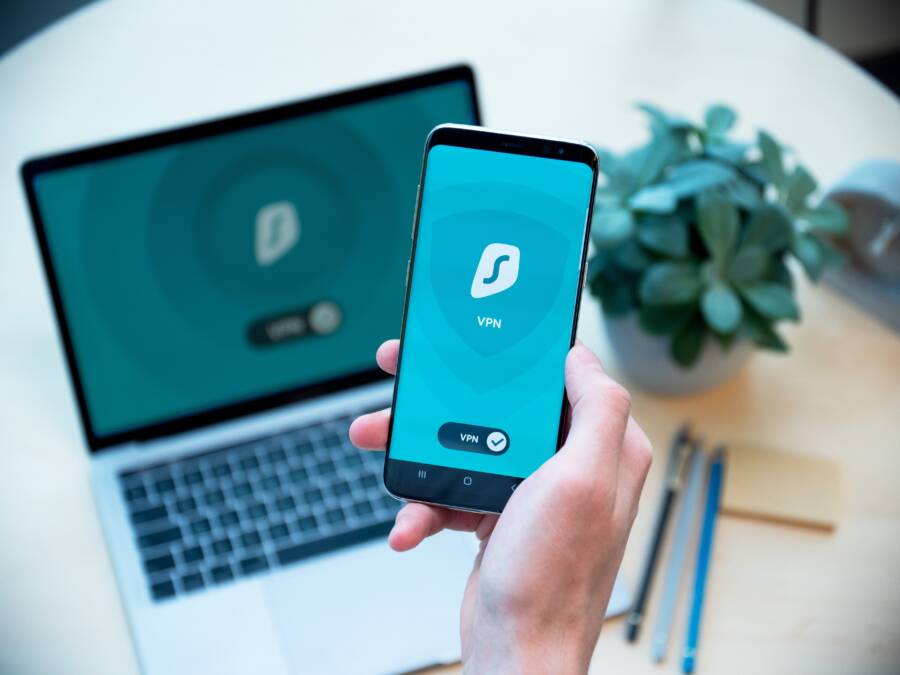
Virtual Private Networks, or VPNs, reroute your smartphone traffic through an external server to increase privacy. This process adds a layer of encryption that requires a stable and clear path to the internet. If the VPN server becomes unresponsive or your authentication token expires, the tunnel remains active but carries no data. Your phone sees a valid Wi-Fi connection, yet no web pages load because the traffic hits a dead end at the VPN tunnel.
Many users leave these services running in the background without checking their status. Disabling your VPN is a critical diagnostic step because it removes a complex variable from your network path. Follow these steps to test your connection without these tools:
- Open your VPN app and tap the disconnect button.
- Check your browser to see if pages load normally.
- If internet access returns, the issue lies with your VPN settings or server choice.
You might also check your system settings for proxy configurations. Some public Wi-Fi networks or workplace setups require a manual proxy address. If your phone retains these settings while you are back on your home network, the device will try to send all traffic to a non-existent proxy server. Navigate to your Wi-Fi details menu to ensure proxy settings are set to None or Off.
Checking Date and Time Settings
Your smartphone relies on precise time synchronization to establish secure connections with servers. When you visit a website or use an app, your device verifies the digital certificate to ensure the connection is authentic. This certificate has a strict validity window defined by a start and end date. If your system time is incorrect, your phone thinks the certificate is expired or not yet valid.
The device then drops the connection to protect you from a potential security risk. This leads to a scenario where your Wi-Fi works, but your apps report a lack of internet access. Correcting this is simple:
- Access the System or General settings on your phone.
- Look for Date and Time configurations.
- Enable the option to set the time automatically using the network.
Automatic synchronization fixes the offset between your internal clock and the actual time. Once the time matches the current global standard, the SSL certificate verification process completes successfully. You should see your apps regain their ability to pull data from the internet almost immediately after this adjustment.
Knowing When to Seek Further Help
Most connectivity issues resolve through simple software adjustments or router restarts. However, persistent failures indicate deeper problems with your hardware or your service provider. You should stop troubleshooting on your own if your efforts produce no results after trying all basic steps. Recognizing when the problem exceeds your control saves you significant time and frustration.
Contacting Your Internet Service Provider
Your internet service provider manages the data signal entering your home. If your router shows a red light or indicates a loss of service, the issue lies with their network rather than your devices. Check if neighbors using the same provider also experience outages. Many companies offer mobile apps that display local service maps or outage alerts in real time.
Call your provider if these conditions exist:
- The router displays lights that indicate a failed internet handshake.
- Multiple devices in your home fail to load data, not just your smartphone.
- The provider confirms a local service outage on their official status page.
- You recently moved or changed your subscription plan, which might require a service activation on their end.
Customer support agents can perform a remote diagnostic test on your modem. They also detect if the issue is a damaged line outside your home. These technical experts possess access to account-level settings that are unavailable to you.
When to Seek Hardware Repair
Hardware damage or internal component failure remains a rare but possible cause for connectivity errors. If your smartphone maintains a perfect cellular connection but fails on every Wi-Fi network you join, the device internal wireless chip may be failing. This specific failure is a hardware defect. You should consult a repair professional if you observe signs of physical trauma, such as drops or water exposure.
Consider professional assistance in these situations:
- You have reset all network settings, yet the phone still refuses to find any Wi-Fi signals.
- The hardware appears physically warped or shows signs of liquid damage.
- The device recently suffered a significant drop or impact before the issues started.
- A certified technician can test if the wireless module needs a physical replacement.
Contact the manufacturer support team if your phone is still under warranty. Attempting to repair internal components on your own often voids your warranty protection. A professional inspection ensures you do not cause further damage to the device. Professional help provides a reliable path forward when software fixes fail to restore your connection.
Conclusion
Most connectivity issues arise from minor software glitches or stale network data on your smartphone. You can usually restore your internet access by cycling Airplane Mode, restarting your hardware, or clearing corrupted network settings. These steps solve the vast majority of silent connection failures.
If you still cannot reach the web, check your device time and disconnect any active VPNs. These background services often block traffic even when your Wi-Fi signal appears strong.
Use this checklist to troubleshoot future connection drops:
- Toggle Airplane Mode on and off to refresh radio signals.
- Restart your phone and your home router.
- Forget the current Wi-Fi network and reconnect with your password.
- Verify your date and time settings are set to automatic.
- Disable any active VPN or proxy services to test for interference.
If these steps fail to bring your device back online, contact your internet service provider to rule out local outages. You might also consult a repair professional if the wireless chip in your device shows signs of hardware failure. Keeping your software updated and your settings refreshed remains the best way to maintain a stable link to the internet.