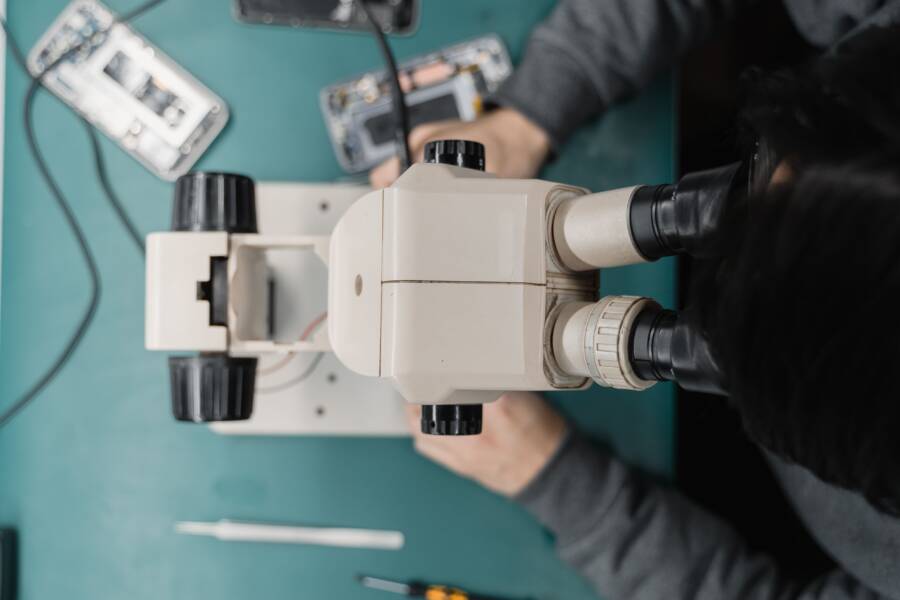
When your smartphone gets stuck in an infinite update loop, the device repeatedly attempts to install software, fails, and restarts the process indefinitely. This frustrating cycle usually happens because of corrupted cache files, insufficient internal storage, or unstable network connections during the download phase.
To fix the problem, you should check your available storage, clear the system cache, and perform a forced restart. These steps often resolve the conflict and allow the update to complete normally.
The following guide details the specific recovery procedures to restore your device to a functional state.
Why Your Smartphone Gets Stuck in an Update Loop
An update loop happens because your smartphone encounters a critical error during the installation process and attempts to reset itself. When the device restarts, it finds the installation incomplete and tries again, creating a cycle that drains your battery and prevents normal use. This process remains stuck until the underlying file corruption or hardware limitation is addressed by the user.
Insufficient Storage Space
Many smartphones require a significant buffer of free space to unpack and install system updates. If your internal memory is nearly full, the system fails to extract necessary files and triggers a rollback. The phone then believes the update is still pending and restarts the procedure as soon as the system boots.
To avoid this, you should check your storage settings before starting a major system update. Keeping at least 5 to 10 gigabytes of free space typically prevents these download failures. If the loop has already begun, you might need to use a computer connection to clear space or force the device into a recovery state.
Corrupted System Files
Temporary cache files sometimes become corrupted during a download if the internet connection is unstable or if the process is interrupted. These damaged files can misdirect the operating system into thinking the update was successful when it was not. The device then attempts to initialize components that do not exist, leading to a system crash and an automatic restart.
Clearing the system cache partition often solves this issue without removing your personal data. This action forces the phone to discard old, buggy files and rebuild the necessary system environment from a clean state. If you are using an Android device, this is accessible through the recovery menu, while iPhone users often need to connect to a desktop computer to initiate a repair.
Interrupted Network Connections
Wireless connectivity issues contribute to update loops if the signal drops while the package is being verified. If the phone installs a partial or incomplete package, the integrity check fails upon reboot. The software responds by attempting to reinstall the package to fix the mismatch, keeping you trapped in the loop.
Using a stable, high-speed Wi-Fi connection is the best way to prevent this scenario. Avoid using mobile data or public hotspots for major system changes, as these connections fluctuate frequently. If you suspect your current file is compromised due to a bad download, the recovery process requires a full refresh or a firmware re-flash to ensure all components are properly aligned.
Essential First Steps to Stop the Infinite Retry Cycle
Before you attempt complex repairs, address the fundamental environmental conditions that often trigger an update loop. A smartphone relies on stable resources to verify and unpack system files, so any shortage of power, storage, or bandwidth causes the installation to fail repeatedly. These basic checks often resolve the problem without requiring advanced technical knowledge.
Checking Your Network and Storage Space
A weak or unstable connection is the most common reason an update fails to complete. When your smartphone loses contact with the update server mid-download, the device may store a corrupted or incomplete installation package. During the next reboot, the system detects this mismatch and tries to download the data again, trapping your device in a cycle. You should switch to a high-speed, reliable Wi-Fi network rather than relying on cellular data, which fluctuates in strength and speed.
Low internal storage also prevents your device from unpacking the necessary installation files. Most operating systems require several gigabytes of breathing room to successfully move data and replace system components. If your storage is nearly full, the system initiates the update but stops once it runs out of room, triggering a rollback that restarts the loop. You can determine if this is the cause by checking your remaining space through a recovery menu or by connecting the device to a computer to view files. If your storage is below 5 gigabytes, you must remove unnecessary media, applications, or temporary files to create the space needed for the system to process the new update.
How to Clear Cache Files Safely
Temporary cache files sometimes become corrupted during a failed update attempt. These files contain data meant to speed up your user experience, but they can interfere with system processes when they are damaged. Clearing the system cache partition removes these temporary files without touching your personal photos, contacts, or app data.
Follow these steps to clear the system cache on most Android devices:
Turn off your smartphone completely.
Press and hold the volume down and power buttons at the same time until the recovery menu appears on the screen.
Use the volume buttons to scroll through the menu until you highlight the option labeled “Wipe cache partition” or “Clear cache.”
Press the power button to select the option and confirm the action if the device prompts you to do so.
Select “Reboot system now” once the process finishes to restart your phone in its normal state.
If you use an iPhone, you generally cannot access a cache partition menu directly. Instead, you should connect your device to a computer and use recovery mode to trigger a repair. This process forces the operating system to verify all existing files against a clean version, which often clears out the problematic cache data responsible for the loop. Once the clean-up completes, the device will attempt to boot normally.
Advanced Troubleshooting for Persistent Update Errors
When standard fixes fail to resolve an infinite update loop, you must look toward more rigorous diagnostic procedures. These methods interact directly with the smartphone firmware to bypass the corrupted software states that prevent a normal boot. While these operations require caution, they effectively force the operating system to discard malfunctioning update fragments and attempt a clean start.
Using Recovery Mode to Fix System Glitches
Recovery mode is a dedicated partition on your smartphone that operates independently from the main operating system. It allows you to perform low-level maintenance, such as clearing the system cache, without affecting your personal photos, documents, or installed apps. This is often the most effective way to eliminate corrupted temporary files that cause an update to stall repeatedly.
To access recovery mode on most Android devices, power the device off completely. Press and hold the volume down and power buttons simultaneously until you see the device logo or a menu screen. Use the volume keys to navigate through the list, then select the option labeled “Wipe cache partition.” This command triggers the system to purge temporary data that the previous update process failed to handle correctly. Confirm your choice, wait for the process to complete, and select “Reboot system now.”
If you use an iPhone, the process requires a computer. Connect your device to a desktop running the latest version of iTunes or Finder, force a restart by pressing the relevant button combinations, and keep holding until the recovery screen appears on your phone. Selecting the “Update” option within the computer interface tells the system to reinstall the operating system without erasing your data. This often repairs the internal file structure enough to break the update loop.
When to Perform a Factory Reset
A factory reset is the final option to consider because it erases all internal data. You should only use this method if your smartphone remains trapped in an update loop after you have exhausted every other attempt to clear cache partitions or force a system refresh. Because a reset returns the device to its out-of-the-box state, you must prepare by verifying the status of your data.
Before you proceed, confirm that you have an up-to-date backup of your critical files. Use cloud storage services like Google Drive, iCloud, or a local computer backup to store your photos, contacts, and app settings. If the device is stuck in a loop, you may need to rely on the most recent automatic backup synced before the update error began. Once you confirm that your data is safe, you can initiate the reset through the recovery menu by selecting “Wipe data/factory reset.”
Performing a factory reset clears the storage partition completely. This removes the corrupted update package, residual system errors, and any conflicting app data that might interfere with the installation process. After the wipe finishes, the smartphone reboots as if it were brand new. You can then sign in to your accounts to restore your information, ensuring that your device starts with a clean and stable foundation.
Comparing Software Repair Tools and Professional Help
Deciding between automated software tools and professional repair services depends on your technical comfort and the severity of the boot loop. Free or paid repair utilities often fix common software glitches, but professional technicians offer a safety net for hardware issues or complex firmware corruption. You should weigh the cost of these tools against the time and potential risks involved before choosing a path.
Benefits of DIY Software Repair Tools
Many third-party repair applications exist to address common system errors without requiring you to visit a shop. These programs usually automate the process of downloading firmware and pushing it to your smartphone via a desktop connection. This approach saves money and keeps your device in your possession, which is often preferred for privacy reasons.
Using these tools is advantageous when the problem is strictly related to corrupted system partitions or incomplete updates. Most reliable software utilities guide you through the process with clear prompts, making them accessible even if you aren’t an expert. If your device is recognized by your computer, these tools can often bypass the loop by overwriting the broken OS components with a fresh installation.
When to Seek Professional Assistance
Professional help is the better choice when software tools fail to break the update loop. Technicians have access to specialized diagnostic equipment that can distinguish between a simple software crash and physical hardware failure, such as a failing flash memory chip or a damaged motherboard. If your smartphone has suffered liquid damage or physical trauma, software solutions will remain ineffective because the underlying hardware cannot retain the new data.
Choosing a professional service also provides accountability. If a technician attempts a repair and the device remains unresponsive, you have a clear path for further investigation or warranty claims. Bringing your device to an authorized service center is especially important if your warranty is still active, as unauthorized software modifications can sometimes void your coverage. Professional repairs are the safest route if you are uncomfortable managing firmware files or if the device shows signs of hardware malfunction.
Summary of Repair Options
Comparing these two paths helps you decide which route fits your current situation and technical capability.
You should attempt software-based repairs first if your smartphone shows no sign of physical damage. If the boot loop persists after multiple attempts or you lack the time to troubleshoot, a professional technician will likely provide a more stable and efficient resolution.
Conclusion
Fixing a smartphone stuck in an update loop begins with simple environment adjustments. Check your Wi-Fi signal and ensure you have enough free storage to handle the new files. If the cycle continues, clearing your cache partition often resolves the conflict by removing the corrupted temporary data preventing a successful boot.
Use a factory reset only as a last resort since it erases your personal data. Always confirm your backups are current before choosing this path to protect your photos and messages.
With these steps, most software-related update loops are manageable. A stable smartphone usually recovers quickly once the underlying file corruption or space constraint is addressed.