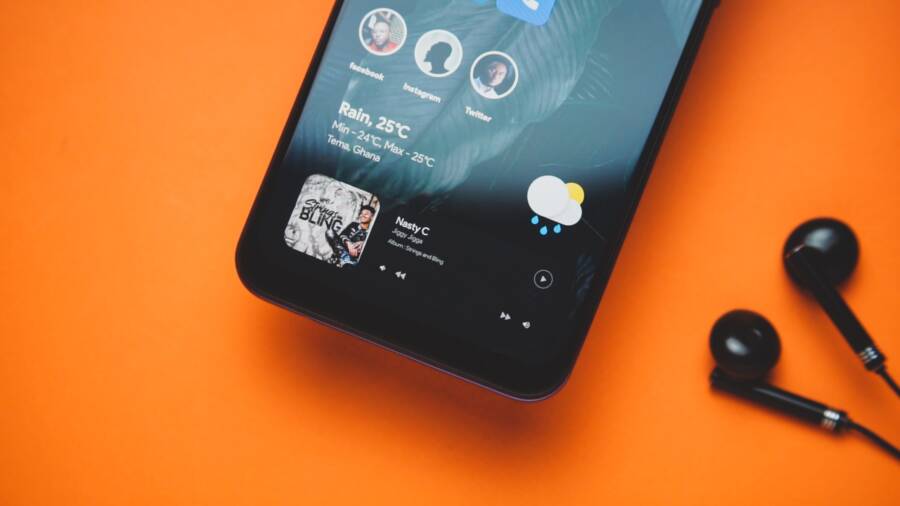
When your smartphone stops making sound for incoming calls, the culprit is often a simple settings error rather than a hardware fault. You can usually fix this issue by checking your silent switch, your Do Not Disturb status, or your Bluetooth audio connections.
These problems happen frequently for both iPhone and Android users. Most people accidentally toggle a software setting that overrides their ringtone volume.
Follow the steps below to identify the exact cause and restore your notifications.
Quick Checks to Fix a Silent Smartphone
When your phone stops alerting you to incoming calls, the cause is often a simple settings error. You do not need technical expertise to resolve most of these situations. Before assuming your smartphone has a hardware defect, perform these basic checks to restore your ringtone.
Verifying Your Physical Mute Switch and Volume Levels
Many phones include external controls that override software settings. If your ringtone fails to sound, start by checking these physical interfaces on your smartphone.
For iPhone users, look at the left side of the device above the volume buttons. You will see a small switch that toggles between Ring and Silent modes. If you see an orange color behind the switch, the device is set to silent. Push the switch toward the screen to enable ringtone alerts.
Android and iPhone models alike feature volume rockers on the side. It is common to confuse media volume with ringer volume. When you press the volume buttons, look for a small icon or a settings gear on the screen. This allows you to expand the volume menu. Ensure the slider labeled Ringer or Ringtone is set to a high level. If only the Media slider is up, your phone will remain silent during calls even if it plays music or videos perfectly.
Disabling Do Not Disturb and Focus Modes
Modern operating systems include features that silence your device automatically. These modes help you avoid distractions, but they often prevent calls from coming through when you actually need them.
To check these settings on an iPhone, swipe down from the top-right corner to open the Control Center. Look for the button labeled Focus or Do Not Disturb. If it appears highlighted, tap it to disable the restriction. You can also go to Settings, tap Focus, and select Do Not Disturb to verify that no specific schedules are active.
On an Android smartphone, swipe down from the top of the screen to reveal your Quick Settings panel. Find the icon labeled Do Not Disturb or a moon symbol. Tap it to toggle the mode off. If you need to verify further, open your main Settings app, tap Sound and Vibration, and then look for the Do Not Disturb menu. Ensure it is turned off and check that no automated rules are scheduled to trigger during your current time.
If these modes are necessary for your workflow, verify that your contacts are added to the allowed list. Most operating systems let you designate specific people as favorites who can bypass these silence settings. Checking these exceptions ensures you never miss a call from important contacts while keeping the rest of your notifications quiet.
Deep Dive into Software Settings and Audio Routing
When your phone fails to ring, the issue often stems from how your operating system directs audio. Your smartphone treats various audio outputs as distinct channels, and software glitches can misroute your ringer signal away from the main speakers. Correcting these errors requires a closer look at your connection history and alert configuration.
Troubleshooting Bluetooth Interference with Calls
Your phone often maintains hidden connections to nearby devices that can hijack your audio. If your smartphone remains paired to a wireless speaker or a headset in another room, it might route the incoming call audio to that device instead of playing it through your handset speakers. This creates a silent ringer because the sound is playing somewhere else entirely.
Check your current connection status whenever you miss calls unexpectedly. Turn off Bluetooth in your quick settings menu to test if this restores your ringtone. If the sound returns immediately, a previously paired device is likely the culprit. You can resolve this by removing unused devices from your Bluetooth menu or disabling automatic connection settings for specific accessories.
Many users encounter this issue after returning from their car. Your phone often clings to the vehicle’s audio system even after you walk away. If you find this happens often, make it a habit to toggle Bluetooth off when you arrive at your destination. This step confirms whether the interference comes from an active wireless stream.
Checking Notification and Alert Settings
Sometimes the issue exists within the software sound profile itself rather than external connections. If you accidentally set your ringtone to a non-existent file or a silent selection, your device will not make noise when a call arrives. You must verify that your chosen tone is active and valid.
Open your sound settings menu to review these configurations. Look for the Phone Ringtone option and ensure it displays a specific file name rather than None or Silent. If the current selection appears correct, try switching to a different default tone to see if the original file became corrupted. A quick test with a standard system sound confirms if the hardware can still produce audio for incoming calls.
Follow these steps to confirm your alert settings:
- Open the Settings app on your smartphone.
- Select the Sound and Vibration or Sounds and Haptics menu.
- Tap on Ringtone to view the list of available sounds.
- Choose a different, loud alert tone from the list.
- Have someone call your number to verify if the sound triggers.
If the new tone plays properly, your previous file was likely damaged or moved. You can then download your preferred ringtone again or continue using the new selection. This simple process identifies whether the software has lost its link to the alert audio file.
System-Level Solutions for Persistent Ringing Issues
When basic settings and connectivity checks fail to resolve your audio problems, the root cause often lies within the operating system itself. Software bugs, corrupted system files, or background service conflicts can interfere with your smartphone’s ability to alert you to calls. Addressing these issues requires a deeper look at your device’s core functions.
Restarting Your Device and Checking for Software Updates
A simple reboot is the most effective way to clear temporary glitches in your smartphone. When you restart the device, the operating system stops all active background processes and reloads the firmware from a clean state. This action often forces the sound driver to reinitialize, which can resolve persistent silence issues instantly. If a standard restart doesn’t work, perform a forced restart. This method cuts power to the processor briefly to clear out stuck temporary data that a regular shutdown might miss.
Keeping your software current is equally important for long-term reliability. Manufacturers frequently release updates that patch known bugs affecting audio routing, volume control, and system stability. If your phone is running an outdated version of its operating system, it may contain known errors that prevent the ringtone from triggering.
- Go to your settings menu and select the general or system section.
- Look for an option labeled Software Update or System Update.
- If an update is available, connect your smartphone to a stable Wi-Fi network.
- Start the download and installation process.
- Once the device reboots, test the ringtone again with a test call.
When to Reset Network Settings or Seek Professional Support
Sometimes, the configuration files governing how your smartphone handles connections and internal alerts become corrupted. A reset of your network settings can fix issues where your phone mistakenly thinks it is still tethered to a Bluetooth device or a faulty cellular tower frequency. This process erases saved Wi-Fi passwords and Bluetooth pairings, so you will need to re-add them afterward. It is a powerful step, yet it is rarely the first action you should take.
If you have performed a factory reset of your network settings and updated your software, but your phone still remains silent, a hardware failure is likely. Consider these signs of internal damage:
- You cannot hear audio from any source, including videos or music playback.
- The physical speaker grille has visible damage, debris buildup, or signs of water exposure.
- You dropped the smartphone recently, causing an internal ribbon cable to disconnect or the speaker component to fail.
When software fixes do not produce results, consult an authorized repair technician. They possess the tools to open the chassis safely and test the speaker module for continuity. Attempting to repair internal components yourself can void your warranty or cause additional damage to fragile circuits. A professional can identify whether you need a simple speaker cleaning or a full component replacement.
Conclusion
Most silent ringtone issues result from simple software toggles rather than hardware failure. You can restore your smartphone audio by verifying your physical mute switch, disabling Do Not Disturb mode, and checking Bluetooth connections. These steps resolve the vast majority of silent ringer cases without requiring a repair shop.
Follow this checklist to confirm your settings are correct:
- Check your physical mute switch on the side of the device.
- Confirm the ringer volume level is set high in the settings menu.
- Turn off Do Not Disturb and any active Focus modes.
- Disable Bluetooth to rule out hidden connections to speakers or headsets.
- Verify that your assigned ringtone file is active and not set to silent.
- Restart your device to clear temporary software glitches.
If these steps fail to produce a sound, your hardware might require professional inspection. Most users find success within the first few steps, so work through this list methodically to bring your alerts back to life.