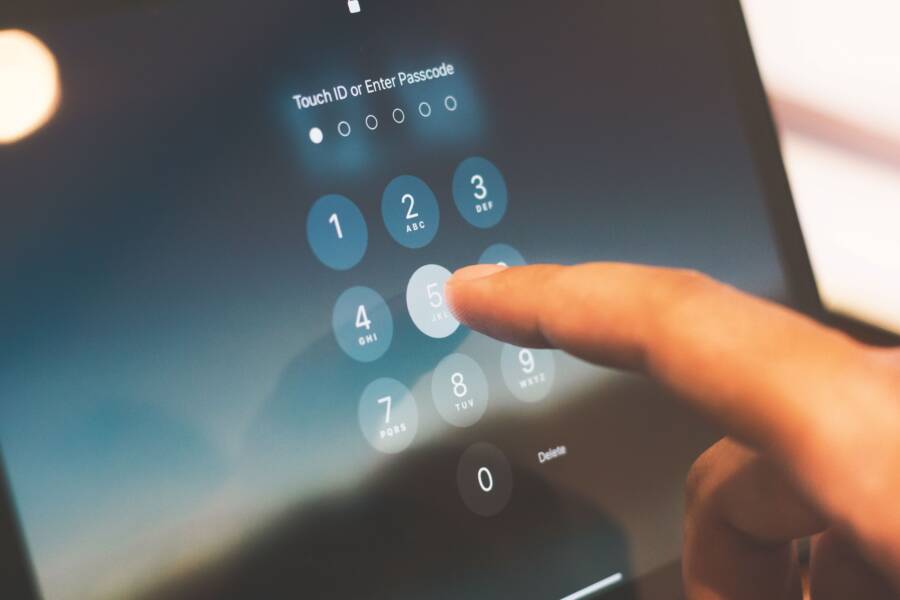
You can secure your smartphone by running a safety check to review who has access to your data and location. Both iPhone and Android devices include built-in tools that stop unwanted data sharing and protect your personal privacy in minutes.
These features are essential because they prevent unauthorized users from viewing your private messages or tracking your movements. Regular audits ensure your information stays private even if you share a device or account.
Follow this guide to locate these settings and gain total control over your device security.
How to Use Safety Check on Your iPhone
Safety Check is a built-in privacy tool designed to help you quickly manage who has access to your information. When you use your smartphone, you often grant permissions to apps and contacts over time. Over months or years, these permissions can pile up, leaving your data vulnerable. This feature allows you to audit these connections and cut ties with anyone or anything you no longer trust. It works as a central dashboard where you control your privacy footprint.
Reviewing and Removing Shared Access
You can manually inspect every piece of data currently shared with people and apps. Apple lists this information in a clear, organized menu. To start, open your Settings app and tap Privacy & Security. From there, select Safety Check to see your options.
Inside this menu, you will find the Manage Sharing & Access tool. This feature shows you a list of every person who has access to your location, photos, or calendar. It also displays a list of third-party apps that currently hold permissions for your hardware sensors or personal data.
- Select the Manage Sharing & Access button to begin the scan.
- Review the list of people you share information with.
- Tap on a person to see specific items like your current location or shared albums.
- Tap Remove All to stop sharing everything with that contact instantly.
- Alternatively, select individual items to stop sharing specific data while keeping other connections active.
If you find an app you no longer use, select the Apps tab. This section shows you which software has permission to access your microphone, camera, or contacts. You can revoke these permissions immediately to prevent background data collection. Reviewing these lists periodically keeps your smartphone secure and prevents unauthorized access to your private files.
Resetting Security Settings in an Emergency
The Emergency Reset feature is your quickest path to safety when you feel at risk. It provides a way to sever all active connections at once. This bypasses the need to check each app or person individually. When you trigger this reset, your device stops sharing data with everyone, including apps and people.
To activate this, go to Settings, choose Privacy & Security, and tap Safety Check. Select the Emergency Reset button located at the bottom of the screen. A prompt will ask you to confirm your decision to reset your privacy settings. Once you confirm, the system wipes all sharing permissions immediately.
This action performs several tasks to lock down your device:
- It stops sharing your location with all people in the Find My app.
- It removes access to your photos for all linked devices and third-party services.
- It resets permissions for all apps installed on your device, requiring them to ask for access again later.
- It disconnects your device from any home devices or shared media services.
- It restricts iMessage and FaceTime access to the current device only.
Emergency Reset does not delete your personal photos or files. Instead, it stops other users from seeing that content. You can still access your data normally after the reset. This tool provides a clean slate for your privacy if your security is compromised. After the reset, you can safely re-enable permissions for the people and apps you trust.
Essential Android Privacy and Safety Options
Securing your Android smartphone requires more than just a strong passcode. Google provides robust, built-in tools that help you monitor how your data interacts with various apps and services. By checking these settings, you keep your personal information private and maintain control over your device usage.
Navigating the Privacy Dashboard
The Privacy Dashboard acts as a central hub for your security settings. It displays a timeline of which applications accessed your sensitive sensors, such as the camera, microphone, or location, within the last 24 hours. Using this tool frequently helps you spot suspicious activity from apps you rarely use.
To access the dashboard, open your Settings app and tap Privacy. From there, select Privacy Dashboard to view a summary of your recent data requests. You will see a list of icons representing your hardware, like your microphone or GPS.
- Tap on any specific permission to see which apps used it recently.
- Select an app from the list to view its usage history for the past day.
- Choose Manage Permissions if you want to revoke access for any application that does not require those specific tools to function.
Regularly auditing these logs prevents apps from collecting data in the background without your knowledge. If you notice a calculator app or a game accessing your location, you can stop it immediately. This simple habit keeps your smartphone footprint small and secure.
Setting Up Emergency Location Sharing
Android smartphones feature a dedicated Personal Safety app that helps you provide your status to trusted contacts during an urgent situation. You can configure this tool to share your real-time location automatically when you need help. This provides peace of mind when you travel alone or encounter a risky situation.
Start by opening the Personal Safety app on your device. If you do not see it, check your system settings under the Safety and Emergency menu. Within this section, look for Emergency Location Sharing.
- Select your trusted contacts from your list.
- Toggle the switch to enable emergency sharing with these individuals.
- Review the prompt that appears, which asks for your permission to share your location if you trigger a safety alarm.
- Test the feature by using the Emergency SOS function, which usually involves pressing the power button five times quickly.
When you activate this, your phone sends your location, battery status, and relevant call details to your chosen contacts. You can also add medical information, such as allergies or blood type, to your lock screen. This data remains accessible to first responders even if your phone stays locked. These settings turn your smartphone into a vital safety tool, providing support when you need it most.
Why Regular Privacy Audits Matter for Your Smartphone
Privacy on your smartphone is not a one-time setup. Permissions you grant today may become unnecessary or invasive months later. Regular audits prevent long-term data exposure by cleaning out unused apps and outdated sharing links. You maintain control over your personal information when you treat security like a recurring chore rather than a single event.
Preventing Permission Creep
Apps often request access to your microphone, camera, or location during their initial setup. You might accept these requests to get a game or tool running quickly. However, these apps often retain those permissions even when you stop using them. This phenomenon is known as permission creep.
You should review your app list every few months to stop this behavior. Check which apps can access your sensor data. If you see a utility or weather app that has permission to access your contacts or photos, revoke that access immediately. Your device stays safer when only trusted apps have access to sensitive hardware.
Limiting Your Digital Exposure
Each connection to another person or service increases your overall risk. When you share your location or photo library with others, you provide a window into your daily routine. People change, and relationships evolve, but your smartphone settings often remain static unless you manually update them.
Running a privacy audit allows you to verify that only current, trusted contacts can see your data. Consider the following reasons to audit your sharing settings:
- You may no longer need to share your location with acquaintances or past colleagues.
- Apps that you have deleted may still hold lingering cloud permissions.
- Family sharing links often stay active long after they lose their original purpose.
- Unused account connections represent a hidden path for potential unauthorized access.
Detecting Suspicious Activity Patterns
Frequent checks help you notice when your device acts in unexpected ways. You might find that a battery-draining app runs in the background or connects to your location at odd hours. Manual audits force you to examine these patterns closely.
If you notice an app accessing your data more often than expected, you have the information needed to uninstall it. You become the primary guardian of your data when you stop relying on default settings. An honest assessment of your app usage habits saves battery life and improves your overall smartphone security. These small, periodic steps keep your information under your control while preventing unwanted tracking by third-party services.
Common Questions About Smartphone Security Features
Users often feel confused by the complex menus found within their devices. You might wonder if turning on specific settings slows down your performance or limits the features you enjoy. Most security tools are designed to work quietly in the background without affecting your daily tasks. Understanding these options helps you protect your personal information while keeping your phone functional and fast.
Does limiting location access stop my navigation apps from working?
Restricting location permissions does not break your GPS features, but it changes how apps request data. If you deny permanent access, your phone asks for your permission each time an app needs to know where you are. You can choose to allow access only while you use the app to prevent background tracking. This setting keeps your movements private when the app remains closed.
Will emergency safety settings drain my battery life?
Many people fear that active safety monitoring consumes too much power. Modern operating systems optimize these background tasks to minimize battery usage. These features wait for specific triggers, such as an emergency SOS command or a low-battery status alert, before they communicate with your network. They remain idle most of the time, so they have a negligible impact on your daily battery life.
How do I know if my privacy settings are actually working?
You can verify your security status by checking the privacy indicators on your screen. Most current models display a small colored dot in the corner whenever an app accesses your camera or microphone. If you see this light, it confirms that your system is actively reporting sensor use. You can also view recent access logs in your settings menu to see which apps requested your data during the last 24 hours.
Can I restore access if I accidentally block a trusted app?
You can easily reverse any restrictions you apply through your privacy dashboard. If an app stops working correctly after you change a setting, navigate back to the permissions menu for that specific app. Toggle the switches to re-enable access for the features that you need. Your phone saves these choices immediately, allowing you to fine-tune your security levels as your needs change.
Should I share my location with family members for safety?
Sharing your location with trusted contacts is a personal choice that balances convenience with privacy. It allows family members to see where you are during an emergency or while you travel. If you decide to use this, ensure that you only add people you trust completely. You can always stop sharing your location at any time through your sharing dashboard or the emergency settings menu.
Conclusion
Privacy tools on your smartphone function best when you treat them as part of a recurring security habit. By reviewing your sharing permissions every few months, you prevent unauthorized data access and keep your information under your control.
This simple maintenance keeps your device footprint small. You gain confidence knowing that only trusted apps and people have access to your private details.
Set a calendar reminder to perform these quick checks twice a year. This small effort secures your data against evolving privacy risks.