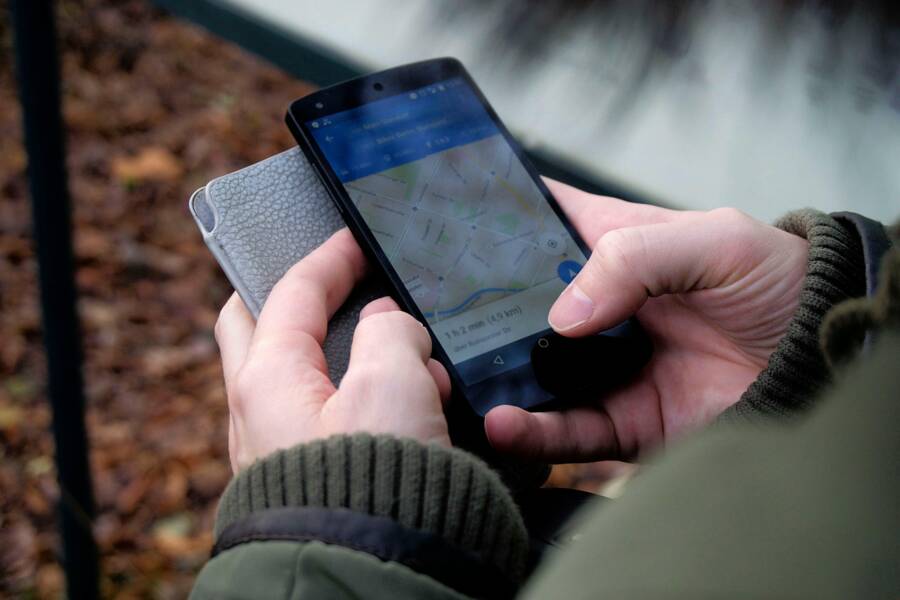
You can turn off precise location on your smartphone to keep your data private. Most apps do not need your exact coordinates to function correctly.
Precise location tracks your street-level position, while approximate location only reveals your general area. Limiting this access prevents apps from building a detailed profile of your daily movements. You can adjust these settings in seconds to regain control over your personal information.
Understanding How Your Phone Tracks Your Exact Location
Your smartphone acts as a sophisticated tracking device by combining several data sources to pinpoint where you are. It uses GPS satellites, nearby Wi-Fi networks, and local cell towers to triangulate your position. These signals work together to provide a coordinate that tells apps exactly where you are standing. Most modern devices update this information constantly to support navigation and localized services.
The Difference Between Precise and Approximate Location
When you grant an app permission to access your location, you choose between two distinct levels of accuracy. Precise location provides the app with your exact coordinates, often narrowing your position down to a specific building or street address. This setting is useful for ride-sharing or turn-by-turn navigation where finding a front door is necessary.
Approximate location, however, reveals only a broad area, such as a city or a neighborhood. Many apps function perfectly well with this limited data. For example, a weather app only needs to know your general region to provide an accurate forecast. Similarly, retail apps can show local store inventory without knowing your house number. Choosing this setting protects your privacy while still allowing the app to provide relevant content.
Why Data Privacy Matters for Your Daily Routine
Keeping your precise location enabled at all times creates a detailed history of your daily habits. Companies often collect this information to build profiles on your shopping preferences, your work schedule, and the places you visit most often. This data collection turns your smartphone into a record of your private life, which is often sold to third-party advertisers.
Minimizing your digital footprint reduces the amount of data harvested from your device. You keep your routines private by sharing your location only when it serves a clear purpose. Small adjustments to your settings prevent apps from mapping your life over weeks or months. Taking control of these permissions is a simple way to maintain your personal security and keep your habits off the table for advertisers.
How to Turn Off Precise Location on Your iPhone
You can manage your privacy by restricting how individual apps access your GPS data. While some services require your exact coordinates to function, many others work perfectly well with a broader location estimate. Adjusting these settings on your smartphone gives you control over what information you share with third-party developers.
Adjusting Settings for Individual Apps
Most applications on your device request location access upon installation. You don’t have to provide full accuracy to every single one of them. By toggling off the Precise Location switch, you limit the app to your general neighborhood or city instead of your specific street address.
- Open the Settings app on your iPhone.
- Scroll down and tap Privacy & Security.
- Select Location Services at the top of the menu.
- Find the app you want to modify in the list and tap on its name.
- Look for the toggle labeled Precise Location.
- Switch it to the off position.
When you turn off this feature, the app still receives location data but only within a wider radius. This method is effective for weather, news, or retail apps that don’t need to track your movement at the building level. If an app stops functioning as you expect, you can easily return to this menu and re-enable the setting.
Reviewing Your Location Services Dashboard
Checking your location permissions periodically helps clear out unnecessary access. Many apps collect data long after you finish using them, which consumes battery life and exposes your habits. The Location Services dashboard acts as a central hub where you can perform a quick audit of every app installed on your smartphone.
Navigate to Settings, then tap Privacy & Security, and choose Location Services. The list shows every app with permission to see your location data. You will see labels next to each app indicating when they have access, such as While Using or Always.
Use these steps to clean up your permissions:
- Scan the list for apps you rarely use and tap their entries to change access to Never.
- Check for apps set to Always and switch them to While Using to prevent background tracking.
- Look for the Precise Location toggle within each entry to confirm your privacy choices.
Performing this check once a month keeps your data exposure to a minimum. Removing access for apps that don’t need your location is a simple way to improve both your privacy and your device performance. If you decide you no longer need an app, deleting it entirely remains the most effective way to prevent further data collection.
Steps to Manage Location Accuracy on Android Devices
You can manage how your smartphone shares your position by adjusting permission settings and system-level features. These controls determine whether apps see your exact street address or just a general region. Follow these steps to take charge of your location privacy on Android.
Navigating Android App Permission Menus
Android allows you to control location access for every app individually. You can force an app to use an approximate location estimate rather than a precise GPS fix. This stops the app from tracking your specific movements while still letting it function for basic tasks.
- Open the Settings app on your smartphone.
- Tap on Apps or Manage Apps to see a list of your installed software.
- Select the specific app you want to modify.
- Tap Permissions.
- Select Location.
- Look for the switch labeled Use Precise Location and toggle it off.
When you disable this setting, the app only receives a rough estimate of where you are. If the app needs more accuracy later, you can return to this menu to re-enable the feature. This is a quick way to audit your most intrusive apps without uninstalling them.
Utilizing Google Location Accuracy Settings
Beyond individual app permissions, Google includes a system-wide setting that influences how your smartphone gathers data. This feature, often called Google Location Accuracy, uses a combination of GPS, Wi-Fi, and mobile networks to provide the most precise position possible. Disabling this adds a second layer of privacy to your entire device.
To adjust this system-level control, follow these steps:
- Open your Settings menu.
- Tap Location.
- Select Location Services.
- Tap Google Location Accuracy.
- Turn off the toggle for Improve Location Accuracy.
When this setting is off, your smartphone relies solely on its built-in GPS sensor. This prevents your device from scanning nearby Wi-Fi networks and cellular signals to verify your exact spot. While this might make your maps load slightly slower, it significantly reduces the amount of secondary data your device sends to Google. You gain better privacy by limiting the background telemetry your device generates throughout the day.
Common Questions About Managing Mobile Location
Most users have questions about how their privacy settings function on a daily basis. You might wonder if turning off your location features stops your phone from working or if it affects emergency services. These common concerns help clarify how your smartphone handles sensitive data while keeping you connected.
Does turning off location prevent emergency services from finding me?
Turning off location services for specific apps does not block emergency responders. Modern smartphones use a dedicated system to share your coordinates with emergency services during a 911 call or equivalent local emergency number. This system overrides your manual privacy settings to ensure your safety. You remain protected during real emergencies even when you restrict location access for social media or shopping apps.
Will disabling precise location stop my navigation apps from working?
Your navigation apps still function if you switch to approximate location, but they become less accurate. They can show your general route, your city, and nearby traffic conditions. However, the app cannot pin your exact location to a specific house number or street corner. You should keep precise location enabled if you require turn-by-turn directions to reach a specific destination. If you only need to check general traffic flow on a highway, approximate location works perfectly well.
Do apps collect my movement history even when I am not using them?
Many apps continue to collect location data in the background if you grant them persistent permission. You can check this by reviewing your location privacy settings regularly. If an app requests “Always” allow access, it monitors your movements throughout the day. You should change these permissions to “While Using” for most apps. This simple setting change prevents background tracking and stops the unnecessary recording of your daily habits.
Does approximate location save my smartphone battery life?
Reducing location accuracy helps your battery last longer. Your smartphone consumes power when it polls GPS satellites to find your exact coordinates. Relying on cellular tower triangulation or Wi-Fi scanning for a general area uses less energy than a constant GPS lock. You might notice a slight improvement in your battery performance throughout the day after you adjust these settings for several background apps.
How do I know if an app is currently tracking my location?
Most modern mobile operating systems include icons or indicators that notify you when an app uses your location. You will see a small arrow or a colored icon at the top of your screen during active location requests. You can also view the privacy dashboard in your settings menu. This page displays a list of apps that recently accessed your data. Checking this menu occasionally reveals which apps track you the most.
Conclusion
Managing location permissions is an effective way to protect your privacy on any smartphone. You no longer need to share your exact street address with every app you install. By switching to approximate location settings, you maintain the utility of your apps while keeping your personal movements private.
Audit your device permissions at least once every three months to verify that only necessary applications track you. This simple habit prevents background data collection and keeps your private life off the table for advertisers. Taking this action provides you with a more secure and controlled experience every time you use your device.