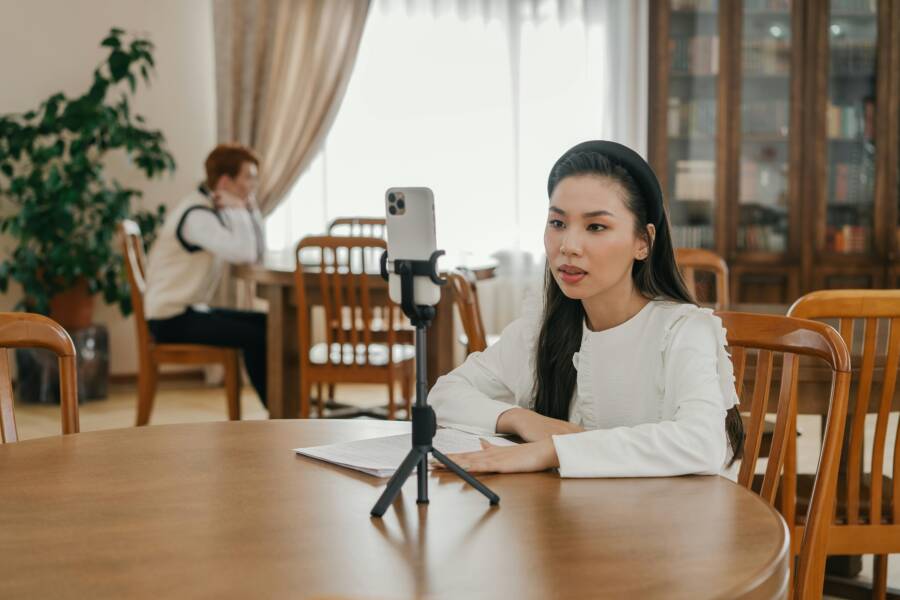
You control which apps can access your microphone and camera through the Privacy or App settings menu on your smartphone. Many people forget to review these permissions after installing new apps, which leaves their data exposed.
Taking a few moments to manage these settings prevents unnecessary tracking and keeps your private information secure. It is the most effective way to ensure your smartphone only uses these sensors when you intend for it to do so.
The following steps explain how to audit your active permissions and reclaim control over your device privacy.
Why App Permissions Matter for Your Digital Safety
Your smartphone carries your private life in its pocket. Apps installed on this device often request access to the microphone and camera to function. While some requests are legitimate, others create unnecessary risks for your personal data. Granting broad access allows developers to gather information even when you are not using their services. Reviewing these settings frequently keeps your information private and prevents unauthorized surveillance.
Protecting Your Personal Privacy
Every app you download requires specific permissions to operate correctly. A camera app needs access to your lens, but a flashlight or calculator app does not. When you grant permissions, you trust the developer with your sensitive hardware inputs. If a malicious app gains control, it might record private conversations or capture images without your knowledge. Limiting these connections reduces the attack surface on your smartphone. By restricting access, you ensure that only trusted applications interact with your hardware sensors.
Preventing Unnecessary Data Collection
Many developers collect data to build profiles for advertising or market research. Microphone and camera access provide significant insights into your habits and surroundings. An app might record audio to identify your location or monitor your household activities for targeted ads. You stop this passive collection by auditing which apps hold active permissions. Turning off these toggles limits the information flowing to third-party servers. This action is a simple way to maintain control over your digital footprint.
Improving Battery and System Performance
Hardware sensors consume significant power when they remain active in the background. An app that frequently checks your camera or listens for voice commands drains your smartphone battery faster than expected. You will notice improved performance and longer battery life after disabling permissions for unused background apps. Monitoring these settings helps your device run more efficiently while keeping your daily operations private.
Monitoring Sensor Activity
Modern mobile operating systems provide visual indicators when a sensor is active. Look for a small dot or icon at the top of your screen when you open apps. This feature warns you if your camera or microphone is in use. If you see this indicator without opening an app that requires it, you should revoke its permissions immediately. Acting on these alerts prevents potential privacy leaks before they become a persistent problem. Regularly checking your settings ensures that these background processes do not continue without your explicit consent.
How to Check Camera and Microphone Access on iPhone
You manage which apps hold permission to access your microphone or camera through the main settings menu on your smartphone. Apple centralizes these controls to prevent background apps from gathering data without your knowledge. Checking these permissions takes only a few seconds and provides immediate clarity on how your device handles sensitive hardware.
Locating Privacy Settings
Open the Settings app on your iPhone to begin the audit. Scroll down until you find the Privacy and Security tab. Tapping this option reveals a list of every hardware component your apps might request. You will see dedicated menus for the Microphone and the Camera. Select either option to view a complete list of applications currently installed on your smartphone that have requested access to that specific sensor.
Managing Active Permissions
The lists inside the Microphone and Camera menus show every app currently permitted to use the respective hardware. Each app features a toggle switch next to its name. If the toggle is green, the app has permission to access your microphone or camera. Gray toggles indicate the permission is currently disabled.
- Review the list of apps carefully.
- Identify any apps that do not require microphone or camera functionality to work.
- Tap the green toggle to turn off access for those specific applications.
- Close the Settings app to save your changes.
You can grant access again later if you decide an app needs it for a specific task. For example, a social media app might request microphone access only when you start a video call. You maintain control by toggling the switch only when the situation calls for it.
Auditing App-Specific Permissions
Sometimes it is easier to review permissions for a single app rather than auditing every sensor at once. Return to the main Settings menu and scroll down to the alphabetical list of all your apps. Tap on the name of any app you suspect is misusing your data. This page displays a summary of all permissions granted to that specific software. You can toggle the microphone and camera switches on or off from this screen. This method works well when you want to quickly secure a newly installed app that requests too many permissions.
Understanding System Services
Some hardware access is required by the operating system itself to provide core functions. You might notice a System Services category within the privacy menus. These services handle background tasks like Siri voice recognition or emergency camera features. Keep these toggles enabled if you rely on voice commands or specific system tools. Reviewing these ensures your smartphone operates smoothly while keeping third-party apps restricted.
Managing Permissions on Android Devices
Android gives you granular control over your smartphone hardware. You decide which applications can access your microphone or camera through the main system settings. These controls act as a digital gatekeeper, stopping unauthorized apps from listening or recording without your consent. Understanding the different access levels helps you keep your personal data secure.
Understanding Permission Categories
When you manage app permissions on your smartphone, Android provides three distinct levels of access. Choosing the right setting for each application balances convenience with your privacy requirements.
- Allow only while using the app: This is the most secure setting for daily tasks. Your smartphone grants access to the microphone or camera only when the application is actively open on your screen. As soon as you switch apps or lock your phone, the connection cuts off immediately.
- Ask every time: This setting adds a layer of caution. The app must prompt you for permission each time it needs to use the camera or microphone. While this takes more effort, it prevents any application from running in the background unnoticed.
- Don’t allow: Selecting this option blocks the app from accessing the hardware completely. Use this for apps that do not require camera or microphone input to function correctly. You can always change this setting later if you decide to use a specific feature.
Identifying Apps That Do Not Need Access
Some applications request hardware permissions they never use. Developers sometimes include these requests in case they add features later, but this practice creates unnecessary risks. You should feel skeptical when a basic utility app demands control over your microphone or camera.
Many standard tools have no legitimate reason to access your sensors. If you find these apps on your smartphone, you should revoke their access immediately:
- Calculators: These tools perform math and require no video or audio input to work.
- Flashlight apps: These simple tools only need to control your LED hardware, not your camera lens or microphone.
- Note-taking apps: Unless you specifically use voice recording features, these tools should not have permission to listen to your surroundings.
- Offline games: Many simple puzzle or logic games harvest data to build profiles. They do not need to hear your conversations or see your environment to provide a fun experience.
If you ever feel unsure about an app, check its permission list in your privacy settings. Removing access for these categories improves your security without affecting the core features of your smartphone.
Best Practices for Maintaining Smartphone Privacy
Keeping your personal information private requires more than just checking app permissions once. You must adopt consistent habits to secure your smartphone from potential data leaks. By prioritizing proactive device hygiene, you reduce the risk of unauthorized sensors accessing your daily activities.
Audit Installed Applications Regularly
Many people download apps for temporary tasks and forget to remove them later. Unused apps still hold the permissions you granted during installation. Set a monthly calendar reminder to perform a full app audit. Delete anything you no longer use or recognize. This step clears clutter and removes hidden background processes that track your location or hardware usage.
Restrict Background Data Access
Even when you close an app, some programs continue to gather data in the background. Check your battery settings to identify which apps consume the most power. High battery usage often correlates with frequent microphone or camera activation. Disable background app refresh for any tools that do not need constant connectivity to function. This simple change improves system speed and stops unnecessary data transmission.
Update Your Operating System
Software updates provide critical security patches that protect your hardware. Manufacturers frequently release fixes to close vulnerabilities that allow malicious actors to hijack cameras or microphones. Turn on automatic updates in your smartphone settings to receive these protections immediately. Ignoring these updates leaves your device exposed to known threats that hackers can easily exploit.
Review App Store Reviews and Permissions
Before you install a new app, check its permission requirements in the store listing. Legitimate developers clearly state why they need access to your camera or microphone. If an app requests sensitive hardware access without a clear purpose, look for an alternative. Reading user reviews also provides insight into whether an app behaves suspiciously or pushes intrusive tracking behavior.
Use Screen Indicators as Alerts
Modern smartphones include visual markers like green or orange dots at the top of the display. These indicators show if an app is actively using your camera or microphone. Treat these lights as a warning system during your daily routine. If you notice an indicator active while you are on your home screen or using a non-camera app, close that application immediately. Investigating these triggers helps you spot problematic software before it collects sensitive data.
Practice Consistent Privacy Hygiene
Maintaining a private digital life is a continuous process rather than a one-time setup. Apply these core habits to your daily interactions with your smartphone:
- Deny permission requests for location, camera, or microphone access until you verify the need for them.
- Disable sensitive features like Siri or Google Assistant if you do not use them, as these services constantly listen for wake words.
- Use a physical camera cover if you feel uncomfortable, as it provides a permanent, low-tech solution for visual privacy.
- Turn off your smartphone occasionally to clear temporary memory caches and reset active background connections.
By following these practices, you reclaim authority over your personal information. You can use your device confidently while knowing exactly who has access to your private surroundings.
Conclusion
You now possess the tools to manage which apps access your microphone and camera. Checking these settings takes only a few minutes, yet it provides lasting peace of mind regarding your personal data.
Regularly auditing your permissions stops unauthorized tracking and keeps your smartphone habits private. Take charge of your digital footprint today to maintain control over your device.