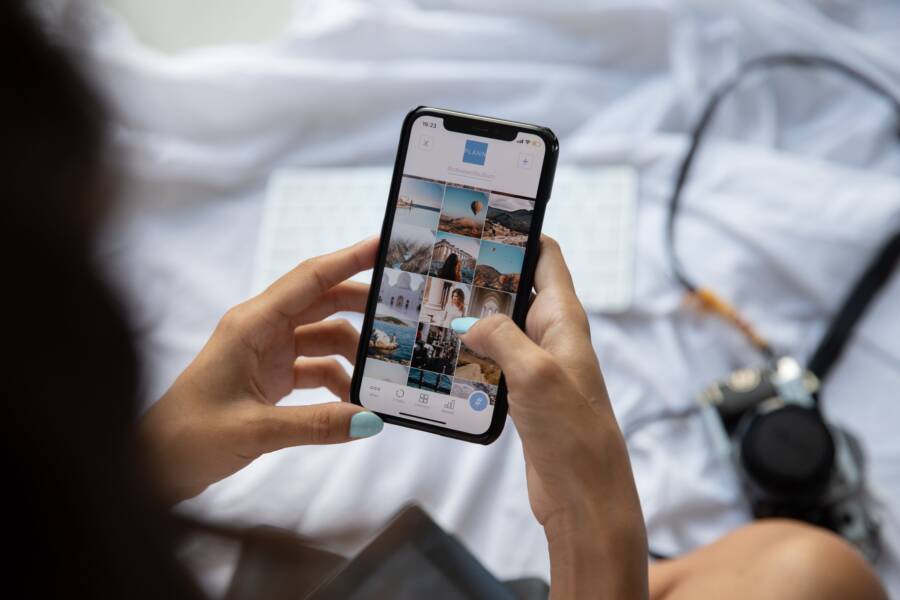
A cluttered photo gallery makes it difficult to find your memories among a sea of saved receipts and social media screenshots. Smartphone operating systems frequently group these files by date, which forces your personal photos to compete for space with every image you capture for quick reference.
You can resolve this by moving your screenshots into dedicated folders or by installing third-party gallery managers that automatically detect and isolate different file types. These adjustments allow you to keep your library tidy without sacrificing the convenience of your device.
Follow the steps below to reclaim your storage and organize your files for better accessibility.
Understanding How Your Smartphone Files Get Organized
Your smartphone organizes images based on where they originate. Every time you snap a photo or download a file, the operating system assigns it to a specific storage directory. Gallery applications then scan these directories to display your content. When you understand how these files sit in your storage, you gain better control over your visual library.
The Role of System Folders in Gallery Apps
Most smartphone platforms rely on a structure rooted in the DCIM folder. This acronym stands for Digital Camera Images, which is the industry standard for mapping photo storage across different devices. Your primary camera app automatically directs all new captures into a sub-folder inside DCIM, often labeled Camera. Because the system treats this folder as the priority, any image taken with your lens lands here by default.
Screenshots operate under a different set of rules. When you trigger the shortcut to capture your screen, the system detects this as a separate task from standard photography. Android devices typically route these files to a dedicated Pictures or Screenshots folder located outside the main DCIM directory. iOS also keeps screenshots apart, placing them into a specific album that the system updates every time you save a new capture.
The differences between these platforms matter for your workflow:
Android gallery apps often allow you to see the actual folder path, which helps you manually move or delete entire groups of files.
Apple devices use a more restricted file system where the gallery app hides the folder structure, prioritizing the use of virtual albums instead.
Third-party apps often struggle to distinguish between these folders if they are not granted full access to your internal storage.
Why Metadata Makes Everything Look the Same
Gallery apps combine files from different sources into a single, seamless stream. This creates the impression that all your images exist in one place, even though they technically reside in separate system folders. The primary reason for this behavior is the chronological sorting enabled by metadata. Every image file contains a timestamp that records the exact second of its creation.
When your gallery app runs, it reads this metadata to construct a timeline. It ignores the source folder for the sake of the view, placing a screenshot taken at 2:00 PM directly next to a photo taken at 2:05 PM. This is helpful for finding memories in order, but it creates clutter when you are trying to locate a specific receipt or web capture among your personal pictures.
You should remember that the file creation date is often different from the file modification date. If you edit a photo or download an old image, the metadata might update to reflect the new file state. Because your smartphone treats these timestamps as the absolute truth for organization, you cannot easily change the visual order without using external software to strip or modify the underlying data.
Practical Methods to Keep Screenshots Out of Your Camera Roll
Managing a cluttered gallery is a common challenge for every smartphone owner. When your device automatically mixes every temporary screen capture with high-resolution family photos, locating specific images becomes difficult. You can take control of your file organization by using system-level tricks, built-in album features, or specialized third-party management tools.
Using .nomedia Files to Hide Folders on Android
Android gives you deep access to your file system, which allows you to tell the gallery app exactly which folders to ignore. By placing a file named .nomedia inside a specific folder, you instruct the Android media scanner to skip that directory during its search. This is an effective way to keep your screenshots hidden from your main camera feed without deleting the files permanently.
To perform this on your smartphone, you need a basic file manager app. Most Android devices come with a pre-installed Files app or a similar file browser. Follow these steps to hide your screenshot folder:
Open your file manager and navigate to the folder where your screenshots reside, usually located under Pictures or DCIM.
Select the option to create a new file within that directory.
Name this file .nomedia exactly as written, ensuring there is a leading period and no file extension.
Restart your smartphone or force-stop your gallery app to trigger a refresh of the media index.
Once this file exists, the Android gallery app sees the folder as empty of media. You can still access these images through your file manager whenever you need them, but they will no longer clutter your primary photo stream. If you ever want to see them in your gallery again, simply delete the .nomedia file and restart the device.
Creating Smart Albums and Filtered Views on iOS
Apple manages your photo library differently by using virtual albums rather than a traditional file directory. Your iPhone automatically identifies screen captures and categorizes them into a dedicated Screenshots album. This is a built-in feature, so you do not need to perform complex technical tasks to keep these images separate from your camera roll.
You can view this folder at any time by opening the Photos app and selecting the Albums tab. Scroll down to the Media Types section where you will find the Screenshots folder. Because iOS handles this categorization at the system level, every new capture automatically lands in this specific location.
This organization style helps you manage your storage effectively:
You can select multiple items within the Screenshots album to delete them in bulk, which saves you from searching through hundreds of personal photos.
The system separates these images from the main Recents tab, keeping your chronological feed clean.
If you need to share a screenshot, you can navigate directly to the Screenshots album to find it immediately rather than scrolling through your entire camera history.
While you cannot move these files into hidden directories as you might on other platforms, using the built-in album view serves as an efficient filter for daily maintenance.
Leveraging Third Party Gallery Alternatives
Sometimes the default software on your smartphone is not enough to maintain a perfectly organized library. Third-party gallery apps provide more granular control over how your files display and store on your device. These applications often feature automatic tagging, folder-specific blacklists, and advanced sorting rules that go beyond what standard system galleries provide.
When choosing a gallery alternative, look for apps that offer automatic file sorting based on the source folder. Some apps allow you to mark specific directories as private or exclude them from the main view entirely. These tools effectively act as a secondary filter, allowing you to browse only the folders you want to see.
Apps that utilize smart tagging can also identify screenshots based on their file characteristics or resolution. By assigning tags automatically upon import, these managers allow you to create dynamic views where personal photos are always separated from saved web content. If you prefer a hands-off approach to organization, installing a gallery app that supports custom view rules is a reliable way to keep your image collection tidy.
Automating Your Organization Process
You can stop the constant manual sorting of files by adjusting how your smartphone interacts with cloud backup services. Automation reduces the friction of maintaining a tidy gallery. By setting clear boundaries for what your device uploads, you prevent temporary files from filling your storage space.
Cloud Storage Syncing Strategies
Cloud services like Google Photos and iCloud are designed to back up your camera roll by default. However, these services often interpret your device folders loosely, which leads to your screenshot folder syncing alongside your personal photos. You can prevent this cloud clutter by adjusting the settings in your chosen backup application.
In Google Photos, you can control which device folders sync to the cloud. Open the app and tap your profile icon, then select Photos settings. Tap Backup and then select Back up device folders. Here, you will see a list of every folder on your smartphone that contains images. Simply toggle off the switch for the Screenshots folder or any other directory you want to keep local. This change ensures that only your actual camera captures count toward your storage limit and appear in your main cloud feed.
Apple users face a different challenge because iCloud Photos typically syncs the entire camera roll as a single entity. You cannot easily exclude a specific folder from the main library view in the settings. Instead, you should focus on managing the files after the fact or using third-party syncing tools that offer more granular control. If you rely on iCloud, the most effective strategy is to delete unwanted screenshots from the primary view so they disappear from your cloud backup entirely.
Periodic Cleanup Habits
Automated systems can only do so much, so you should establish a simple weekly habit to maintain order. If you leave screenshots unchecked for months, the sheer volume of files makes sorting them feel like an overwhelming task. A consistent routine keeps your library light and functional.
Set a recurring reminder on your smartphone calendar for a specific time each week, perhaps on Sunday evening. Use this time to perform a quick sweep of your recent captures. Open your screenshot album and select every image that no longer serves a purpose, such as temporary directions, outdated receipts, or memes that have lost their relevance. Deleting these files once a week prevents the build-up that slows down your search efforts.
Consistency is more important than speed. If you spend three minutes each week clearing the clutter, you avoid the hour-long sessions that discourage organization. Consider these tips to keep your cleanup fast and effective:
Delete screenshots immediately after you use the information, such as a code or a confirmation number.
Check your screenshot folder specifically for large files that consume unnecessary space.
Review your favorites or recent edits to see if any screenshots can be moved to a permanent album instead of being left in the main stream.
By treating screenshot management as a maintenance task rather than a storage chore, you keep your digital environment clean. This habit allows your personal photos to remain the focus of your gallery, making it much easier to browse your genuine memories later.
Comparing Native Management Versus Dedicated Apps
You face a choice between relying on the tools already built into your smartphone or installing third-party applications to organize your images. Native management systems offer deep integration with the operating system, while dedicated apps provide specialized filters that the manufacturer might omit. Choosing the right path depends on whether you prefer the simplicity of your factory settings or the power of custom software.
Advantages of Native Gallery Management
The primary benefit of using native tools is stability. Because the manufacturer designed the gallery app to work with your specific hardware, it handles background tasks without draining your battery or crashing. You avoid the privacy risks associated with granting storage access permissions to external developers.
Native apps also benefit from system-level integration. For instance, when you capture a screenshot, the device immediately recognizes the file type and routes it to the correct album. You don’t need to manually update databases or refresh libraries because the system manages the index automatically.
Consider these common features found in native smartphone galleries:
Built-in search functionality that identifies text within images using character recognition.
Cloud synchronization that maintains the same folder structure across all your linked devices.
Secure folders that let you move sensitive screenshots to a protected, password-locked area of the storage.
When to Choose a Dedicated Gallery App
Dedicated apps solve problems that standard gallery interfaces often ignore. If you find that your native software sorts files poorly or lacks granular controls, a third-party application provides the missing features. These apps are helpful if you manage thousands of files and need advanced sorting parameters, such as resolution, aspect ratio, or specific keyword tags.
Many specialized gallery apps include a feature called automatic exclusion. You point the app toward your screenshot directory, and it hides those images from your main timeline entirely. This is more effective than the native method on some platforms where the system constantly re-indexes files and accidentally displays them again.
Use this table to weigh your options based on your specific needs:
The key takeaway is that native tools offer a low-maintenance solution for most users. If your needs are simple, stick to the default settings and use built-in albums. However, if your image library is complex, third-party apps provide the specific filters and organization logic required to keep your personal photos and screenshots apart permanently.
Frequently Asked Questions About Gallery Clutter
Managing a photo library on your smartphone often raises specific questions about storage, privacy, and organization. These common concerns help you understand how to maintain a cleaner, more efficient gallery.
Will deleting screenshots from the gallery remove them from my cloud backup?
Yes, if you use a sync service like iCloud or Google Photos, deleting an image from your gallery deletes it from the cloud as well. These services mirror your device state to keep all your platforms synchronized. If you want to keep a copy of a screenshot without it appearing in your primary gallery, you must move it to a location that does not sync or store it in a dedicated cloud folder that is excluded from your main feed.
Does moving screenshots into folders free up more storage space?
Moving files between folders on the same device does not change the amount of occupied storage space. Files occupy the same total capacity regardless of their folder location. However, creating dedicated folders makes it much easier to identify and delete large groups of unwanted images. This organizational strategy helps you reclaim space by highlighting which files are temporary and no longer necessary for your smartphone.
Why do my photos and screenshots keep appearing together?
Smartphone gallery applications typically display images by date rather than by file origin. The system aggregates every image from your internal storage and sorts them into a single chronological timeline. This design focuses on creating a personal history of your media, but it ignores the difference between a high-resolution photo and a saved web capture. You can bypass this default view by navigating directly to specific albums or folders if you want to avoid seeing your screenshots.
Is it safe to use third-party apps to organize my photos?
Using third-party gallery managers is generally safe if you choose reputable applications from an official app store. These apps request permission to access your storage, which is necessary for them to sort or move your files. Always check the privacy policy and user reviews before granting these permissions to an unknown developer. If you prefer to keep your data private, stick to the built-in organizational tools provided by your smartphone manufacturer.
How often should I clear out my screenshot folder?
A weekly cleanup is the most effective way to prevent gallery clutter. Because screenshots often serve temporary purposes, they accumulate rapidly if left alone. Spending just a few minutes every Sunday to review and delete outdated images keeps your gallery manageable. This habit prevents the need for massive, time-consuming clear-outs later on. Consistent maintenance ensures your most important memories remain easy to find whenever you open your photo library.
Conclusion
Your gallery is a reflection of how you use your smartphone each day. While system limitations often group screenshots with personal photos, you now possess the tools to reassert control over your file storage. You can hide folders using system files on Android, rely on built-in album filters on iOS, or install specialized apps to create a custom view.
Organization is a maintenance task rather than a one-time project. Regular habits prevent clutter from building up and ensure your important memories remain accessible. A tidy gallery creates a more functional smartphone experience that saves you time every time you search for a specific image.