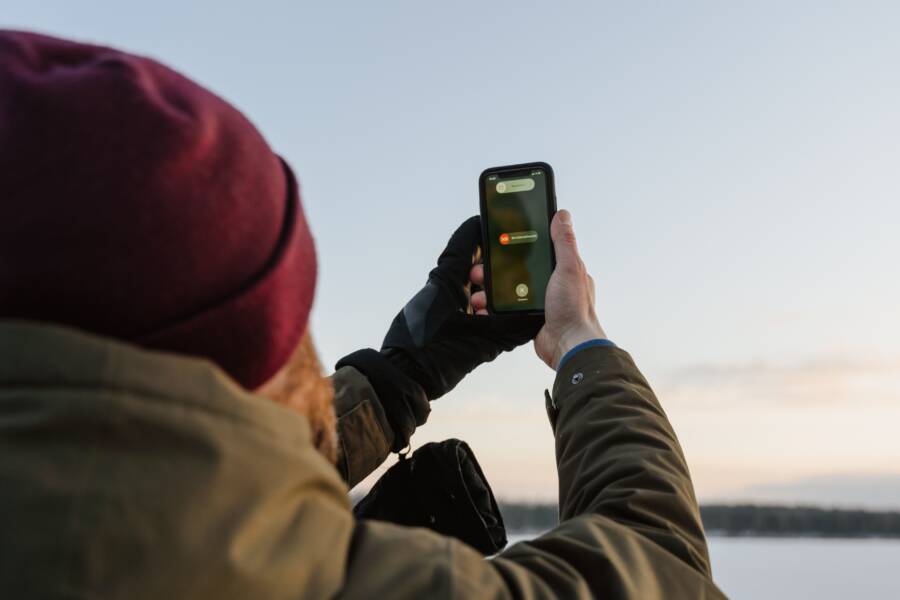
To stay safe while traveling, enable Wireless Emergency Alerts (WEA) in the settings of your smartphone before you leave. These notifications provide critical, location-based information about extreme weather, public safety threats, and disasters.
Local towers send these signals directly to your device even when you lack cellular data or roaming coverage. By turning on these features, you receive timely warnings that help you avoid danger in unfamiliar areas.
Why You Should Keep Emergency Alerts Enabled on Your Smartphone
Staying informed during travel protects you from unexpected hazards. Emergency alerts on your smartphone provide immediate, location-specific warnings about threats that you might otherwise miss. These systems transmit critical data from cell towers directly to your device without requiring an active data plan.
Protection from Natural Disasters
Weather patterns shift rapidly in unfamiliar territories. You might not hear local sirens or catch regional news broadcasts in a foreign language. Emergency alerts override your silent mode and lock screen to ensure you notice the message. These notifications offer clear instructions on how to reach higher ground or avoid specific flood zones. Your smartphone becomes a reliable companion that warns you about earthquakes, tsunamis, or forest fires long before they reach your immediate vicinity.
Public Safety and Security Updates
Governments use these notification systems to broadcast urgent information regarding public safety. This includes alerts about active shooter incidents, kidnapping cases, or major chemical spills in the area. Receiving these details allows you to adjust your travel plans quickly. You can steer clear of blocked roads or transit hubs that officials have deemed unsafe. Knowing where to avoid saves you from walking into dangerous situations while exploring new city centers or remote landscapes.
Reliability Without Cellular Data
Travelers often worry about high roaming costs or limited signal coverage. Fortunately, these emergency broadcasts do not rely on your personal data usage. They operate on a separate channel within the cellular network infrastructure. Even if your smartphone shows no bars for browsing the internet, the device still captures these high-priority emergency signals. This functionality remains active as long as your phone has power and a connection to any available cell tower.
Managing Alert Settings
You should review your settings before departure to verify these features are active. Most modern devices group these warnings under safety menus. You can typically customize which types of messages you receive.
- Open your phone settings menu.
- Search for notifications or safety settings.
- Locate the section labeled emergency alerts or wireless alerts.
- Toggle on the options for extreme threats and severe alerts.
Keeping these toggles enabled guarantees that you get the most relevant information for your current location. If you travel internationally, your smartphone will adapt to the regional alert system of your destination automatically. This automatic integration keeps you prepared for local emergencies without additional configuration. You gain peace of mind knowing your device acts as a silent sentry during your trip.
How to Properly Configure Emergency Notifications Before Your Trip
You should verify your emergency alert settings on your smartphone before you leave for your trip. Proper configuration ensures that your device catches regional safety broadcasts regardless of your location. These systems utilize existing cellular infrastructure to send critical data directly to your screen. Configuring these settings takes only a few moments and provides a significant safety buffer while you travel.
Setting Up Alerts on iOS Devices
Apple integrates emergency alerts directly into the notification center of your iPhone. You can manage these settings by navigating to Settings, selecting Notifications, and scrolling to the bottom of the page to find Government Alerts. You will see several toggles that control the types of messages your device receives.
- AMBER Alerts provide critical information about missing children in your immediate area or across the state.
- Emergency Alerts notify you about imminent threats to health or safety, such as extreme weather events or structural failures.
- Public Safety Alerts deliver messages from authorities regarding potential threats to your well-being or property.
The system is set to include these alerts by default in most regions. You should ensure each toggle remains in the green position to maintain full coverage. If you travel to a country that supports international alert protocols, your iPhone will adjust to those specific regional systems automatically.
Configuring Settings for Android Users
The path to your emergency settings on an Android smartphone varies slightly depending on the manufacturer and the version of your operating system. You can locate these settings quickly by opening the main Settings app and using the search bar at the top to type “Emergency Alerts”. This search action usually leads you directly to the Wireless Emergency Alerts menu.
Within this menu, you can customize your experience based on threat levels. You will typically find options to enable or disable the following:
- Extreme threats are alerts for high-risk events that pose an immediate danger to life or property, such as tornadoes or chemical leaks.
- Severe threats notify you of conditions that are less urgent but still require your attention, such as significant storms or flash flood warnings.
Many devices also include a setting for monthly test alerts. You might want to disable this specific toggle to prevent distracting noises during your travel. Remember that these settings are location-aware, so your smartphone will prioritize the most relevant alerts for your current city or region. Verifying these toggles before you pack your bags provides the best protection for your upcoming journey.
What to Expect When You Receive a Location-Based Alert
When an emergency alert arrives on your smartphone, it sounds different from your standard text messages or social media notifications. These alerts carry a unique, high-pitched tone that overrides your phone volume settings. The message displays prominently on your lock screen, requiring you to acknowledge it before you use other features on your device. Expect a brief vibration pattern that distinguishes these warnings from standard calls. You should remain calm and read the notification immediately to understand the nature of the threat.
Identifying the Alert Source
Your device displays these notifications under specific categories based on the risk level determined by local authorities. You will see a header that indicates the type of warning, such as an extreme weather event or a public safety threat. The text clearly states the agency issuing the alert and the timeframe for the expected hazard. You might also receive instructions on the safest actions to take, such as moving to a higher floor or avoiding a specific city district. These messages remain accessible in your notification history if you need to refer back to them later.
Responding to Localized Warnings
These messages rely on cell tower broadcast technology to target specific geographic areas. You might receive an alert that does not apply to your exact street, but it indicates a threat within your immediate vicinity. If you are traveling through a region where you do not speak the local language, your smartphone typically attempts to display the alert in your system language if possible. Check the alert details for specific timelines, as these warnings are time-sensitive and expire once the danger passes. You can follow these general steps when an alert appears:
- Read the entire message to understand the specific location of the hazard.
- Follow any provided instructions from local authorities without delay.
- Check your mapping applications for live traffic updates or road closures.
- Monitor local news or radio broadcasts for more detailed information if the situation remains active.
Understanding Alert Frequency
The frequency of these alerts depends entirely on the safety conditions of your current location. You might travel for weeks without receiving a single warning in some regions. Conversely, areas prone to frequent storms or safety incidents may trigger alerts more regularly. You should leave the notification settings enabled at all times while traveling to ensure you receive these critical updates. This system acts as a silent safety net, keeping you connected to local emergency services regardless of your familiarity with the area.
Frequently Asked Questions About Travel Safety Notifications
Travelers often have questions about how these security features interact with their smartphone settings. Understanding these systems helps you remain prepared without worrying about technical limitations during your trip.
Do I need Wi-Fi or data to receive these warnings?
You do not need an active internet connection or a cellular data plan to receive these emergency warnings on your smartphone. These alerts arrive through a dedicated broadcast channel on the cellular network. Because this technology operates independently of mobile data, your device picks up the signal even if your roaming is turned off or you lack a local SIM card.
The system functions as long as your device maintains a signal from any available cell tower. You do not need to pay for extra roaming data to keep this safety net active while exploring new regions. Your smartphone acts as a receiver for these signals regardless of your current connection status for apps or web browsing.
Will emergency alerts drain my smartphone battery?
Emergency alerts are passive and do not cause significant battery drain on your device. These notifications function differently from background applications that frequently sync data, check for updates, or maintain active connections to the internet. Since your phone listens for these broadcasts in the same way a radio waits for a signal, the impact on your power level is negligible.
You can leave these settings enabled throughout your entire journey without worry. The battery consumption from staying prepared is far lower than the drain caused by standard social media or navigation apps. You receive critical safety information while maintaining your device performance for the duration of your trip.
Conclusion
Configuring emergency alerts on your smartphone before you travel creates a vital safety layer. These notifications function without a cellular data plan, which keeps you informed during disasters or public threats. By verifying your settings today, you ensure that you receive location-specific warnings regardless of your destination.
Checking these settings takes only a moment and helps protect you throughout your journey. Open your device settings menu right now to confirm that your emergency and public safety alerts are toggled on.