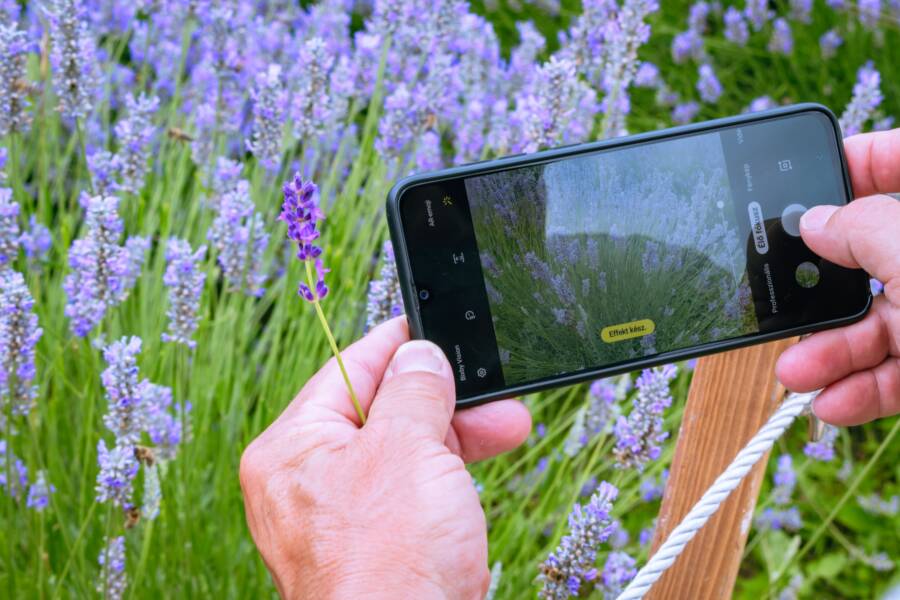
When you open your camera app to capture a moment, you expect the file to appear in your gallery. If your smartphone fails to save these images, it usually results from a simple software glitch, a storage permission error, or incorrect settings. You can fix this issue by adjusting your system configurations or clearing cached data.
The following steps will guide you through the process of restoring your camera’s save functionality.
Check Your Default Camera Storage Settings
Your smartphone camera settings act as the primary instruction manual for where your files go after you press the shutter button. When photos fail to save, the most likely culprit is a conflict between the app and its assigned destination. Checking these configurations often resolves the issue immediately without needing a system reset or third-party repair tools.
Verifying Where Your Smartphone Saves Media
Every camera app on a modern smartphone provides a specific menu to manage storage paths. You can verify these settings by following a few standard steps to ensure the software knows exactly where to write your new data.
Open the camera app on your device.
Tap the gear icon or the three dots menu located in the corner of the screen to access the full settings list.
Look for a menu item labeled Storage, Save Location, or File Destination.
If your device supports both internal memory and external SD cards, select the option that indicates Internal Storage to test if the phone can at least save files to its main memory.
If the app is already set to internal storage, toggle the setting to the external option if available, wait a moment, and then switch it back to refresh the link.
Once you confirm these settings, take a test photo to see if it appears in your gallery. If the images begin saving again, the internal path might have experienced a temporary software hang. If the files still refuse to save, the issue often resides in the physical connection of your external hardware.
Managing SD Card Permissions and Connections
External storage adds a layer of complexity to file management on a smartphone. Because your device relies on a physical connection to the SD card, any loose contacts or read errors will cause the camera to stop saving files completely.
A dirty or oxidized SD card slot is a frequent reason for intermittent storage failures. If your phone cannot establish a clean, continuous link to the card, the camera app will often default to an error state rather than failing silently. Follow these tips to address hardware connection problems:
Power down your smartphone completely before removing the SIM or SD card tray.
Use a soft, lint-free cloth to wipe the gold contact points on the SD card to remove dust or oil.
Reinsert the card carefully, ensuring the tray sits flush against the frame of the device.
Check the system storage menu in your phone settings to confirm the operating system recognizes the card capacity.
If the phone menu displays the SD card as corrupted or disconnected, the card itself might be nearing the end of its life cycle. You should attempt to move important files to a computer immediately if the device still detects the hardware. Sometimes, reformatting the card through the phone settings restores the file system connection, though this will erase all existing data on the card. If the hardware remains unrecognizable, replacing the SD card is the only way to restore consistent storage for your camera.
Troubleshooting App Permissions and Cache Issues
When your smartphone camera fails to save photos, the internal software might prevent the app from interacting with your storage. This blockage often happens because of a permission error or corrupted temporary files. Resolving these issues requires checking how the operating system handles your data requests.
Resetting Camera App Permissions in Settings
Permissions act as digital gatekeepers that regulate which apps can read or write data on your device. If the camera app loses its permission to modify or create files, your photos will vanish the moment you take them. You can reset these settings manually to restore full functionality.
Open the Settings menu on your smartphone.
Select the Apps or Application Manager option.
Scroll down the list until you find the Camera app and tap on it.
Locate the Permissions section within the app info page.
Review the status of the Storage or Files and Media permission.
Toggle the setting to Deny if it is already active, wait ten seconds, and then switch it back to Allow.
Performing these steps forces the system to reauthorize the connection between the camera and your file system. Most modern operating systems update this change immediately. If the app still fails to save your media, you should verify if other apps, like a gallery or file manager, have the same storage restrictions.
Clearing Cache to Resolve File Path Glitches
Your camera app stores temporary data in a cache to speed up performance. Over time, these files can become cluttered or conflict with the current file path, causing the app to lose track of where to save your new photos. Clearing the cache refreshes these preferences without touching your personal images.
Navigate to the same App Info screen used for permission settings to access these storage options. You will see buttons for both Clear Cache and Clear Data. Tap Clear Cache first, as this removes only the temporary files and keeps your configuration settings intact.
After you clear the cache, restart your smartphone to ensure all background processes recognize the change. If the problem persists, you can choose the Clear Data or Clear Storage option. Keep in mind that this step resets your camera settings to their original factory defaults, so you may need to reconfigure preferences like photo quality or grid lines once the process finishes. Clearing this data effectively wipes away any hidden errors that might prevent the camera from writing files to your storage.
Fixing Bugs Through Software Updates and System Refreshes
Your smartphone relies on complex software to coordinate hardware tasks like saving photos. When this process stalls, minor code conflicts or outdated drivers are often the cause. Software updates and system resets clear these hurdles by refreshing how your device manages files.
Updating Your Device Firmware
Manufacturers frequently release system updates to fix known bugs that affect hardware performance. These patches contain updated drivers for your camera and internal storage systems. If your smartphone camera refuses to save photos, an outdated operating system might be the primary blocker.
Open your phone settings menu.
Select the System or Software Update option.
Check for any pending downloads.
Install the update and restart your device if prompted.
These updates fix communication gaps between your camera app and the storage hardware. Newer firmware versions also improve overall file management stability. Always ensure your device has enough battery life before starting an update to prevent installation errors.
Performing a Soft Reset of Your Device
A soft reset is one of the most effective ways to clear temporary file system errors. It forces the operating system to shut down all background processes and reload your core applications from scratch. This simple action often fixes glitches that prevent the camera from writing new data to your storage.
Most modern phones handle this process through a standard reboot sequence. Hold the power button until the menu appears, then choose the restart option. If your screen is frozen, a forced restart usually involves holding the power and volume buttons simultaneously for ten seconds.
Rebooting clears the temporary cache that might hold conflicting instructions. Once the system powers back on, your camera app starts with a fresh connection to the storage drive. This quick fix resolves many common issues without deleting any personal data or changing your current settings. Use this method as a first step whenever your camera acts unexpectedly.
Alternative Solutions When Standard Fixes Fail
Sometimes, your smartphone behaves in ways that standard troubleshooting cannot solve. If you have already checked your storage path, reset app permissions, and cleared the cache, the issue might stem from deeper conflicts within your operating system or secondary apps. These scenarios require a more targeted approach to restore camera functionality.
Freeing Up Storage Space to Prevent File Errors
Most users assume their device warns them when storage is full, but this is not always accurate. If your internal storage is nearly empty, the camera app often struggles to reserve the necessary space to write a new image file. When this happens, some apps simply fail to save your photos, while others might attempt to redirect files to a hidden or temporary folder that you cannot access easily.
You should aim to keep at least 10 percent of your total storage free at all times. If your smartphone falls below this threshold, try these quick cleanup methods:
Move large video files or high-resolution photos to a cloud service or an external drive.
Uninstall unused apps that occupy significant space in the system settings.
Clear out the downloads folder, which often accumulates large PDF documents and installers.
After you clear space, restart your device to let the file system reindex. Many users find that their camera immediately resumes normal operation once the storage pressure drops. Keep in mind that a full storage state is a frequent cause of corrupted files, so monitor your capacity regularly to prevent future save errors.
Identifying Conflicting Camera Apps
Your smartphone allows multiple applications to access the camera hardware, but this flexibility sometimes creates conflicts. If you installed a third-party camera app or a specialized social media filter tool, it might be overriding your system camera settings. This conflict can prevent the default app from locking onto the storage module properly.
To identify if a conflict exists, consider these steps:
Determine if the saving failure happens only in specific apps or the main system camera.
Force stop or temporarily disable any recently installed camera or photo editing tools.
Check if a gallery manager or cloud backup app has an auto-upload feature that locks files before the camera finishes writing them.
If the camera works correctly after you disable these extra apps, you have found the source of the conflict. You might need to update those third-party applications to their latest versions, as developers frequently release patches to address hardware access bugs. If the problem continues, consider removing the conflicting app entirely to ensure your primary camera retains exclusive control over your device storage.
Conclusion
Most camera save errors originate from simple permission conflicts, full storage, or minor software bugs. You can restore your smartphone camera functionality by methodically checking your file path settings and clearing temporary cache data.
Always test your camera with a sample photo after you apply each fix. This confirms whether your changes resolved the issue or if you need to troubleshoot further.
Keeping your system firmware updated remains the best long-term strategy for preventing file management glitches. Regular software updates provide the necessary patches to maintain stable communication between your camera hardware and storage drives.