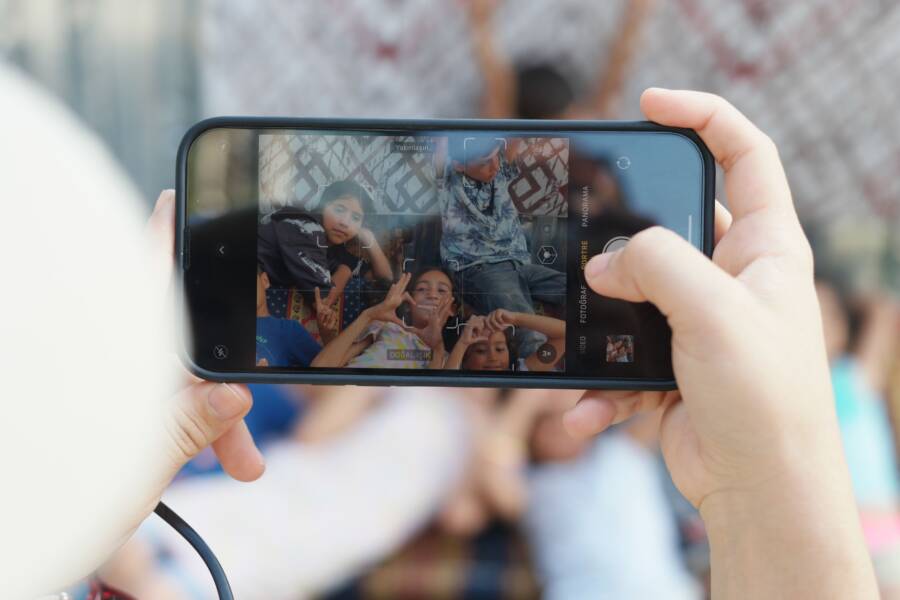
Portrait mode fails to detect faces because of software glitches or poor lighting, not because your hardware is broken. You can usually fix this common smartphone issue by adjusting your environment or resetting the camera settings.
If your camera struggles to isolate your subject, it often cannot find enough contrast between the face and the background. Most of these technical hiccups resolve quickly once you apply a few basic troubleshooting steps.
Checking the Lighting and Distance for Portrait Mode
Smartphone cameras rely on precise data to separate a person from their background. When your device fails to enter portrait mode, the software often cannot find the subject’s edges. This creates a flat image instead of the blurred effect you want. Most issues stem from two factors: poor lighting and incorrect distance. Adjusting these settings helps your camera map the scene correctly.
Find the Perfect Balance of Light
Portrait mode requires high contrast to detect depth. In low-light rooms or shaded areas, the camera sensor struggles to distinguish between your face and the objects behind you. If the sensor lacks enough data, it cannot identify the depth map needed for a natural blur.
Move to a brighter area if your photos look flat or if the software fails to engage. Natural daylight remains the best source for depth detection. If you are indoors, try to face a window or stand near a lamp. Position the light source in front of you so your face is clearly illuminated. This brightness provides the detail the camera needs to isolate your features from the background.
Avoid shooting with the light source directly behind you. This creates a silhouette and hides the facial details the camera needs to track. If you cannot move to better light, clean the lens, as smudges often mimic low-light blur by scattering incoming rays.
The Importance of Subject Distance
Your proximity to the camera changes how the software renders the background. Every smartphone has a specific focal range where portrait mode functions best. Most devices require the subject to remain between 2 and 8 feet away from the lens.
Follow these distance guidelines to help your camera lock onto the subject:
Move closer if the camera prompts you to stand further away, as many sensors need a minimum focal distance to function.
Step back if the screen says the subject is too close, because the lens cannot focus properly at extremely short ranges.
Keep the subject steady until the portrait effect activates on your screen.
If the distance is correct, the background will show a soft blur in the viewfinder. You can adjust the intensity of this effect on most devices once the camera identifies the subject. If you move outside this 2-to-8-foot range, the software usually disables the depth effect to prevent visual artifacts. Keeping the subject within this range helps the processor create a clean separation.
Fixing Software Glitches That Affect Face Detection
Sometimes the issue is not your environment or distance, but a temporary glitch within the camera software of your smartphone. Software, like any other complex system, can experience minor memory errors that prevent specific features from activating correctly. These hiccups often cause the portrait mode to freeze or stop recognizing faces entirely. You can usually resolve these problems with basic troubleshooting steps that refresh the internal processes of your device.
Restarting the Camera App or Your Device
A quick restart often fixes temporary errors that prevent the camera from accessing the necessary depth-mapping tools. When the application hangs or fails to identify a face, the system might have a cached error that requires a reset.
First, force close the camera application and reopen it. If you use an iPhone, swipe up from the bottom of the screen to your app switcher and swipe the camera card away. On an Android smartphone, open your recent apps menu and swipe the camera app off the screen. This action clears the active session and forces the software to reload its core files.
If closing the app does not work, restart your entire device. A full power cycle clears the temporary memory and stops background processes that may interfere with the camera hardware. Wait at least thirty seconds before turning your smartphone back on to ensure the system fully discharges any residual data. This simple step frequently restores the face detection capability immediately.
Updating Your Camera Software
Outdated operating systems and camera applications often contain bugs that disrupt complex features such as portrait mode. Developers frequently release updates to patch these errors and improve how the sensor interacts with your face. If your software version is several months old, the camera might fail to process depth information correctly because it lacks the latest performance patches.
To check for updates on your smartphone, follow these steps:
Open your device settings menu and select the general or system section.
Look for an option labeled Software Update or System Update.
Tap the button to check for available downloads and install any pending updates.
Keep in mind that some manufacturers provide separate updates for their camera apps through the official app store. Check your app store listing to see if an update is available for the camera software specifically. Installing the latest firmware ensures your camera has the correct instructions to identify facial landmarks. If you continue to experience problems after updating, the issue might be a more deep-seated glitch that requires a reset of your camera settings to their original factory state.
Cleaning Your Lens for Better Focus
A smudge or oil residue on the glass frequently prevents your smartphone from identifying a face in portrait mode. The camera lens acts as the eyes of your device. If these eyes are clouded, the software struggles to read the depth map, which leads to failed subject detection. You often assume the phone is broken, but the fix is usually as simple as wiping the surface.
Removing Dirt and Fingerprints
Oil from your skin transfers to the glass every time you handle your phone. This thin, invisible layer acts like a fog that distorts incoming light. Your camera needs clear optics to calculate the distance between you and the background. When the lens is oily, the software sees a blurred scene and fails to isolate the subject.
Use a clean, dry microfiber cloth to remove these oils. Other fabrics, such as paper towels or heavy cotton shirts, often contain fibers or grit that scratch the lens coating. Permanent scratches create permanent blur, which causes more harm than a simple fingerprint. Gently wipe the lens in a circular motion until the surface looks clear. If the oil is stubborn, you can breathe lightly onto the glass to create a tiny bit of moisture, then immediately wipe it away with the cloth.
Checking for Obstructions
Protective cases sometimes interfere with the camera view, especially on modern devices with multiple lenses. A thick case might cast a shadow over a secondary depth sensor, or the edge of the material might partially cover the field of view. When the lens is obstructed, the processor receives incomplete data about the environment.
Inspect your phone to ensure the case sits flush against the frame. Some cases feature small cutouts that shift slightly over time, blocking the sensors needed for portrait depth calculations. If you find the case overlapping the camera module, remove it or realign the fit. You should also check for debris trapped between the case and the phone back. Even a small piece of dust near the sensor module can disrupt the focus tracking for your portraits. Ensure the entire camera area remains free of obstructions to keep the software functioning at its peak.
When to Seek Professional Repair
You should consider professional repair when software fixes fail to restore portrait mode performance. While many problems arise from environment or settings, some issues indicate physical damage to the camera hardware. If you have ruled out software glitches, lens obstructions, and poor lighting, the internal sensor or focus motor likely needs expert attention.
Identifying Internal Hardware Failure
Internal damage often presents differently than a software glitch. If your smartphone produces blurry photos in all modes, not just portrait mode, the autofocus mechanism might be broken. You can test this by switching between standard photo mode and video mode to see if the lens struggles to lock onto objects at varying distances.
Listen closely to your camera module while you focus on a subject. A grinding or clicking sound suggests the mechanical focus motor is failing. Physical impacts or drops often cause these components to misalign even if the glass remains intact. If you notice these mechanical symptoms, software updates cannot resolve the issue.
Assessing Physical Damage to Sensors
Modern smartphones use a complex array of lenses and sensors to create depth maps. A drop might crack the glass over the secondary sensor without damaging the main lens. Because portrait mode relies on the input from all sensors, a single malfunctioning component renders the entire feature useless.
Inspect the camera module under a bright light for these signs of damage:
Tiny fractures in the housing around the lenses.
Internal condensation trapped behind the glass.
Visible misalignment of the camera rings.
Loose components that rattle when you move the device.
If you spot any of these indicators, do not attempt to open the device yourself. You risk further damaging the sensitive ribbon cables or losing water resistance. Contact the manufacturer or an authorized repair shop to get a professional diagnosis.
Seeking Help from Authorized Service Centers
Authorized technicians have access to specialized calibration tools. These tools verify if the depth mapping software is talking correctly to the hardware sensors. Often, a repair shop can recalibrate the camera system without replacing major components.
Verify your warranty status before you schedule a repair appointment. Many manufacturers cover sensor failures if the device shows no signs of physical abuse. Use the manufacturer support website to check your coverage and find a list of certified partners. Engaging an authorized service center preserves your warranty, whereas unauthorized repairs often void your remaining protection plan.
Summary of Essential Steps to Get Your Portrait Mode Working
Most portrait mode failures on your smartphone result from temporary software errors or simple environment mismatches. You can often restore depth-sensing features by performing a logical series of troubleshooting tasks. If your camera fails to detect faces or apply the blur effect, follow this structured order to isolate and fix the problem.
Quick Verification Steps
Start by confirming the basics before moving to deeper software resets. Small oversights usually block the depth sensor from capturing the necessary data for your shot.
Wipe the lens with a clean microfiber cloth to remove skin oils and smudges.
Ensure your subject stands between 2 and 8 feet away from the smartphone lens.
Move to a well-lit area because sensors require high contrast to identify facial edges.
Remove any thick protective cases that might partially obstruct the camera module.
Software Refresh Procedures
If the camera hardware is clean and the environment is ideal, the issue likely sits within the software process. Clearing the memory of the camera app or the entire device often solves these glitches.
Force quit the camera application by swiping it away from your recent apps menu.
Restart your smartphone to clear temporary cache files and reload core camera drivers.
Check for system updates in your settings menu to ensure you have the latest performance patches.
Reset your camera settings to factory defaults if the error persists after a full system restart.
When to Seek Expert Support
Some issues originate from physical damage rather than software limitations. If you notice grinding sounds during focusing or visible cracks near the camera module, standard fixes will not work. These situations require a technician to inspect the internal sensors or mechanical focus motors. Always verify your warranty status before visiting a repair shop, as authorized service centers provide the safest path to restoring full functionality to your smartphone.
Conclusion
Mastering portrait mode on your smartphone often requires simple adjustments to your environment or a quick software refresh. By keeping the lens clean and maintaining the correct distance from your subject, you provide the camera with the data it needs for professional results.
Portrait mode is a powerful tool when you understand its limitations and how to work within them. You can reliably capture high-quality images once you verify the lighting conditions and ensure the device software is current.
If you still encounter issues, check your hardware for physical damage or contact a technician. You now have the knowledge to troubleshoot these common errors and return to taking great photos immediately.