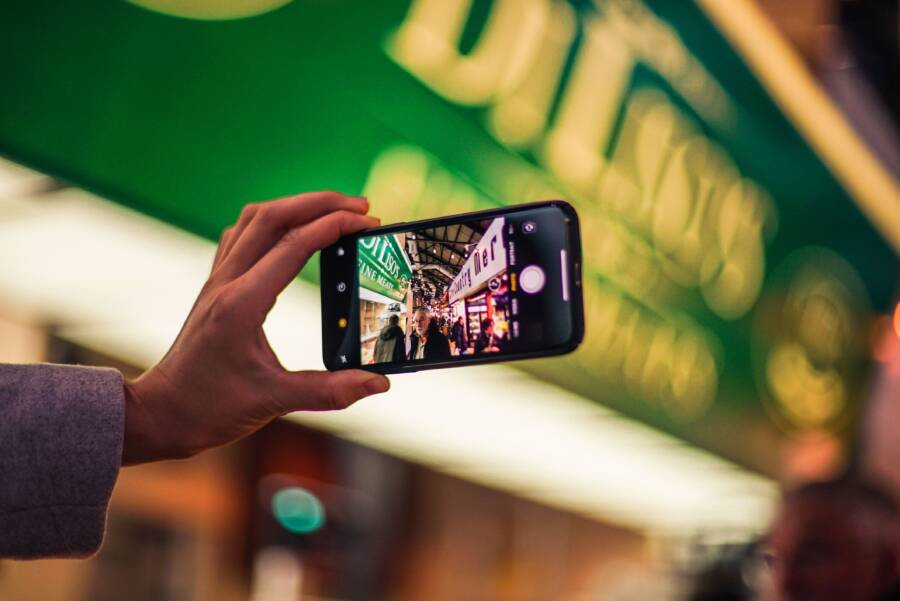
When your smartphone fails to trigger night mode in low light, the issue usually stems from incorrect software settings, insufficient darkness, or specific hardware limitations. Most users can resolve this problem by adjusting camera settings or manual exposure controls rather than seeking repairs.
You can often fix the glitch by simply toggling the auto-night mode feature off and back on within your camera app. If that doesn’t work, ensure your lens is clean and the scene is dark enough for the sensor to recognize the need for longer exposure times.
These quick adjustments frequently restore full functionality without requiring complex troubleshooting steps. Follow the guide below to identify your specific camera issue and get your photos back on track.
Understanding How Night Mode Works on Your Smartphone
Night mode is a computational photography process that improves image quality in low-light environments. When you take a photo in the dark, your smartphone captures multiple images at varying exposure lengths. The processor then merges these frames to reduce motion blur and digital noise while brightening the final output.
The Role of Long Exposure in Dark Settings
Standard photography relies on a quick shutter speed to freeze motion. However, dark scenes lack enough light for this method, often resulting in grainy or black photos. To counter this, your camera stays open longer to collect more photons from the environment. Because holding a phone steady for several seconds is difficult, the software uses smart algorithms to align the frames perfectly. This process transforms a series of blurry, dark shots into one crisp, bright image.
Balancing Noise Reduction and Detail
Digital sensors produce static, or noise, when they work hard to capture dim light. Night mode software identifies these noisy pixels and replaces them with data from the clearer frames in the series. This technique strikes a balance between keeping fine textures and smoothing out the color grain. Your smartphone performs these calculations in the background, so you see the final result almost immediately after the progress bar finishes.
Identifying When Night Mode Activates
Most modern devices monitor ambient light levels to decide if they need assistance. You can usually tell the mode is active when the shutter button changes appearance or a moon icon appears on the screen. If the environment has enough artificial light, the camera software might determine that standard shooting produces a better result.
Common triggers for the mode include:
Low light detected in indoor settings.
Outdoor environments during twilight or night.
Scenes with high contrast between bright lights and deep shadows.
When these conditions are met, the camera software automatically switches to its night processing pipeline. If your phone refuses to enter this state in very dark conditions, the software may be unable to stabilize the frame or the ambient light sensors might be obstructed. Checking these variables is the first step when your camera fails to capture the images you expect.
Simple Steps to Force Night Mode to Activate
When your smartphone refuses to trigger low-light processing, you can often take manual control to force the feature. Automated systems occasionally misjudge lighting conditions, leaving you with blurry or dark images. By learning how to adjust your camera settings or modify the shooting environment, you gain the ability to capture quality shots regardless of what the automatic sensor decides.
Adjusting Settings for Manual Control
Most smartphone camera apps allow you to influence how the sensor handles dark scenes. You should first look for a dedicated mode in the app menu. While most manufacturers label this as Night Mode, other brands use names like Night Sight, Low Light Mode, or Star Mode. You can find these options by tapping the More or Modes tab within your default camera interface.
If you do not see a toggle, check your manual exposure settings. Some devices allow you to tap the screen and move a sun slider to increase brightness. Pushing this slider up often forces the shutter to stay open longer. You might also look for a Pro or Manual mode in your settings. This gives you direct control over:
Shutter speed (increasing this duration allows more light in).
ISO levels (adjusting this helps manage sensor sensitivity).
Focus distance (manual focus prevents hunting in the dark).
If your camera app remains stubborn, verify that no third-party filters or beauty modes are currently active. These extra processing layers sometimes disable Night Mode to prevent software conflicts. Turning off features like portrait blur or high-frame-rate video settings often reveals the missing night capture icon.
Checking Your Environment for Enough Light
Software engineers program smartphones to prioritize standard photography whenever possible. If your environment contains too much artificial light, the camera software assumes it does not need to use long-exposure processing. It prioritizes speed over light collection because it believes the scene is bright enough for a standard shutter snap.
You can trick the sensor by temporarily blocking stray light sources. If you are standing near a bright streetlight or a neon sign, try positioning your body to cast a shadow over the lens area. This sudden shift in ambient light often prompts the camera to recognize the darker conditions and toggle the Night Mode icon.
Consider these common scenarios where environmental triggers fail:
Excessive glare from nearby car headlights.
Bright indoor lamps located just outside the frame.
High-contrast reflections on glass surfaces.
If you still cannot force the mode to engage, try pointing the camera at a darker patch of the ground for a second. Once the moon icon appears or the shutter button indicates a longer capture time, lock the focus and move back to your original subject. This technique effectively hacks the automatic system by confirming the darkness level before you compose the shot. Keeping the phone stable during this transition is essential for the best results.
Common Software Glitches and How to Fix Them
Software errors often prevent your smartphone from correctly calculating the light levels needed for night photography. If the underlying code encounters a conflict, the sensor might struggle to adjust for low-light scenes. Addressing these technical issues requires a structured approach to ensure your device operates at peak efficiency.
Updating Your Camera App and System Software
Outdated software frequently causes the light sensors to miscalculate exposure times. When your operating system lags behind, the camera algorithms may fail to process low-light data correctly. Manufacturers regularly release patches to fix bugs, improve sensor communication, and refine image processing pipelines.
You should prioritize these updates to maintain performance:
Check for system updates in your smartphone settings menu to ensure you have the latest firmware.
Visit the app store to see if a newer version of the camera application is available.
Restart your phone after any update to clear temporary cache files that might conflict with new settings.
Running the latest software version guarantees that your phone uses the most efficient algorithms for night photography. These updates often include specific fixes for sensor sensitivity that directly impact how the device handles dark environments. Regular maintenance keeps the image processing unit stable and responsive.
Testing in Safe Mode or Using Third Party Apps
Isolating the source of a camera glitch helps you determine if the problem is software-based or a hardware failure. Sometimes, an installed app interferes with your camera permissions or overrides default settings. Testing the hardware in a controlled environment clarifies whether the sensor is actually functioning.
Follow these steps to diagnose the issue:
Boot your smartphone into safe mode to disable all third-party apps temporarily. If the camera works normally here, a downloaded application is likely the culprit.
Try a different camera application from the store if the default one continues to fail. Using an app that manually controls shutter speed can reveal if the hardware responds to commands at all.
Review your recent downloads and remove any apps that require heavy camera or light sensor access.
If the camera fails to function across multiple apps and even in safe mode, the issue might be a physical defect in the sensor. However, most problems arise from conflicting background processes. Identifying these issues quickly saves time and helps you decide if you need professional repair or simply need to uninstall a rogue application.
When to Contact Professional Support
Sometimes hardware failure prevents your camera from operating correctly regardless of software updates or settings adjustments. If you have exhausted all self-troubleshooting steps, reaching out to a technician is the logical next move. Persistent issues suggest an internal component error rather than a temporary software glitch.
Recognizing Hardware Malfunctions
Physical damage often reveals itself through specific symptoms that software fixes cannot correct. If your camera lens shows signs of condensation inside the glass, moisture has likely compromised the seal. This creates permanent blurriness or light streaks that standard night modes cannot process. Additionally, a faint clicking sound when you attempt to focus often indicates a mechanical failure in the optical image stabilization module.
Check for these signs of physical failure:
Persistent dark spots on every photo regardless of the lighting level.
Complete failure of the camera app to open despite repeated restarts.
Physical debris visible behind the lens glass.
Frequent, unexplained crashes of the smartphone hardware during camera use.
If you observe these traits, the internal hardware requires repair. Software resets or factory restores will not fix mechanical defects. You should seek an authorized service provider to examine the internal components safely.
Utilizing Warranty and Repair Services
Most modern phones include a limited warranty that covers manufacturing defects. Before you pay for an expensive repair, check your purchase date and manufacturer documentation. Many companies provide free support if the failure relates to a faulty sensor or a defective camera module.
You can take these steps to prepare for a professional repair appointment:
Back up all your important data to a cloud service or computer.
Disable Find My Phone or any activation locks tied to your account.
Remove your SIM card and any external storage cards.
Have your proof of purchase or original receipt ready for the technician.
If you possess a third-party insurance plan, contact that provider first. They might offer a device replacement rather than a repair, which could save you time. Always prioritize official repair channels to maintain the water resistance and structural integrity of your smartphone. Unauthorized repair shops might not use genuine parts, which can lead to further performance issues with your image processing algorithms later on.
Conclusion
Fixing a stubborn night mode often comes down to managing the software environment of your smartphone. Start by ensuring your camera app is updated and your lens is clear of obstructions. If the automatic trigger remains inactive, manual exposure adjustments or changing your positioning toward darker areas will usually force the sensor to engage correctly.
High-quality low-light photos require both smart software processing and steady hands. If the issue persists despite these efforts, check for hardware damage or mechanical errors. You now have the knowledge to troubleshoot common conflicts and capture clear images in the dark.