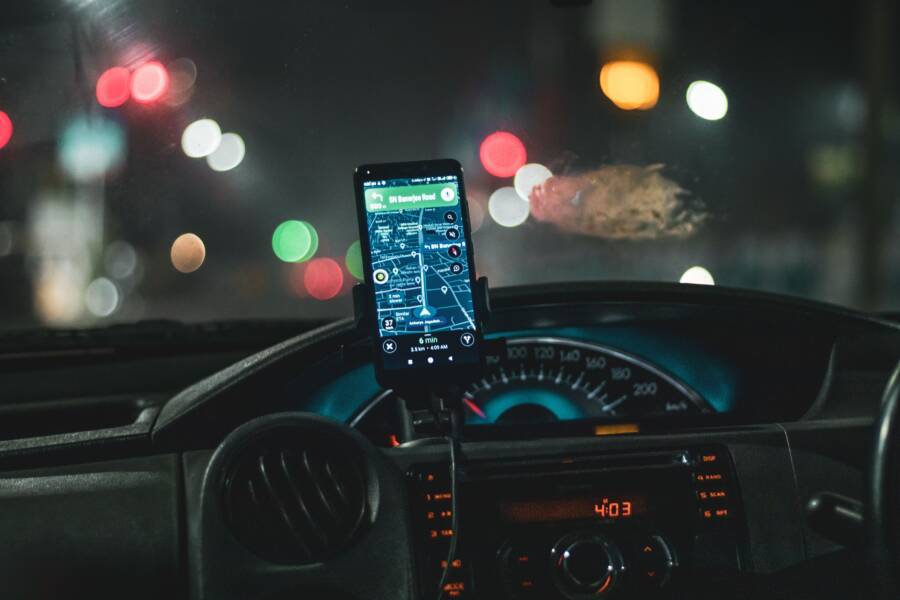
You can save battery while using navigation by dimming your screen, downloading offline maps, and disabling unnecessary background data. Your smartphone drains power quickly during trips because the GPS sensor, high-brightness screen, and cellular data radio all operate at once.
Managing these demands effectively requires a mix of smart settings and hardware adjustments. You do not need to choose between finding your destination and keeping your device powered on for the duration of the drive.
The following guide explains how to balance these functions to protect your battery life. You will learn specific steps to reduce energy consumption without losing the navigation services you depend on while on the road.
Why Your Smartphone Loses Battery So Fast During Navigation
Navigation apps demand significant resources from your device. While you move, the smartphone remains in a state of high activity to track your progress and render maps. This process forces several hardware components to operate at their maximum capacity simultaneously. As power drains, the device generates internal heat, which further accelerates battery degradation.
The Impact of Screen Brightness and GPS Usage
Your screen is the single largest consumer of battery power. When you drive, the display must maintain high brightness levels so you can see directions in daylight. This constant illumination keeps the backlight powered, which pulls energy continuously. Because lithium-ion batteries rely on chemical reactions, extreme heat acts as their primary enemy.
The GPS sensor adds to this thermal load. To maintain a precise location, the device pings satellites and cell towers several times per minute. This constant communication requires the antenna to stay active. Both the processor and the radio generate warmth during this cycle. When your smartphone sits in a window mount, direct sunlight often compounds this heat. This rising temperature forces the battery to work harder, which triggers faster discharge rates and long-term capacity loss.
Data and Background App Refresh Issues
Navigation requires a steady stream of data to update traffic conditions and map details. However, your smartphone also attempts to manage other tasks while you travel. Background app refresh allows social media, email, and news apps to fetch new information even while you use maps. These background processes wake the processor, activate the data radio, and consume power without providing any benefit to your current journey.
You can prevent this energy waste by restricting non-essential activity. Turning off unnecessary push notifications is a simple way to stop the phone from waking up to display alerts you do not need while driving. Many mobile operating systems offer a mode to restrict background data entirely. Disabling these features forces the device to focus its resources on location tracking rather than updating feeds. This adjustment allows your battery to last longer because the processor spends more time in a low-power state instead of juggling background updates.
Software Adjustments to Save Battery Power
Your smartphone consumes significant energy while processing real-time navigation tasks. By modifying how your software handles data, screen output, and audio, you can extend your battery life on long trips. These software-based changes reduce the workload on your processor and cellular radio, which helps keep your device cool and efficient.
Using Offline Maps to Reduce Data Load
Streaming map data over cellular networks is a primary cause of battery drain. Your smartphone must constantly request new map tiles, traffic information, and search results as your vehicle moves. This process forces the cellular radio to remain in a high-power state, which consumes energy rapidly.
Downloading map data to your device memory before you start your drive solves this problem. Most popular navigation applications, including Google Maps and Apple Maps, allow you to save specific regions for offline use. When you select an area and download it while connected to Wi-Fi, your phone stops fetching these details during your trip.
The benefits of offline maps include:
- The cellular radio can drop to a low-power state because it no longer needs to pull map data from the cloud.
- Your location remains accurate even if you enter areas with poor or inconsistent cellular reception.
- The phone stays cooler because the processor does not have to manage active data streams and frequent network handshakes.
Make sure to download these maps well before you leave, preferably while charging your device. This step ensures you have the necessary information ready without wasting your battery during the actual journey.
Optimizing Display and Audio Settings
High screen brightness is often the largest factor in battery depletion. Navigation apps typically keep the display active for the entire duration of a trip, which keeps the backlight or individual pixels illuminated constantly. Reducing this demand is a simple way to preserve power.
You can lower your screen brightness to the minimum level that remains visible to your eyes. If you use a smartphone with an OLED display, switching the app to dark mode saves extra energy. OLED screens generate light by powering individual pixels; black areas on the screen effectively turn those pixels off, which saves power compared to bright or white backgrounds.
Audio instructions offer an alternative to constant screen glancing. By relying on turn-by-turn voice guidance, you can keep the screen dimmed or locked for longer periods. This allows you to check the screen only when necessary rather than keeping it awake for every mile.
Follow these steps to balance visibility and efficiency:
- Enable your navigation app’s dark mode settings to take advantage of OLED screen capabilities.
- Adjust your system brightness settings to the lowest comfortable level before you start driving.
- Turn up the voice navigation volume so you can hear directions clearly without needing to look at the display.
- Set your phone to lock after a short period, or manually turn the screen off during long, straight stretches of road.
These adjustments shift the burden of navigation from the power-hungry screen to the energy-efficient speakers. Using voice prompts allows you to focus on the road while your battery performs significantly better.
Hardware Solutions for Long Road Trips
Your smartphone battery often struggles to keep up with the power demands of continuous navigation. While software settings help, hardware choices provide the most consistent results. Investing in the right car charger and maintaining your accessories allows you to arrive at your destination with a full charge. Reliable equipment keeps your device operational, cool, and ready for long hours on the road.
Choosing the Right Fast Charger
A cheap car charger often lacks the power output needed to handle modern smartphone battery demands. Many inexpensive models provide only 5 watts of power. While this might charge a phone slowly while it stays idle, it is insufficient when the screen is bright and the GPS is running. In fact, your device may continue to lose battery percentage even while plugged into a weak charger.
Quality chargers typically offer 18 watts, 30 watts, or higher output levels. These units deliver enough current to charge the battery while the processor handles heavy navigation tasks. Look for chargers that support protocols like Power Delivery or Quick Charge. These standards allow the charger to negotiate the exact amount of power your smartphone requires to stay topped up.
Check the technical specifications on the packaging or the device body before you buy. You need to verify the total output, as some chargers split their wattage between two ports. If you share a charger with a passenger, the power directed to your device might drop to an ineffective level. A dedicated high-wattage charger for your smartphone is a better investment for long trips.
Proper Cable Care and Connections
The quality of your charging cable matters just as much as the power brick. Cables undergo significant physical stress inside a vehicle, including bending, stretching, and temperature changes. Internal wires often fray or break over time, which causes resistance and limits the speed at which energy moves from the charger to your smartphone.
A damaged cable slows down charging speeds even if your power adapter is top-tier. When the data lines or power conductors inside the cable wear out, the device detects a connection but receives only a trickle of electricity. You might notice your phone takes much longer to charge than it did when the cable was new.
Inspect your cables for visible kinks, exposed wires, or loose ends before you head out. Keep your connections clean by removing dust or debris from the charging port and the cable head. A secure, clean connection ensures that the power provided by your charger reaches your smartphone without interruption. Replacing an old or worn cable is an inexpensive way to maintain efficient charging performance.
Troubleshooting Common Charging Problems
Charging issues often arise when your smartphone works overtime to maintain a GPS connection. When your device fails to gain power or charges slowly during a trip, you need to identify the bottleneck. These problems usually stem from physical obstructions, faulty accessories, or thermal limits. Checking these components allows you to restore reliable power flow quickly.
Preventing Overheating in a Car Mount
Heat acts as the biggest threat to your smartphone battery during navigation. When your phone absorbs warmth from its environment, the system throttles charging speeds to prevent permanent hardware damage. Even a fast charger cannot overcome this protective mechanism if the device remains too hot to handle power safely.
Location makes a significant difference in how your phone manages heat. Avoid mounting your device near car heater vents, as the warm airflow creates an artificial heat spike. Placing your phone in front of a vent forces the internal temperature to rise, which triggers the system to pause or limit charging. Instead, position the mount in a spot that receives airflow from your air conditioning system. This extra cooling helps the battery accept a charge more efficiently even while the processor runs heavy navigation tasks.
Direct sunlight also poses a threat to your hardware. The screen creates its own internal heat while navigation apps keep the backlight active for extended periods. When sunlight hits the glass, it magnifies this thermal stress. You should keep the smartphone away from direct sun by using a visor or selecting a mounting position tucked slightly below the dashboard line.
You can monitor these factors by following these steps:
- Mount the phone away from direct paths of heat from dashboard vents.
- Adjust your car air vents to blow cool air toward the area where you mount the device.
- Keep the smartphone out of direct sunlight to prevent external surface temperatures from rising.
- Use a windshield mount that keeps the phone at a distance from the glass to allow for better air circulation.
Taking these precautions creates a stable environment for your battery. When the device stays cool, it maintains a steady charge rate throughout your entire trip. You no longer need to worry about arriving at your destination with less power than when you started. A cooler phone is a more efficient phone, allowing your navigation software to work without compromising the longevity of your battery.
Conclusion
You can keep your smartphone charged while using navigation by managing how your device consumes energy. Combining offline map downloads with optimized screen brightness settings provides the best way to reduce battery strain. You should also invest in high-wattage charging equipment to maintain power during long trips.
A reliable smartphone setup balances software efficiency with robust hardware support. You no longer need to fear a dead battery when traveling to an unknown destination. These simple habits ensure your device stays powered throughout your entire drive.