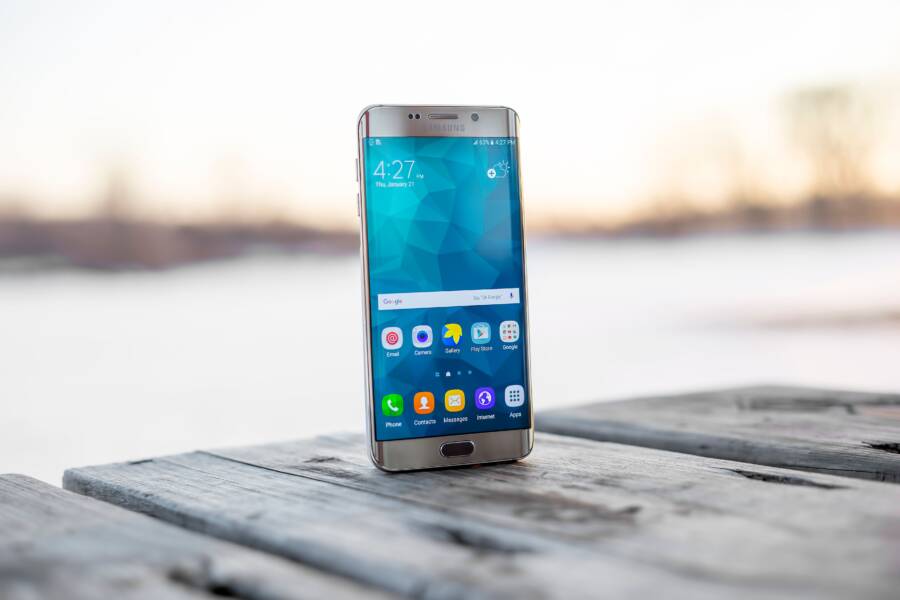
When your smartphone display jumps between extreme brightness and dimness, it usually stems from a sensitive ambient light sensor or a software calibration error. You can stop this aggressive flickering by recalibrating your sensors or taking manual control of your brightness settings.
Most devices adjust light levels based on real-time data from a tiny sensor near the front camera. If this sensor detects erratic changes in your environment, or if your operating system has a minor bug, the screen will struggle to find a stable balance.
The following steps explain how to adjust your settings, troubleshoot the hardware, and regain consistent lighting for your screen.
Understanding Why Your Smartphone Brightness Keeps Changing
Your smartphone display intensity often shifts because the operating system prioritizes visibility based on current light conditions. While this feature saves battery life and reduces eye strain, it frequently produces unpredictable jumps in brightness. Most users experience these shifts as a persistent flicker or a sudden dimming effect when moving between indoor and outdoor spaces. Recognizing the mechanics behind this behavior helps you determine whether your hardware functions correctly or if a specific configuration requires adjustment.
The Role of Ambient Light Sensors
Modern smartphones rely on a dedicated piece of hardware called an ambient light sensor to measure surrounding illumination levels. These sensors typically sit near the top speaker or front-facing camera. They function much like a digital eye, constantly sampling the intensity of light hitting the front of your device. When the sensor detects a rise or fall in external light, it sends an electrical signal to the display controller to increase or decrease the screen backlight accordingly.
This hardware component operates on a continuous feedback loop. It samples data every few milliseconds to keep the screen readable, which is why your display might brighten instantly when you step outside into direct sunlight. The software then processes these raw readings through a calibrated curve. This curve dictates the exact brightness percentage for every measured light level. If the sensor picks up a sudden change, the software reacts by shifting the display to a predefined brightness tier. Problems occur when the sensor receives inconsistent data, causing the software to toggle the backlight rapidly as it tries to settle on an appropriate setting.
Common Triggers for Overcorrection Issues
Several external factors frequently trick your smartphone into adjusting brightness incorrectly. A major culprit is a poor-quality screen protector. If the glass or plastic covers the sensor area with a thick, tinted, or scratched material, it confuses the sensor by filtering out real-world light data. The sensor then reports incorrect readings to the system, causing the display to remain too dim or pulse brightness randomly.
Inconsistent light sources also cause significant issues. Fluorescent lighting, for example, often flickers at a high frequency that the human eye ignores but the sensor detects as erratic patterns. If your smartphone sits under these bulbs, the software might misinterpret the rapid pulsing of the light as a shifting environment. Similarly, shadows passing over your phone while you hold it can trigger instant, unwanted adjustments. If you notice the issue occurs primarily in specific locations, evaluate your surroundings for these common triggers:
-
Obstructed sensors: Dirt, oil, or a misplaced case edge covering the sensor array.
-
Low-quality screen protectors: Opaque or low-clarity film that distorts light intake.
-
Reflective surfaces: Mirrors or glass near your device that bounce uneven light into the sensor.
-
Rapid light shifts: Moving between high-contrast zones like a dim room and a brightly lit window.
Eliminating these physical barriers often resolves the most aggressive flickering. Cleaning the area near your front camera and removing thick covers allows the sensor to receive clean, accurate light data. If the issue persists after clearing these obstructions, the problem likely stems from a software calibration error or a corrupted light sensor driver.
How to Calibrate and Reset Your Auto-Brightness Settings
Once you clear physical obstructions, your smartphone needs to understand your personal light preferences. Devices do not ship with a universal standard for brightness because every user prefers different levels for specific environments. You can actively teach your phone to match your habits by manually overriding the auto-brightness setting whenever it chooses a level you dislike. This process builds a personalized profile that the system refers to during future adjustments.
Teaching Your Device Your Preferred Levels
The learning phase works as a continuous feedback loop between you and your smartphone. When you enter a room and the screen dims to a level that feels too dark, do not just endure it. Manually drag the brightness slider to your preferred intensity. By doing this, you signal to the software that the current ambient light reading requires a higher brightness output than it previously calculated.
Repeat this manual correction consistently across different environments. Adjust the slider when you are in direct sunlight, under warm indoor lamps, and in near-dark settings. The operating system monitors these manual inputs to create a custom correlation between sensor data and display output. Over several days, the device gains a clearer picture of your needs, which reduces the frequency of aggressive, incorrect jumps.
Keep in mind that some systems require a few days of consistent manual input to update their internal brightness curves. If you notice the phone still struggles after a week of frequent corrections, the underlying data might be corrupted or stuck on old, incorrect patterns. In these cases, you must wipe the slate clean to allow the software to restart the learning process from a neutral baseline.
Clearing Outdated Adaptive Brightness Data
When a smartphone constantly drifts toward improper brightness levels despite your manual efforts, the saved adaptive brightness data is likely the source of the conflict. Corrupted logs or conflicting user habits often get stuck in the system cache. Resetting this data removes those old preferences, effectively forcing the sensor and the display controller to start fresh.
On most modern Android devices, you can reset this configuration through the application settings. Locate the system app list, find the “Device Health Services” entry, and navigate to the storage section. From there, you will see an option to manage space or clear data related to adaptive brightness. Choosing this reset option wipes the learned brightness curve without affecting your other personal files or app settings.
Apple users encounter a different workflow because iOS manages these features through a central toggle. If your iPhone brightness remains erratic, follow these steps to trigger a refresh:
-
Open the Settings app and navigate to the Display & Brightness menu.
-
Switch the Auto-Brightness toggle to the off position.
-
Restart your device to clear the current session memory.
-
Navigate back to the same menu and turn Auto-Brightness back on.
This simple toggle cycle flushes the immediate calibration cache. While it does not perform a factory-style wipe of long-term habits, it effectively stops the software from relying on a hung or glitchy brightness profile. If the flickering persists after this reset, you may need to check for a pending operating system update that addresses known sensor driver bugs.
Software and Hardware Fixes for Persistent Issues
If you have tried resetting your settings and the brightness still fluctuates, the problem might run deeper than a simple user preference. Persistent overcorrection usually points to a conflict between your device software and the physical components responsible for light detection. You can resolve most of these stubborn cases by investigating system patches or inspecting the physical health of the sensor array.
Checking for Software Updates and Known Bugs
Operating system developers frequently release patches that adjust how a smartphone handles ambient light data. These updates often include specific refinements for the display driver, which controls how quickly your screen responds to sensor input. If your device suffers from aggressive flickering, a software bug might be misinterpreting the sensor signals.
Check your system settings to verify if a newer version of the operating system is available for your device. Manufacturers often include notes in the update description like “improved display stability” or “fixed brightness calibration issues.” Applying these updates can resolve glitches that prevent the sensor from communicating correctly with the display hardware.
If you recently updated your software and the issues began immediately afterward, the firmware might have a bug that the manufacturer has not yet addressed. Search for your specific model on user forums or the manufacturer support page to see if others are experiencing similar display behavior. If a known bug exists, you should wait for the next patch or report the issue directly through the feedback channels in your device settings.
Cleaning the Sensor and Checking Screen Protectors
The ambient light sensor is a precise component that requires a clear path to function. Even a small amount of dust, fingerprint oil, or debris covering the sensor area can cause the system to receive erratic light readings. You should regularly clean the top section of your smartphone, specifically the area near the front camera and the earpiece, using a clean microfiber cloth.
Screen protectors are another common source of hardware interference. If you use a thick, matte, or privacy-focused protector, it might block too much light from reaching the sensor. These materials alter the intensity of incoming light, forcing the sensor to report lower levels than what exists in reality.
To determine if your screen protector is the cause, consider these troubleshooting tips:
-
Inspect the area above your screen for bubbles or trapped dust that might scatter light across the sensor.
-
Verify that your screen protector manufacturer specifically accounts for the sensor cutouts on your exact model.
-
Remove the protector temporarily to see if the brightness behavior returns to normal.
If the flickering stops after you remove the cover, you should invest in a high-quality, clear glass protector with precise cutouts for the sensors. Choosing a protector that is explicitly designed for your smartphone ensures that the light intake remains accurate and unhindered.
When to Disable Auto-Brightness for Total Control
Sometimes, your smartphone sensors simply cannot keep up with your specific environmental needs. While adaptive brightness attempts to predict what you want, it often guesses wrong. Disabling this feature grants you complete authority over your screen output, which prevents those annoying sudden shifts in intensity. Taking manual control is the best choice if you frequently work in environments with tricky lighting, such as photography studios, dark rooms, or areas with inconsistent overhead flickering.
Pros and Cons of Manual Brightness Control
Choosing manual control means you define exactly how your screen looks. This approach eliminates the erratic flickering that occurs when a sensor gets confused by shadows or high-contrast light sources. You get a stable, predictable display that stays at your preferred level until you decide to change it. This is beneficial for tasks like photo editing or reading, where consistent visual output matters more than minor battery gains.
However, moving away from automation introduces trade-offs regarding battery life and convenience. When you leave the screen at high brightness in a dark room, you drain power faster than necessary. You also lose the convenience of your screen adjusting for you when you walk outside into direct sunlight. Consider these points before turning off the feature:
-
Consistency remains high because the screen intensity never changes without your direct input.
-
Battery efficiency often drops because you might leave the display brighter than the current environment requires.
-
User comfort increases in controlled environments because you avoid the glare or dimming that triggers eye fatigue.
-
Task-specific visibility improves because you set the brightness to match the requirements of your current application.
If you find yourself manually adjusting the slider more than three times a day, the automated system is likely failing to learn your preferences. In these cases, manual control is a more practical solution than fighting with a miscalibrated sensor.
Using Third-Party Apps for Advanced Control
Native smartphone software often limits how much you can customize the relationship between light sensor readings and screen intensity. If the default curves feel too aggressive or sluggish, third-party apps provide the granular control you need. These tools allow you to define your own brightness curves, which map specific light sensor inputs to exact percentage levels.
Apps like Lux Auto Brightness or Velis Auto Brightness replace the built-in system logic with more sophisticated algorithms. These tools give you the ability to set custom thresholds, adjust the transition speed between brightness levels, and even add exceptions for specific apps. If you notice your screen dims too much when you open a particular media player, you can program the app to keep the brightness high for that specific software.
These applications typically run as a service in the background to monitor light levels and override the system settings. They are excellent for users who want the benefits of automation without the erratic behavior of manufacturer-provided software. You can experiment with these tools to determine if the issue is a hardware limitation or simply a lack of software configuration depth on your device. Always check app permissions after installation, as these utilities require system-level access to override your display settings effectively.
Conclusion
Fixing overactive auto-brightness often comes down to removing physical interference or resetting the stored data that dictates your display behavior. Cleaning your sensor area or testing your device without a screen protector clarifies the light signals your smartphone receives. If the issue remains, clearing the cache or resetting the adaptive brightness settings forces the system to learn your preferences again.
Finding the right balance between software automation and your own manual adjustments is the best way to keep your display steady. Start by trusting the sensor for basic light changes, but use the manual slider whenever the system miscalculates your environment. This habit creates a personalized experience that removes the need for constant tweaks.