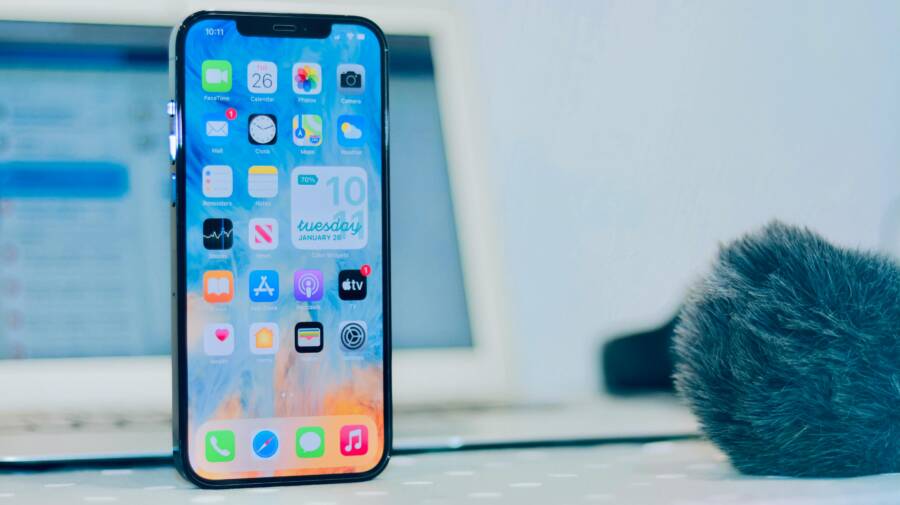
Connecting a smart speaker to your smartphone requires three primary steps: downloading the manufacturer app, enabling Bluetooth, and syncing the device over your home Wi-Fi network. This simple process allows your phone to act as the central controller for your audio and smart home tasks.
You might feel frustrated if your new speaker refuses to pair during the initial setup. Most issues stem from basic connection settings rather than hardware defects. By following a clear, step-by-step approach, you can fix these common obstacles and get your device running quickly.
The following sections will guide you through the setup process to ensure your speaker and smartphone communicate without any further trouble.
Why You Should Pair Your Smart Speaker with Your Phone
Connecting your smart speaker to your smartphone transforms a standalone device into a central hub for your daily routine. Many people treat their speaker as a basic music player, but this connection activates powerful features that save time and reduce digital clutter. When these two devices share data, your phone provides the processing power while your speaker handles the audio feedback. This synergy makes managing your schedule or household tasks much faster than tapping through screens on your phone alone.
Unlocking Your Voice Assistant Features
Voice assistants work best when they access your personal information through your phone. By linking these devices, you allow the speaker to pull data from your contacts, calendar, and email apps. You can ask for a daily briefing, and the speaker will read upcoming appointments, weather updates, or meeting reminders directly from your primary calendar. This creates a friction-free way to stay organized while you move around the house getting ready for work.
Personalized responses further increase the value of this connection. Most systems recognize different voices, so your speaker can tailor its answers based on who is asking the question. If you ask about your commute, the assistant checks your specific calendar and traffic data on your smartphone to give an accurate arrival time.
- Calendar syncing: Access your full schedule without needing to open a laptop or phone.
- Customized alerts: Set location-based reminders on your phone that your speaker announces when you walk through the door.
- Contact integration: Place calls or send messages using simple voice commands by pulling numbers from your linked address book.
Streaming Your Favorite Music Effortlessly
Using your smartphone as a dedicated remote turns your music streaming experience into a flexible system. Instead of relying solely on voice commands, you can use the familiar interface of apps like Spotify, Apple Music, or Tidal to control playback. Your smartphone detects the smart speaker on your local network, allowing you to cast audio with a single tap. This method is helpful when you want to queue up a long playlist or skip songs without interrupting a conversation.
Multi-room audio is another benefit of using your smartphone to manage playback. If you have several speakers, the app on your phone acts as a dashboard for your entire home. You can group speakers together to play the same track in every room or select specific zones for different moods. The responsiveness of a touch interface on your phone makes it easier to adjust volume levels or switch input sources compared to repeated voice prompts. Because your phone maintains the connection, you can move between rooms while keeping the music playing exactly where you left it.
Simple Steps to Set Up Your New Device
Setting up a smart speaker takes only a few minutes when you prepare your hardware correctly. You need your phone and your speaker to communicate clearly during the first handshake. Follow these steps to prepare your environment and your devices for a smooth initial sync.
Preparing Your Smartphone for the Setup Process
Before you plug in the speaker, check your smartphone settings to avoid common connection errors. Your phone acts as the bridge between your internet connection and the smart speaker. First, ensure your Wi-Fi is active and connected to the network you intend to use for your smart home devices.
Next, turn on Bluetooth. Many smart speakers use Bluetooth to transmit initial security credentials from your phone to the speaker hardware. Without an active Bluetooth radio, your phone might fail to discover the new device in the manufacturer app.
Download the official manufacturer app from the App Store or Google Play Store before starting. You need this specific software to manage the speaker configuration. Check these three items before you proceed:
- Confirm your smartphone is connected to a 2.4GHz or 5GHz Wi-Fi network.
- Toggle your Bluetooth switch to the on position.
- Open the manufacturer app and sign in with your account credentials.
If you skip these steps, the app often provides an error message during the scanning phase. Being ready prevents unnecessary troubleshooting later.
Connecting to Your Local Wi-Fi Network
A stable Wi-Fi connection is the backbone of your smart speaker experience. Unlike simple Bluetooth speakers, smart devices require an internet connection to process voice commands and stream media from cloud services. Your smartphone app sends the network name and password to the speaker to establish this link.
Bridge this connection by following the instructions within the app during the device discovery stage. The app will prompt you to select your local network from a list of available signals. Ensure you choose the same network that your smartphone currently uses. This alignment allows the app to send data packets between the devices without firewall interference.
If the speaker struggles to connect, move it closer to your router during the initial setup. Once the light on the speaker changes to a solid color, the connection is complete. Your smartphone now serves as the primary controller for your speaker. You can then move the device to its permanent location in your home while maintaining the established connection.
Common Troubleshooting Tips for Connection Issues
Most connectivity problems occur because of minor communication gaps between your smart speaker and your smartphone. If your devices fail to pair or sync during setup, start by checking the basics. Verify that both devices are on the same local network and that Bluetooth is active. Sometimes, simply toggling the Wi-Fi off and back on again clears temporary handshake errors. If these initial steps fail to resolve the situation, consider the following deeper solutions to restore communication.
How to Reset Your Smart Speaker
A factory reset is your final option when every other method fails to bridge the connection. This process wipes all saved data and settings, returning the device to its original out-of-the-box state. Use this approach only after you confirm that your Wi-Fi signal is strong and your smartphone app is updated.
To perform a reset, locate the physical reset button on your speaker. You often find this button on the bottom or back of the unit. Press and hold this button for ten to twenty seconds. Most manufacturers signal the reset by flashing lights or an audible chime. Once the device restarts, treat it as a new unit and go through the initial setup process in your app once more.
Keep in mind that you will need to reconfigure your preferences and re-link your accounts after a factory reset. This clears out corrupted cache files that might block your smartphone from establishing a stable connection. While it takes extra time, this clean slate effectively removes persistent software glitches that prevent successful pairing.
Checking App Permissions and Software Updates
Your smartphone acts as the command center for your smart home, yet it cannot function if its software settings restrict the process. Outdated apps often lack the protocols needed to communicate with newer speaker firmware. Visit your app store frequently to check for pending updates to the manufacturer software. If the app is current, examine the permission settings on your smartphone to ensure the app has full access to your network.
Apps require specific permissions to discover hardware on a local network. If you accidentally denied these requests during the first installation, the app will remain unable to find your speaker. Follow these steps to verify your access levels:
- Open the settings menu on your smartphone.
- Scroll down until you find the list of installed apps.
- Select the smart speaker app from your list.
- Verify that Local Network, Bluetooth, and Location permissions are set to allowed.
If these settings are already active, your operating system might still be blocking the signal. Try deleting the app entirely and reinstalling it to force a new permission request prompt. A fresh installation often corrects misconfigured settings that cause silent failures during the sync process. After reinstalling, make sure you accept every access request to keep your smartphone and speaker in perfect sync.
Best Practices for Managing Your Smart Home
Efficient smart home management relies on consistency and organization. You can maintain a stable environment by grouping devices, securing your network, and automating routine tasks. When your smart speaker links to your smartphone, you gain a central point of control that simplifies these maintenance routines.
Organizing Your Devices into Logical Groups
Grouping your devices helps you control multiple units with a single command. Most manufacturer apps allow you to assign smart speakers, lights, and plugs to specific rooms. This structure lets you say “Turn off the kitchen lights” instead of toggling every bulb individually.
You should name your devices clearly to avoid confusion. Use simple, descriptive labels like “Living Room Speaker” or “Front Porch Light” rather than generic names. When your smartphone app reflects these clear labels, voice commands become much more accurate. Consistent naming conventions also prevent the assistant from asking which device you mean.
Securing Your Smart Home Network
Your home network security is a critical factor in long-term stability. Ensure your Wi-Fi router uses WPA3 encryption or at least WPA2-AES. Create a strong, unique password for your network that you do not share with guests.
Many modern routers offer a guest network feature. You should place your smart speakers and other IoT devices on this separate network. This prevents a potential security flaw in one gadget from exposing your primary devices like your smartphone or laptop. Keep your router firmware updated to receive the latest security patches from the manufacturer.
Optimizing Your Automation Routines
Automations turn manual tasks into background processes. You can set up schedules to adjust your thermostat when you leave for work or to turn on lamps at sunset. The app on your smartphone acts as the primary interface for creating these triggers.
Start with simple automations before moving to complex multi-device routines. Focus on tasks that repeat every day, such as turning off non-essential power strips at night or starting a morning playlist. Review your active routines once a month to remove any that you no longer find useful. This prevents your home system from becoming cluttered with unnecessary commands that might conflict with each other.
Regularly Updating and Managing Firmware
Smart hardware requires regular updates to fix bugs and improve performance. These updates often patch security vulnerabilities that could affect your home network. Most speakers update automatically, but you should check the manufacturer app occasionally to confirm the software is current.
If a device stops responding to your smartphone app, a pending firmware update is a likely culprit. Check for updates before you attempt a manual reset. You can often see the current version and available updates within the device settings menu. Keeping all hardware on the latest software version helps your smart home system function as a unified, stable environment.
Conclusion
Successful setup relies on a clean connection between your smartphone and your smart speaker. You now have the tools to link your accounts, manage Wi-Fi settings, and troubleshoot common pairing errors. These steps keep your audio and assistant features functional without constant manual intervention.
Test your new setup by building simple automation routines. You can program your lights to dim or your morning news to play when you issue a single voice command. Experimenting with these settings on your smartphone helps you find the most efficient way to use your device every day.