He Was Drowning in Bills and Burnout Until a Simple Daily Ritual Rewired His Brain for Wealth in Less Than a Week
>>> Start Your Shift Today <<<

Sharing passwords from your phone can feel quick, but it comes with real risks. This post explains safe methods that work in real life, whether you’re helping a family member or a friend.
You’ll learn practical steps to protect everyone involved, from choosing trusted tools to setting time limits and permissions. We’ll cover common scenarios and show you how to keep sensitive information private while staying helpful.
By the end, you’ll know how to handle password sharing with confidence, using simple, trustworthy approaches you can apply today on your smartphone.
Understand the risks of sharing passwords from your phone
Sharing passwords from a phone might seem harmless in a pinch, but it creates a web of vulnerabilities. Small actions can lead to big consequences, especially when devices are lost, shared, or left unlocked. In this section, we break down common mistakes and real world scenarios to help you spot danger before it happens. You’ll walk away with practical habits that protect you and the people you help.
She Pressed Play on a Strange Audio Track and Within Days Her Financial Reality Started Shifting in Ways She Could Not Explain
>>> See How It Works <<<

Common mistakes to avoid when sharing passwords
- Sending plain text passwords over chat apps
- Quick fix: Use a secure password manager with built in sharing features. This keeps the password encrypted and access controlled.
- Safer alternative: Share a one time link or a time controlled credential from a manager instead of spelling out the password.
- Using public or shared devices to copy or enter credentials
- Quick fix: Avoid typing sensitive info on devices you don’t own. If you must, enable temporary guest access or private mode and erase traces afterward.
- Safer alternative: Log in on your own device and send a reminder rather than the actual password.
- Storing passwords in notes, screenshots, or chat history
- Quick fix: Move passwords to a reputable password manager with strong encryption and a master password.
- Safer alternative: Use built in secure note features if your app supports end to end encryption, but prefer a dedicated manager for sharing scenarios.
- Leaving a screen unlocked or nearby
- Quick fix: Enable auto lock and set a short timeout. Use biometric protection where available.
- Safer alternative: Lock the device immediately after handing it to someone and revoke access when you’re done.
- Reusing the same password across multiple accounts
- Quick fix: Create unique passwords for each service and store them in a manager.
- Safer alternative: Use a strong master password and rely on the manager to generate unique entries.
- Sharing passwords via channels that don’t authenticate the sender
- Quick fix: Verify the recipient’s identity and use a secure channel designed for sharing sensitive data.
- Safer alternative: Send a one time access token instead of the password itself, and require the recipient to set up their own access method.
- Not setting time limits or access restrictions
- Quick fix: Use temporary shares with expiration dates when your password manager supports it.
- Safer alternative: Disable access as soon as the recipient completes the task.
- Ignoring two factor authentication prompts
- Quick fix: Enable 2FA on all accounts you’re sharing and require the recipient to do the same where possible.
- Safer alternative: Share access only to accounts that support managed delegation or invite based access.
For further reading on avoiding these mistakes, check concise guides from trusted security sources that emphasize safe sharing practices. For example, you can explore practical tips from Dashlane and Bitwarden on avoiding common password sharing mistakes.
- Dashlane guide: Stay Secure by Avoiding 7 Common Password Sharing Mistakes
- Bitwarden guide: Stay secure by avoiding 7 common mistakes when sharing passwords
These resources highlight why plain text sharing is risky and how to use password managers to keep controls tight. Stay secure by avoiding 7 common password sharing mistakes
Stay secure by avoiding 7 common mistakes when sharing passwords
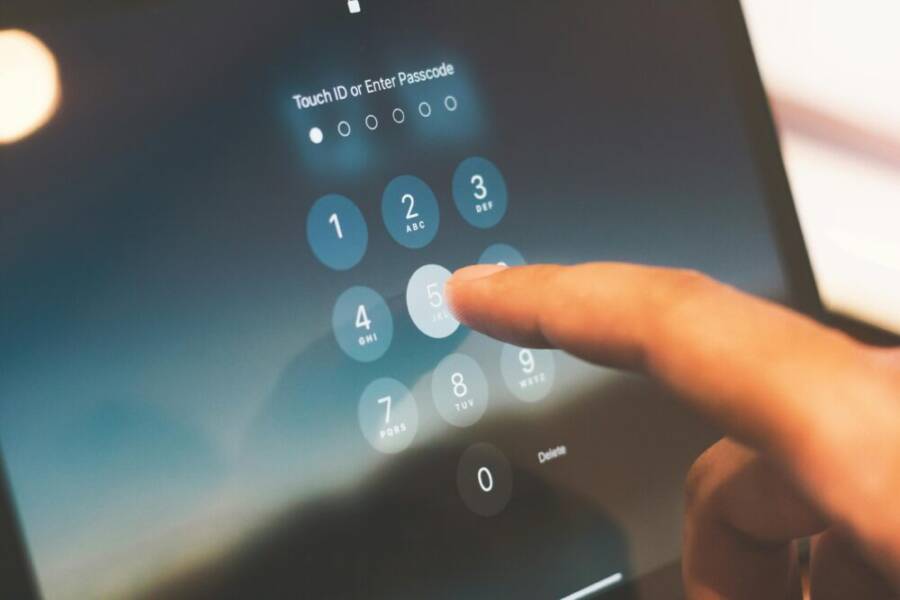
Caption image: A smartphone and a lock symbolizing secure password practices. Photo by Pixabay
Real world scenarios that show risks
- Scenario 1: Lending your phone to a friend who leaves it unlocked
- You lend your phone to help a person sign into a banking app. They briefly glance at a saved password note or a login prompt that you forgot to close. Even a moment of access can expose sensitive data if the device isn’t locked, especially if auto fill is enabled.
- Takeaway: Always lock your phone when handing it over, and avoid storing passwords on the device in accessible places. Use a password manager that requires biometric authentication to view credentials, and enable auto lock after a short period.
- Scenario 2: Copying a password into a chat by mistake
- You text a password to a family member to solve a login issue, but a notification or a screenshot saves part of the credential in the chat history. The recipient may later have access to more accounts than intended.
- Takeaway: Never paste passwords into chat threads. If you must share credentials, use a secure sharing feature in a password manager or generate a time bound access token when the service supports it.
- Scenario 3: Using public Wi Fi to access or share credentials
- While traveling, you rely on a public network to help someone sign into an account. If the connection isn’t secured, credentials can be intercepted. Even with encryption, a misconfigured app can leak data.
- Takeaway: Avoid typing sensitive information on public networks. Use a trusted private network or a VPN, and share access via secure channels that require both ends to authenticate.
These scenarios illustrate how small lapses in practice can cascade into broader risks. A moment of carelessness with a single password can unlock multiple accounts, especially if those passwords are reused across services. To minimize risk, stay disciplined about where and how you share access, and prefer tools designed for secure delegation over quick text exchanges. For more on risks of password sharing, see resources from cyber security experts.
- The Dangers of Shared Passwords and How to Fix Them
- The Risks of Password and Account Sharing from the Identity Management Institute
Photo by Pixabay: Chain-locked book, phone, and laptop symbolizing digital and intellectual security. Credit: https://www.pexels.com/@pixabay
Safer ways to share passwords directly from your phone
Sharing passwords from your phone can be quick, but it also opens doors to risk if not done carefully. This section breaks down practical, safer approaches you can use in everyday life. You’ll learn how to share securely, keep control over who can access what, and avoid common mistakes. Think of your phone as a small, portable vault—when used the right way, it protects more than it exposes.
She Pressed Play on a Strange Audio Track and Within Days Her Financial Reality Started Shifting in Ways She Could Not Explain
>>> See How It Works <<<
Use a trusted password manager with sharing features
Password managers are the backbone of safer sharing. They store credentials securely, encrypt data, and give you precise control over who sees what. Look for managers that offer built in sharing tools, permission levels, and easy revocation. Here’s how to approach it in practice:
- How it works: You don’t send the password itself. Instead, the recipient gains access to a controlled entry in the manager. Access can be restricted by device, time, and view permissions.
- Set permissions: Decide whether the recipient can view, copy, or edit the entry. For sensitive accounts, grant view only or require approval for changes.
- Revoke access quickly: When the task is done, revoke the sharing link or token. Most managers let you audit who accessed the credential and when.
A simple step outline for enabling sharing in a popular manager:
- Open the app and select the credential you want to share.
- Tap the sharing option and add the recipient by email or account ID.
- Choose permissions (view, copy, or edit) and set an expiration date if available.
- Send the share. The recipient receives a secure link or a notification to access the entry.
- Revoke access when the task is complete or if the recipient no longer needs it.
Best practices to follow:
- Use strong authentication for the manager itself, and enable two factor authentication if possible.
- Prefer time bound shares over open access. Shorter windows reduce risk.
- Audit regularly. Review who has access and remove any that are no longer needed.
- Teach recipients basic security hygiene, like not saving credentials in plain notes or screenshots.
For readers who want a quick comparison of top options, see the links from trusted providers. For example, resources discussing how Send features in popular managers allow encrypted sharing with expiration dates can help you pick the right tool for your needs. Bitwarden vs 1Password: Which password manager is best? and Bitwarden vs 1Password: Which password manager is best? provide practical context on sharing capabilities and safety controls.
Image:  Photo by indra projects
Send passwords via encrypted methods and time-limited links
When you must share a credential, encrypted channels and time limited links are far safer than plain text. Modern messaging apps and password managers offer options that keep the data protected both in transit and at rest.
Key approaches:
- Encrypted messaging apps: Use apps that provide end to end encryption and, if possible, message self destruction after a set period. This reduces the chance your message lingers where it can be captured.
- Time-limited links: Some managers generate a link that expires after a defined window. The recipient can access the credential only within that window.
- Avoid phishing and unfamiliar links: If you didn’t initiate the share, don’t click any links. Verify the sender through a trusted channel before accepting access.
Implementation tips:
- Prefer apps you already trust with strong privacy controls and a clear expiration mechanism.
- Instruct the recipient to use a dedicated device or profile for this task to minimize cross contamination with personal data.
- After the access window closes, confirm that the credential is no longer viewable by the recipient.
Cautionary notes:
- Do not rely on plain text in chat or email for any login detail.
- Keep message threads private and avoid storing sensitive data in chat history.
- If you must share a link, ensure it leads to a secure page hosted by a reputable service and not a spoofed site.
Useful context from reputable sources highlights how encrypted sharing and time based access can dramatically reduce exposure when passwords need to move between people. See trusted write ups on how providers implement Send features with expiration dates and secure tokens. For example, consider resources from Bitwarden and 1Password that explain secure sharing workflows and expiration controls.
Image:
Photo by indra projects
Set clear access limits and revoke when done
Clear boundaries prevent leakage long after you’ve helped someone. The goal is to ensure access is temporary and traceable.
What to do:
- Expiry dates: Attach a concrete end date to every shared credential. If your manager supports it, use recurring reviews to refresh only what’s still needed.
- Revoke promptly: When the recipient finishes the task or if their access is no longer needed, revoke immediately. Don’t wait for a routine audit.
- Regular audits: Schedule quick checks every few weeks to review all active shares. Remove anyone who no longer requires access.
Practical tips:
- Keep a personal log of what you’ve shared and with whom, including expiry dates.
- Prefer shared folders or groups within the manager to avoid duplicating sensitive credentials across individual entries.
- If a device is lost or replaced, reissue credentials or rotate passwords as needed.
In practice, you can pair this approach with a short checklist before sharing: confirm recipient identity, confirm the account scope, set expiration, and plan for immediate revocation after the task. This habit reduces the chance of forgotten access and helps protect multiple accounts.
Images of smart devices and password controls can reinforce this section visually. If you include a photo, ensure it complements the narrative and includes proper credit.
Photo by Pixabay: Chain-locked book, phone, and laptop symbolizing digital and intellectual security. Credit: https://www.pexels.com/@pixabay
External resources for further reading:
- How to set up time limited access in a password manager
- Best practices for revoking shared credentials
In summary, safer sharing hinges on using the right tool, applying strict permissions, and keeping control tight through expiration and audits. By treating password sharing as a delegated task rather than a casual handoff, you reduce risk while still helping others when they need access.
She Pressed Play on a Strange Audio Track and Within Days Her Financial Reality Started Shifting in Ways She Could Not Explain
>>> See How It Works <<<
Practical tips for different sharing scenarios
Sharing passwords from your phone is often convenient, but it should never compromise security. In this section, you’ll find practical tips tailored to common scenarios. Think of your smartphone as a portable vault: with the right tools and routines, you can help others without exposing your private data. Each sub-section covers a distinct situation and offers concrete actions you can take today.
Sharing wifi passwords securely
WiFi access is the gateway to many online tasks, from streaming to work collaboration. The smartest move is to keep the main network password private and use safer alternatives when possible. Start by creating a guest network on your router. Guest networks isolate devices and keep your main devices protected, so you can help a guest connect without exposing the core password. If your router supports time-limited codes or temporary guest access, enable them. This way, you grant short term access that automatically expires, reducing the risk of lingering credentials.
- Use a guest network whenever possible to separate guest traffic from your home devices.
- Do not share the main WiFi password via chat apps or notes on your phone.
- If you must provide access, generate a time-bound code and set an expiration date where available.
When a router offers time-limited codes or guest access controls, share instructions for joining the guest network rather than the main network password. For more context on guest networks and practical setup steps, see expert guidance from reputable sources such as CNET’s guest Wi-Fi setup article. You can also explore community insights on how others manage guest access in shared spaces via reputable discussions, which offer real world perspective on balancing convenience and security. Secure Your Network By Setting Up Guest Wi-Fi. Here’s How
If you want an additional layer, pair the guest network with a strict device permission policy. Limit what guest devices can access, keep monitoring enabled, and revoke access once the task is finished. A quick reminder: never swap the main password in a chat or note. Instead, guide the visitor to join via the guest SSID and use the router’s controls to monitor activity and time limits. This approach protects both your network and the guest experience.
Sharing app or service passwords safely
Sharing login credentials for apps or services requires careful handling. The goal is to avoid direct password exposure while still enabling access. Where possible, create separate accounts for guests, or use the built in sharing features in a password manager. Reuse of passwords across services is a common risk, so do not default to the same password for multiple sites.
- Prefer separate accounts for guests or temporary access when possible.
- Use password manager sharing features to grant access without exposing the actual password.
- If you must share a password, use a time bound or one time access method if available.
Password managers with sharing options let you control what the recipient can do. You can assign view only rights, restrict copying, or require reauthorization for changes. When shared credentials are no longer needed, revoke access promptly and confirm that the recipient can no longer view the entry. This avoids accidental leaks through chat history or device transfers.
To choose the right approach, start by assessing the risk and the level of access required. If the guest only needs to sign in briefly, a view-only share is typically enough. If they need ongoing access, consider a dedicated guest account or a temporary elevated permission that you can revoke later.
For additional context on secure sharing workflows and expiration controls, consider reviews from trusted providers about how password managers handle these scenarios. For example, comparisons of sharing capabilities across popular managers can help you decide which tool fits your needs. Bitwarden vs 1Password: Which password manager is best? Bitwarden vs 1Password: Which password manager is best?
In practice, keep the recipient’s access purpose in mind. If they only need to enable a single feature, grant restricted permissions and avoid giving full account access. Encourage the recipient to set up two factor authentication on their end if the service supports it. A well managed sharing flow reduces risk while keeping things smooth for everyone involved.
Sharing with family or teammates without risk
Small teams or households benefit from clear access controls and shared workspaces. Use role based access or shared vaults with strict controls to ensure everyone has what they need without exposing sensitive data. For families, create separate vaults for different use cases—billing logins, streaming, or travel apps—so a breach in one area does not spill into others.
- Role based access: Assign roles such as viewer, commenter, or editor based on what each person needs.
- Shared vaults: Put frequently used credentials in a dedicated vault with strict gatekeeping.
- Time bounds: Apply expiration on sensitive shares and rotate passwords after handoffs.
Practical steps you can take today:
- Pick a password manager that supports team or family sharing with permissions.
- Create at least two vaults: one for everyday services and one for high risk accounts.
- Invite family members or teammates with appropriate roles and enable two factor authentication for everyone.
- Set expiration dates for time sensitive access and schedule quick audits every month.
Adopting these measures makes password sharing predictable and controlled. It helps prevent accidental exposure, especially when devices are shared or handed off. When you implement a structured system, you keep trust intact while making it easy for loved ones or teammates to get what they need.
For further reading on safe sharing within groups, explore resources about secure delegation and family management of passwords. You can start with general discussions on how households manage guest access and then look at formal guidance from reputable password managers on family sharing and audits.
To see how practical sharing policies look in real life, you can review credible reports and user experiences related to shared access and vault management. These perspectives provide a grounded sense of what works and what to avoid in day to day use.
Images and visuals can reinforce these ideas. When you include photos, choose ones that show a phone with a secure interface or a person managing access for others.
In summary, the safest approach for families or small teams is to separate duties, use dedicated shared vaults, and enforce strict access controls. Regular reviews keep everything current and reduce risk. By treating password sharing as an intentional setup rather than a casual exchange, you protect everyone involved while keeping access practical.
Quick actions you can take now to improve password safety
Safeguarding passwords starts with small, deliberate actions you can implement today. These quick wins reduce risk, simplify management, and set you up for safer sharing when you need to help others. The goal is to make password security feel practical, not overwhelming. Below you’ll find three focused subsections that cover the most impactful steps, from establishing a trusted foundation to tightening device and sharing practices. If you’re reading this on a phone, think of your device as a portable vault that you can harden in minutes.
Set up a password manager and master password
A password manager is the backbone of safe password handling. It stores credentials securely, generates strong passwords, and makes sharing controlled. Start by choosing a reputable manager that fits your needs, then complete these steps to get up and running quickly.
- Install the manager: Visit the app store on your device, search for the manager you trust, and tap Install. If you’re on Android, you can also use built in options like Google Password Manager, which integrates with Chrome and your Google account. For iOS users, look for a manager with solid iCloud or cross device sync. If you’re unsure where to start, see guidance on setting up popular options like Google Password Manager to get a feel for the process.
Useful resources:- Get started with Google Password Manager – Android: https://support.google.com/accounts/answer/6208650?hl=en&co=GENIE.Platform%3DAndroid
- Manage passwords in Chrome – Android: https://support.google.com/chrome/answer/95606?hl=en&co=GENIE.Platform%3DAndroid
- Sign in anywhere on Chrome with Google Password Manager: https://passwords.google/intl/en_sg/
- Set up a Password Manager: https://guidebooks.google.com/online-security/stay-secure-online/set-up-password-manager?hl=en-us
- Create a strong master password: Your master password should be long, unique, and easy for you to remember but hard for others to guess. A good approach is a passphrase made of unrelated words combined with numbers or symbols. Don’t reuse passwords from other sites, and avoid common phrases or personal data. If you prefer, let the manager generate a master password for you and store it in your memory or in a secure note that’s protected with biometric authentication.
- Enable backups and sync: Turn on encrypted backups so you can recover access if you lose your device. Make sure backups are protected with a strong master password and, where possible, multi factor authentication. Regularly verify that you can restore access from a backup on a new device. This small setting saves you from a long password reset process later.
- Make access practical but secure: Enable biometric unlock (fingerprint or face ID) for quick access to your vault. Pair this with a device lock (PIN or pattern) that activates after a short idle period. If you share devices occasionally, consider setting up a separate guest profile or a controlled container within the manager to keep sensitive data isolated.
- Plan for sharing scenarios: Most password managers offer secure sharing features. Set up sharing with time limits and specific permissions (view, copy, or edit). This gives you control when you need to help someone access a credential briefly.
To help you compare options, explore the common paths used by popular tools and their sharing capabilities. For example, many guides show how to enable sharing and apply permissions within the manager, then revoke access when it’s no longer needed. If you want a quick primer, check the linked resources above that walk you through setup and backup steps.
Takeaway: A strong master password, reliable backups, and a secure sharing workflow dramatically reduce risk in minutes. The right password manager isn’t just storage; it’s a sending mechanism that keeps credentials protected even when you need to help someone else.
Enable two factor authentication and device security
Two factor authentication (2FA) adds a critical second layer of defense. Even if someone gets your password, 2FA makes it much harder for them to sign in. It also protects any shared credentials you may disperse through a manager or secure channel. Here’s how to implement 2FA effectively and keep your devices secure.
- Why 2FA matters: 2FA requires a second factor such as a code from an authenticator app, a hardware key, or a biometric prompt. Even if a password is compromised, the second factor stops most unauthorized access. When you enable 2FA, you also create a more robust baseline for anyone you share access with, since they’ll need their own second factor to log in.
- Quick setup for common services:
- Google and Google accounts: Open your account settings, navigate to Security, and enable 2FA (often labeled “2-Step Verification”).
- Email providers: In the security section, turn on 2FA and follow the prompts to register an authenticator app (like Google Authenticator or Authy) or a hardware key.
- Social platforms and streaming services: Look for Security or Privacy settings, then enable 2FA and save backup codes in a secure location.
- Use an authenticator app: Apps like Google Authenticator, Authy, or Microsoft Authenticator generate time based codes that refresh every 30 seconds. They’re more portable and reliable than SMS codes. If you switch devices, you can transfer codes through the app’s transfer feature or by carefully following its migration steps.
- Backup codes and recovery: Save backup codes in a secure place, such as your password manager’s secure notes, or print them and store them in a locked safe. Keep a separate copy in case you lose access to your phone. Update backup codes whenever you rotate passwords or add new accounts.
- Device security basics:
- Use a strong screen lock on your phone, and enable auto lock after a short period.
- Keep biometric unlock enabled only where appropriate and consider disabling it for sensitive apps if you share your device often.
- Review app permissions regularly and remove unnecessary access.
- Avoid insecure networks and always prefer trusted Wi Fi or VPNs when logging into accounts.
- Quick wins for safe sharing: When you share access through a manager or a service, require the recipient to set up their own 2FA where supported. That creates a safer baseline for everyone involved and reduces the likelihood of a cascading breach.
For further context on 2FA and device security best practices, you can consult resources from major providers and security guides that explain the benefits and best methods for enabling 2FA and managing backup codes. Consider reading guidance on 2FA setup for common services to speed up your own implementation.
Takeaway: Turn on 2FA across all accounts you touch, and lock down your phone with a strong screen lock and sensible permissions. A little setup now pays off with greater resilience to phishing and credential theft.
Keep your phone secure and up to date
The last mile of password safety runs through your phone itself. An updated device with proper security settings reduces the chance that a credential is exposed through a breach, malware, or misconfiguration. Here are practical steps to keep your phone secure and current.
- Install updates promptly: Operating system and app updates close security gaps and fix bugs that could expose data. Enable automatic updates where possible, and check for updates weekly if you prefer manual control.
- Use a strong screen lock and protect your devices: Choose a PIN or passcode that isn’t easily guessed. Biometric authentication adds convenience but should be paired with a strong device lock. Set a short auto lock interval so the device doesn’t stay unlocked while you’re away.
- Review app permissions: Periodically audit app permissions to ensure no app has unnecessary access to your passwords, clipboard data, or notifications. Revoke any permissions that aren’t essential to the app’s function.
- Avoid insecure networks: Public Wi Fi can expose data even when you’re using encrypted connections. Use a trusted, private network or a reputable VPN, especially when handling sensitive credentials or logging into financial accounts.
- Stay mindful of data spills: Be cautious about copying credentials to clipboard or saving sensitive notes in unprotected apps. Prefer the password manager’s secure sharing features and avoid leaving sensitive information in accessible places.
- Consider device separation for sharing tasks: If you often help others from your phone, consider using a separate user profile or guest mode for tasks that involve credential handling. This keeps your personal data isolated from the sharing activity.
- Regularly audit your devices: Review the devices that have access to your accounts and revoke access from any you no longer recognize. If a device is lost or stolen, rotate passwords and alert your trusted contacts to reauthenticate.
To reinforce these practices, explore resources that outline device level security and safe password handling on mobile. The aim is to keep your phone as a sturdy vault, not a loose end in a security chain. Remember, updates and good habits are your best defense against evolving threats.
Wrap up: By keeping your phone up to date, applying strong screen security, and trimming app permissions, you reduce the surface area where a password could be compromised. It’s a simple, high impact step that aligns with safer sharing routines you’ll use every day.
Conclusion
Safely sharing passwords from your phone comes down to choosing the right tools, setting clear permissions, and keeping control tight. Use a trusted password manager with secure sharing, enable two factor authentication on every touched account, and revoke access as soon as the task is done. Protect your smartphone with a strong lock, keep apps up to date, and avoid sending plain text credentials over chat.
Start today by applying these steps: set up a manager with time bound shares, enable 2FA, and review who has access on a regular schedule. This disciplined approach builds lasting security without slowing you down. Your smartphone can be a reliable vault when you use it with intention and consistent habits. If you share passwords, share responsibly and stay in control—your future self will thank you.
Thousands of People Were Struggling With Money Until They Discovered This One Ancient Secret Hidden in Sound
>>> Unlock It Now <<<
