What If the Only Thing Between You and the Life You Deserve Is a Hidden Wealth Code Waiting to Be Activated
>>> Open the Door <<<

Ever wish securing your accounts felt simpler and stronger at the same time? Two-factor apps on your phone offer a reliable boost, turning a single password into a much tougher barrier for troublemakers. They generate unique codes that refresh every 30 seconds, so even if someone learns your password, they still can’t get in without that moving code.
This guide shows you how these apps fit into everyday smartphone use, and why they’re a smarter choice than text messages for two factor. You’ll learn how to pick an authenticator app, set it up step by step, and keep your data safe with backup options. The goal is clear: you get fast access to your accounts while adding a solid layer of protection.
You’ll also find practical tips for recovery if your phone is lost or replaced, plus a quick checklist to avoid common pitfalls. By the end, you’ll feel confident using an authenticator app in regular tasks like checking email, shopping online, or signing into work tools.
Choose the Right Two-Factor App for Your Phone
Two-factor apps are a smart add-on to your security toolkit. They live on your smartphone and generate fresh codes every short interval, making it harder for thieves to get past your accounts. Picking the right authenticator app matters because you want something reliable, easy to use, and capable of backing up your data if you switch phones. This section breaks down how to choose the best fit for your needs, with simple guidance and practical tips.
He Was Drowning in Bills and Burnout Until a Simple Daily Ritual Rewired His Brain for Wealth in Less Than a Week
>>> Start Your Shift Today <<<

What Is an Authenticator App and How It Secures Your Accounts
An authenticator app creates time based one time passwords, or TOTPs. Here’s how it works in plain terms:
- A shared secret is created between the app and the service you’re protecting. The app uses this secret to generate codes.
- The code refreshes every 30 seconds or so. Even if someone learns your password, they still need the current, moving code to sign in.
- After you sign in with your password, you enter the code from the app to complete the login.
Benefits are immediate. You gain an extra barrier that is hard to bypass with stolen credentials alone. It’s also offline friendly, so you can generate codes without an internet connection if your phone is ready. When to use push vs code is simple: use a push notification when you want a quick approve or deny action with a single tap, and use a code when you don’t trust the device or want to avoid relying on real time delivery. For most everyday tasks, a quick tap on a push is convenient, but for sensitive services or shared devices, a code can feel more controlled.
- Simple setup: scan a QR code or enter a secret to pair your phone with the service.
- Quick access: you get codes fast, right where you keep your phone.
- Broad compatibility: many apps and services support these authenticators.
- Backup and recovery: plan for what happens if you lose the phone.
If you’d like to see how the concept works in more depth, here are reliable explanations that keep things simple:
- What is TOTP, and how does it work?
- Understanding TOTP and 2FA in a straightforward way
Image suggestion: a close up of a phone screen showing a 2FA code, illustrating real time code generation.

Photo by Zulfugar Karimov
TotP vs Push Notifications: Which Method Should You Use
Two common methods exist for two factor authentication: TOTPs and push approvals. TOTPs generate a numeric code every 30 seconds. Push approvals send a prompt to your phone asking you to approve or deny the login with a single tap. Each method has its place.
- TOTPs are ideal when you want a reliable, offline option. They work even if you don’t have a stable internet connection and are great for shared devices or travel where connectivity might be spotty.
- Push approvals are fast and convenient on a personal device. They reduce typing and can feel more natural, especially if you’re signing in frequently to the same accounts.
Security considerations matter too. Push notifications can be phished if users are tricked into approving a login on a spoofed site. Always verify the request on the actual service app, and avoid approving prompts from unknown sources. TOTPs reduce single step phishing risk since the code is time based and changes quickly, but a convincing prompt can still mislead if the user is not paying attention. A practical approach is to enable push for accounts you trust and know you’ll monitor, while keeping TOTPs as a fallback for critical services or devices you don’t control directly.
- When to prefer TOTPs: traveling abroad, using public computers, or if you want guaranteed offline operation.
- When to prefer push: on your personal smartphone with a familiar app, for quick access to frequently used services.
- Security tip: keep an eye on which device is prompting the approval and avoid signing in on unfamiliar networks.
If you want to dig deeper into how TOTP works and why it’s secure, this explainer is a solid resource:
- What is a Time-based One-time Password (TOTP)?
Image suggestion: an illustration showing two paths: one with a numeric code changing over time, and another with a simple tap to approve.
Choosing Across Android and iPhone
Cross platform support is a key factor when picking an authenticator app. Most major apps work on both Android and iPhone, and many offer cloud backed backups to keep your codes safe when you switch devices.
- Cross platform support: look for an app that runs smoothly on both Android and iPhone. This makes it easier to keep your codes in sync if you use multiple devices.
- Backup options: check if the app offers encrypted cloud backup, local backups, or transfer options. Cloud backups are convenient if you frequently upgrade phones, but choose a service with strong encryption and a clear recovery process.
- Keeping devices in sync: aim for a setup that minimizes manual reconfiguration. Some apps let you transfer codes from one device to another with a secure method, preserving your 2FA status without re scanning every QR code.
- User experience differences: on Android you might notice more integration with system settings, while on iPhone the experience is often streamlined and uniform. The key is consistency and ease of use, not extreme features.
For most users, a single authenticator app that works on both platforms and offers reliable backups is a strong baseline. If you rely on work accounts or shared devices, confirm your employer or IT policy supports your chosen app and backup method.
Additional considerations:
- If you travel often, ensure you can access your codes offline and still recover quickly if you lose devices.
- When using a work account, check whether your organization provides a corporate 2FA solution and how it integrates with personal devices.
- Test the recovery flow after you set up backups, so you know what to do when you upgrade or replace a device.
To learn more about practical differences across platforms, you can explore guidance on how TOTPs compare across services and devices.
- What is TOTP authentication and how it works on different platforms
Image suggestion: a simple infographic showing cross platform compatibility and backup options.
Image credits: none in this section.
Set Up and Use Two-Factor Apps the Right Way
Two-factor apps add a strong layer of security without slowing you down. They generate time-based codes on your phone that refresh every 30 seconds. Paired with a password, they make it far harder for thieves to access your accounts. Below you’ll find a practical, beginner-friendly guide to get started, back up your codes safely, and keep your device secure so you can access your codes when you need them.
Getting Started: Installing the App and Linking Your Accounts
Setting up an authenticator app is straightforward. Follow these steps to link your accounts quickly and securely.
- Install the app: choose a well-supported authenticator that works on your phone and preferred platforms.
- Add your first account: you’ll usually see an option like “Set up authenticator” in your account’s security settings.
- Scan the QR code: open the authenticator app and scan the QR code shown on the service’s site. This creates a shared secret and starts generating codes.
- Manual entry option: if the scan doesn’t work, select the option to enter a setup key manually. Type the secret key exactly as shown and give the account a clear name.
- Save recovery codes: many services offer recovery codes. Store these in a secure place separate from your phone. If you lose access to the app, recovery codes help you sign in.
- Complete the setup: after linking, you’ll be asked to enter a code from the app to confirm the link. Do this to finish the process.
If you want deeper guidance on setup specifics, these resources explain how to add accounts to common authenticators and what to expect during setup:
- How to add your accounts to Microsoft Authenticator
- Get verification codes with Google Authenticator
Image
Photo by Zulfugar Karimov
She Pressed Play on a Strange Audio Track and Within Days Her Financial Reality Started Shifting in Ways She Could Not Explain
>>> See How It Works <<<

- Tip: always start with a single account you use often and then expand. This builds confidence and reduces the risk of misplacing recovery information.
TotP vs Push Notifications: Which Method Should You Use
Authenticators offer two main pathways: TOTPs (time-based one-time passwords) and push approvals. Each has its role and trade-offs.
- TOTPs: You type a 6-digit code generated by the app. It works offline and is reliable on shared devices or in travel where internet access is spotty.
- Push approvals: A one-tap approve or deny prompt. It’s fast on a familiar device but relies on real-time delivery and a trusted screen.
Security matters here too. Push prompts can be spoofed if you’re duped into approving a login on a phishing page. Always verify the request on the service app before approving. TOTPs reduce phishing risk because the code changes quickly, but you still need to stay vigilant for suspicious prompts.
- When to prefer TOTPs: traveling, offline situations, or devices you don’t control entirely.
- When to prefer push: for everyday personal use on a trusted device.
- Practical tip: keep an eye on which device is prompting the approval and avoid signing in on unfamiliar networks.
If you’d like to learn more about how TOTP works, this explainer is a solid resource:
- What is a Time-based One-time Password (TOTP)?
Image
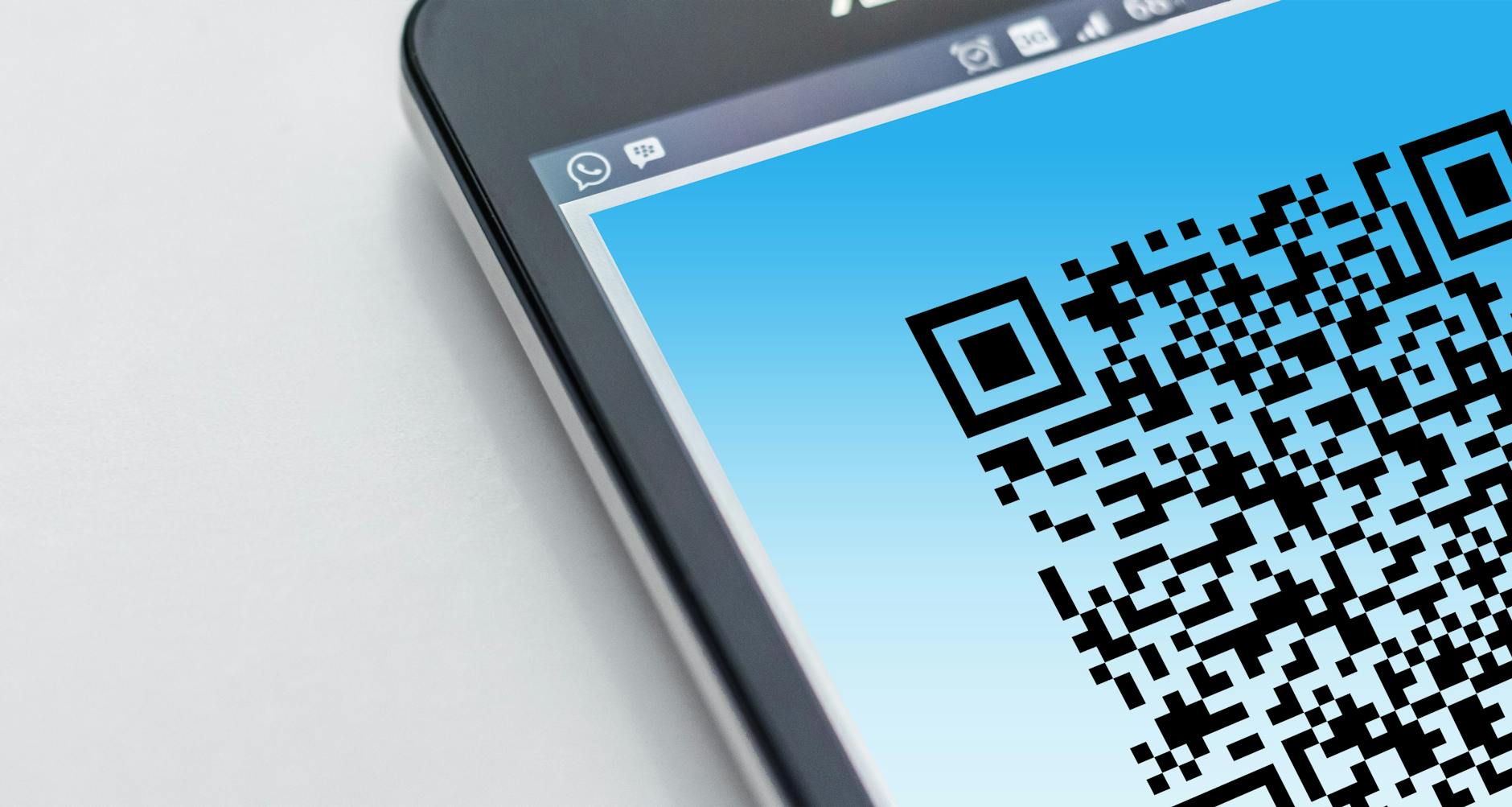
Photo by Pixabay
Choosing Across Android and iPhone
Most authenticator apps work on both Android and iPhone, with built in backup options. When you pick a cross platform app, you simplify maintenance and device upgrades.
- Cross platform support: pick an app that runs smoothly on Android and iPhone.
- Backup options: encrypted cloud backups, local backups, or transfer features help you keep codes safe when moving devices.
- Syncing across devices: look for apps that transfer codes securely so you don’t have to re-scan every QR code.
- User experience: Android might feel more integrated with system settings, while iPhone apps are usually uniform and easy to use.
For many users, a single authenticator that works on both platforms and offers reliable backups is the best base. If you work with a company or IT team, confirm the policy and backup method you’ll use.
Additional considerations:
- If you travel often, ensure offline access to codes and a quick recovery path if a device is lost.
- For work accounts, check whether your organization provides a corporate 2FA solution and how it works with personal devices.
- After you set up backups, test the recovery flow so you’re ready if you upgrade or replace a device.
To dive deeper into platform differences, you can explore guidance on TOTPs across services and devices:
Thousands of People Were Struggling With Money Until They Discovered This One Ancient Secret Hidden in Sound
>>> Unlock It Now <<<

- What is TOTP authentication and how it works on different platforms
Image
Photo by Zulfugar Karimov
Note: The links above lead to official support pages and reputable explanations that complement this guide. Use them as references if you need more detailed, step by step instructions.
Best Practices for Everyday Use and Recovery
Using two-factor apps should feel like a clean, steady layer of protection that fits your daily routine. These best practices help you keep access seamless while staying secure. The goal is to minimize friction during login while giving you reliable recovery options if something goes wrong. Think of your authenticator as a trusted helper on your smartphone that travels with you, not a fragile add-on. Below are practical strategies you can apply right away.
Regularly Review Connected Accounts
Set a regular cadence to audit which services have access to your authenticator and personal data. A monthly or quarterly check keeps your security current and your risk low. During the review, look for old or unused accounts and remove them. This prevents forgotten services from lingering with access you no longer want.
- Start with the most important accounts first, such as your email and financial services, then expand to social and shopping sites.
- For each service, confirm that you still recognize the device, app, or session requesting access.
- Revoke access for anything you no longer use or recognize. If a service offers multiple 2FA methods, consolidate to what you actually use.
- Document your actions in a simple checklist. A quick note helps you stay consistent next time.
Why this matters: attackers often gain control through forgotten or abandoned accounts. Clearing them out reduces potential entry points and keeps your 2FA environment tidy. If you ever need to consult guidance, you can compare notes with reputable explanations of how authenticator access is managed across platforms, like troubleshooting authenticator problems in Microsoft environments or similar situations. For reference, see professional resources on authenticator access management:
- https://learn.microsoft.com/en-us/answers/questions/5590363/authenticator-app-problems
- https://github.com/orgs/community/discussions/179518
Tip: keep a separate, secure place for recovery codes and backup methods. Having a clear record outside your phone helps you recover quickly if you lose access to the app.
Plan for Device Loss and Data Recovery
Losing your phone can feel disruptive, but a calm plan makes recovery smooth. Follow these steps to restore access quickly when a device is lost or reset.
- Stay calm and don’t panic. Take a breath and move to another trusted device if possible.
- Use backup codes first. If you saved recovery codes from services, enter one to regain access and reconfigure 2FA on a new device.
- Transfer or re-link on a new device. Use the service’s security settings to re-enable the authenticator on your new phone.
- Check backup options. If your authenticator supports encrypted cloud backups or other transfer methods, enable them before you set up the new device.
- Verify every login. After you recover a sign-in, review recent activity to confirm it’s yours and no one else is trying to access your accounts.
- Revisit recovery codes. Once you’re back in, regenerate recovery codes and store them in a secure place separate from your phone.
In practice, backup and recovery codes are your safety net. If you ever need a reset path, a trusted set of backup options is essential. For deeper guidance on resetting or recovering 2FA settings, refer to resources that explain how to reset or recover authenticator access:
- https://help.crypto.com/en/articles/3511454-how-do-i-reset-my-2fa
- https://learn.microsoft.com/en-us/answers/questions/5590363/authenticator-app-problems
Pro tip: practice the recovery flow after you set up backups. Running a dry run prepares you for real scenarios and reduces stress during an actual loss.
Use Secure Locks and App Permissions
Your device lock and app permissions form the first line of defense for your authenticator and its codes. A strong screen lock, biometric options, and careful permission management keep your codes safe from prying eyes and accidental exposures.
- Set a strong screen lock. Use a PIN or password that is long enough and not easily guessable. Avoid simple patterns and reuse of old codes.
- Enable biometrics where available. Fingerprint or face recognition adds convenience without compromising security, provided you also have a fallback method.
- Limit app permissions. Grant only the permissions you truly need for the authenticator to function. Disable access that isn’t essential, such as location or unnecessary data sharing.
- Don’t store codes in plain text. Rely on the app’s secure storage instead. If you write down or store codes somewhere outside the app, ensure those locations are highly secure.
- Keep the authenticator safe. Use a screen lock on the phone, enable auto-lock, and consider locking the app itself if your device allows it.
Why it matters: a compromised device or misconfigured permissions can expose your codes. A robust lock and careful permission choices reduce that risk and give you peace of mind during busy days. For practical guidance on securing devices and managing 2FA permissions, you can consult related resources:
- https://help.crypto.com/en/articles/3511454-how-do-i-reset-my-2fa
- https://learn.microsoft.com/en-us/answers/questions/5590363/authenticator-app-problems
Smartphone habit tip: when your phone is in your hand, you’re in a moment of risk. Keeping it locked and the authenticator app protected minimizes surprises.
Putting It All Together
- Schedule regular account reviews, at least quarterly.
- Keep a calm recovery plan with backup codes and a tested process for re-linking on a new device.
- Strengthen device security with a robust lock, biometrics, and thoughtful permissions.
- Treat codes as sensitive data. Don’t store them in plain text or in apps without encryption.
If you want to explore more about how TOTPs work across platforms and what to expect during setup, you can review these resources:
- What is a Time-based One-time Password (TOTP)?
- What is TOTP authentication and how it works on different platforms
Images credit: the visuals included here illustrate real-time code generation and cross platform concepts. They help you visualize how codes change and how a simple tap can approve a login.
Note: The links above lead to official support pages and reputable explanations that complement this guide. Use them as references if you need more detailed, step by step instructions.
Troubleshooting Common Issues and Real World Tips
Even with a solid two factor setup, you will run into bumps from time to time. This section keeps you ahead of the common snags and shows practical, real world moves that keep you secure without slowing you down. Think of it as your quick, no-nuss guide to staying in control when things don’t go as planned. You’ll see concrete steps, calm guidance, and real scenarios that make the process feel familiar rather than scary.
What to Do If You Lose Your Phone
Losing your phone is stressful, but you can recover access quickly if you follow a clear plan. Start with your backup codes and alternate devices, then restore control on your new phone without opening yourself to risk.
- Use backup codes first. Many services give you one-time codes you can use to sign in when your authenticator isn’t available. Store these codes in a secure place that isn’t on the phone. If you have them, enter a backup code to regain access and then reconfigure 2FA on a new device.
- Sign in on a trusted device. If possible, borrow a tablet or computer you know is secure and complete the recovery steps there. This reduces the chance of exposing your codes on public devices.
- Re-link on your new phone. Go to each service’s security or two factor settings and choose to re-link your authenticator. You’ll typically scan a new QR code or enter a new secret key.
- Check cloud backups and transfer options. If your authenticator app supports encrypted cloud backup, enable it on your new device. If the app offers a transfer method, use it to move your codes without rescanning every QR code.
- Suspend or remove the old device. If you still have access to the old phone, sign out of all accounts or remotely wipe it if needed. Remove the device from your account’s trusted devices list to prevent any future login attempts from that phone.
- Verify every login. After you regain access, review recent activity on sensitive accounts. Look for unfamiliar sessions and sign out of anything you don’t recognize.
- Regenerate recovery codes. Once you’re back in, generate fresh recovery codes and store them offline in a secure spot.
If you want more detailed, step by step help for common platforms, see Microsoft Authenticator recovery and Google’s guidance on recovery paths. These resources can walk you through the exact screens you’ll see during a loss event:
- Restore account credentials from Microsoft Authenticator
- Lost my Authenticator codes on Google Accounts
Security note: don’t rely on one method alone. A combination of backup codes, alternative devices, and cloud backups reduces the risk if your phone disappears.
If an Account Won’t Let You In
When access stalls, stay calm and follow a straightforward recovery flow. Most services provide multiple routes to regain entry, and a clear plan helps you avoid panic.
- Start with the recovery options shown on the sign-in page. Look for “Can’t access your account” or “Need help signing in.” These paths typically guide you through identity verification steps.
- Use recovery codes if you saved them. Enter a recovery code exactly as shown. This bypasses the need for a current authenticator code and lets you reconfigure access on a fresh device.
- Contact support if needed. If the automated options don’t work, reach out to the service’s support team. Be prepared to verify your identity with information only you would know.
- Keep the process simple. Don’t overthink it. Follow the prompts, confirm you recognize each step, and avoid approving prompts from unfamiliar sources.
A quick reminder: if you’ve enabled push approvals, you can still be misled by a phishing prompt. Always verify the request on the service app rather than tapping from a notification. If you suspect a spoof, don’t approve and initiate a direct login attempt from a trusted device.
For deeper guidance on specific recovery flows, consult the service’s official support pages and standard recovery procedures. A well-documented recovery path helps you move forward with confidence when every minute counts.
Using Multiple Devices and Cloud Backups
A common question is whether you can use the same authenticator on more than one device and how cloud backups affect security. The short answer is yes, but with caveats. Here’s how to approach it safely.
- Shared use across devices. Some authenticator apps support syncing codes to multiple devices through a secure transfer. This makes it easier to sign in from a tablet or secondary phone, but you should only enable it on devices you control and trust.
- Cloud backups matter. Encrypted cloud backups help you recover quickly after device loss. They are convenient, but the strength of your protection depends on the app’s encryption and your account security. Do not enable cloud backup if you don’t trust the service or if you share devices with others.
- Local backups and transfers. If cloud backups feel risky, you can rely on local backups or direct transfers between your devices. This reduces exposure but may require more manual setup when you switch phones.
- Understanding risks. The more devices that hold your 2FA secrets, the higher the chance of compromise if a device is lost or stolen. Limit the number of devices that hold your codes and ensure each has strong protection.
- Choosing the safest path. For most users, a primary phone with encrypted cloud backup and a secondary recovery option (like recovery codes stored offline) offers a good balance between convenience and security.
If you want a deeper dive into recovery options and how to set them up, see these practical resources that cover common scenarios:
- Restore account credentials from Microsoft Authenticator (for Microsoft accounts)
- What happens if you lose access to your 2FA and how to recover
A practical tip: after you set up backups, test the recovery flow. A quick dry run helps you stay calm during a real outage and confirms your backups work as intended.
When you’re choosing between cloud backup and local transfer, consider:
- How often you upgrade devices
- Whether you travel with multiple devices
- How much you rely on work accounts and corporate policies
In most cases, use a trusted authenticator that offers secure cloud backup and a reliable transfer path across devices. It’s the best blend of convenience and resilience.
To learn more about how cloud backups work with TOTPs, you can review trusted explanations on cross platform backup and 2FA recovery flows:
- What is a Time-based One-time Password (TOTP) and how it works on different platforms
Images in this section illustrate the idea of cross platform backup options and the moment of approving a login with a simple tap.
Note: The links above lead to official support pages and reputable explanations that complement this guide. Use them as references if you need more detailed, step by step instructions.
Conclusion
Adopting a two factor app on your smartphone adds a strong layer of protection without slowing you down. Set up a trusted authenticator, back up your codes securely, and keep recovery codes in a separate safe place. Enable robust device locks and guard permissions to protect your smartphone from intruders. Enable 2FA now and share your tips in the comments to help others tighten their accounts.
There Is a Frequency That the Wealthiest Families Have Used for Generations and Most People Will Never Know It Exists
>>> Open the Door <<<
