You’ve just restarted your smartphone to fix a glitch, but now it screams “No SIM” on the screen. No calls, no data, just panic as you stare at a blank signal bar. This happens because your phone loses track of the SIM card right after reboot, often from a loose fit or quick fixable snag.
Don’t worry; it’s a common hiccup that hits Android and iPhone users alike. In most cases, a simple reseat or clean sorts it out. Based on user reports across forums and tech sites, these steps fix about 80% of issues without a shop visit.
We’ll cover the top causes first, like dirty slots or wonky settings. Then, you’ll get easy, step-by-step fixes that take under five minutes. Next come tips for Android and iPhone quirks, plus ways to stop it from happening again.
Stick around; you’ll have your phone back online fast.
Common Causes Behind ‘No SIM’ After Phone Reboot
Your smartphone restarts, and suddenly the “No SIM” message appears. This frustration stems from the reboot process, which forces the device to rescan its SIM card and network connections. Simple oversights or temporary faults often trigger it, and knowing the root lets you fix it fast. Let’s break down the top reasons.
Loose or Dirty SIM Card Issues
Dust or grime in the SIM slot blocks electrical contacts, so your phone can’t read the card after reboot. A slight shift during the power cycle makes it worse; the vibration from restarting can nudge a poorly seated SIM out of place just enough to lose connection.
Think of it like a key that doesn’t fully fit the lock. Debris builds up over time from pockets or bags, and even a tiny speck interrupts the signal. Users report this as the most frequent cause, especially on devices with tight trays.
You might notice it more after carrying your smartphone in humid spots or near lint-heavy fabrics. Press the SIM tray gently; if it pops out unevenly, reseat the card firmly after a soft wipe with a microfiber cloth. Avoid liquids or tools that scratch the gold contacts.
Software Glitches Triggered by Restart
Reboots reload the operating system, but bugs in the OS or apps can fail to recognize the SIM right away. This glitch hits hard after recent updates, where new code clashes with SIM drivers and causes a temporary blackout.
Picture your smartphone’s brain rebooting with a stutter; it skips the SIM handshake step. Common on both Android and iPhone, reports show it spikes post-update because carrier profiles don’t sync properly.
Background apps might hog resources too, delaying detection. A safe mode test often confirms it: restart into safe mode, and if the SIM works, a third-party app is the culprit. Clear cache or force-stop recent installs to resolve.
Network Settings and Carrier Mismatches
Saved network profiles or carrier data can corrupt during reboot, creating a mismatch that blocks SIM access. Your phone pulls old settings that no longer match your plan, like a locked door with the wrong key after a reset.
This happens if auto-updates fail or you switched carriers without a full reset. Reboot forces a fresh network scan, exposing glitches in APN settings or profile versions.
Check your smartphone’s status bar for partial bars before the error; it points to this. Reset network options via settings, or toggle airplane mode to refresh. Carrier-side delays, like unprovisioned SIMs, add to the clash, but a quick call confirms activation status.
Quick Fixes to Restore Your SIM Detection Fast
When your phone shows No SIM after a reboot, it can feel like a digital roadblock. These quick fixes are designed to restore detection quickly without tools or a trip to the shop. The steps work for both major platforms, and they target the most common causes: a loose or dirty SIM, and simple software quirks from restarting. Try them in order, and you’ll likely be back online in minutes.
 Photo by Andrey Matveev
Restart and Airplane Mode Toggle
A quick restart and a toggle of airplane mode can reset the phone’s connection to the network without affecting your data. This helps the device re-establish the SIM handshake and clear any temporary caching issues that blocks recognition after a reboot.
- For Android devices:
- Press and hold the power button, then choose “Restart.”
- After the device comes back up, open Quick Settings and tap the Airplane Mode icon.
- Wait about 5 seconds, then tap Airplane Mode again to disable it.
- Wait a moment for the radios to reinitialize, then check the status bar for signal.
- For iPhone:
- Press and hold the side button and either volume button until the slider appears.
- Slide to power off, then wait a few seconds.
- Press the side button again to turn the phone back on.
- After boot, go to Settings and toggle Airplane Mode on for a few seconds, then off.
Why this helps: restarting clears temporary software hiccups and reboots the radio stack. Toggling Airplane Mode forces the device to refresh its network radios and re-scan the SIM. It’s a simple wakeup call for the system to reestablish the connection.
Clean and Reinsert Your SIM Card Properly
A dirty contact or a poorly seated SIM card is the most common reason for a No SIM message after reboot. A clean reseat ensures the phone can read the card again and reestablish the network link.
- Power off the phone completely.
- Remove the SIM tray using the SIM ejector tool or a small paperclip.
- Inspect the SIM card for dust, fingerprints, or scratches on the gold contacts.
- Wipe the card gently with a dry microfiber cloth.
- Check the SIM tray for debris and clean if needed.
- Reinsert the SIM card firmly into the tray and slide the tray back in until it closes flush with the device.
- Power the phone back on and verify signal.
Why this matters: even a tiny speck of dust can prevent an electrical contact from forming a stable connection. A firm seating ensures the card sits in the correct alignment for the reader to detect it on boot.
Note: If you frequently find the tray loose, inspect the tray mechanism or consider a tray replacement. A loose tray can cause intermittent contact and recurring No SIM messages after reboots.
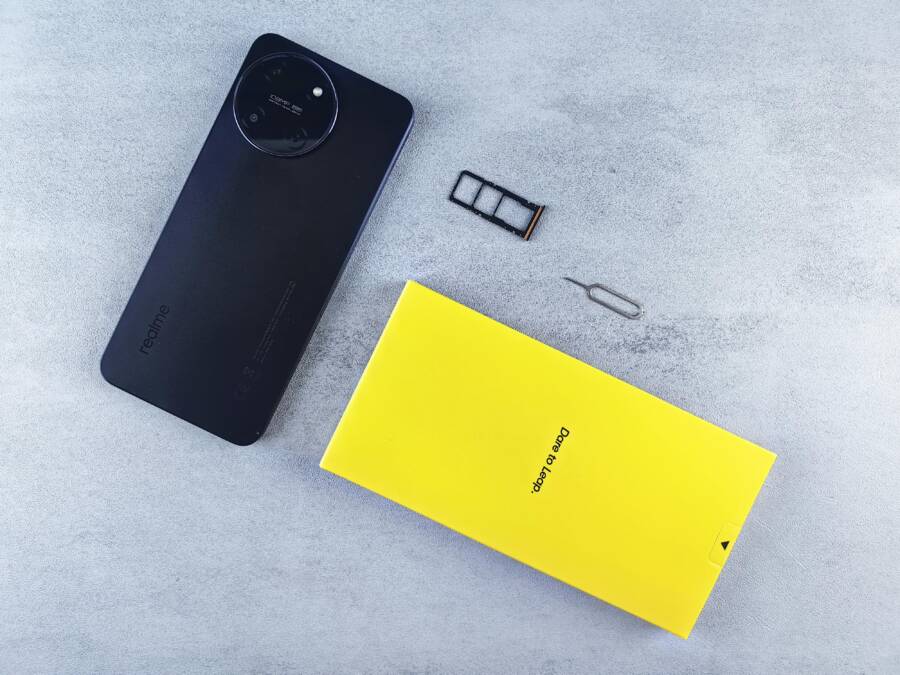
Images and practical visuals help readers. The included photo shows a typical SIM tray setup to illustrate what users will handle during this fix.
Android vs iPhone: Tailored Troubleshooting Steps
When a No SIM issue crops up after a reboot, both Android and iPhone users want fast, reliable fixes. The approach differs slightly because each platform handles network settings and SIM interactions in its own way. Below you’ll find practical, platform-specific steps you can apply right away. These aren’t generic tips; they’re targeted actions that align with how Android and iPhone manage SIMs, so you can get back online quickly without guesswork.
Best Fixes for Android Phones
Android devices vary a lot by manufacturer, but the core troubleshooting paths stay consistent. Start with quick resets and progress to targeted checks if the problem persists. The aim is to reset the network state, ensure the SIM is read cleanly, and rule out software hiccups that appear after a reboot.
- Settings path to refresh network state: go to Settings > System > Reset options > Reset WiFi, mobile & Bluetooth. This clears old carrier data without erasing personal files.
- If you use a dual SIM phone, reseat both SIMs. A loose or misaligned tray is a common cause after a reboot. Remove the trays, inspect the slots for dust, reinsert firmly, and test again.
- Clear system cache related to network services. On many devices you can do this via: Settings > Storage > Cached data (or use a vendor-specific recovery option to wipe cache partition). Be mindful this is a lightweight cleanup that can resolve stubborn misreads.
- Check for carrier profile updates. Some devices pull these in the background, and a stale profile can block the SIM after boot. If your carrier offers a manual update path in Settings, run it.
If the issue continues, a more focused approach can help:
- Boot into Safe Mode. If the SIM works in Safe Mode, a third-party app is causing the problem. Uninstall recently added apps or perform a clean foreground app stop to identify the culprit.
- Reapply APN settings. An out of date or corrupt APN profile can interfere with network access after a reboot. Compare your APN to the carrier’s recommended values and update if needed.
- Consider a firmware update. Carriers and manufacturers push updates that fix known SIM handling quirks. Install any pending updates and reboot to test.
These steps address the most common Android-specific triggers and typically restore SIM recognition without a visit to a service center.
iPhone-Specific Solutions That Work
iPhone users should focus on resetting network configurations carefully and using a minimal, safe restart approach. The goal is to restore a clean handshake between the device and the SIM while preserving personal data.
- Reset network settings. On iPhone, go to Settings > General > Reset > Reset Network Settings. This resets WiFi, VPN, and cellular settings to their defaults, which is usually enough to clear misconfigurations after a reboot.
- Force restart combo. If the device feels unresponsive after a reboot, use the force restart method for your model:
- iPhone 8 and later: quickly press and release the Volume Up, then Volume Down, then press and hold the Side button until the Apple logo appears.
- iPhone 7/7 Plus: press and hold both the Volume Down and Side buttons until the Apple logo shows.
- Older iPhones: hold the Home and Top (or Side) buttons until the Apple logo appears.
- After the device reboots, recheck the SIM. If the status bar still shows No SIM, reinsert the SIM tray to ensure proper seating, then perform a final network reset.
- Check carrier activation. If the SIM is new or recently swapped, ensure it’s activated on the correct plan. A short call to the carrier can confirm status and provisioning.
- Update iOS if available. Carrier profile issues can linger after major OS upgrades. Install any pending updates and reboot to reinitialize the network stack.
These iPhone specific steps are designed to quickly reinitialize the network layer on Apple devices, minimizing downtime and data risk. They work well whether you’re dealing with a stubborn SIM read or a momentary post reboot glitch.
By following these tailored steps for Android and iPhone, you can handle No SIM after reboot with confidence. Each path is concise, practical, and designed to get you back online without unnecessary fuss. If you’ve already tried these and the problem persists, it may be time to consult your carrier or visit a service center for a hardware check.
Prevention Tips and When to Get Help
Keeping your phone reading the SIM consistently after a reboot is easier with a few simple habits. This section shares practical daily routines that reduce the chance of No SIM errors, plus clear signs it’s time to bring in help. Think of these as guardrails for your smartphone’s network health, so you stay connected without constantly troubleshooting.
Daily Habits to Avoid Future Reboot Glitches
Small, consistent steps go a long way toward stable SIM recognition. Start with habits that protect both the hardware and software sides of your smartphone.
- Keep software up to date. Regular updates fix bugs and improve hardware drivers, including those that handle the SIM. Enable automatic updates when possible, or check once a month for new releases.
- Clean the SIM area regularly. A clean slot and card reduce read errors. Power off the device, remove the SIM tray, inspect both the card and tray for dust, then wipe with a dry microfiber cloth. Reinsert firmly and flush with the edge of the device.
- Check the SIM tray for wear. A loose or misaligned tray can cause intermittent contact. If you notice wobble or unusual looseness, consider a replacement tray from the manufacturer or carrier.
- Limit exposure to harsh conditions. Humidity, dust, and pocket lint increase grime on contacts. Use a protective case, and avoid placing the phone in damp environments for long periods.
- Perform a quick network health check after updates. After major OS or carrier updates, scan for network status and re-connect to Wi-Fi and cellular quickly to ensure settings are in sync.
- Practice a consistent reboot routine. When you need to reboot, use the device’s restart option rather than a hard power cycle. A clean reboot helps the system reinitialize the radio stack without glitches.
- Keep carrier profiles current. Some updates bring new APN or network profiles. If your device prompts you to update carrier data, apply it promptly.
For a typical user, these habits cut the odds of a No SIM moment after reboot and help your smartphone stay responsive and reliable in daily use.
Know When It’s Time for Pro Repair or New SIM
Not every No SIM issue after reboot is a DIY fix. Sometimes the problem lies deeper, and faster action saves time and frustration. Use these decision points to decide if you should seek professional help or replace the SIM card.
- The error recurs after you’ve cleaned the tray, updated software, and reset network settings. If the issue returns within 24 to 48 hours, a hardware fault may be involved.
- The SIM card shows visible damage. Bent, cracked, or heavily scratched cards rarely read reliably, even after reseating.
- You’ve tested with a different SIM card and still see No SIM. If another card doesn’t work in your phone, the slot or logic board could be at fault.
- You dropped the phone or sustained impact recently. A drop can loosen internal components or damage the reader, causing intermittent recognition.
- Carrier activation or provisioning seems off. A quick call to the carrier confirms whether the SIM is active on the right plan and region.
- Your phone is still under warranty or coverage plan. If a hardware fault is suspected, it’s smarter to let the manufacturer or carrier handle diagnostics.
If any of these signs appear, book a service appointment or visit a store. A technician can test the SIM reader, inspect the slot, and verify that the problem isn’t caused by a deeper software conflict or a faulty motherboard. In many cases, replacing the SIM or repairing the tray resolves the issue without affecting your data.
Images help readers gauge what to do. The photo above illustrates a typical SIM tray and its components, showing how to inspect and reseat the card safely. If you’re unsure, taking a clear photo before disassembly can help when you consult support.
By adopting these prevention habits and knowing when to seek help, you can minimize downtime and keep your smartphone reliably connected. If the problem persists after professional service, it may be a deeper hardware fault that requires model-specific guidance.
Conclusion
Most No SIM after reboot issues boil down to a few clear causes: a loose or dirty SIM, a software hiccup, or a mismatched network setting. Start with the simplest fixes, in order, and you’ll likely recover the connection without tools or a trip to a shop. A clean reseat of the SIM card and a quick Airplane Mode toggle reset the essentials, while updating the OS or carrier data closes the gap that bugs create after a reboot.
If the problem persists, move through the steps calmly. A Safe Mode test helps identify third party apps that interfere, and resetting network settings often resolves stubborn misreads. Most readers regain service within minutes when they follow these steps in sequence.
Share your own fix in the comments and subscribe for more practical smartphone tips. Your experience helps others avoid downtime and keeps your everyday life connected.