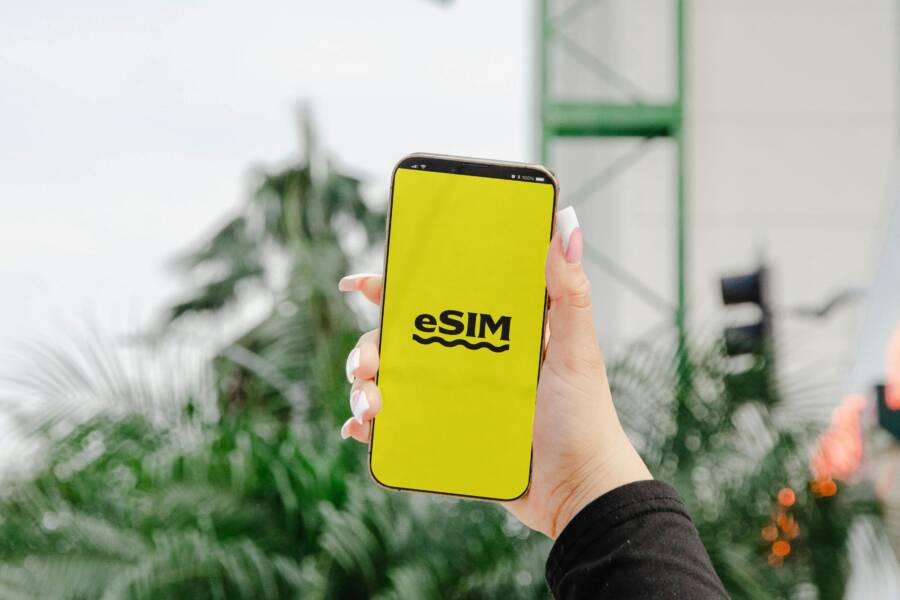
You grab your phone to activate a new eSIM right before heading out on a trip. The QR code scans, but then nothing happens: no signal, endless “activating” messages, or a complete freeze. It’s frustrating, especially when you need reliable service fast.
An eSIM acts as a digital SIM card built into modern smartphones. It lets you switch carriers or add lines without swapping physical cards. Most recent iPhones and Android devices support it for easier travel or multi-line setups.
Common activation snags include QR code scan fails, no bars after install, stuck loading screens, missing Wi-Fi during setup, or wrong network selection. Others hit outdated carrier settings or mismatched APN details that block connections.
This guide walks you through proven fixes pulled from Apple, Google, Samsung, and major carrier resources. You’ll get step-by-step instructions tailored for iPhone, Android, Pixel, and Samsung phones. These steps resolve issues for most users without a support call.
Start with quick checks like toggling Airplane Mode or restarting. Then dive into device-specific tweaks, from updating settings to deleting old profiles. By the end, your smartphone will connect smoothly, saving you time and hassle on the go.
Start with These Quick eSIM Fixes That Work 70% of the Time
Many eSIM activation issues happen because your smartphone struggles to sync with the carrier’s network right away. Simple resets like these fix network handshakes gone wrong in about 70% of cases. They clear glitches without losing data or settings. Pick your device and follow along; you’ll see bars return fast.
Toggle Airplane Mode and Restart Your Phone
Your phone sometimes fails to complete the initial connection handshake with the carrier. Toggling Airplane Mode cuts all wireless signals briefly, then restarts them fresh. A full restart clears any stuck processes. Here’s how to do both on your iPhone or Android smartphone.
For iPhone:
- Open Control Center: Swipe down from the top-right corner of the screen. Tap the airplane icon to turn Airplane Mode on (it lights up orange). Wait 10 to 15 seconds, then tap it again to turn it off.
- Or use Settings: Tap the Settings app. Toggle Airplane Mode at the top. An airplane icon appears in your status bar when active.
- Restart your iPhone: For iPhone X and later, quickly press and release Volume Up, then Volume Down, then hold the Side button until the screen goes black and the Apple logo shows. For iPhone 8 or earlier, hold the Top or Side button, slide to power off, then hold again to restart. Wait 30 seconds after it shuts down.
For Android:
- Open Quick Settings: Swipe down twice from the top of the screen. Tap Airplane Mode (or Flight Mode) to turn it on. Wait 10 to 15 seconds, then tap to turn it off.
- Or use Settings: Open Settings, go to Network & internet (or Connections), then toggle Airplane Mode.
- Restart your phone: Hold the Power button, tap Restart. If frozen, hold Power and Volume Down together for 10 seconds until it vibrates and reboots.
After these steps, wait a minute. Check for signal bars. Your eSIM should connect now.
Turn Your eSIM Off and On Again
If Airplane Mode doesn’t do the trick, refresh the eSIM profile itself. This forces your smartphone to re-register with the network. Don’t worry; it won’t delete any data, profiles, or usage history. Just toggles the line active.
On iPhone:
- Open Settings > Cellular.
- Tap your eSIM plan (it shows the carrier name).
- Toggle Turn On This Line off. Wait 10 seconds.
- Toggle it back on. You’ll see “Activating” briefly, then it connects.
On Android (steps may vary slightly by model like Pixel or Samsung):
- Open Settings > Network & internet > Mobile network or SIMs.
- Tap your eSIM (listed by carrier or number).
- Toggle the switch next to it off. Wait 10 seconds.
- Toggle it back on. Confirm any prompts.
Test by making a call or loading a webpage. These moves reset the eSIM without hassle. If signal returns, you’re set for your trip or daily use.
Check If Your eSIM Installed Right on iPhone or Android
When you activate an eSIM, the last thing you want is doubt about whether the installation took. This section guides you through two practical checks. You’ll confirm the eSIM is recognized by the device and verify it’s connected to the network. With these steps, you can quickly detect whether the installation went smoothly or if you need to retry.

Photo by Jacob
Scan the QR Code Again the Right Way
If the QR code scan produced no activation, a fresh scan often fixes the issue. Prepare a well-lit environment and steady hands so the code reads clearly.
- Lighting and glare: Use bright, indirect light. Avoid direct sun or reflections off the code.
- Distance and steadiness: Hold the phone about 6 to 12 inches from the QR code and keep it still for a moment after the scan begins.
- Clean the lens: Wipe the camera lens to remove smudges that can blur the code.
- Re-scan process: In iPhone, go to Settings > Cellular > Add Cellular Plan, then point the camera at the QR code. On Android, open Settings > Network & internet > Mobile network > Add mobile plan, then scan.
- Manual code entry: If the scan fails, choose the option to enter details manually. You’ll need the following:
- SM-DP+ address (carrier server address)
- Activation code or SMDP+ verification code
- Confirmation code (if required)
- Double check the numbers: Ensure you transcribe the codes exactly as shown. A single character mix-up blocks activation.
If you still don’t see activation, try again after a short restart. This often clears a stuck process that blocks the final handshake with the carrier.
Find Your eSIM in Phone Settings
You’ll want to confirm the device recognizes the eSIM and knows how to use it. The exact path depends on the OS, but the goal is the same: locate the eSIM and verify it’s active.
- iPhone (iOS):
- Open Settings, then tap Cellular (or Mobile Data). Your eSIM should be listed under “Cellular Plans” with a label from the carrier. Tap the plan to view details.
- If you don’t see your eSIM, choose Add Cellular Plan and scan again or enter the details manually.
- To test reliability, toggle the eSIM off and on from this screen to force a re-registration with the network.
- Android (generic steps, variations by model like Pixel or Samsung):
- Open Settings, then Network & internet or Connections. Tap Mobile Network or SIMs to see your eSIM.
- Tap the eSIM name or number to check plan details. Look for status like Active or Ready.
- If needed, toggle the eSIM off, wait a moment, and toggle it back on to re-establish the connection.
- Samsung devices:
- Settings > Connections > SIM card manager. Your eSIM appears as a separate line. Open it to view data use, roaming, and preferred data line settings.
- Google Pixel devices:
- Settings > Network & internet > eSIM. Here you’ll see the active plan, data settings, and roaming options.
What to look for in both cases:
- The eSIM shows as Active or Connected.
- Data is enabled for the line you intend to use.
- Roaming is configured correctly if you travel.
- No conflicting profiles are listed that would override the eSIM.
- Carrier name matches what you expect or shows as the correct provider.
If the eSIM still doesn’t show up as active after these checks, consider updating the device’s software and re-adding the eSIM. In some cases, a carrier settings update or a factory reset of network settings can clear stubborn activation issues. If problems persist, contact your carrier for a fresh activation code or a new QR.
Fix Network Connection Problems for eSIM Success
When your eSIM activates but the network won’t cooperate, it can feel like you’re stranded just when you need reliable service. This section cuts through the guesswork with practical steps to force a clean network handoff and keep your smartphone connected. You’ll learn how to pick the right carrier, and when to update software or reset network settings to recover a solid connection quickly.
Pick Your Network by Hand
In most cases, letting the phone choose automatically works fine. If you’re in an area with spotty coverage or your device keeps hopping between networks, manual selection can stabilize the connection. Start with major carriers first; they usually provide stronger, more stable signals that help your eSIM lock onto the network faster.
- Prepare the environment: you’ll want a stable signal, a few minutes of testing, and access to the carrier list for your area.
- On iPhone: Settings > Cellular > Cellular Plans. Open the plan, then look for Carrier Selection. Turn off Automatic and pick a carrier from the list. If you see a preferred network option, select it and test calls or data.
- On Android: Settings > Network & Internet (or Connections) > Mobile Networks. Choose the eSIM you’re using, then Disable Automatic or Network Operators. Pick a carrier manually and confirm. If you’re on a dual-SIM device, ensure the correct line is active for data.
- Test after each switch: try loading a webpage, streaming a short video, or making a quick call. If one carrier fails, switch to another available option in the area. Your smartphone benefits from this direct approach when location, weather, or local towers affect performance.
- When to persist with one carrier: if you consistently see stable data and calls for a specific carrier in a given location, keep it. Switching back and forth can waste time and create confusion during travel or busy days.
- Quick checks to pair with manual selection: verify that data roaming is enabled if you travel, and confirm that the plan you’re using has active data credits. A clean start helps avoid lingering handshakes that block the connection.
Using manual network selection helps your eSIM avoid the confusion of automatic network handoffs. It’s a simple, repeatable step you can perform any time you notice weak signal or slow data. Treat this like a quick calibration for your smartphone’s link to the real world.
Update Software and Reset Network Settings
Software updates and targeted resets are powerful tools when a stubborn eSIM refuses to connect. They fix small misconfigurations, refresh carrier settings, and restore the network stack to a healthy state. Here’s how to apply them wisely, with a clear view of the tradeoffs.
- Why an update helps: updates include new carrier profiles, security patches, and improved network handling. They reduce the chance of mismatches that block activation or data paths.
- Pros of updating: usually improves stability, fixes known bugs, and can restore features you rely on every day.
- Cons of updating: it takes time, may require a restart, and in rare cases can bring minor compatibility tweaks that you’ll adapt to.
- Pros of resetting network settings: a quick way to clear stale profiles, broken APN entries, or corrupted network data without touching personal files.
- Cons of resetting network settings: you’ll lose saved Wi‑Fi networks and passwords, Bluetooth connections, and VPN settings. It’s a broader reset than you might expect.
- Backup reminder: before resetting, note or screenshot important network settings. Save passwords for trusted Wi‑Fi networks and jot down any custom APN details. A quick backup makes reconfiguring afterward painless.
Steps to update software and perform resets (follow in order):
- Check for updates:
- iPhone: Settings > General > Software Update. Install any available updates, then reboot.
- Android: Settings > System > Software Update. Install and restart if prompted.
- Verify carrier settings:
- iPhone: Settings > General > About. If an update is available for carrier settings, you’ll see a prompt.
- Android: Settings > System updates or About phone may surface carrier-related updates automatically after a system update.
- Update third‑party carrier apps if applicable (for example, carrier-provided activation apps). Keep them current to avoid misreads of your eSIM status.
- Reset network settings (only if updates don’t resolve the issue):
- iPhone: Settings > General > Transfer or Reset iPhone > Reset > Reset Network Settings. You’ll rejoin Wi‑Fi networks after the reset.
- Android: Settings > System > Reset options > Reset Wi‑Fi, mobile & Bluetooth. Confirm and let the phone reboot.
- Re-add or refresh the eSIM:
- iPhone: Settings > Cellular > Add Cellular Plan or reselect the existing plan to re-register with the network.
- Android: Settings > Network & Internet > Mobile Network > SIMs, then reselect or re-scan your eSIM.
- Test connectivity:
- Enable data and roam if you travel.
- Run a quick test by loading a site, sending a message, or placing a call to confirm the network path is clean.
If you follow these steps and still can’t get a reliable connection, the issue may be specific to the carrier or the eSIM profile itself. In that case, reach out to your carrier for a fresh activation code, updated QR, or a new eSIM profile. When you’re troubleshooting on the road, these steps give you a solid framework to recover service quickly and keep your smartphone in action.
Try These Last-Resort eSIM Troubleshooting Steps
If you’ve tried the quick fixes and your eSIM still won’t cooperate, it’s time for last-resort steps. These actions reset the relationship between your device and the carrier, clearing stubborn glitches that can block activation or data paths. Use them in sequence, and keep in mind some carriers limit how often you can delete and reinstall an eSIM. The goal is a clean slate that lets your smartphone re-register with the network quickly.
Delete and Reinstall the eSIM Profile
Deleting the eSIM removes the current profile from your device. Reinstalling it loads a fresh copy from your carrier, which resolves many stubborn activation errors. Before you start, confirm you have a new activation method from your carrier, such as a QR code or manual activation details.
- Delete the eSIM on your iPhone
- Open Settings and go to Cellular.
- Tap the eSIM plan you want to remove under Cellular Plans.
- Choose Delete Cellular Plan and confirm. You may be asked to enter your passcode or carrier credentials.
- Delete the eSIM on your Android
- Open Settings and navigate to Network & Internet or Connections.
- Go to SIM Manager or Mobile Network and select the eSIM profile.
- Turn the eSIM off, then tap Delete or Remove. Confirm the action. A quick restart afterward can help refresh the device.
- Reinstall the eSIM
- On iPhone, return to Settings > Cellular > Add Cellular Plan. Scan the QR code provided by your carrier or enter the manual activation details.
- On Android, go to Settings > Network & Internet > Mobile Network > Add eSIM or Add Mobile Plan. Scan the QR code or enter the activation code manually.
- Complete the prompts
- Follow any carrier prompts to finalize activation. You may need to restart again after the profile is reinstalled.
- Test the connection
- Make a quick call, browse a site, or send a message to confirm the eSIM is active and data works as expected.
Notes and tips
- Some carriers restrict how often you can delete and reinstall. If you hit a limit, contact support for a reactivation code or a fresh QR.
- If you’re traveling, ensure roaming is enabled on the reinstalled plan to avoid surprises on data charges.
When to Call Your Carrier or Reset Everything
If you still don’t get reliable service after reinstalling the eSIM, the issue is likely on the carrier side or tied to the profile. This section helps you spot a carrier problem and prepare the right information when you reach out for help. It also outlines a broader reset path if you decide to reset settings from scratch.
Signs it’s a carrier issue
- Activation prompts fail with a carrier error message that mentions the eSIM profile, activation code, or server status.
- The carrier confirms problems in your area or with your profile, and you’re directed to reissue an activation code or new QR.
- Other devices on the same carrier network at your location show similar issues, or your SIM works intermittently but the eSIM fails consistently.
- You’ve verified the device’s software, carrier settings, and APN details, and nothing else explains the failure.
What to provide when you contact support
- Your device model and iOS or Android version, plus the current carrier name on the eSIM.
- The exact error message you see during activation or after installation.
- The steps you’ve already tried, including a fresh reinstall and a recent software update.
- Your activation method (QR code, manual code, or activation app) and the activation codes or SMDP details if you have them.
- Your location and nearby carriers you’ve tested in, plus whether roaming is enabled.
If you determine it is a carrier issue, follow their instructions precisely. They may reissue an activation code, send a new QR, or start a profile refresh from their side. For trips, ask about temporary profiles or short-term data options so you stay connected while you sort out the long-term fix.
Final checks before you call
- Ensure your phone’s software is up to date.
- Confirm carrier settings are current after any OS update.
- If you use a dual-SIM setup, verify the correct line is active for data and calls.
When to reset everything
- If carrier support confirms a profile problem and reactivation hasn’t resolved the issue.
- If multiple settings tweaks fail to unlock data or voice services.
- If you’ve recently changed carriers or plans and the new profile won’t install correctly.
A full reset is a last resort. It erases personal connections like Wi-Fi networks and Bluetooth setups, and you’ll need to reconfigure them after. If you choose this route, back up your important connections and take screenshots of any critical APN or data settings.
Takeaway
- Last-resort steps center on reestablishing a clean link between your eSIM and the network.
- Stay organized: track activation attempts, carrier feedback, and any new codes or QR changes you receive.
- With patience, most activation issues clear up after a fresh profile is loaded and the carrier confirms the settings.
If you’re ready to proceed, have your carrier’s support lines handy and a fresh QR or activation code ready. A well-documented support call often speeds up the fix and gets you back online faster.
Conclusion
Most eSIM activation issues can be solved by a simple, repeatable sequence on your smartphone. Start with the quick checks, then move through device specific steps, and only escalate if needed. This approach mirrors the calm, steady workflow you’ll rely on during travel or busy days.
Quick checklist to follow in order
- Toggle Airplane Mode on, then restart the phone.
- Turn the eSIM off and back on again to refresh the profile.
- Re-scan the QR code or enter activation details manually if scanning fails.
- Verify eSIM shows as Active in your phone settings and that data is enabled.
- Manually select a network if automatic selection causes weak signals.
- Update software and, if needed, reset network settings before re-adding the eSIM.
Prevention tips to avoid future headaches
- Update software before you travel to ensure carrier profiles match your plan.
- Save the QR code digitally or keep a secure backup in your notes for quick reinstallation.
If you still need help, most issues clear up after a fresh eSIM profile is loaded and carrier confirmation follows. Share your experience in the comments or subscribe for more smartphone fixes. Your smartphone will thank you when you’re back online quickly and confidently.