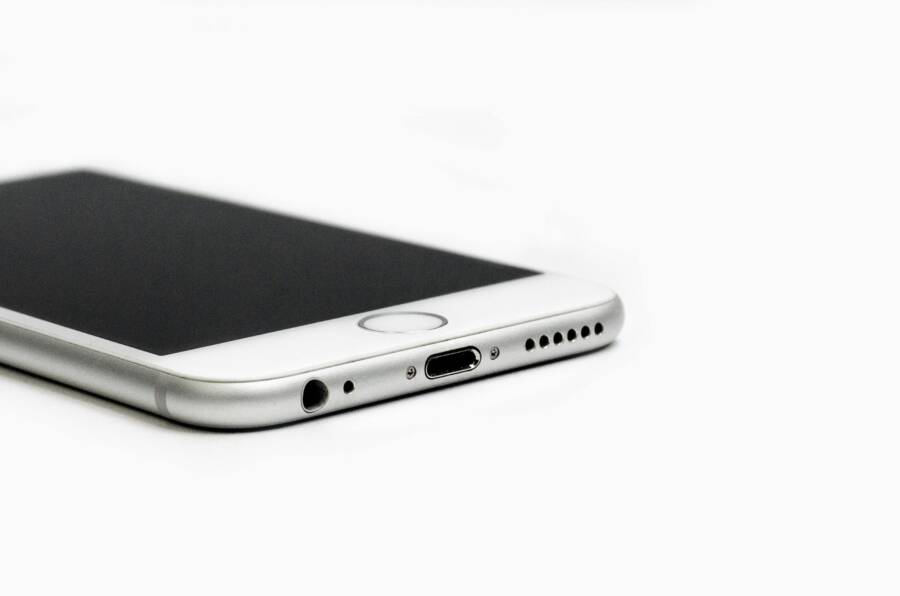
Ever notice your calls sound muffled, or videos play without any audio? It’s frustrating when your phone’s speaker or mic fails right when you need it. These issues often point to hardware glitches that third-party apps can’t always spot.
You can fix that worry with your smartphone’s built-in diagnostic menus. These hidden tools let you test speakers and mics in seconds, no extra downloads required. They play test tones and record your voice to check if everything works right.
The perks are clear. You catch problems early, before they worsen. This saves you from pricey repairs or buying a new device. Plus, the tests run offline and stay private.
In this guide, you’ll learn simple steps for Android phones with general codes like ##4636##. We’ll cover Samsung details such as #0#, plus options for Pixel and OnePlus. Even iPhone users get Field Test mode tips. These methods work on most smartphones today.
Stick around to run the tests yourself and get your audio back on track.
Spot the Signs Your Phone Speaker or Mic Has Issues
Before you dive into diagnostic tests, check for clear warning signs. Your smartphone’s audio hardware gives off obvious clues when it starts to fail. Spot them fast, and you can confirm issues with built-in tools instead of guessing.
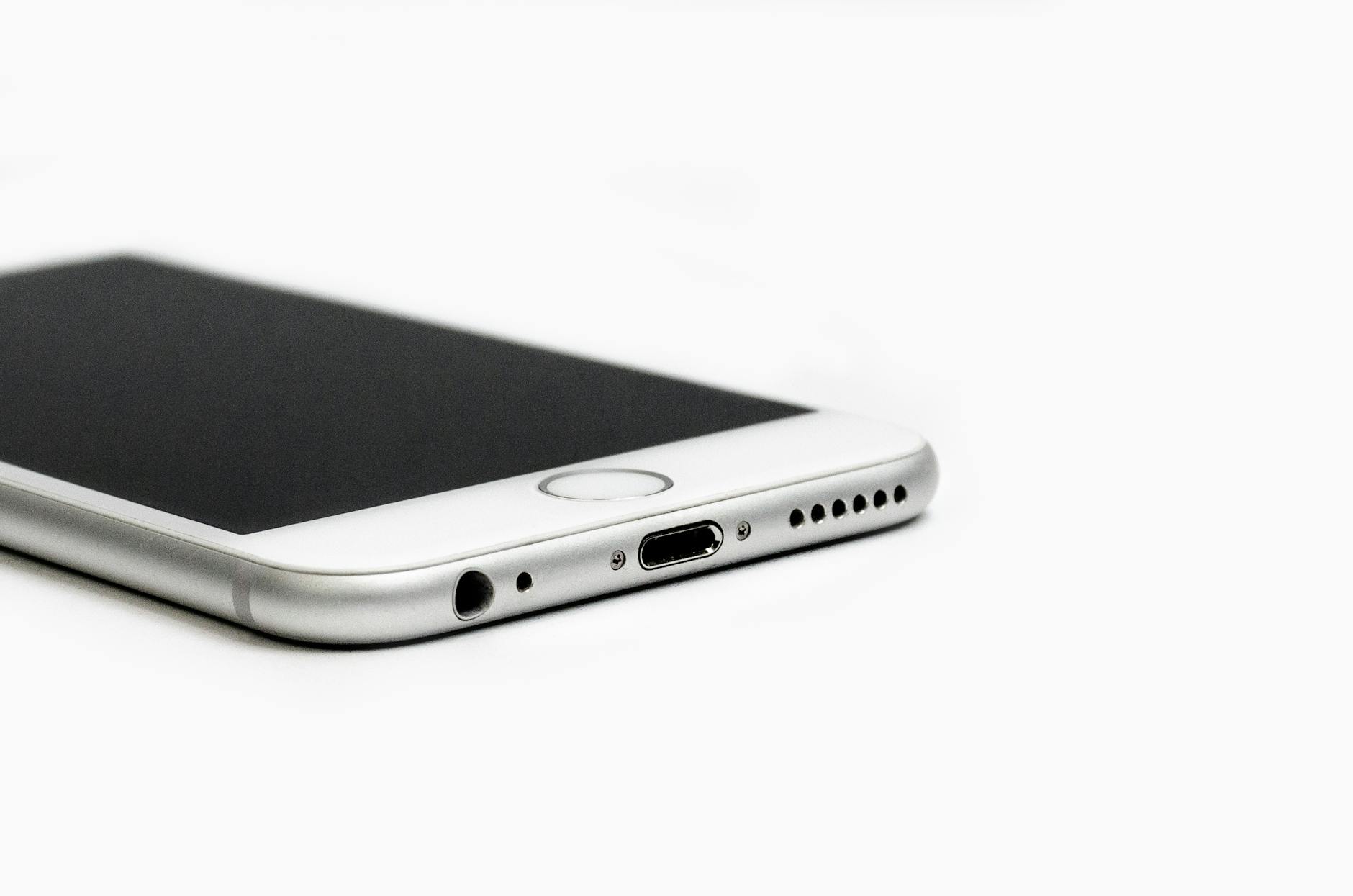
Photo by Math
Microphone Warning Signs
Your mic picks up your voice for calls, recordings, and voice commands. When it falters, others notice first.
Friends or colleagues complain they hear you from a distance. Dust or lint often clogs the small opening near your charging port, making sounds faint. Clean it gently, but if the problem sticks, hardware trouble lurks.
Audio drops in and out mid-sentence. This intermittent glitch points to loose connections or water damage inside. Test it on a clear call to your own number.
Distortion turns your words into static or garbled noise. The other side hears crackles, like you’re speaking underwater. Apps like voice memos reveal the same mess.
No sound registers at all. Your smartphone stays silent during recordings or calls. This total blackout screams failure.
Trouble starts right after a drop or splash. Impact jars parts loose; moisture corrodes circuits. Check right away if this fits your case.
Speaker Problem Indicators
Speakers blast media, ringtones, and call audio. Weak output ruins your day.
Max volume still whispers. You strain to hear videos or music. Push it to full and play a loud track; if it’s too quiet, the driver cone likely weakened.
Crackles or buzzes replace clear sound. Bass thumps turn fuzzy at high levels. This distortion worsens over time from overuse or debris.
One-way audio fails on speakerphone. You hear them fine, but they get nothing back. Mesh blockages or alignment shifts cause this.
Zero output hits hardest. Play anything; silence follows. Dead speakers mean coil burnout or severed wires.
Pocket lint builds up fast in grills. Cases press too tight and muffle escape paths. Remove them to test.
Shared Clues Point to Root Causes
Both components share failure triggers. Water seeps in during rain or spills, frying sensitive parts. Software glitches block access, but restarts fix those quick.
Bluetooth pairs hijack audio paths. Disconnect all devices before judging hardware.
Poor networks mimic distortion. Strong signal rules that out.
Quick checks help sort software from hardware:
- Yank the case and call a friend.
- Restart your phone.
- Wipe grills with a soft tool.
- Grant mic permissions in settings.
If signs persist, your smartphone needs a deeper look with diagnostic menus. These clues guide your next steps without delay.
Access General Android Diagnostic Menus for Speaker and Mic Tests
If your audio still misbehaves after basic checks, you can turn to the device’s built-in diagnostic menus. These menus let you test the speaker, the microphone, and related audio paths without any extra apps. They’re simple to use, offline, and designed to reveal where the fault lies. Below are practical steps and device-specific notes to get you up and running quickly.
Step-by-Step Guide to the Audio Loopback Test
The most common tests use codes that trigger the phone’s audio diagnostics. Two widely supported options are the codes you dial in the phone’s dialer:
- ##0673## (Audio Test)
What you’ll see and do:- A test menu appears with sliders for different audio channels. You can adjust each slider to set test levels as tones play.
- You’ll hear tones that let you judge frequency response, noise, and distortion across the range. Expect clean tones at mid to high volumes with no crackle.
- A microphone loopback option often exists. When selected, the phone plays a tone through the speaker while recording the mic to confirm the path is intact.
- A record or playback segment may be offered. You can record a short sample and play it back to verify the mic chain works end to end.
- What good results look like: clear tones without distortion, consistent volume across channels, and a smooth loopback without echo or lag.
- Troubleshooting: if nothing happens after dialing, try the next code or restart the device and re-enter. Some manufacturers disable this feature. If the menu still doesn’t appear, the OS version or OEM skin may block it.
- ##0289## (Audio Test – Alternative)
What you’ll see and do:- This code opens a similar audio diagnostic view on devices that support it, often offering a parallel set of sliders for fine tuning.
- Use the sliders to test speaking and playback at various levels. You may also see a mic test or tone playback option.
- Listen for the same hallmarks of good performance: no distortion, solid volume, and clean playback without clipping.
- If the code yields a warning or no menu, it means the device doesn’t expose this test via the code. In that case, move to the manufacturer’s factory or engineering mode options if available.
- If you don’t see a menu after dialing either code, keep these tips in mind:
- Use the phone’s dedicated dialer app and enter the code exactly, finishing with the final hash.
- Restart the phone and try again.
- Check whether the device’s OEM skin blocks these tests. Some variants require a different code or a particular Android version.
- Update the OS if an update is pending; a bug in older builds can disable diagnostic menus.
- Quick note on results: testing is about consistency. If the loopback test shows matching audio in both directions and the tones are clean, you’re likely dealing with software or alignment issues rather than a failed component.
Extra Tests for Pixel and OnePlus Users
Different brands handle these tools a little differently. Here is a quick, practical guide to common brand-specific options without overcomplicating things.
- Pixel phones
- Pixel devices generally support the standard Android diagnostic codes like 0673 and 0289. If a code doesn’t open a menu on Pixel, Google may have disabled that feature on the current Pixel build.
- Look for the Pixel-specific “Audio vibe test” and hardware diags in the testing menus if you can access them. These tests can confirm whether the speaker path, mic path, and related hardware are functioning as expected.
- If you encounter inconsistent results, compare them with the stock Android behavior and note any discrepancies that occur after a recent update.
- OnePlus devices
- OnePlus often includes an Engineering mode with broader hardware tests, including USB audio paths. This can help verify if the mic and speaker behave correctly when the device routes audio through USB or wired accessories.
- A common entry is a dedicated mic echo or USB audio test. Use these to isolate whether the mic path remains solid when external audio devices are attached.
- Keep the tests simple at first. If you see small differences between the Pixel and OnePlus results, treat them as brand-specific expectations rather than errors. Focus on whether your voice is clear and whether playback remains stable.
- Practical approach for both brands
- Run the same core checks on both devices: play test tones, test the mic by speaking clearly, and perform a short voice recording playback check.
- Compare results to look for subtle drift. A slight variance is normal, but persistent muffling, crackling, or dropped audio indicates a hardware or firmware issue that may need service.
- Final tip
- If you’re troubleshooting for a specific device, keep the steps simple and repeatable. Note the exact code you used, the OS version, and the observed results. This makes it easier to share with support or an service tech.
By using these built-in diagnostic menus, you can quickly identify whether the issue is a faulty speaker, a problematic microphone, or a software mismatch. The goal is a quick, clear determination so you can decide on repair, replacement, or a settings refresh. If you need more targeted help for your exact model, share your device and OS version, and I’ll tailor the steps.
Samsung Service Mode: Best Way to Test Speaker and Receiver
When you suspect audio issues on a Samsung phone, the built‑in service mode offers a fast, device‑level check. It can reveal whether the problem lives in the speaker, the earpiece (receiver), or the microphone. This approach is safer and more precise than random app tests, because it uses the hardware directly. If you’re troubleshooting a stubborn audio problem, this section shows you how to run a full hardware test and what to expect from each test. Think of it as a quick, professional bunk bed for your phone’s audio path.
Run the Full Hardware Test Menu
Accessing Samsung’s hardware tests is straightforward, but the exact steps can vary slightly by model and software version. The classic entry point is a dialer code that opens a dedicated service menu. Here’s the core idea and what you’ll typically encounter:
- How to enter the service menu
- Open the phone app and dial
*#0*#. On many Samsung devices this lands you in a menu labeled with hardware tests. - If you don’t see the menu right away, try restarting the phone and dialing again. Some variants require a slightly different sequence, but the principle is the same: you’re stepping into a diagnostics view rather than a regular settings page.
- Some variants may block direct access for consumer devices. If that happens, you can still use manufacturer support resources or official service channels to run a diagnostic.
- Open the phone app and dial
- What the full hardware suite covers
- Speaker Test: Tests the main speaker output across different tones and volumes. You’ll hear alternating test tones to gauge frequency response, volume range, and clarity.
- Receiver (Earpiece) Test: Exercises the small earpiece speaker you use during calls. You should hear clean audio at typical call volumes without crackling or muffling.
- Microphone Test: Records a short sample and plays it back so you can hear your voice as others would. Look for clear reproduction with minimal background noise and no distortion.
- Additional path tests: Some menus include controls for vibration, touch sensors, camera mic paths, and other hardware routes. These can help confirm that multiple subsystems align with the audio path.
- How to interpret the test results
- Pass: The test completes with clear audio, no distortion, and consistent volume across the tested components. This suggests the hardware and core firmware are functioning properly.
- Fail: You’ll usually see a message or a noticeable issue in the test playback. For speakers, you might hear distortion, muffling, or incomplete frequency bands. For the microphone, recordings may show low amplitude, hiss, or missing segments.
- What comes next: If a test fails, you have a few paths. Re-seat or inspect the physical components if you’re comfortable doing so, update the OS to rule out a firmware blip, or seek professional service for hardware replacement.
- Practical tips to improve accuracy
- Do tests in a quiet environment to minimize external noise interference, especially when testing the microphone.
- Run tests at multiple volume levels. Some issues appear only at high or low volumes.
- If the menu is slow to respond or parts of the test won’t run, a reboot often resolves temporary software glitches.
- What this means for you
- A successful full hardware test means the audio path is healthy at the hardware and firmware level. You can focus on software settings, app behavior, or minor alignment issues.
- A failed result pinpoints the area to address, whether that’s a damaged speaker, a loose connector, or a microphone fault. In many cases, hardware faults require service or replacement.
- Quick reality check
- These tests are meant to give you a clear signal about hardware status, not to re-create every real‑world scenario. If you hear intermittent audio during calls, run the test to verify consistency. If the test is solid but you still notice problems in everyday use, the issue is likely with software or app interactions.
By running the full hardware test menu, you gain a structured snapshot of your phone’s audio path. This is often the fastest way to separate software quirks from real hardware faults, so you can decide whether you need a repair, a replacement, or a quick software refresh. If you want help tailoring the steps to your specific Samsung model, share your model name and OS version and I’ll map out the exact path.
iPhone Mic and Speaker Checks Using Built-in Tools
When you rely on calls, voice notes, or videos, working mics and speakers are essential. Apple bundles straightforward, no-app diagnostics that help you verify audio paths quickly. This section walks you through practical checks you can perform right on your iPhone, with clear cues on what counts as a pass and what signals a hardware or software issue.
Quick Voice Memo test to verify the microphone
The simplest way to confirm the main mic is working is to record a short message in Voice Memos and play it back. This test targets the primary microphone used for calls and apps.
- Open the Voice Memos app.
- Tap the red record button and speak clearly for about 15 to 20 seconds.
- Stop the recording and play it back.
- Listen for clear voice with proper volume and minimal background hiss.
If the recording sounds muffled, distant, or distorted, try again in a quieter environment. If problems persist, the issue could be software interference, a blocked mic port, or a hardware fault.
Test each iPhone microphone individually
iPhones house multiple microphones for different tasks. Testing them separately helps isolate the problem.
- Bottom microphone: Make a regular phone call and ask the other person if your voice comes through clearly.
- Front microphone: Record a selfie video with the front camera and listen for clarity in the playback.
- Rear microphone: Record a standard video and review the audio track.
If one mic underperforms, the fault may be localized to that mic or its routing path. Inconsistent results across mics point to broader hardware or firmware concerns.
Use Siri as a quick mic check
A simple Siri prompt can reveal mic health without extra apps.
- Activate Siri and ask a basic question, like “What time is it?”
- If Siri responds promptly and clearly, the microphone path is likely intact.
If Siri shows delays or muffled responses, there may be a hardware issue or an accessibility setting interfering with input.
Switch to speaker mode to test the speaker path
Testing the speaker while on a call helps confirm the combined health of both input and output paths.
- Place a call and switch to speaker mode.
- Ask the other party to confirm they can hear you clearly and listen for your side to hear their reply without crackling.
- On media playback, play a video or music at a moderate volume and assess overall loudness and quality.
Strong performance in speaker mode combined with a clean microphone test suggests the problem lies with a specific app, a software setting, or a minor alignment issue rather than a core hardware fault.
Environment and distance testing for robust results
Audio can behave differently depending on where you are and how far you are from the mic.
- Record indoors in a quiet room to establish a baseline.
- Re-test outdoors or in a busy area to gauge how well the mic handles ambient noise.
- Vary the distance from the microphone and note any drop in clarity.
Documenting these observations helps when you talk to support or a technician. A smartphone that performs well in most situations but struggles in noisy environments often needs a software tweak rather than a hardware replacement.
Field Test-like checks using built-in menus
While some fields use specialized menus, you can still perform meaningful tests with the built-in tools on many iPhone models.
- Run simple tests that involve recording, playback, and speaker checks in a short session.
- If you notice anomalies such as static, crackling, or volume drops, note the steps that reproduce the issue.
- Consider resetting app permissions if mic access seems blocked in specific apps.
If issues persist after these checks, the problem may be rooted in firmware, a misconfigured setting, or a hardware fault that requires professional service.
How to verify speaker quality reliably
To ensure your speakers are delivering full, balanced sound, perform these checks.
- Play a high-quality stereo video or audio track and listen for balanced left and right channels.
- Test at multiple volumes. Some hardware symptoms appear only at high volumes, such as distortion or crackling.
- Watch for muffled or distant sound when using the speaker for calls or media.
If the audio remains uneven or faint across these tests, the speaker may need servicing or a hardware replacement.
When to seek professional help
Most audio issues fall into three categories: software glitches, misconfigured settings, or hardware faults. Use these quick guidelines to decide your next move.
- Software or settings issue: Runs clear tests, but specific apps or features misbehave. A settings refresh or OS update often fixes this.
- Hardware fault: Recurrent muffling, distortion, or silence across tests points to a faulty mic or speaker. Service or replacement may be required.
- Mixed results: If some tests pass and others fail, focus on the exact component that fails consistently. Document the results and bring them to a technician for precise diagnosis.
By using these built-in checks, you gain a clear read on your iPhone’s audio path. The goal is to identify whether you’re dealing with a software quirk, a hardware fault, or something in between. If you want tailored steps for your exact model and iOS version, share your device details and I’ll map out the precise path.
Fix Common Problems After Your Tests
Once you finish the built in tests, you’ll likely have a clearer picture of where the issue sits. The next step is a focused fix plan. Use the following practical approaches to address most problems you’ll encounter after diagnostic checks. They’re ordered to get you results quickly without jumping to hardware replacements.
Prioritize software fixes first
Many microphone and speaker issues come from software behavior rather than hardware faults. Start with these low friction steps:
- Restart the device. A fresh boot clears temporary glitches that pop up after tests.
- Update apps and the OS. Bug fixes and improved audio handling often land in updates.
- Reset app permissions. Revisit microphone and speaker permissions for the apps you use most. A quick toggle off and on can re-establish a clean path.
- Check for conflicting apps. Some apps take exclusive control of audio paths. Close or uninstall anything recently added that could be hijacking the mic.
If the tests showed inconsistent results across apps, software is the most likely cause. A quick refresh almost always helps.
Revisit hardware basics with a fresh eye
If software checks don’t resolve the issue, reexamine the hardware path. A few careful inspections can reveal problems that tests miss:
- Clean the grills and ports. Lint and dust accumulate in speaker grills and mic holes. Use a soft brush or a short burst of air to clear debris.
- Inspect for visible damage. A ding, drop, or moisture exposure can loosen connections or misalign components.
- Test with a wired accessory. Plug in a headset or external microphone to see if audio improves. If external devices work fine, the problem may be the built in path rather than the core hardware.
Taking a close look at the physical side helps you decide if a service visit is necessary.
Calibrate and reset audio paths
Sometimes you just need to reset how the device handles audio routing:
- Reset network and Bluetooth settings. Misrouted audio can come from stale Bluetooth profiles or network quirks. A reset can restore clean routing.
- Recalibrate in built in diagnostics if available. Some phones offer calibration options that retune the mic gain or speaker balance.
- Reconfigure in call settings. Check in call options for anything unusual, like adaptive volume, noise cancellation, or call routing rules.
A fresh slate often resolves subtle routing problems that tests can miss.
Use safe mode to split software vs hardware
Safe mode helps confirm whether third party software is at fault:
- Boot into safe mode (the exact method varies by model). Use the built in diagnostics while in safe mode to see if the issue persists.
- If audio works in safe mode, a recently installed app is likely the culprit. Uninstall suspect apps one by one and test after each removal.
- If problems persist in safe mode, the fault is more likely hardware or a system component.
Safe mode is a quick sanity check that saves you time.
Consider targeted repairs for persistent failures
If you still see faults after the above steps, plan for professional help:
- Document what you tested and the results. Include the exact codes used in diagnostics and the observed behavior.
- Check warranty and service options. If the device is under warranty, contact the manufacturer. If not, a reputable repair shop can assess microphone and speaker components.
- Prioritize the most likely failure path. For example, if your tests show good output but muffled voice recordings, focus on the microphone assembly or its connectors.
Clear notes speed up the repair process and prevent repeat testing.
Create a concise post-test action checklist
Wrap up with a simple, repeatable routine you can run after every diagnostic session:
- Confirm software updates are installed.
- Recheck app permissions for microphone and speaker access.
- Clean the microphone and speaker grills.
- Reboot and run a quick test pass in safe mode if issues persist.
- If needed, test with wired audio accessories to isolate the problem.
Keeping a short checklist ensures you stay consistent and never skip a critical step.
When to escalate to support
If the diagnostics repeatedly point to hardware but you can’t confirm it visually, it’s time to reach out for help:
- Share your test results and the exact model, OS version, and steps you took.
- Ask for a hands on hardware assessment or a service quote.
- If you’re near a manufacturer service center, book a diagnostic appointment to confirm the fault.
A precise summary of tests and outcomes makes the process smoother for both you and the support team.
By following these steps, you’ll translate diagnostic insights into clear, actionable fixes. Whether it’s a quick software refresh, a careful cleaning, or a professional repair, you’ll know the right path to restore clear calls and reliable recordings. If you want help tailoring these fixes to your exact device, tell me your model and OS version and I’ll map out a precise plan.
Conclusion
Using built in diagnostic menus saves time and reveals the real health of your speaker and mic. For Android users, Samsung offers the classic #0# service menu with tests for Receiver, Speaker, and more; additional checks use *#0283# and #0673# for extra audio tests. Pixel devices steer you toward the general Android hardware tests via a dedicated diagnostic path, with 4636 in the mix to gauge how software may affect audio. OnePlus follows a similar route with an engineering mode code #808# plus the standard ##4636## for quick stats. On iPhone, you won’t find hidden dial codes, but you can test with Voice Memos for the mic, play back speaker audio at high volume, and use Field Test mode 3001#12345# for signal related checks.
Run the same core checks across devices, listen for clean tones, clear voice, and stable playback. If issues persist after software tweaks, the fault is likely hardware. Bookmark this post and test now; share your results in the comments or try the checks on your smartphone. Maintaining clean grills, updating software, and noting test outcomes helps keep your device in top shape.