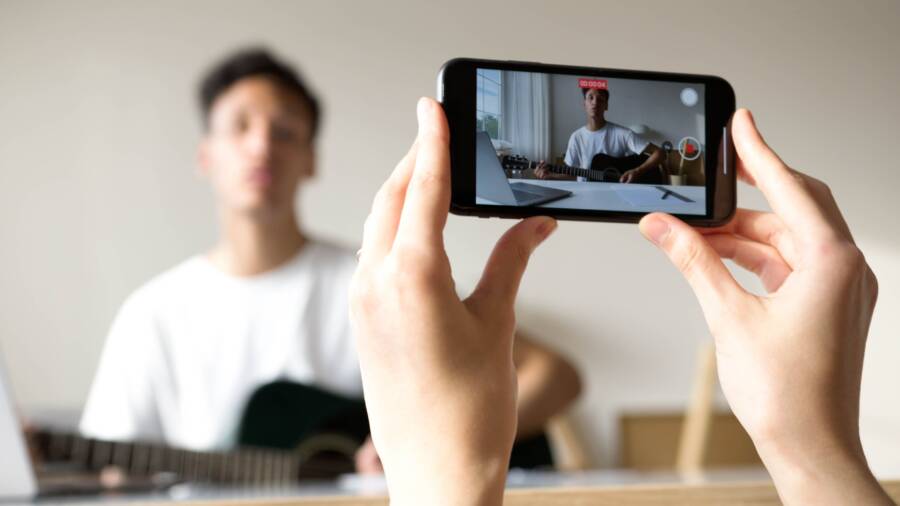
It is frustrating to find that the video you just recorded on your smartphone lacks any audio. Most of these sound issues stem from minor software glitches, misconfigured microphone permissions, or active background processes that block audio input.
You can often fix these problems by performing a simple restart or adjusting your device settings. Identifying the root cause takes only a few minutes of your time.
Follow these troubleshooting steps to restore your microphone functionality and ensure your next recording captures perfect audio.
Immediate Software Checks for Your Smartphone
Most sound recording failures on a smartphone occur due to simple software misconfigurations rather than permanent hardware damage. Before you assume the microphone is broken, verify that your device is configured to allow audio capture. Addressing these settings often restores functionality in seconds.
Verifying Microphone Access Permissions
Modern operating systems require explicit permission for apps to access your microphone. If you recently updated your phone or installed a new security patch, these permissions sometimes reset. You must ensure your camera and recording applications have active access to the hardware.
On an Android device, follow these steps:
Open the Settings app.
Select Apps or Application Manager.
Find your camera or recording app in the list.
Tap Permissions.
Confirm that Microphone is set to Allowed or While using the app.
If you use an iPhone, the process is slightly different:
Open the Settings app on your smartphone.
Scroll down until you find Privacy and Security.
Tap on Microphone.
Locate your camera or recording app in the list.
Toggle the switch to the green On position.
If these settings are already enabled, try toggling them off and back on again. This action forces the operating system to refresh the link between the software and the microphone hardware.
Updating Your Device System Software
Outdated system software often contains bugs that interfere with how your apps communicate with device hardware. Manufacturers frequently release updates that contain specific fixes for audio drivers and sensor management. Running an old version of the operating system can cause your microphone to drop out during recordings.
You should always check for pending updates when you notice audio issues. To check your system status, follow this sequence:
For Android: Navigate to Settings, tap Software Update or System Update, and select Check for updates. If a download is available, install it and restart your smartphone.
For iOS: Go to Settings, tap General, and select Software Update. If an update appears, tap Download and Install to bring your device to the latest version.
System updates replace corrupted drivers or configuration files that might prevent the microphone from activating correctly. After the installation finishes, test your recording again to see if the sound returns. Frequent updates keep your smartphone software in sync with the hardware components, providing a stable environment for audio and video recording.
Common Hardware Culprits Behind No Sound
When your software settings appear correct but your recordings remain silent, the issue often resides in the physical components of your smartphone. Dust accumulation, debris inside the microphone housing, or external connections frequently interfere with high-quality audio capture. Checking these physical points is a logical next step before seeking professional repairs.
Cleaning the Microphone Ports
Microphone ports are tiny openings on the frame of your smartphone that often collect lint, dust, and pocket debris over time. These small blockages muffle or completely obstruct the sensitive membrane inside, resulting in low audio levels or total silence.
You can clear these ports effectively using simple, gentle tools. A clean, soft-bristled toothbrush works well to loosen dry debris from the opening. Brush the port gently in a circular motion, then turn the phone so the opening faces downward to let particles fall out.
If you have a can of compressed air, use it sparingly to clear stubborn dust. Keep the nozzle at least six inches away from the microphone port to prevent damage to the internal seals from high-pressure bursts. Never insert pins, needles, toothpicks, or other sharp metal objects into the port. These tools easily puncture the delicate microphone diaphragm and cause permanent hardware failure. If light brushing does not improve your audio quality, the issue likely stems from a source other than physical blockage.
Disconnecting Interfering Bluetooth Devices
Modern smartphones often prioritize external audio hardware over the built-in microphone. If your device is currently paired with a wireless headset, a car audio system, or a portable speaker, it might attempt to route audio input through that connection. Even if the connected device sits idle in another room, your phone may still view it as the active input source for your video app.
This behavior frequently causes silent recordings because the phone expects audio to originate from the Bluetooth microphone rather than the internal one. You should verify your connection status whenever you encounter sudden audio drops.
Open the Quick Settings panel or the Settings menu on your smartphone.
Navigate to the Bluetooth section to view all active and paired connections.
Toggle the Bluetooth switch to the off position to disconnect all external devices immediately.
Perform a test recording to see if the sound returns.
If your audio returns after disabling Bluetooth, you have confirmed that an external device was hijacking the input signal. To avoid this in the future, check your active connections before starting any important recording session. You can also forget specific devices in your Bluetooth menu if they consistently cause interference.
Troubleshooting App-Specific Audio Glitches
Sometimes the hardware on your smartphone works fine, yet a specific app refuses to capture sound. This behavior suggests a software conflict rather than a physical microphone failure. When only one application experiences silence during playback, you need to isolate the problem within the app settings or its stored temporary files.
Clearing App Cache and Data
When an app acts up, resetting its temporary files often restores normal performance. You should understand the difference between clearing cache and clearing data before you begin. The cache contains temporary files that help the app load faster, while data includes your custom settings, login information, and saved preferences.
Clearing the cache is a safe first step because it does not touch your personal information or your camera roll photos. If the app still records silent videos after you clear the cache, you might need to clear the app data. Clearing data essentially resets the application to its factory state. It removes login details and configuration settings, but it does not delete your gallery photos or personal videos.
To perform these tasks on Android, follow these steps:
Open Settings and go to Apps.
Select the specific recording or camera app that has no sound.
Tap on Storage.
Select Clear Cache to remove temporary files.
If the issue persists, select Clear Data to reset the application preferences.
iPhone users handle this differently because iOS does not have a direct button to clear individual app cache. You must uninstall the app and reinstall it from the App Store. This process clears all associated temporary files and resets the app state. Your personal media remains in the Photos app, but you will need to log back into the recording software after the reinstallation.
Testing Alternative Camera Applications
If clearing your app settings fails, you need to determine if the issue is with the smartphone hardware or the specific software environment. Installing a simple, third-party recording app acts as a diagnostic tool. If you can capture audio perfectly using a different app, you have confirmed that your built-in camera software is the source of the conflict.
You should download a reputable, alternative camera app from the official Google Play Store or Apple App Store for testing. Once installed, grant the necessary microphone permissions and record a short video. If this new app picks up sound, you have narrowed the problem down to your original application. You may need to wait for a software update from the developer or check if there is a conflict with specific recording settings, such as high-frame-rate modes or bit-rate configurations, inside that app.
If the alternative app also fails to record sound, you have identified a wider system issue. This suggests that the microphone itself or the primary audio driver on your smartphone is not functioning as expected. In this scenario, you should focus your troubleshooting efforts on system-level settings or consider that a hardware repair might be necessary. Testing with a secondary app provides the clarity needed to decide between software troubleshooting and technical support.
When to Seek Professional Repair Services
You should consider professional help when software-based fixes fail to resolve your recording issues. If your smartphone microphone remains silent despite performing factory resets, clearing system caches, and checking all privacy permissions, a physical hardware failure is the likely culprit. Repair centers possess the specialized tools and diagnostic equipment to identify internal component malfunctions that you cannot see or reach.
Recognizing Hardware Failure Signs
Hardware damage often presents in specific ways that software troubleshooting cannot address. You should look for these red flags to determine if your device needs a technician:
Your microphone suddenly stopped working after a physical drop or impact.
The device sustained liquid damage, even if it appears dry on the exterior.
Recent attempts to clean the port revealed loose components or damaged pins inside the opening.
The microphone quality remains distorted or completely silent across every application, including voice memos and standard video recording.
If you observe these signs, further software manipulation risks wasting your time. Persistent silence usually points to a severed ribbon cable, a damaged microphone diaphragm, or a failed audio chip on the logic board. These parts require professional soldering or precision assembly techniques to replace without causing additional damage to the internal circuitry.
Choosing a Reliable Repair Provider
Selecting the right service center protects your investment and ensures your smartphone receives quality care. You should prioritize authorized service providers when dealing with sensitive internal hardware. These facilities maintain access to genuine manufacturer parts and follow repair protocols that preserve device integrity.
When evaluating repair shops, ask these questions to gauge their reliability:
Do they use original equipment manufacturer (OEM) parts for replacements?
Does the repair come with a warranty covering parts and labor?
What is their procedure for handling data privacy during the repair process?
Can they provide a specific estimate for both parts and service hours?
Independent shops offer convenient alternatives, though you should verify their reputation through local reviews or service histories before handing over your device. Always back up your data before dropping off your phone, as technicians often perform a full factory wipe to calibrate the device after a hardware installation. Professional intervention is a practical step when your own diagnostic efforts leave the microphone unresponsive.
Conclusion
Most audio issues with your smartphone originate from minor software conflicts or simple setting misconfigurations. You can often restore your microphone by checking app permissions, clearing temporary cache files, or disconnecting interfering Bluetooth devices. These steps resolve the vast majority of silent recording problems without requiring professional intervention.
Be patient as you work through these diagnostic steps. Hardware failure is rare, and most users find that their device functions correctly once the software environment is properly refreshed. If your recordings remain silent after you have exhausted these troubleshooting options, contacting an authorized repair center is the correct next step.