He Was Drowning in Bills and Burnout Until a Simple Daily Ritual Rewired His Brain for Wealth in Less Than a Week
>>> Start Your Shift Today <<<

Are you ready to make your Instagram Reels pop without chasing fancy gear or complicated edits? The right phone settings can transform any clip into something clear, smooth, and engaging from the first frame. This guide shares the best phone settings for Instagram Reels so you can post faster and rack up more views.
In this quick read, you’ll learn practical steps for common smartphones to boost mobile video quality. We cover how to optimize resolution, frame rate, stabilization, and lighting so your clips look sharp whether you’re filming outside or indoors. You’ll finish with a simple checklist that gets you from shoot to share in minutes.
Why focus on these settings? Clear videos grab attention, faster editing saves time, and smooth posting keeps your audience coming back. With a few confident tweaks, you can reduce post production time and increase engagement across your Instagram Reels. The tips here are easy to apply and work for everyday creators using a smartphone.
Set up your phone for Instagram Reels: core camera settings
Getting great Reels starts before you press record. Choosing the right core camera settings on your phone sets a solid foundation for smooth, sharp, and engaging clips. In this section we break down the essentials you should configure first, so you can film confidently and post faster. You’ll learn practical choices, when to tweak them, and simple steps to lock in consistency across takes.
There Is a Frequency That the Wealthiest Families Have Used for Generations and Most People Will Never Know It Exists
>>> Open the Door <<<


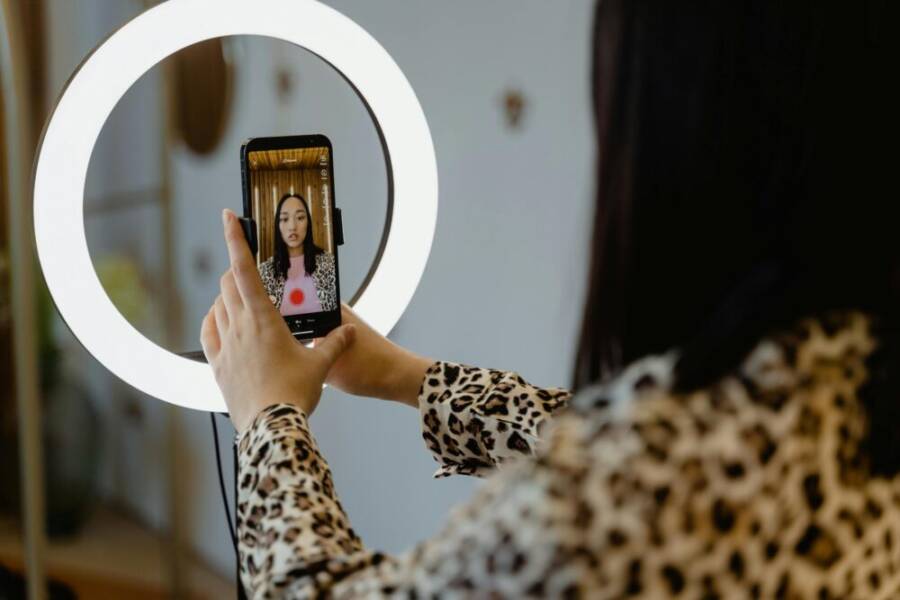
Photo by MART PRODUCTION
Resolution, frame rate, and aspect ratio
Your choice here affects quality, file size, and how smooth your footage looks on Reels. Start with the basics:
- 1080p at 30 frames per second (fps) is a safe default. It delivers clear detail without bloating file sizes, and it works reliably on most phones and networks.
- 4K offers crisper images but creates much larger files and can tax editing apps and memory. If you’re not needing ultra detail, 1080p is typically enough for Reels.
- Frame rate matters for motion. 30fps is the standard for everyday scenes. If you film fast action or sporty moves, switch to 60fps for smoother motion; expect bigger files and slightly more demanding editing.
- Aspect ratio should be 9:16 for Reels. This fills the full screen on most devices and avoids wasted edges. It’s the default for the platform and looks best without letterboxing.
Actionable steps:
- Open your camera app and set resolution to 1080p (1920×1080) and frame rate to 30fps.
- Confirm aspect ratio is 9:16 in your video settings.
- For action shots or fast motion, switch to 60fps only if your device handles the extra data smoothly.
- When you’re done filming, review a sample clip at normal playback speed to confirm the look matches your expectations.
Why these choices matter:
- 1080p at 30fps provides a good balance of clarity and file size, making uploads quick and reliable.
- 60fps can help with smoothness during movement but consumes more storage and can complicate editing if your workstation is modest.
- 9:16 fills the screen and aligns with audience expectations on Reels, reducing the need for cropping later.
If you want more details on official specs and recommendations, see Instagram’s guidance on Reel size and frame rates. You can read more here: Instagram help on Reel size and frame ratios.
Video format, stabilization, and smoothing
File format and stabilization are the quiet workhorses of smooth video. Keep it simple and consistent.
- File format: MP4 is the most compatible choice across apps and platforms. It pairs well with H.264 or H.265 codecs for a good balance of quality and file size.
- Video codecs: H.264 is widely supported and fast to encode. H.265 (HEVC) can deliver higher efficiency but may require newer devices or software for smooth playback and editing.
- Stabilization options: Most phones offer two main types — optical image stabilization (OIS) and electronic image stabilization (EIS).
- Optical stabilization physically stabilizes the lens to reduce shake. It’s most effective for handheld footage and general moving scenes.
- Electronic stabilization uses software to smooth motion after capture. It’s useful if your lens doesn’t have OIS or if you’re shooting in a really steady environment but can crop or reduce sharpness slightly.
- Use cases:
- When walking or moving slowly, rely on OIS for the cleanest result.
- For handheld runs or action, enable EIS as a backup to reduce jitters, especially if the phone’s stabilization is strong enough on its own.
- Quick on-off checklist:
- Stabilization: On for most handheld Reels.
- Grid lines: Enable to help frame your shot and keep horizons level.
- Digital zoom: Avoid heavy zoom; it magnifies noise and reduces detail.
Pro tips for staying smooth without extra gear:
- Keep your elbows close to your body and take short, controlled steps when moving.
- Shoot in a well-lit environment to minimize perceived shake.
- Use a steady stance: plant your feet, bend your knees slightly, and glide rather than jerk.
- If you must zoom, do it slowly and in post if possible to preserve quality.
Practical steps to set up:
- In the camera app, pick MP4 as the container and choose a H.264 or H.265 codec if available.
- Turn on optical stabilization if your device includes it.
- Turn on electronic stabilization if your camera UI shows it as an option, especially for dynamic scenes.
- Enable grid lines in the display settings.
- Avoid digital zoom; frame your shot to fit without zoom, or crop later in editing.
For a quick reference on stabilization and formats, see the general guidance from credible sources about MP4 usage and stabilization practices. Learn more here: MP4 format basics and stabilization overview.
Color profiles, exposure, and HDR
Color decisions shape how your clips feel long after you hit record. Here’s how to approach exposure and color without getting bogged down.
- Auto exposure vs manual exposure:
- Auto exposure is convenient for changing light conditions, but it can cause flicker or noticeable shifts in brightness between clips.
- Manual exposure gives you consistent brightness across takes. Lock exposure once you find a good level.
- How to lock exposure:
- Tap and hold on the subject in the viewfinder until you see the exposure lock indicator.
- Adjust the exposure slider if your camera app shows one, then lock it so brightness stays steady.
- Basic color settings:
- Contrast: Higher contrast can make colors pop but may clip shadows. Set to a natural level that preserves detail in both dark and bright areas.
- Saturation: Moderate saturation helps colors appear vivid on screen without looking artificial.
- White balance: Auto is fine for many situations, but manual white balance gives you a consistent color temperature across takes. If you shoot under mixed lighting, pick a white balance preset that matches the dominant light (incandescent, daylight, or cloudy) and keep it locked.
- HDR usage:
- HDR helps when you have bright backgrounds or scenes with strong light variation. It can keep detail in both highlights and shadows but may introduce color shifts or haloing in some scenes.
- Use HDR selectively for scenes with high contrast. Turn it off for simple, evenly lit scenes to avoid processing delays.
Step-by-step for a consistent look:
- Start with Auto Exposure to gauge brightness of the scene.
- Identify the main light source and reduce glare on faces. Then lock exposure.
- Set white balance to a fixed preset that matches most of your shots, or use a custom white balance if your app supports it.
- Adjust contrast and saturation to achieve a natural look that remains consistent across takes.
- Test a short clip in HDR if you have bright skies or strong backlight. If colors look oversaturated or highlights bloom, switch HDR off and re-shoot.
To support these concepts, you can review resources explaining how HDR behaves on mobile cameras and how exposure locking helps keep a uniform look across different takes. See credible guidance on Auto vs manual exposure and HDR behavior in mobile video tutorials and camera settings guides.
Images often illustrate the difference between auto and manual exposure, as well as HDR effects in bright scenes. If you’d like, you can browse example comparisons at reputable camera guidance sites.
External links for further reading:
- Instagram Reels size and frame rates guidance
- How HDR affects mobile video and best practices
Section takeaway: Start with 1080p 30fps, 9:16, MP4 with H.264, enable stabilization and grid lines, and establish a fixed exposure and white balance. This foundation keeps your Reels sharp, consistent, and easy to edit later. For a quick reference, you can compare how these settings look in a standard walkthrough of mobile video capture and color management.
Improve lighting and sound on Reels
Great lighting and clean audio are the fastest ways to make your Reels feel professional. In this section, you’ll find practical, ready-to-implement tips that you can apply with just a smartphone and a couple of affordable accessories. You’ll learn how to use natural light effectively, how to set up a simple three-point lighting system on a budget, and how to keep audio clear without heavy editing. These steps help you produce consistent, high-quality content that stands out in the feed.
Lighting tips for indoor and outdoor
Lighting sets the mood and reveals details. Use these quick setups to get reliable results whether you’re indoors or outside.
- Natural light from a window is your best friend. Position yourself at an angle to the window so the light hits your face softly. If the sun is harsh, diffuse it with a sheer curtain or white sheet. This reduces harsh shadows and highlights.
- Avoid backlighting when you’re indoors. If the main light is behind you, your face will be underexposed. Turn your subject toward the light source or use a reflector to bounce light back onto your face.
- A small affordable light can save you when natural light is not enough. A compact LED panel or clip-on light works well. Place it at a 45-degree angle to the side of your face for flattering depth.
- Color temperature matters. For most indoor shoots, a neutral white light (around 3500–4500K) looks natural. If your environment is warm (incandescent bulbs), aim for a cooler light to balance the scene.
- Three-point setup in plain terms:
- Key light: The main light that defines the subject’s shape. Place it about 45 degrees to the right or left of the camera and slightly above eye level.
- Fill light: A softer light on the opposite side to reduce harsh shadows. Keep it closer to the camera and lower intensity than the key light.
- Back light: A light behind you to separate you from the background. Position it high and aimed toward your shoulders to create subtle rim light.
- Quick, practical steps:
- Find a window or set up a compact LED panel near your shooting area.
- Position the key light at about a 45-degree angle and slightly above eye level.
- Add a softer fill light on the opposite side, at a lower intensity.
- If possible, drop a back light behind you to lift the edge of your silhouette.
- Quick visual cue: the brighter side of your face should be the side closer to the key light. Balance with the fill so the face reads clearly on camera.
- If you want more depth, try a subtle color accent on the back light with a small gel or warm white angle. It can help separate you from the background without looking artificial.
For a practical example of how lighting can be set up for Reels, see real-world implementations in short video guides. A recent showcase demonstrates a three-point lighting approach you can adapt for a phone setup: How I Upgraded My Video Lighting Setup. This approach translates well to indoor and outdoor shoots with smartphones.
If you’re curious about budget-friendly lighting concepts, you can explore concise guidance on a three-point system that fits tight budgets: see credible insights on budget lighting setups from this article: What is a budget-friendly 3-point lighting setup for videos.
Microphone options and levels
Sound matters as much as visuals. The right mic choice plus careful level handling keeps your voice clear and engaging.
- Built-in mics: Convenient but often the weakest option. Use them only when you’re in a quiet environment and the subject is close to the phone.
- Lavalier mics (clip-on): Ideal for moving subjects or when you want consistent audio. Clip near your chest for best intelligibility and to minimize clothing rustle.
- Small on-camera mics: A compact shotgun or directional mic can improve focus on your voice while reducing room noise. They work well if you’re filming in a busy or echo-prone space.
- Quick guidance on levels:
- Speak near the mic but not into it. A comfortable distance is usually 6–12 inches.
- Maintain consistent distance if you’re moving. Sudden closeness or far-away talking causes volume jumps.
- Watch for clipping. If the meter hits the top, back off a bit or reduce input gain.
- Real-time checks:
- Use your phone’s audio meters or a quick test clip to monitor levels before recording long takes.
- Listen through headphones to catch plosives, hiss, or background noise.
- Budget and needs matter. If you mostly shoot talking-head content in calm spaces, a budget lavalier can pay off quickly. For mobility and quick setup, a compact on-camera mic often balances price and quality.
A few recommended options to consider:
- Built-in mic for backup or casual clips.
- A lavalier mic for steady, high-quality voice capture.
- A small on-camera mic for directional sound and better noise rejection.
If you want a practical example of how these mics perform in real-world use, check credible demonstrations from creators who compare mic options in field tests. This can help you pick a setup that fits your budget and shooting style.
Audio cleanup and wind reduction
After you shoot, a little cleanup goes a long way. These quick steps improve clarity without turning you into a sound engineer.
- Wind reduction:
- Shield the mic from wind with a small windscreen or foam cover.
- If outdoors, place yourself so the wind hits a less open surface or use a tree or wall as a wind shield.
- Reducing hiss and room echo:
- Shoot in a quiet room with soft furnishings. Rugs and curtains absorb reflected sound.
- When outdoors, aim away from hard, flat surfaces that bounce sound back toward the mic.
- In-app editing and noise reduction:
- Many editing apps offer a light noise reduction filter. Use it sparingly to avoid making voices sound tinny or muffled.
- A short pass to reduce background hum or wind noise can improve intelligibility without sacrificing natural tone.
- Quick post processing steps:
- Normalize peaks so voice stays consistently audible.
- Apply light noise reduction only where necessary.
- Add a gentle high-pass filter to remove low-frequency rumble (around 80–120 Hz) if the audio feels muddy.
- Real-time verification:
- Rewatch the clip with headphones to catch any sudden volume changes or artifacts caused by processing.
For broader context, exploring practical guidance on how HDR behavior and exposure affect audio perception can help you plan shoots where lighting and sound are balanced. If you want a deeper dive into budget-friendly lighting and sound, you can read about approachable multi-mic setups and their performance in real-world tests.
Section takeaway: A simple, budget-friendly setup can deliver reliable lighting and clear audio for most Reels. Start with a window light or small LED for key light, add a soft fill, and consider a back light for depth. Pick a microphone that fits your budget, test levels before filming, and perform a light post-production pass to remove noise without harming voice quality. For further ideas on practical setups, you can glance at external guidance that covers lighting and sound improvements for mobile video creation.
External links for further reading:
- How I Upgraded My Video Lighting Setup
- What is a budget-friendly 3-point lighting setup for videos
Stability and framing for a polished reel
A polished reel combines smooth motion with solid composition. The right stabilization choice and framing habits make your clips easy to watch and ready to publish. Below you’ll find practical guidance you can apply today, whether you’re shooting handheld, on a tripod, or using a gimbal. Each approach has its place, and the key is balancing convenience with stability so you can move quickly without sacrificing quality.
Stabilization tools and when to use them
Stability is about managing motion. Here are the three most common options and quick scenarios where each shines, plus easy setup steps to get on the right track fast.
- Handheld shooting
- When to use: Quick interviews on the go, responding to a spontaneous moment, or when you want a casual, intimate feel.
- Quick setup: Stand with feet shoulder-width apart, elbows tucked in, and hold the phone close to your chest. Move with smooth, short steps; let your arms act as natural counterweights.
- Pros and trade-offs: Always ready, lightweight, and flexible. The trade-off is more shake, especially in walking shots, unless you refine your stance and breathing.
- Tripod use
- When to use: Static talking head, unchanging background, or time-lapse where you want zero movement.
- Quick setup: Extend the tripod legs, level the head, and adjust the camera height to eye level. Use a small amount of tilt to keep the subject framed naturally.
- Pros and trade-offs: Excellent stability and consistency. The downside is less dynamic movement and more setup time.
- Gimbals
- When to use: Dynamic scenes with movement, follow shots, or sweeps that require smooth tracking.
- Quick setup: Mount the phone, balance it according to the gimbal’s instructions, and run a quick calibration. Start with a low frame rate to test motion feel.
- Pros and trade-offs: Purely smooth motion and professional look. The trade-off is added gear and a learning curve for balancing and movement.
Balancing convenience with stability is the art here. If you’re new to motion, start with handheld moves in short bursts to learn your rhythm. When you need a clean, cinematic glide, switch to a tripod or gimbal. If you want to compare real-world results, see how tripods and gimbals stack up for Reels in this practical overview: Tripods vs. Gimbals – What’s the Difference Between the Two. For a current look at top gimbals, check The Wirecutter’s guide to the best Android and iPhone gimbals: The 3 Best Android and iPhone Gimbals of 2025.
What If the Only Thing Between You and the Life You Deserve Is a Hidden Wealth Code Waiting to Be Activated
>>> Open the Door <<<

Practical tips to stay smooth
- Keep elbows tucked, shoulders relaxed, and step softly.
- Use a light grip and move with your whole body, not just the wrist.
- If you must zoom, do it slowly and in post whenever possible to preserve sharpness.
Framing and composition basics
Great framing helps your subject connect with viewers. Here are simple rules and a quick framing checklist you can use before you press record.
- Rule of thirds
- Imagine a tic tac toe grid over your frame. Place the subject’s eyes near the top third line for a natural, engaging look. Position important objects along the grid lines to create balance.
- Headroom and lead room
- Headroom is the space above the subject’s head. Too little can feel cramped; too much can disconnect the subject from the frame. Lead room is the space in the direction the subject is facing or moving. Leave enough room for natural motion to occur, so the viewer’s eye can travel smoothly.
- Centering vs off center
- Centering works for straightforward talking heads or when you want a strong, symmetrical look. Off centering adds energy and style, especially for action or dialogue where you want to imply movement beyond the frame.
Framing quick checklist
- Face fills most of the frame without touching the edges.
- Eyes are roughly one third from the top.
- If the subject leans right, leave space on that side of the frame.
- Background is simple and not overly distracting.
- For action shots, give space in the direction of movement.
Practical framing tips you can apply fast
- When shooting a talking head, position the camera at eye level and keep the subject at or near the left or right third.
- For movement or group shots, keep dynamic space in front of the subject to suggest where they are going or looking.
- Use a shallow background to emphasize the subject, but avoid clutter that competes with the main message.
A quick real-world approach: start with the subject centered for a moment, then gently shift to a off-center composition to introduce motion or a change in focus. The result is a more engaging reel without extra editing. For a deeper dive into framing techniques in mobile video, you can explore credible guides that compare composition strategies for small-screen filmmaking.
External reading to broaden framing ideas:
- A practical comparison of stabilization tools and best practices
Focus and exposure tricks
Consistent focus and exposure keep your reel clean, even when lighting changes or you move around. These practical tips help you lock in sharpness and brightness without fuss.
- Tap to focus
- On most phones, tap the screen on your subject to lock focus. This helps prevent out-of-focus moments during movement.
- Lock exposure
- After you focus, press and hold on the subject until you see the exposure lock indicator. Locking exposure stabilizes brightness across takes.
- Avoid sudden lighting shifts
- If you move from bright outdoors to shade, pause or adjust before continuing. Recheck focus and exposure after any big light change.
A tiny workflow to keep focus sharp during movement
- Tap to focus on the subject, then hold to lock exposure.
- Move slowly and keep the camera steady while tracking the action.
- If the scene has mixed lighting, consider a neutral white balance preset and lock it.
- Do a quick test clip to verify that focus holds as you move.
Quick tips to improve stability during focus shifts
- Use continuous autofocus (or a small, predictable focus pull) if your device supports it, but be ready to tap and lock when the subject is stationary.
- Keep a consistent distance from the subject, especially during movement, to minimize focus hunting.
- Avoid passing from near to far objects quickly; if you must, pause briefly to let the camera adjust.
If you want more on how exposure and color influence mobile video, credible guides explain the relationship between auto and manual exposure and how HDR behaves in real-world scenes. For readers curious about gimbal stabilization versus handheld motion, see the gimbal guides referenced earlier to understand how the tools affect focus during dynamic moves: Is a smartphone gimbal worth it?. Lastly, for a broad view on stabilization methods, this article offers useful context: Tripods vs. Gimbals – What’s The Difference Between The ….
Section takeaway: Focus and exposure stability are as important as motion stability. Lock focus on the subject, lock exposure for consistency, and watch for lighting shifts that can undermine the shot. A quick test clip before publishing helps confirm your settings work in real-world conditions.
External links for further reading:
- Is a smartphone gimbal worth it
- Tripods vs. Gimbals – What’s The Difference Between The …
If you’d like, I can tailor these sections further to align with your existing phrasing and the voice of iPro+ 知識酷.
Workflow, editing, and publishing for max reach
Turning great clips into high-performing Reels is a mix of solid workflow, smart editing, and timely publishing. In this section, you’ll learn how to streamline your process from capture to publish, so you can post with confidence and maximize reach. You’ll get actionable steps, quick templates, and real-world tips that fit busy creator schedules.
On phone editing apps and built in tools
Smartphone editing should feel fast and reliable. Use tools that are intuitive and consistently output ready-to-upload files. Here are easy-to-use options that work well for Reels, plus quick steps to trim, add music, and export with the correct settings.
- Built-in editor in your camera or gallery app
- Quick trim: Move the scrubber to the desired start and end points, save a trimmed version, and keep your original footage intact.
- Add music: Many phones offer built-in music or sound libraries you can sync with the clip. Choose a track that matches the mood and keep volume levels balanced with the voice.
- Export settings: Choose MP4 as the format, 9:16 aspect ratio, and 1080p height. Aim for a 30fps export for a smooth, widely compatible reel.
- Why it works: It’s fast, avoids extra app installs, and minimizes compatibility issues with Instagram.
- CapCut
- Quick trim and transitions: Clip out pauses, apply clean crossfades, and keep pacing tight.
- Music and sound effects: Use built-in library or upload your own. Sync beats to actions for punchier edits.
- Export: Choose 9:16, 1080p, MP4, H.264 for broad compatibility.
- Why it works: User-friendly, reliable on iOS and Android, and designed around social video workflows.
- InShot
- Trim, crop, and add text overlays: Great for captions and on-screen prompts.
- Music and effects: Integrates easily with Reels’ audio libraries.
- Export: 9:16, 1080p, MP4, 30fps.
- Why it works: Simple interface and good for quick social edits without baggage.
- Canva for Reels
- Templates and overlays: Easy to create branded intros and outros.
- Trim and export: Clean export options suited for quick posting.
- Export: 9:16, 1080p, MP4.
- Why it works: Great for consistent visuals and on-brand typography.
Practical steps to a smooth workflow:
He Was Drowning in Bills and Burnout Until a Simple Daily Ritual Rewired His Brain for Wealth in Less Than a Week
>>> Start Your Shift Today <<<
- Shoot with a planned outline and 1–2 cut points to keep pacing tight.
- Open your preferred editor and trim down to under 15 seconds for most Reels, then test a 9–12 second version for quick engagement.
- Add music that aligns with the video tempo. Keep voice levels above music so narration remains clear.
- Apply simple text overlays for emphasis (see next section for captions and overlays).
- Export in MP4, 9:16, 1080p at 30fps. Keep file size reasonable for quick uploading.
- Save a copy with layers or edits intact in case you want to swap audio or trim further later.
For additional context on mobile editing workflows, check content that covers practical app choices and real-world editing comparisons. This provides a broader sense of what works best for smaller screens and quick edits. You can read about approachable editing options here: Tripods vs. Gimbals – What’s the Difference Between The Two and The Best Android and iPhone Gimbals of 2025.
Image: A clean, organized editing desk with a smartphone and laptop in view Photo by Plann
Captions, pacing, and text overlays
Captions and overlays are your main way to communicate when sound isn’t ideal and to guide viewers toward your call to action. Use these practical tips to craft readable, concise text that enhances the message without clutter.
- Captions that work
- Keep them short and scannable. Aim for 1 sentence per thought, with no more than 2 lines of text on screen at once.
- Front-load the key idea. Put the hook or value at the start of the caption to grab attention within the first 2 seconds.
- Add a CTA at the end. Encourage viewers to like, comment, share, or follow.
- Readable text size and placement
- Use a font size that’s legible on small screens. Test on a phone to confirm readability.
- Place text where it won’t be blocked by UI elements or the video’s foreground action.
- Contrast matters. Light text on dark backgrounds or dark text on light backgrounds improves readability.
- Pacing and rhythm in captions
- Align caption speed with video tempo. If the clip moves fast, shorten lines to keep up.
- Allow time for readers to absorb the message. A brief pause after a key line helps retention.
- Text overlays for emphasis
- Use overlays for key points, not every sentence. Highlight one or two ideas per reel.
- Include a CTA in text overlay when appropriate, but keep it visually distinct from the main message.
- Use simple icons or arrows to draw attention to the next step or action.
Practical example
- Video shows a quick lighting setup. Overlay a short caption: “Two simple lights, one pro look.” Then add a CTA: “Follow for more quick tips.” Keep the text at the bottom in a single line, with high contrast.
External references for caption and typography guidance can be useful to standardize your approach across videos. For example, you can explore general guidance on how to use color, typography, and overlays in short-form content. If you want a concrete case study, see how creators optimize phrasing for max retention in short videos.
Images to illustrate captions and overlays:
- A shot showing on-screen text overlays in a Reel Photo by Plann https://www.pexels.com/photo/
Note: Include a relevant image in this area if available, otherwise skip.
Posting timing, hashtags, and analytics
A simple, repeatable posting plan helps you reach more people without overcomplicating the process. Here’s a practical framework you can use to determine when and how to post, plus what metrics to monitor.
- Best posting times
- Start with your audience’s active times. If you don’t have data yet, test by posting at different times on consecutive days and compare early engagement.
- Focus on consistency. Pick 2–3 posting windows per week and stick to them to build audience anticipation.
- Hashtags strategy
- Use 3–7 relevant hashtags per Reel. Mix broad and niche tags to balance reach and relevance.
- Include one branded or creator-specific tag if you’re building a series or theme.
- Place hashtags in the caption or as a comment to keep the caption clean.
- Quick analytics checklist
- Watch views, likes, comments, and saves to gauge resonance.
- Track watch duration and retention. A video that people watch to the end signals strong value.
- Note saves and shares as indicators of content worth revisiting.
- Review and iterate
- After each post, note what worked and what didn’t.
- Adjust pacing, captions, and CTAs based on performance to improve future reels.
Simple posting plan you can reuse
- Week 1: Post 2 reels during peak evening hours.
- Week 2: Try a morning slot, target a slightly different audience with new topics.
- Week 3: Run a mini-series with consistent opening lines and a recurring CTA.
Quick checklist before publishing
- 9:16 aspect ratio and 1080p resolution confirmed
- MP4 format with H.264 or H.265 if available
- Text overlays used sparingly and legibly
- Caption includes a clear CTA
- Hashtags placed thoughtfully (3–7, mixed relevance)
- Analytics tracking enabled for the post
External resources to deepen posting insights
- Tripods vs. Gimbals – What’s the Difference Between The Two
- The 3 Best Android and iPhone Gimbals of 2025
Section takeaway: A repeatable workflow and clear posting plan help you publish quickly while keeping quality high. Track the right metrics and adjust future reels based on real data rather than guesswork.
External links for further reading:
- https://kraftgeek.com/blogs/creator-inspiration/tripods-vs-gimbals-whats-the-difference-between-the-two?srsltid=AfmBOoqYPxxX-OSxQ0KNyNa0PD_1BNNNKRNers6XyKi31WeqaXIivYbs
- https://www.nytimes.com/wirecutter/reviews/best-android-and-iphone-gimbal/
Images for the publishing and analytics section
- Photo showing a creator reviewing analytics on a phone Photo by Plann
Conclusion
A simple, repeatable setup makes your Reels look sharper and upload faster. Start with 1080p at 30fps in 9:16, export as MP4, and enable stabilization plus a visible grid. Lock exposure and white balance, keep lighting steady, and choose a budget mic if audio needs a boost; small tweaks here pay off in engagement.
Experiment with small changes across shoots and track what lifts views and retention. Share your results or any questions in the comments so we can compare notes and improve together. With steady practice and smart tweaks, your phone becomes a stronger tool for high quality Reels.
He Was Drowning in Bills and Burnout Until a Simple Daily Ritual Rewired His Brain for Wealth in Less Than a Week
>>> Start Your Shift Today <<<