Thousands of People Were Struggling With Money Until They Discovered This One Ancient Secret Hidden in Sound
>>> Unlock It Now <<<

Your phone holds your photos, messages, and location data. Apps often track you without clear notice, which can lead to data leaks or unwanted ads. It’s time to take control with simple changes.
This phone settings checklist walks you through practical steps for iOS and Android. You’ll limit app permissions, stop tracking, and secure your data in minutes. No tech skills needed.
Follow these core areas: review permissions, manage location and camera access, enable strong locks, and update your software. You’ll gain peace of mind and keep your info private on your smartphone. Let’s get started.
Review and tighten app permissions for less data leakage
Your apps can gather more data than you realize. Regularly reviewing what they can access helps you reduce leakage and keep personal details private. This section walks you through a quick review process, practical permission adjustments, and smart habits that prevent over-sharing.
What If the Only Thing Between You and the Life You Deserve Is a Hidden Wealth Code Waiting to Be Activated
>>> Open the Door <<<


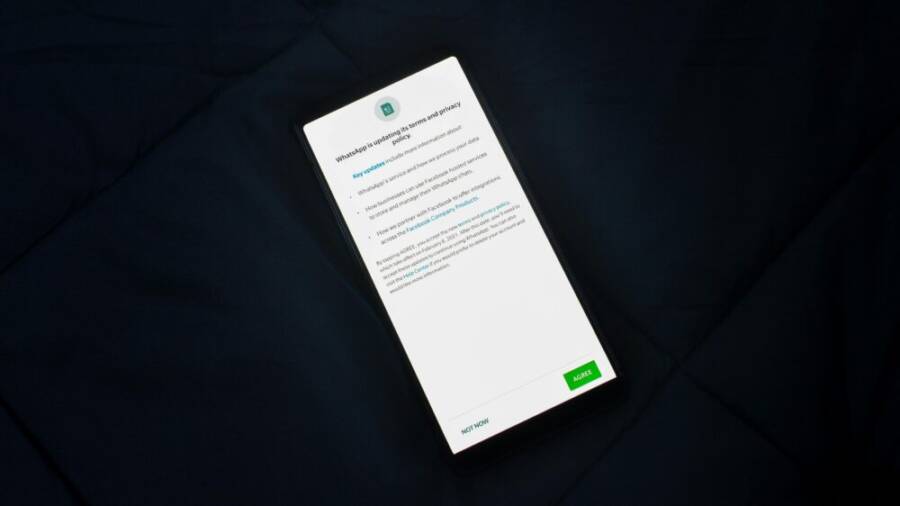
Photo by Rahul Shah
Why app access matters
Even trusted apps can collect data in the background, from location to contact lists. When you limit permissions, you cut off the flow of data that could be misused or exposed in a breach. Think of permissions like a security gate for your smartphone; fewer open gates mean less exposure and fewer trackers following your every move.
Audit permissions on iPhone and Android
Start with a quick audit to see who has what access. On iPhone, go to Settings > Privacy & Security and review App Privacy Report to understand how apps use permissions over time. On Android, navigate Settings > Apps & notifications > App permissions to see the current access levels and adjust per app. Use the following quick checklist to review common permissions and the apps that request them:
- Location: Does the app really need it? Prefer “While Using the App” or “Ask Every Time” rather than “Always.”
- Camera and Microphone: Grant only when you’re actively using features like scanning, video calls, or video capture.
- Contacts: Reserve for messaging or collaboration apps you truly rely on.
- Photos and Media: Allow access only to the photos you need for the task, not your entire gallery.
- Notifications: Limit sensitive data in prompts and alerts; turn off unnecessary alerts.
For reference and deeper guidance, see official guidance on iPhone privacy controls and Android privacy settings from reputable sources:
- Apple: Control access to information in apps on iPhone
- Apple: About privacy and Location Services in iOS
- Android: Android privacy settings and permissions
- Android: Manage location permissions for apps
Practical permissions to limit first
Tighten every permission you can before diving into granular tweaks. Focus on these baseline settings and adjust as you use each feature:
- Location: Set to While Using the App or Ask Every Time. Avoid Always unless an app absolutely needs it for core functions.
- Camera and Microphone: Enable only for features that require them and revoke when finished.
- Contacts: Limit to apps that require messaging or collaboration; remove from social or utility apps.
- Photos: Grant access selectively, preferably only to the specific photo you need for upload.
- Background activity: Disable or restrict for apps that don’t need to fetch data in the background.
Apply these changes with a steady hand. If you’re unsure about a permission, err on the side of privacy and revisit later after testing the app’s essential functions. For ongoing protection, consider reviewing permissions every month or after major app updates.
When to grant exceptions
Exceptions should be tied to a clear use case. For instance, navigation apps legitimately rely on location data to guide you. In those cases, grant location access only while actively using the app and revoke when you finish your trip. After granting, monitor how often the permission is used and remove it if it’s not essential. Regular reviews help you catch apps that gradually creep into broader access.
Other safe exceptions include:
- Video conferencing: camera and microphone for calls, with revocation after the meeting ends.
- Banking and payments: location and notification permissions to enhance security, then revert once the task is done.
A practical habit is to make a quick post-use sweep. After you finish using a feature, go back and tighten permissions again. It might feel tedious, but it protects your data over time and reduces the chance of data leakage.
Additional resources
To help you navigate the exact steps on each platform, consult official guides and trusted privacy resources. For iPhone users, the Apple support pages offer step-by-step instructions for reviewing and adjusting app permissions, including location services and app tracking transparency. For Android users, Google’s guidance covers changing app permissions and understanding how permissions affect your device’s privacy.
- iPhone privacy controls and App Privacy Report: Apple Support
- Managing location permissions for apps: Google Support
- Android privacy settings overview: Android Official
If you’d like a visual walkthrough, these tutorials provide screenshots and exact taps to take on both platforms:
- Change your app permissions on Android
- Change app permissions on iPhone
To further expand your understanding of how permissions work in practice, you can explore the concept of tracking transparency and how app developers respond to it on iOS devices.
By keeping a steady routine of checking permissions, you reduce data leakage and protect your personal information as you go about daily tasks on your smartphone. Regular maintenance is the best defense against drifting access.
Links for deeper reading:
- Apple privacy control guide
- Android privacy and apps: permissions explained
If you’d like, I can tailor a step-by-step, platform-specific checklist you can save as a quick reference.
Strengthen device security with strong access controls
Your device is a gateway to personal data. Strong access controls act like a lock and key, keeping apps, messages, and photos safe from prying eyes. This section lays out practical steps to secure both iPhone and Android devices, so you can unlock your phone with confidence and keep sensitive information private.
Create a strong passcode and enable biometrics
A robust passcode is the first line of defense. Use a long alphanumeric code or a numeric PIN with at least six digits. Pair it with biometric security like Face ID or a fingerprint for quick yet secure access. This combination reduces the chance of someone guessing your code and makes unauthorized access much harder.
For iPhone users, turn on a strong passcode and set up Face ID or Touch ID. If you haven’t activated a passcode yet, go to Settings > Face ID & Passcode (or Touch ID & Passcode on older models) and enable Passcode. When possible, choose a longer, more complex code rather than simple options like 0000 or 1234. For a step-by-step setup, Apple’s guide shows how to create a passcode and add Face ID: https://support.apple.com/en-us/119586 and https://support.apple.com/guide/iphone/set-up-face-id-iph6d162927a/ios
Android users should also aim for a strong screen lock. A 6 digit PIN or a long numerical PIN provides good security, and you can mix in letters for an alphanumeric option if your device supports it. For detailed setup instructions, Google’s official guide covers setting a screen lock: https://support.google.com/android/answer/9079129?hl=en
Tips for quick setup
- Start with a six digit PIN or longer numeric code; then enable biometric unlock.
- Keep your device password private and don’t reuse codes across accounts.
- If you must share your device, use a guest or restricted profile to limit access.
Enable auto erase and two-factor authentication
Auto erase adds a final safety net. After a certain number of consecutive failed unlock attempts, the device wipes itself. This protects your data if the phone is lost or stolen. Use auto erase carefully, especially if you frequently forget your passcode or share your device with others.
Two-factor authentication (2FA) should be turned on for important accounts. With 2FA, logging in requires a second verification step, such as a code sent to a trusted device or a dedicated authenticator app. Set up 2FA for your email, cloud storage, banking, and social apps so even if a password is compromised, an extra barrier stands between hackers and your information.
How to enable auto erase
- iPhone: Settings > Face ID & Passcode (or Touch ID & Passcode) > Erase Data. Enable after entering your passcode and confirm the setting.
- Android: Settings > Security > Lock screen preferences. Look for options like Erase data after failed attempts and enable if available.
How to set up 2FA on common services
- Email: Sign in to your account, locate the Security or Privacy settings, and enable 2FA with an authenticator app or hardware key.
- Cloud storage: Open the account settings, find Security, and enable 2FA. Use an authenticator app for codes.
- Banking: Access the security options in the app or website, turn on 2FA, and store backup codes in a safe place.
- Social apps: In each app’s security settings, enable 2FA and consider using push notifications or an authenticator app.
If you want a quick path, start with your email, bank, and cloud storage. These are high value targets for attackers, and protecting them with 2FA dramatically lowers your risk.
Secure the lock screen and notifications
The lock screen is the first window into your data. Limit what it shows and limit access to only essential features. Turn off lock screen previews for messages and notifications if you want to keep content private when your device is unlocked. You can also restrict which apps can show on the lock screen and what information can be displayed.
Key steps to harden the lock screen
- Disable message previews on the lock screen.
- Restrict lock screen access to essential features only, such as camera from a legitimate use case, not quick access to sensitive apps.
- Review notification content in the lock screen settings. Remove sensitive data from notifications or disable notifications from critical apps when your device is locked.
Fewer visible details on the lock screen means fewer clues for would-be intruders. For iPhone users, Apple’s privacy controls cover adjusting how information appears on the lock screen and managing general privacy settings: https://support.apple.com/en-us/guide/iphone/privacy-and-location-services-iph6a2a3f7/ios and https://www.apple.com/privacy/ for broader context.
Android users can manage lock screen behavior through Settings > Security > Screen lock and notifications settings. If you want a quick overview, Google’s Android privacy guidance and app permissions help you understand how to control what appears on the lock screen: https://support.google.com/android/answer/9079129?hl=en
Practical tips
- Use notifications with minimal content on the lock screen.
- Turn off lock screen access for sensitive apps unless you truly rely on quick access.
- Test after changes by locking and waking your device to verify that only the right information is visible.
Keep OS and apps updated
Updates fix security flaws and strengthen protections. Regularly updating your operating system and apps reduces the risk of exploitation. A simple routine can keep you protected without much effort.
He Was Drowning in Bills and Burnout Until a Simple Daily Ritual Rewired His Brain for Wealth in Less Than a Week
>>> Start Your Shift Today <<<

Why updates matter
- Security fixes close gaps that hackers could exploit.
- Patches address newly discovered vulnerabilities.
- App updates improve privacy controls and tighten permissions.
Create a quick update plan
- Enable automatic updates for OS and apps where available.
- Set a monthly check reminder to review pending updates and install them promptly.
- After updating, verify essential features still work and adjust any permission changes if needed.
On iPhone, enable automatic updates in Settings > General > Software Update > Automatic Updates. On Android, enable automatic updates in Settings > System > Advanced > System update and in the Google Play Store under Settings > Network preferences > Auto-update apps, choose to update apps automatically.
Staying current matters. It helps ensure you benefit from the latest security fixes and privacy controls that device makers and app developers release.
In case you want to explore more about keeping devices up to date, here are official resources:
- Android privacy settings overview: Android Official
- Apple privacy control guide: Apple Support
If you’d like, I can tailor a platform-specific checklist you can save as a quick reference.
Limit tracking and data sharing across apps and services
Tightening how apps share data across platforms reduces personalized ads, lowers cross-app tracking, and minimizes exposure to data breaches. This section breaks down practical steps you can take on iOS and Android, plus browser and email practices that keep your information closer to you. Think of it as a shield you can put around your smartphone to preserve your privacy without losing essential functionality.
Turn off ad and app tracking
Disabling tracking limits how apps collect data to serve personalized ads and to build cross-service profiles. On iPhone and iPad, you can reduce tracking by adjusting the built-in privacy options and opting out of ad personalization. On Android, you can limit ad ID usage and manage permissions that feed data to advertisers. Expect some ads to be less tailored, and some apps to request permission less aggressively. Tradeoffs include less personalized experiences and, in rare cases, reduced app features that rely on cross-app data.
- iOS best practice: turn off “Allow Apps to Request to Track” in Settings > Privacy & Security > Tracking, and review Apps to see which ones still request data access.
- Android best practice: go to Settings > Privacy > Ads and set “Opt out of Ads Personalization.” Then review per-app permissions to curb data flow.
For deeper guidance, see official resources on iPhone privacy controls and Android privacy settings:
- Apple: Control access to information in apps on iPhone
- Android: Android privacy settings overview
Boost browser privacy on mobile
Modern mobile browsers offer strong privacy features that can block trackers without breaking your favorite sites. Enabling anti-tracking, blocking cookies (with exceptions for essential sites), and using private or incognito modes can dramatically cut cross-site tracking. The key is to balance privacy with usability, so sites still load and function smoothly.
- Safari: Use Intelligent Tracking Prevention, block cross-site tracking, and limit cookies. Consider using Private Relay where available and review website data on a per-site basis.
- Chrome: Enable Enhanced Safe Browsing and site settings to block third-party cookies. Consider turning on a “Do Not Track” preference, while understanding that it may not block all trackers.
- Firefox: Activate Enhanced Tracking Protection (ETP) to block known trackers and third-party cookies. Private Browsing mode adds extra layers of privacy without forcing you to give up essential site features.
Practical tip: test your common sites after enabling privacy features. If a site doesn’t work, add it to an exception list rather than turning off protections entirely.
Helpful resources:
- Firefox tracking protection and third-party cookies
- How to manage cookies in Chrome and Safari
- Privacy guides for mobile browsers
Protect email and cloud privacy
Email and cloud services are frequent data channels. Hiding your IP in mail apps, blocking email trackers, and choosing private cloud options all reduce exposure. Keep steps simple so you can apply them quickly.
- Hide your IP in outgoing mail: many providers reveal the sender’s IP by default. Use a mail client setting or a provider option to mask or remove the sender IP from headers when possible.
- Block email trackers: look for options to disable tracking pixels or read receipts in your email app. Some services offer presets to block remote content until you approve it.
- Private cloud options: choose providers that emphasize privacy and offer encryption at rest and in transit. Consider end-to-end encrypted options for sensitive files.
Practical steps you can take today:
- In your email app, disable automatic image loading and tracking pixels, and keep read receipts off.
- Review cloud storage sharing links and disable public sharing for sensitive folders.
- When possible, enable two-factor authentication for your email and cloud accounts to add a second layer of protection.
Further reading and options:
- Privacy-focused mail practices and trackers explained
- End-to-end encrypted cloud storage options
Use Safety Check and privacy controls
Safety Check is a quick way to review who has access to your accounts and devices, and to revoke permissions with one tap. It helps you identify unfamiliar devices, apps with broad permissions, and services you no longer use. Running Safety Check regularly keeps your privacy posture tight.
What Safety Check covers:
- Connected devices: see which devices have access to your accounts and remove any you don’t recognize.
- Shared access: review apps and services with broad permissions and revoke access where appropriate.
- Permissions: audit app permissions that may have crept up over time and tighten as needed.
Steps to run Safety Check and revoke access:
- On iPhone, open Settings > Privacy > Safety Check and follow the prompts to review devices and permissions.
- On Android, use your Google Account’s Security section to review connected devices and third-party apps with access.
- Revoke access for any device or app you don’t recognize or no longer use.
Tips for fast cleanup:
- Start with your primary accounts (email, cloud, banking) and then move to social apps.
- After revoking access, re-check the list in a week to catch any new sessions that appeared.
Useful resources:
- Apple Safety Check guidance
- Google account security and device activity
Links for deeper reading and practical guidance:
- If you’d like, I can tailor a platform-specific Safety Check checklist you can save as a quick reference.
Privacy habits and maintenance to keep data safe
Protecting your data is an ongoing habit, not a one-time task. This section focuses on practical routines you can adopt to keep your personal information safe, from backing up wisely to staying private on networks. Think of it as a regular tune-up for your digital life, with your smartphone at the center of the routine.
Manage backups and cloud sync
Backups are a safety net, but not every piece of data needs to ride along to the cloud. Start by deciding what to back up and where to store it. Turn off backups for data you don’t need on every device, and review sensitive data before syncing to cloud services. This keeps your most private files offline or behind stronger protections.
- Choose selective backups: Only back up essential data like contacts, photos you truly want to access across devices, and app data you can’t recreate easily.
- Review cloud storage options: Use a provider that offers clear controls for what gets backed up and for how long. If a backup contains sensitive items, consider encrypting them before upload or keeping them locally.
- Periodic cleanup: Schedule a quarterly audit of backups to remove outdated or sensitive files you no longer need.
If you’re using Apple devices, you can view and manage iCloud device backups directly in Settings. For Android users, backing up commonly involves Google Drive and related services, with per-device controls in Settings. To deepen your understanding of managing backups, see Apple’s guide on viewing and managing iCloud backups and Google’s guidance on backing up data on Android. For a broader look at backup management in cloud storage, consult Google’s Drive backup resources.
- Apple support: View and manage iCloud device backups
- Apple support: Manage your iCloud storage on your Apple device
- Android support: Back up or restore data on your Android device
- Google Drive help: Manage backups in Drive, Gmail & Photos
Quick tip: disable backups for apps that don’t need cloud storage. If a file is sensitive, keep it out of automatic sync and store it in a secure, local location or a private vault.
Limit diagnostic data sharing
Diagnostics and usage data help developers improve products, but you don’t need to share everything. Turn off or minimize diagnostic data to reduce what gets sent from your device to manufacturers. Here are straightforward steps you can take on common devices.
- iPhone: Disable sending diagnostics and usage data by adjusting settings under Privacy & Security and then Tracking. Review which apps still request data access.
- Android: Opt out of certain data sharing in Privacy and Ads sections, and limit app permissions that feed data to advertisers.
For deeper guidance, consult official privacy settings from Apple and Google. If you want a quick path, start with disabling non-essential data sharing and keep 2FA enabled for your accounts to add a second layer of protection.
- Apple Privacy: Control access to information in apps on iPhone
- Android Privacy: Android privacy settings overview
Stay safe on networks
Public and shared networks are fertile ground for eavesdroppers. A simple rule: use a VPN on any public Wi-Fi and avoid networks you don’t recognize. When evaluating a network, look for these red flags: no password protection, weak encryption, or a network with a suspicious name. If in doubt, switch off connectivity and use cellular data until you’re back on a trusted network.
- Use a reputable VPN: encrypts traffic and hides your activity from prying eyes.
- Avoid open networks: especially ones without password protection or with suspicious prompts.
- Verify network details: confirm the network name and owner before connecting.
If you need quick setup ideas, consider how to connect securely in common scenarios like airports, cafes, or hotels. Look for official guidance on configuring VPNs and securing mobile connections.
Thousands of People Were Struggling With Money Until They Discovered This One Ancient Secret Hidden in Sound
>>> Unlock It Now <<<
- Android: Google’s guidance on Android privacy and network settings
- Apple: iPhone privacy controls for network access
- General best practices for mobile security on networks
Run regular privacy audits
Set a regular cadence for privacy checks. A monthly or quarterly audit helps you catch creeping permissions, stale accounts, and risky settings before they become flaws. Use a compact checklist that mirrors this article so you stay on track and don’t miss anything important.
- Review app permissions and revoke unnecessary access.
- Check location services and determine if any app truly needs ongoing access.
- Examine ad tracking and cross-app data sharing settings.
- Confirm backups are still aligned with your privacy goals.
- Refresh credentials and enable 2FA where missing.
A simple audit cycle keeps your privacy posture tight without feeling overwhelming. If you want, you can adapt a platform-specific checklist you can save as a quick reference.
- Apple Safety Check: Review devices and permissions
- Google account security: Review connected devices and app access
Practical reminder: after you finish a privacy audit, run a quick test by using a few apps and confirming that essential functions work without exposing sensitive data unnecessarily. Regular checks prevent drift and keep your privacy routines effective.
External resources for deeper reading and validation:
- Apple privacy control guides
- Android privacy settings overview
If you’d like, I can tailor a platform-specific privacy audit checklist you can save as a quick reference.
Conclusion
A phone privacy routine centers on four pillars: review app permissions, strengthen device access, limit tracking, and stay up to date. When you audit permissions, tighten locks and biometrics, and enable 2FA, your smartphone becomes a stronger shield against data leaks. Limiting cross app data sharing and browser tracking cuts the trail advertisers and malicious actors can follow. Start today, keep this checklist handy, and treat privacy as a daily habit that compounds over time.
Thousands of People Were Struggling With Money Until They Discovered This One Ancient Secret Hidden in Sound
>>> Unlock It Now <<<