That sinking feeling when your phone stays black and silent during an important call is incredibly frustrating. You reach for it, expecting that familiar ring or vibration, only to find nothing happened. Your phone not waking up when there is a call is a common software snag, but it’s usually fixable.
This issue means your device isn’t properly registering or displaying incoming alerts. We know you need reliable communication; that silence can mean missed opportunities or emergencies. This guide walks you through confirmed, step-by-step fixes for both Android and iPhone users.
We’ll tackle simple accessibility blocks first, like checking notification settings and volume controls. Then, we’ll move into deeper troubleshooting for your specific smartphone operating system. Following this guide will get your device responding correctly to every incoming call again.
The Quickest Fixes: Simple Checks to Try First
When your phone refuses to ring or fails to wake the screen when a call comes in, it feels like you’re missing a piece of essential communication equipment. Before diving into complex software resets, we always recommend tackling the simplest, most overlooked settings first. These quick checks often resolve 80% of these common issues immediately. Think of these steps as checking the batteries in your remote control before assuming the TV is broken; sometimes the fix is right at the surface of your smartphone. We need to make sure no simple software switch is silently blocking those incoming rings.
The Essential Restart: Clearing Temporary Glitches
A simple restart remains the first line of defense against almost any smartphone problem, and a silent phone is no exception. When you simply power your phone off and back on, you force the operating system to close down all running processes and clear out temporary memory errors or software conflicts. These little hiccups are common; they happen when apps crash in the background or memory fills up, sometimes causing critical functions like the audio pathways for incoming calls to fail temporarily. Forgetting this step is a mistake, as it eliminates a whole category of minor software bugs that could be stopping your smartphone’s screen from lighting up. Give your device a full reboot, wait about a minute after it shuts down, and then power it back on.
Checking ‘Do Not Disturb’ and Focus Modes
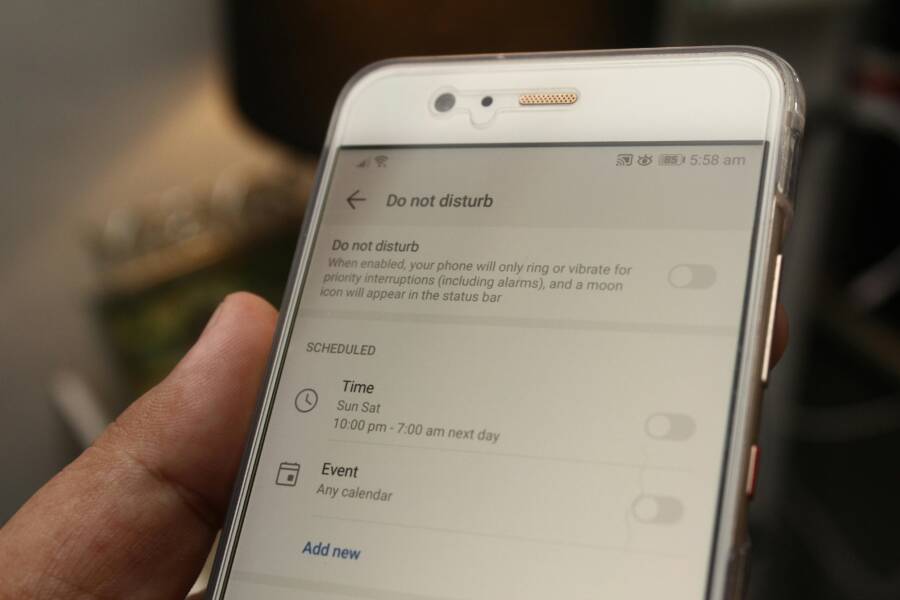
Are you absolutely certain your phone isn’t intentionally set to be quiet? Many users accidentally activate Do Not Disturb (DND) or Focus modes, which are designed to silence alerts when you need quiet time. When active, these modes override your normal ring settings, preventing the screen from waking up and often stopping the ringtone altogether. This is perhaps the single most common reason a phone doesn’t make noise for a call.
On Android, swipe down from the top of the screen to check your Quick Settings panel. Look for the icon that resembles a crescent moon; this indicates DND is active. If you see it, tap it to switch it off.
For iPhone users, the feature is called Focus (which includes the traditional Do Not Disturb). Check your Control Center by swiping down from the top right corner of the screen. If the Focus icon (often a small moon or a bed icon) is highlighted, tap it until it dims, confirming that it’s deactivated. Always confirm these silent modes are off, because modern operating systems prioritize these focus settings above almost everything else.
Battery Saver Modes Are Too Aggressive
Modern operating systems are excellent at managing power, sometimes too excellent for their own good. When your phone battery gets low, or if you have enabled an Aggressive Battery Saver or Low Power Mode, these systems may aggressively “hibernate” apps they deem non-essential to save every last drop of power. Unfortunately, the Phone app can sometimes be mistakenly categorized as non-essential background activity.
When the Phone app is put to sleep by a battery optimization setting, it might fail to wake up the screen or play the ringtone promptly when a call arrives. To check this on your smartphone, you need to look deep into the battery settings:
- Navigate to Settings.
- Find Battery or Power Management.
- Look for Battery Optimization or App Power Management.
- Locate the main Phone or Dialer application within that list.
- Confirm that the setting is Not Optimized or set to Unrestricted.
If the setting was restricting background activity, changing it will allow the calling service to function normally, even when you are trying to conserve power. This ensures your device remains ready for incoming communications. You should also check to see if your ringtone volume is set correctly in the sound settings too, another simple step often overlooked when troubleshooting. For more detailed steps on fixing Android devices specifically, you might find helpful instruction guides available, like those offered by Asurion Android phone not ringing? Here’s how to fix it.
Android Troubleshooting: Permissions and App Interference
When your Android smartphone refuses to wake up for a call, the problem often sits within how applications are allowed to interact with the core operating system. It isn’t always a hardware defect; frequently, software permissions or conflicts between installed apps are the real culprits stopping that essential alert. Setting up your permissions correctly is like giving keys to the right people; if the Phone app doesn’t have the key to make noise and light up the screen, it simply can’t do its job when someone dials. We need to examine the main calling application and any other software that tries to manage your calls or notifications.
Verifying Phone App Notification Settings
The incoming call interface relies entirely on a high-priority notification being pushed through the system. If the core Phone application is restricted, you won’t see the full-screen takeover when someone calls you. You must confirm that the system permits this app to function aggressively in the background, whether your screen is actively on or locked. This verification process is key to restoring dependable call alerts on your smartphone.
Here is how you confirm the main Phone app has full notification privileges:
- Go to your device’s main Settings menu.
- Locate the Apps or Applications Manager section.
- Find and tap on the primary Phone application within the master list; sometimes this is labeled as Dialer.
- Select Notifications. Make certain that the main toggle switch at the top is turned On.
- Within the notification categories, look for options related to Incoming Calls or Ringing. Verify that these specific channels are enabled and set to the highest priority level, often labeled as Alerts or Sound.
It’s also important to check the settings regarding calls while the phone is locked. If you are using a newer version of Android, you can review the general notification visibility settings which you can find in official Android resources Control notifications on Android. If those system-wide settings tell your smartphone to hide everything when locked, the incoming call screen simply won’t appear.
Dealing with Third-Party Call Blockers or Filters
Many people install third-party applications to manage spam, block known harassers, or simply enhance the look of their dialing screens. While these tools serve useful purposes, they operate by intercepting the incoming call signal before it reaches the stock Android calling service. If these secondary apps malfunction or if their settings conflict with the operating system, they can stop the standard ringtone and screen wake-up procedure dead in its tracks. Users must remember that every app installed wants a piece of the system’s attention.
When diagnosing a silent phone, testing these applications is mandatory. The best troubleshooting step here is simple: temporarily disable them.
Here are the steps we suggest following:
- Identify Suspects: Make a list of any recent apps installed that deal with spam filtering, security, call recording, or custom dialer interfaces.
- Force Stop: Go to Settings, find the App Manager, select the suspect app, and choose Force Stop.
- Test the Call: Have someone call your device immediately after force stopping the application.
- Re-enable if Necessary: If the call comes through normally, you’ve found the conflict. You will then need to go into that app’s settings and adjust its permissions or look for an option to let the default phone app handle ringing first. If the phone still doesn’t ring, you can re-enable that app and move on to the next one on your list.
Managing apps effectively is a constant task for any smartphone owner. Always keep an eye on what software is running silently in the background, as they often cause unexpected behavior.
Lock Screen Display Rules for Incoming Calls
The lock screen configuration dictates what information, if any, your device shows when it’s secured. If you have your security options set very strictly, incoming calls are blocked from visually appearing or making a sound to maintain privacy or simplicity. If your settings dictate that the lock screen should show no notifications whatsoever, then the phone may receive the call signal but will fail its primary task: waking up the screen to notify you. This setting overrides the notification settings we checked for the Phone app itself, making it a critical area to review.
You need to ensure your general lock screen settings permit visual alerts for calls:
- Open Settings on your device.
- Navigate to Display or sometimes Security & Lock Screen.
- Find the settings section related to Lock Screen Display or Notifications on lock screen.
- Confirm that the setting is not set to Hide Sensitive Content or Do Not Show Notifications at All. Many modern Android interfaces allow you to select options like showing all content, hiding only sensitive content (which usually means message previews, but might hide calling UI too), or showing none. Choose the option that permits notifications to appear.
If your phone is set to only vibrate or only show alerts when the screen is already on, you will miss calls when the phone is in your pocket or face down on a desk. Getting this general display rule right ensures that when the Phone app demands attention, the system is ready to display the contact information and ringtone instantly.
 Photo by Daniel Moises Magulado on Pexels
iPhone Solutions: Focusing on System and Contact Settings
When your iPhone stays silent or the screen stays dark during an incoming call, it often points directly to a software setting working exactly as designed, though perhaps not as you intended. These configuration puzzles are usually found deep within the system’s preferences for notifications, focus, or caller management. Unlike a physical hardware failure, these software blocks are often completely hidden from a casual glance. You need to systematically hunt down configurations that prioritize silence or filtering over immediate alert delivery. Let’s examine three key areas on your iPhone that might be silencing your world without telling you.
Turning Off the ‘Silence Unknown Callers’ Feature
One modern feature that frequently causes missed calls on an iPhone is Silence Unknown Callers. This setting sounds useful for cutting down on spam, but it has a drastic side effect if you aren’t careful. When this feature is active, your iPhone treats any incoming phone number that isn’t saved in your Contacts or recent outbound list as “unknown.” Instead of ringing or lighting up your screen for these unidentified numbers, the device sends them straight to voicemail. It’s like having a very strict bouncer at your phone’s door who only lets people through if they are on the guest list—everyone else gets turned away silently.
If you expect calls from delivery drivers, new business contacts, or people you’ve recently spoken with but never saved, this feature is your culprit for missed communication. You can review and manage how Apple handles these calls. As Apple Support explains, you have the ability to screen or silence unknown callers based on your preference Manage unknown callers on iPhone. To disable this strict filtering:
- Open the Settings application on your iPhone.
- Scroll down and tap on Phone.
- Look for the Silence Unknown Callers toggle switch.
- Make certain this switch is turned Off (it should appear gray, not green).
Remember that even with this feature off, the iPhone still screens spam calls using Apple’s built-in intelligence. However, numbers that are simply new or temporarily unsaved will now ring normally and wake up your screen, restoring dependability to your smartphone.
Managing Focus Filters for Specific Contacts
The Focus feature is far more advanced than the old Do Not Disturb mode; it lets you create detailed profiles for different activities, like sleeping, working out, or being at the office. While you may have checked the main DND setting, individual Focus Modes can have their own customized filters that block calls even if general DND is somehow bypassed or if you only briefly activate a specific Focus. The primary issue arises when a Focus Mode is set to only allow calls from your Favorites.
If your Work or Sleep Focus is on, and the caller isn’t designated as one of your absolute favorites—meaning they aren’t starred in your Contacts list—the system will treat that incoming communication as if DND were active. The result is silence, and critically, the screen will not light up to show you that someone tried to reach you. Your phone never knows to wake up for a contact that hasn’t been explicitly whitelisted by the current Focus profile.
To check these contact allowances, you must check the settings within each active Focus:
- Go to Settings, then tap Focus.
- Select the Focus Mode you use most often (like Work or Personal).
- Under the People section, check the Allow Notifications list. If it only shows Favorites, you might be blocking others.
- You can change this to Allow All temporarily for testing, or add specific people or groups to the allowed list.
If you use a Focus mode to silence notifications, the system is designed to respect that quiet time, even if it means suppressing the visual alert that would normally wake your smartphone. Always look at the active Focus indicator at the top of your screen to know which set of rules is currently being applied.
Checking for Low Signal Impact on Wake-Up
A seemingly simple configuration or software issue sometimes hides a connection problem. When your cell signal is weak or your Wi-Fi Calling connection is unstable, the process of receiving and alerting you to an incoming call can be significantly delayed or fail outright. Think of the call signal as a package delivery; if the signal delivery person can’t find a clear route to your phone’s main receiving dock, the package sits waiting somewhere in the network queue. This delay often manifests as the screen being slow to wake up or the ring tone starting late.
Weak cellular service means your iPhone has to work harder to maintain the connection required to sustain the call attempt. Poor Wi-Fi calling stability presents an even trickier issue; if the Wi-Fi network drops momentarily right when the call comes in, the phone might try to hand the call over to cellular, and in that brief transition, the notification fails to process in time to wake the screen.
To diagnose this connection lag, you should perform a simple environment test with your smartphone:
- Move to a location known for having full signal bars (perhaps near a window or outside).
- Note if the incoming calls start ringing immediately and wake the screen promptly in this better signal area.
- If performance improves, the delay you experience is likely connectivity related, not a setting issue.
This is especially relevant for users relying heavily on Wi-Fi Calling indoors. If network reception is the barrier, ensure your phone has the best available connection. Persistent issues under strong signal conditions, however, point back toward the system or Focus settings detailed above.
Advanced Steps: When Basic Fixes Don’t Bring Your Screen Back to Life
You’ve checked the simple things: volume is up, Do Not Disturb is off, and you’ve restarted your device. If your phone still refuses to ring or wake the screen for incoming calls, it means the issue is buried a little deeper within the system’s configuration or software integrity. Now, we move into the more involved troubleshooting methods. These steps target underlying connections and system stability, areas where small errors can have a big impact on call reception. Don’t worry; this doesn’t automatically mean you need a new smartphone or a trip to the repair shop, but it does require careful attention to detail.
Resetting Network Settings Without Losing Data
Corrupt network settings act like tangled wires inside your mobile device. These settings govern how your phone communicates with cell towers, Wi-Fi access points, and Bluetooth devices. If this configuration data becomes corrupted, your phone might struggle to properly “handshake” with the network to receive a call signal, or the signal it receives isn’t processed fast enough to trigger the screen wake-up function. Resetting network settings is a powerful diagnostic tool because it cleans out this connection cache without erasing your personal information, photos, or installed applications. It forces the phone to register fresh connection credentials.
This process selectively targets only connectivity details. When you perform this type of reset, you should expect the following to be cleared:
- All saved Wi-Fi passwords and network connections.
- Paired Bluetooth devices.
- Cellular and APN settings (Access Point Names).
For Android users, the location varies slightly by manufacturer, but generally, you navigate to Settings, then look for System or General Management, followed by Reset options. From there, select Reset Wi-Fi, mobile & Bluetooth or Reset network settings. You will need to confirm this action, and your device will typically reboot or briefly lose service while the changes take effect. Finding specific procedures related to your Android model can be helpful; for instance, some guides detail exactly how to reset network settings on Android 9.0 or newer Sony Support Article.
For iPhone users, the path is simpler. Go to Settings, select General, then Transfer or Reset iPhone, and finally, tap Reset. Choose Reset Network Settings. Like Android, this will require you to re-enter Wi-Fi passwords later, but your photos and contacts remain untouched, offering a clean slate for your connections.
Checking for System Software Updates
Software bugs are a frequent source of strange phone behavior, including failure to wake for calls. If a recent operating system patch introduced a glitch that affects the low-level process handling incoming network traffic or screen power states, the only fix is an update released by the manufacturer. These updates often contain specific performance enhancements and bug fixes that resolve stability issues you are experiencing on your smartphone. Ignoring pending updates means you are living with known problems that the manufacturer has already documented and corrected.
Both Apple and Google frequently release incremental updates specifically to address these kinds of subtle performance regressions. For example, recent stability drops have fixed display issues and general system function issues across major platforms. Check the release notes for recent updates to see if “call notification stability” or “screen wake failure” were mentioned as targets for correction.
Here is how you confirm if your device is running the latest software:
- On iPhone: Go to Settings, tap General, and then select Software Update. If an iOS update is available, click Download and Install. You can review recent Apple fixes on their support pages Update iOS on iPhone.
- On Android: Navigate to Settings, scroll down to System or About Phone, and look for System Update or Software Update. Check for any available downloads; installation often requires substantial battery life or being plugged in. According to recent reports, major Android releases have included specific fixes targeting screen display behavior as recently as mid-2024, indicating these updates are important for resolving display-on issues.
Installing the latest version ensures your phone benefits from the most current patches designed to keep all functions, especially call alerts, running smoothly.
The Last Resort: Factory Reset Considerations
If you have diligently worked through connection resets, checked all Focus and DND settings, and confirmed you are on the newest software without success, you face the most drastic solution: the factory reset. Position this step as the final option for resolving deeply rooted software corruption or persistent configuration errors that resist standard fixes. A factory reset completely wipes your smartphone clean, returning it to the exact state it was in when you first took it out of the box. This procedure eliminates any lingering, strange software interactions that might be holding your phone hostage from ringing properly.
This action removes everything customized on the device itself, including applications, settings, photos, messages, and saved logins, making a complete backup mandatory. You must have a recent, verified copy of all your important files stored either in cloud storage (like iCloud or Google Drive) or backed up locally to a computer before proceeding. If you skip the backup, any data not stored on the cloud will be permanently lost. Information regarding what a factory reset specifically deletes on both major operating systems is widely available to verify your backup strategy Securis: Is Your Smartphone Data Safe after a Factory Reset?.
Here is the essential preparatory checklist before initiating a factory reset:
- Cloud Backup Verification: Confirm that photos, contacts, notes, and app data have successfully synced to your online account.
- Device Deactivation (Applies Mostly to Trade-ins): Sign out of features like Find My iPhone or Google Account Activation Lock if you plan to sell or permanently retire the device afterwards.
- Power Supply: Plug your smartphone into a charger. This process can take significant time, and you cannot afford for the device to run out of battery midway.
Once backed up, initiate the reset via Settings. For Android, this is typically under System > Reset options > Erase all data (factory reset). On iPhone, it’s under Settings > General > Transfer or Reset iPhone > Erase All Content and Settings. Proceed only after you are absolutely certain you cannot operate without those personal files, as this is the definitive software wipe for your device.
Conclusion
You’ve systematically tracked down why your device isn’t waking up for incoming calls. We moved from the simplest checks like a full restart and verifying your Do Not Disturb status, to checking platform-specific settings like Android app permissions or iPhone Focus filters, and finally, addressing deep connection issues with network resets. Your smartphone should now be reliably notifying you when someone reaches out. Persistent silence often stems from settings designed to offer quiet, ironically hiding important alerts. Maintaining clean settings, especially confirming that battery optimization isn’t too aggressive or that those useful Focus modes aren’t accidentally blocking everyone, prevents future headaches. Keep your device software updated, as manufacturers actively patch these notification glitches to keep your communication dependable. Did these steps restore your expected ringer behavior? Share which fix worked best for you below.