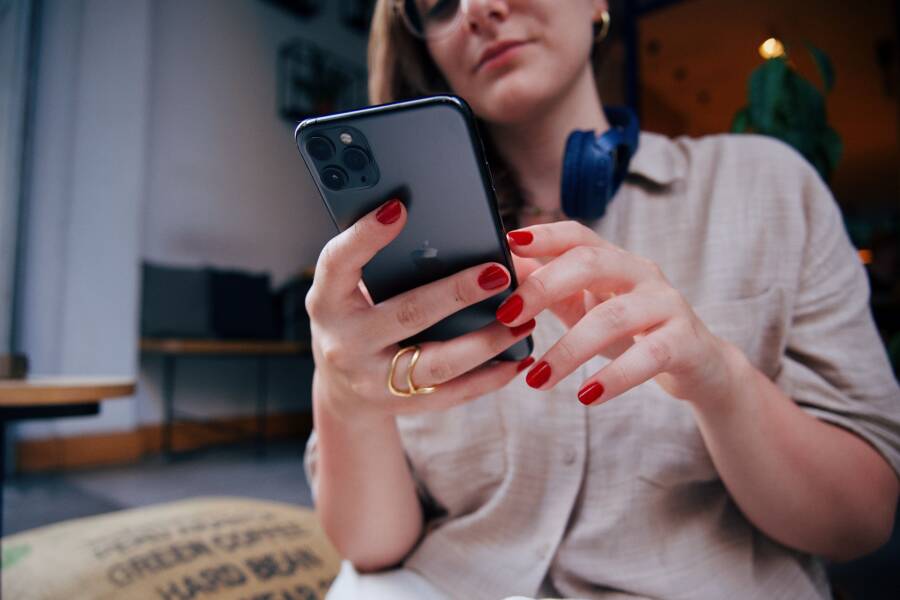
You can set up a one-tap button on your smartphone to call a family member instantly. This shortcut removes the need to unlock your device, open the phone app, and search for a contact.
It provides peace of mind when you need to connect with your family during an emergency. By placing this feature on your home screen, you save valuable time.
You can configure this direct line by using built-in accessibility settings or dedicated widget tools. Let us look at how you can organize your smartphone for faster communication.
Why You Need a Direct Call Shortcut on Your Smartphone
Speed is the primary reason to install a one-tap call button on your smartphone. When an emergency happens, every second counts. Navigating through multiple menus to find a contact name wastes valuable time. A home screen shortcut cuts that process down to a single touch.
Beyond emergencies, these shortcuts simplify daily communication. You likely call specific people, such as a spouse or a parent, more often than anyone else. Placing these contacts directly on your screen turns your smartphone into a more efficient communication tool. You stop treating your phone like a general computer and start using it for its most basic purpose.
Benefits of instant contact access
The most immediate benefit is reduced friction. Modern devices pack dozens of apps and settings, which creates clutter. A direct call button ignores the noise and puts your most important connections front and center. You avoid accidental taps on wrong icons while you are in a rush.
Accessibility is another factor. Users with motor impairments or those who find small screen icons difficult to navigate benefit from larger, dedicated contact buttons. You can often resize these widgets to make them prominent and easy to hit.
The following table shows how a direct shortcut compares to standard calling methods.
Using a shortcut keeps your most important tasks within reach. It turns your screen into a personalized interface that prioritizes people over software.
Situations where speed matters
You should consider how often you need to reach someone while your hands are busy or your attention is split. For example, parents often need to reach their children while managing grocery bags or school pickups. A one-tap button allows you to initiate that call with one hand.
Commuters and outdoor enthusiasts also benefit from this approach. If you rely on your smartphone for safety during evening runs or long drives, having a dedicated button provides comfort. You do not have to look at the screen for more than a split second to start the call.
This setup also helps during quiet moments. Perhaps you have an elderly relative who struggles with the interface of modern phones. You can set up a single button on their screen that says “Call Me” in large text. This removes the stress of using a phone and keeps them connected to family with ease.
How to Create a Dedicated Call Button on iPhone
You can add a direct call shortcut on your iPhone using the native Shortcuts app. This method places a small icon on your home screen that triggers a call to a specific contact when you tap it. Because the button acts as a standard app icon, it stays visible and ready to use whenever you need it.
Setting up the shortcut action
First, open the Shortcuts app already installed on your iPhone. Tap the plus sign icon in the top right corner to start a new shortcut. Select Add Action, then search for Call. You will see an option labeled Call under the Contacts section. Tap this to add it to your workflow.
Now, tap the greyed-out Contact text within the action block. This opens your address book where you can pick the person you want to call. After you select the name, tap Done. Your shortcut now knows exactly who to dial when triggered.
Adding the button to your home screen
With the action configured, you must move it to your home screen. Tap the small arrow next to the shortcut name at the top of the screen or look for the Share button at the bottom. Choose Add to Home Screen from the list. This opens a preview screen where you can name the button and choose an icon.
You can take a photo of the person to use as the icon. Tap the square icon next to the name, choose Choose Photo, and pick an image from your library. Once you finish, tap Add in the corner. You now have a custom button on your smartphone home screen that initiates a call instantly.
Organizing your communication shortcuts
Many people create a folder on their home screen specifically for these call shortcuts. This helps if you want to reach multiple family members without cluttering your main interface. You can also place these icons in the Dock at the bottom of your screen for constant access across every home page.
If you find the icons too small, you can use widgets. Long-press on an empty area of your home screen until the icons jiggle. Tap the plus sign in the top corner and search for the Contacts widget. This allows you to place a large, interactive contact box on your screen that offers one-tap calling for your favorites.
Using these built-in tools turns your smartphone into a high-speed communication device. You no longer have to dig through menus during urgent moments. Instead, you rely on a simple, visual layout that works exactly how you need it to work.
Setting Up One-Tap Calling for Android Users
Android users have many options for creating one-tap call buttons. You can use native widgets, third-party apps, or specific launcher features to keep important contacts within reach. These tools allow you to bypass the phone app and initiate a call directly from your home screen.
Using built-in contact widgets
Most Android phones come with a contact widget feature that creates a direct dial icon. To set this up, long-press on an empty space on your home screen and select Widgets from the menu. Look for the Contacts folder and expand it to see available options.
Select Direct Dial to choose a specific contact. After you select the person, Android places their profile picture or a contact icon on your screen. Tapping this icon triggers an immediate call to that number. You can resize this widget on most devices to make it larger and easier to select.
Organizing via third-party launcher shortcuts
Many users prefer custom launchers for their smartphone to manage shortcuts. Launchers like Nova Launcher or Microsoft Launcher offer advanced gesture controls and icon customization. You can assign a one-tap call action to a gesture, such as a swipe up on an icon, or create dedicated dock shortcuts.
These launchers often provide cleaner icons than the stock Android widgets. You can change the label text, icon shape, and size to match your home screen theme. This approach keeps your interface tidy while maintaining instant access to essential contacts on your smartphone.
Configuring accessibility buttons
Android includes accessibility features that help users with limited dexterity reach their contacts. You can enable the Accessibility Menu in your settings to add a persistent button on your screen. While this menu handles general navigation, you can pin specific contact actions within secondary apps that integrate with the system accessibility services.
This setup helps if you need large buttons that provide haptic feedback when pressed. It ensures the call initiates even if your touch is imprecise. Many dedicated speed-dial apps also use these system permissions to overlay a floating button that stays visible over other apps.
Comparison of Android calling tools
Choosing the right tool depends on your need for speed versus customization. The table below outlines how common Android methods differ.
Native widgets are the quickest to implement for most users. If you need a more tailored look for your smartphone, a custom launcher is the better choice. Accessibility apps are the most effective solution for users who require larger icons or specific physical interaction aids.
Frequently asked questions
Can I use a photo as the icon for my direct dial button?
Yes, most contact widgets automatically pull the photo you assigned to the contact in your address book.Will these shortcuts work if my smartphone is locked?
Security settings usually require you to unlock the device before a call can connect for privacy reasons.Can I create a group call shortcut?
Most native widgets only support single-contact dialing, so you would need a third-party app to trigger conference calls.
Summary of one-tap setup
Setting up one-tap calling involves picking the right tool for your specific device and preferences. Start with the native contact widget to see if it meets your needs. If you require more visual control, switch to a custom launcher or a dedicated shortcut application. Test your buttons periodically to confirm they still link correctly after you update your contact list.
Best Practices for Emergency Communication
Effective communication requires preparation and clarity before a crisis occurs. When you set up a one-tap call button on your smartphone, you reduce the time needed to reach emergency contacts. Planning these steps ahead of time ensures you remain calm during high-pressure situations.
Choose reliable emergency contacts
Select individuals who are available during the times you typically travel or face risks. You want people who answer their phones reliably and understand your daily routine. Share your location and travel plans with these people regularly to keep them informed. They should know how to act if they receive a distress call from your device.
Test your emergency shortcuts
Verify that your one-tap button functions correctly before you depend on it. Place a test call to your emergency contact to confirm the connection speed and audio clarity. Check that your smartphone volume is high enough to hear the call in noisy environments. If you use a Bluetooth headset or car audio system, test how the call behaves when connected to these devices.
Maintain up-to-date contact information
Check your address book every few months to ensure the phone numbers for your emergency contacts are still current. People change their numbers, and old data can cause a failed connection when you need help most. Keep secondary contacts listed in your phone in case your primary person is unavailable. Use clear labels in your contact list so you can identify these people quickly if the button fails.
Optimize smartphone settings for emergencies
Configure your smartphone so it allows calls even when the device is locked. Some security settings restrict call functionality to protect your data, but these features can block emergency access. Review your device lock screen settings to permit emergency calling features. You might also enable location services for specific contacts to help them find you if you cannot describe your position.
Keep your battery charged
A fast-dial button does not help if your smartphone battery is empty. Keep a portable charger in your bag or car for long trips to ensure your device stays powered on. If you notice your battery draining quickly, review which background apps consume the most power. Keeping your device ready for a call is as important as the shortcut button itself.
Communicate the plan
Tell your emergency contacts about the system you created. Explain that you might call them through a one-tap button if you have an urgent need. When they understand how you use these shortcuts, they can prioritize your calls. This simple conversation creates a shared understanding of how to handle a potential emergency.
Conclusion
A one-tap button transforms your smartphone into a dedicated tool for safety and connection. You no longer have to navigate complex menus or unlock your screen during urgent moments. This simple change prioritizes your most important relationships by making them accessible with a single touch.
Take a few minutes today to set up these shortcuts for yourself or family members. Placing a button on your home screen creates a direct line that reduces stress for everyone involved. Technology works best when it removes friction from our daily habits. By organizing your screen now, you ensure that you stay linked to the people who matter most.