What If the Only Thing Between You and the Life You Deserve Is a Hidden Wealth Code Waiting to Be Activated
>>> Open the Door <<<

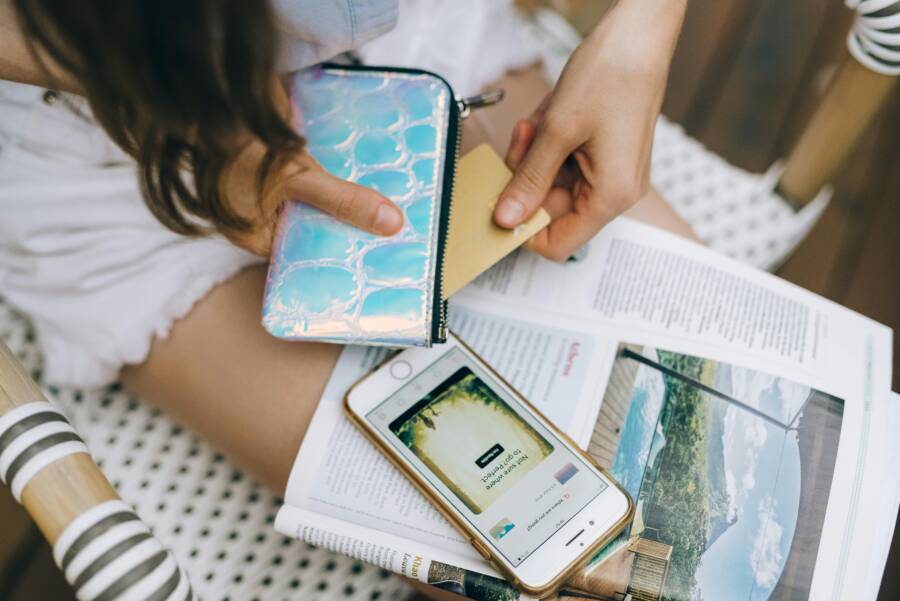
Carrying a bulky wallet is often unnecessary when your smartphone holds your credit cards, loyalty programs, and transit passes. Modern mobile payment systems consolidate these items into one secure location.
Apple Wallet and Google Wallet are the primary tools for this task on your device. These applications protect your sensitive data while speeding up your checkout experience at registers and online.
This guide explains how to add and manage your payment cards, so you can save time during every transaction. Follow these simple steps to set up your mobile wallet for everyday use.
Setting Up Apple Wallet on Your iPhone
Getting started with Apple Wallet is simple because the app comes pre-installed on every compatible smartphone. You can transform your device into a payment tool by adding your credit or debit cards to the app. Once configured, you pay at stores, restaurants, and online without reaching for your physical wallet.
Thousands of People Were Struggling With Money Until They Discovered This One Ancient Secret Hidden in Sound
>>> Unlock It Now <<<

Adding Your First Payment Card
You only need a few minutes to connect your financial accounts to the wallet. Start by opening the Wallet app from your home screen. You will see a plus icon at the top right corner of the screen. Tapping this button begins the setup process for your smartphone.
- Tap the plus icon to add a new item.
- Select the option for a debit or credit card.
- Use the camera on your smartphone to scan your physical card details.
- If the camera does not capture the numbers correctly, enter the information manually.
- Provide the expiration date and the security code from the back of your card.
- Review the terms and conditions provided by your bank.
- Tap Agree to confirm your acceptance.
After you finish these steps, your card stays stored on your device. You can repeat this process to add multiple cards for different purchases or rewards programs.
Verifying Your Card with Your Bank
Banks require verification to protect your financial data before they allow your smartphone to make transactions. This step prevents unauthorized people from adding your stolen card information to their own devices. Without this security layer, your account information would remain vulnerable to misuse.
Most banks offer several ways to complete this quick check. You might receive a text message containing a verification code that you enter directly into the Wallet app. Some banks send an email link or require you to open their official mobile app to approve the connection. Occasionally, you may need to call a bank representative to confirm that you are the person setting up the card.
Choose the method that works best for your situation. Once the bank approves your request, your card is active and ready for use at any merchant that accepts contactless payments. You do not need to repeat this verification unless you remove the card and add it again later. This process stays consistent regardless of the specific financial institution you use.
Configuring Google Wallet on Your Android Device
Google Wallet functions as a central hub for your payment cards, transit passes, and loyalty programs. Setting up this application on your smartphone provides a secure way to manage your financial information. Once you configure the app, you gain the ability to pay at physical registers and within various apps using a single tap.
Step-by-Step Card Addition for Android
You start the process by opening the Google Wallet app on your device. If your phone does not have the app installed, download it from the Google Play Store. After opening the app, you will find a button labeled “Add to wallet” located near the bottom of your screen.
- Tap the “Add to wallet” button to see available options.
- Select “Payment card” to begin adding your credit or debit card.
- Use the camera on your smartphone to scan the card details.
- If the camera scan fails, choose the “Enter details manually” option.
- Type your card number, expiration date, and CVV code into the provided fields.
- Review the terms from your bank and tap “Accept” to finish.
You can also add cards directly from your bank’s own application. Most financial institutions include an “Add to Google Wallet” button inside their settings menu. This method often skips the manual entry process because the bank already shares your verified information with the system. Your card will appear in the Google Wallet interface immediately after the bank approves the link.
Enabling Contactless Payments via NFC
Your card details exist inside the app, but they cannot transmit information to a store terminal without active NFC settings. Near Field Communication (NFC) is the wireless technology that allows your smartphone to communicate with payment readers at checkout counters. Without this feature enabled, the wallet cannot finalize a transaction.
You should verify that NFC is active before you head to a store. Navigate to your device settings and search for “NFC” or “Contactless payments.” Ensure the toggle switch is in the “On” position. Many devices also allow you to access this setting quickly through the quick-settings panel by swiping down from the top of your screen.
Make sure your smartphone is set as the default payment method if you have multiple digital wallets installed. You can check this in the “Contactless payments” menu within the Google Wallet app. When you tap your device against a terminal, the system uses this default setting to complete the transaction. A quick check of these settings prevents frustration when you reach the front of the checkout line.
Managing and Updating Your Stored Cards
Keeping your digital wallet organized ensures that your checkout process stays fast and efficient. You might accumulate multiple cards over time, such as rewards programs, credit cards, and transit passes. Regularly checking these items helps you maintain a clear view of your financial tools. Proper management prevents you from accidentally using the wrong account during a busy checkout.
There Is a Frequency That the Wealthiest Families Have Used for Generations and Most People Will Never Know It Exists
>>> Open the Door <<<

Changing Your Default Payment Method
When you tap your smartphone at a payment terminal, the system automatically selects your default card. You can change this selection whenever your preferences shift. Setting your most-used card as the default saves you from having to scroll through a list of options at the register.
On an iPhone, open the Wallet app and press firmly on the card you want to prioritize. Drag the card to the front of the stack in the “Payment” section. This simple gesture updates the default choice immediately for future transactions.
For Android users, open the Google Wallet app and tap on the card you wish to make primary. Look for the “Make default for contactless” option and select it. The application will confirm the change, ensuring your smartphone uses that card for all upcoming contactless payments.
Removing Old or Lost Cards Safely
It is common to lose physical cards or replace them with newer versions. Removing these old cards from your smartphone keeps your wallet clutter-free and secure. You should always delete cards that you no longer use or those you have reported as lost to your bank.
Deleting a card from your device is a safe process that does not cancel your actual bank account. It only removes the digital token stored on your phone. To remove a card, follow these steps:
- Open your digital wallet app.
- Select the specific card you need to delete.
- Tap the icon for additional settings, which is often three dots or a menu button.
- Choose the “Remove card” or “Delete” option.
- Confirm your choice when the prompt appears.
Once you perform this action, the card vanishes from your interface. You can add the card again later if your situation changes, provided your bank supports the connection. This removal process keeps your sensitive data isolated and clean.
Staying Secure While Using Digital Wallets
Digital wallets turn your smartphone into a convenient payment tool, but this convenience requires you to maintain strict security habits. Because your device carries sensitive financial data, you must treat it with the same care you apply to a physical leather wallet. Small, consistent actions protect your bank accounts from unauthorized access and keep your funds safe during every transaction.
Protecting Your Information with Device Locks
A secure lock screen is mandatory for any smartphone that stores payment cards. Without a strong password, PIN, or biometric lock, anyone who picks up your device can access your payment apps. This leaves your cards, transaction history, and personal details exposed to anyone with physical access to your phone.
Modern devices offer several ways to lock your interface. You should use a complex passcode rather than simple sequences like 1234. If your phone supports it, turn on facial recognition or fingerprint scanning to combine high security with quick access. These methods ensure that only you can authorize the device to open your wallet or complete a transaction.
Many payment apps add a secondary layer of protection. For example, some systems require you to authenticate again with a fingerprint or face scan immediately before a payment goes through. This prevents accidental purchases or unauthorized use if you leave your device unlocked on a table. Always enable these extra prompts in your payment settings to maximize your defense.
What to Do If You Lose Your Phone
Losing your phone is stressful, but you can act quickly to prevent financial loss. Both Apple and Google provide remote tools to protect your data if your smartphone disappears. You do not need the physical device in your hand to stop others from using your stored cards.
If you lose an iPhone, visit the iCloud website or use the Find My app on another trusted device. You can flag your smartphone as lost, which immediately suspends your payment cards stored in the wallet. This action does not delete the cards permanently, but it prevents any new transactions until you recover the device and verify your identity.
Thousands of People Were Struggling With Money Until They Discovered This One Ancient Secret Hidden in Sound
>>> Unlock It Now <<<
Android users rely on the Find My Device service to manage their security. Log into your Google account from a computer or tablet to track the location of your phone. If you cannot find the device, select the option to erase the phone or sign out of your accounts remotely. This clears your payment information and protects your financial privacy.
Contact your bank as soon as you realize your phone is missing. Financial institutions can freeze your specific card tokens, which renders them useless on your lost device. This step provides peace of mind while you search for your phone or wait for a replacement. By responding quickly, you keep your money safe even if your hardware stays lost.
Conclusion
Maintaining a clean wallet on your smartphone simplifies your daily routine and removes unnecessary bulk from your pockets. You gain control over your financial data by organizing cards, removing old items, and keeping your device security updated.
These digital tools offer a faster and more secure way to pay compared to traditional methods. You can start using your smartphone for every transaction today by following the simple setup steps outlined above.
There Is a Frequency That the Wealthiest Families Have Used for Generations and Most People Will Never Know It Exists
>>> Open the Door <<<