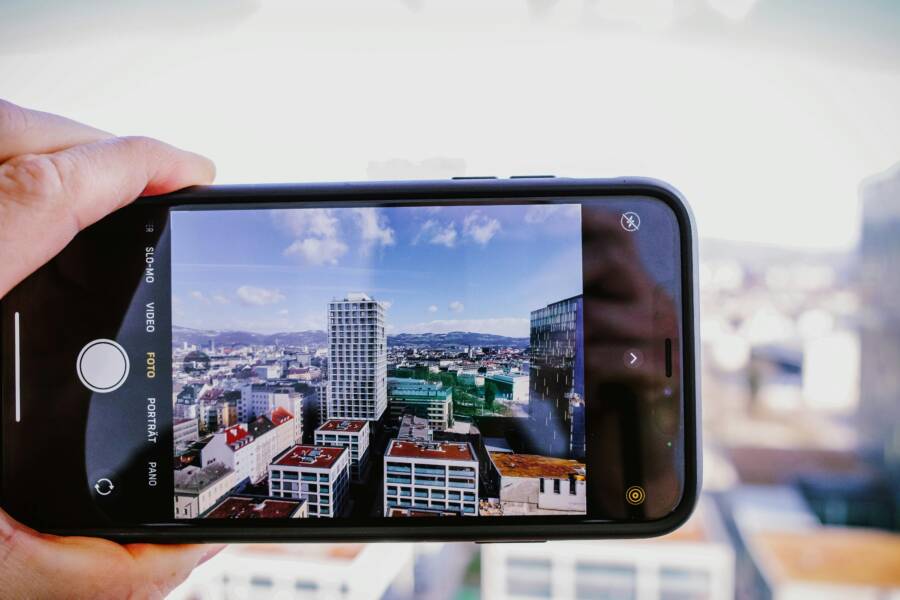
Locking exposure and focus is the best way to stop blurry or poorly lit photos on your smartphone. Most cameras automatically guess your lighting and subject, but these sensors often choose the wrong settings.
You take total control when you manually lock these features. You prevent the camera from shifting mid-shot and ensure your subject stays clear and properly lit.
Why Auto Mode Is Often Your Biggest Enemy
Auto mode on your smartphone functions as a generalist. It makes rapid, broad guesses about the scene based on standard lighting conditions. While this works for casual snapshots, the software often prioritizes a balanced look over your actual intent. When the camera interprets a high-contrast scene, it averages the light values across the entire frame. This compromise leaves your focal point looking washed out or completely hidden in shadow. Taking control of these settings prevents the software from overwriting your creative vision.
How Light Confusion Affects Your Results
Smartphone sensors possess a limited dynamic range compared to professional equipment. When you point your camera at a bright window or a dark corner, the light meter struggles to process the extremes. The software attempts to find a middle ground by averaging the brightness of the entire scene. If you photograph a person standing against a bright sky, the camera exposes for the sky to prevent it from blowing out. As a result, your subject becomes a dark silhouette because the meter ignored the closer light values.
This automated balancing act creates two common issues:
- Overexposed backgrounds: The sky or windows appear as featureless white patches because the camera prioritizes the foreground.
- Underexposed subjects: Details in faces or objects disappear into mud-colored shadows when the software encounters a bright light source elsewhere.
You can stop this behavior by locking your exposure. Tapping the screen allows the smartphone to lock onto a specific light value. By choosing a spot that matches your subject’s brightness, you force the camera to ignore the extremes of the rest of the frame. This ensures your intended subject remains the priority, regardless of how bright or dark the background becomes.
Understanding the Focus Hunting Problem
Focusing feels instantaneous on most devices, yet the process involves physical and software-based adjustments. Modern smartphones use contrast-detection systems that constantly scan the scene to find the sharpest edges. If your frame contains multiple objects or moves quickly, the focus motor often struggles to decide what matters most. In low light, the sensor finds even fewer edges to lock onto, which forces the camera to hunt back and forth. This motion leads to soft photos or missed moments.
The camera often defaults to the object closest to the lens or the brightest area in the frame. If you want to highlight a distant mountain or a specific person in a crowd, the smartphone may latch onto a fence or a nearby tree instead. This focus hunting causes the following frustrations:
- Focus shifting: The camera moves the focal plane suddenly when someone walks through the background.
- Soft imagery: The sensor settles on a mid-point between objects, leaving nothing in the frame truly sharp.
- Lost timing: The time spent hunting for focus often causes you to miss the peak moment of an action.
Locking your focus provides a reliable anchor for your lens. After you manually select your subject on the screen, the smartphone stops trying to guess what you want to see. It stops hunting and keeps the depth of field exactly where you need it. This consistency is the difference between a blurry, accidental shot and a crisp, intentional photograph.
Taking Control on iPhone Devices
You can move past the limitations of automatic settings by interacting directly with the camera interface on your smartphone. Apple includes built-in tools that allow you to lock focus and exposure in seconds. Once you master this interaction, you gain the ability to shoot in high-contrast environments without the camera software ruining your composition. You decide which area of the scene matters most, and the sensor adheres to your choice until you decide to unlock it.
The AE/AF Lock Gesture Explained
The primary method for securing your settings is the AE/AF Lock feature. This stands for Auto Exposure and Auto Focus. To trigger this on your smartphone, open the camera app and frame your shot. Find the subject you want to keep sharp and well-lit. Tap that specific area on your screen and keep your finger held down for about one second.
You will see a yellow box appear around the selected area. A small label reading AE/AF LOCK appears at the top of the screen once the action is complete. This confirms that the camera has stopped its automatic scanning process. It will no longer hunt for focus or adjust the brightness levels if you move the camera or if the lighting conditions change slightly. You can now recompose your shot or wait for the perfect moment without the device overriding your preferences.
Adjusting Brightness After Locking
Once you lock the focus and exposure, you might notice that the image is still too bright or too dark. You can fine-tune this easily without losing your lock. Look for the sun icon that sits right next to the yellow focus box on your screen. This is a manual exposure slider.
Slide your finger up or down on the screen while the yellow box is active. Moving your finger upward increases the brightness, while moving it downward darkens the scene. You see these changes in real time, allowing you to settle on the perfect balance before you press the shutter button. This adjustment is helpful when shooting backlit subjects or scenes with deep shadows. The camera retains these specific settings until you tap a different part of the screen or exit the camera app entirely.
Taking Control on Android Smartphones
Android devices offer flexible ways to manage your camera settings. Because manufacturers design their own camera software, the exact interface might vary between brands like Samsung, Google, or Motorola. However, the core logic for controlling focus and exposure remains consistent across almost every modern smartphone. By manual intervention, you bypass the guesswork of automated software and ensure your final images match your creative vision.
Using Long-Press for Focus Locking
Most Android camera apps use a simple touch-based gesture to secure focus and exposure. Open your camera app and point your smartphone at your subject. Tap the area on the screen where you want the focus to land. This action tells the camera software to calculate the distance and light levels for that specific point.
To keep these settings from shifting, perform a long-press on that same spot. Hold your finger down for about one second until a small lock icon or a colored frame appears. This indicator confirms the AE/AF lock is active. The camera will stop searching for other subjects or adjusting to changing light in the background. You can now recompose the frame, move closer, or wait for the perfect moment without the focal point jumping to another object. If you need to reset these settings, tap anywhere else on the screen to disable the lock and return to automatic mode.
Advanced Pro Mode Options
Beyond the basic lock feature, many smartphones include a Pro or Manual mode. This setting is often hidden within the camera app menu under terms like More or Pro. This mode provides granular control that goes far beyond simple locking. It allows you to adjust individual settings like shutter speed and ISO.
ISO controls the sensitivity of your sensor to light, while shutter speed dictates how long the sensor collects light. By manually adjusting these, you gain precision in difficult conditions, such as low-light environments or high-speed action shots. You can keep the shutter open longer to brighten a dark room or increase the shutter speed to freeze motion without blur. These settings allow you to override the camera software entirely, giving you the same control found on dedicated professional cameras. While these options require more practice, they are useful when your smartphone needs to perform in challenging, non-standard lighting scenarios.
Best Scenarios to Use Manual Locks
Manual locks provide precision when automated systems fail to interpret your intent correctly. You should switch to manual control whenever the scene contains high-contrast lighting or complex movement patterns. These tools ensure your smartphone camera adheres to your vision rather than settling for a generalized average.
High-Contrast Lighting Environments
Automated systems often struggle when a frame includes both bright highlights and deep shadows. When you photograph a subject against a sunset or an open window, the sensor frequently adjusts for the bright exterior. This choice leaves your subject in complete shadow. By manually locking exposure on the face of your subject, you tell the smartphone exactly where to set the light levels. The camera ignores the blinding light behind them and preserves the details on your subject.
Macro and Close-Up Photography
Small objects often confuse the autofocus mechanism because the background contains many competing edges. A smartphone might focus on a distant leaf rather than the small flower right in front of your lens. Locking your focus on the specific detail you want to capture prevents the camera from hunting for a different focal plane. Once you confirm the lock, you can adjust your position slightly to refine the composition without the focus shifting away from your target.
Capturing Predictable Action
When you track a moving subject, autofocus motors constantly work to keep up with the distance changes. This constant calculation sometimes causes the camera to miss the peak moment of action or cause focus lag. If you know where the action will happen, such as a child running toward a specific spot on a track, you can lock focus on that location beforehand. Your smartphone remains ready to fire the shutter the moment the subject enters the frame, which significantly reduces the delay between pressing the button and the photo capture.
Creating Panoramic or Composite Shots
Consistent settings are essential if you plan to stitch multiple images together later. If the exposure shifts between shots, the resulting composite will show jarring changes in brightness and color. Locking your exposure ensures every frame has identical light values, making the stitching process much cleaner. This creates a uniform look across your entire image, which is difficult to replicate if you leave the camera in automatic mode during a multi-shot sequence.
Common Questions About Camera Control
Users often have questions when they first stop relying on automatic camera settings. Mastering manual adjustments on a smartphone requires a clear understanding of how the device interprets light and focus. Addressing these frequent concerns helps you gain confidence and shoot better photos consistently.
Can I lock settings while using video mode?
Yes, most modern mobile devices allow you to lock focus and exposure during video recording. The steps match the process you use for still photos. Simply tap and hold on your subject until the screen confirms the lock. This keeps the camera from adjusting brightness if someone walks across the frame or if light changes. It is a reliable method to produce professional, stable-looking footage without distracting fluctuations.
Why does my screen look bright but the photo looks dark?
This usually happens because the camera software attempts to balance the entire scene before the shutter triggers. Even if you lock your exposure, the internal processing might still adjust the final image file to fit the overall scene data. If your subject appears too dark, use the manual exposure slider to brighten the image before you press the button. Checking your screen brightness also helps, because a display set to a low level often makes a photo seem darker than it actually is.
Does locking focus consume more battery power?
Locking your focus and exposure does not significantly drain your battery. In fact, keeping the focus motor steady might save a small amount of power because the camera is no longer constantly searching for new focus points. The primary factor for battery drain remains the screen brightness and the processor usage during video capture. Using these manual tools is efficient and safe for your device over long periods of shooting.
How do I undo a lock once I have set it?
You can disable the lock at any time by tapping anywhere else on your display. The camera immediately drops the hold and resumes its automatic scanning for focus and light. This action resets the software to its default state. If you find your framing has changed or the scene lighting requires a new measurement, a quick tap is the fastest way to start fresh.
Does manual control work with external lenses?
External lenses for your smartphone work fine with manual focus and exposure tools. Because these lenses attach over the existing glass, they do not block the light sensor or the focus mechanism. You might need to lock your focus on the subject because some external lenses change the depth of field. Once you lock your settings, the camera remains stable even if the extra lens alters the magnification or the angle of view.
Conclusion
You now possess the tools to stop relying on guesswork. Automatic settings often fail to interpret your vision, but manual locks restore your authority over the scene. Every smartphone camera offers enough control to overcome common lighting hurdles and focus errors.
Consistency requires active practice. Spend time testing these locks in various light conditions to see how the software responds to your input. Once you grow comfortable with these gestures, your shots will look sharper and more intentional. Take your camera off auto mode today and start producing images that reflect your specific artistic goals.